---
title: Install a single node air-gapped deployment
description: This section presents instructions on deploying Ping Autonomous Identity in a single-node target machine that has no Internet connectivity. This type of configuration, called an air-gap or offline deployment, provides enhanced security by isolating itself from outside Internet or network access.
component: autonomous-identity
version: 2022.11.12
page_id: autonomous-identity:install-guide:chap-install-singlenode-airgap
canonical_url: https://docs.pingidentity.com/autonomous-identity/2022.11.12/install-guide/chap-install-singlenode-airgap.html
section_ids:
installation_steps_for_an_airgap_deployment: Installation steps for an airgap deployment
setup-nodes-singlenode-airgap: Set up the nodes
setup-third-party-airgap: Set up the third-party software dependencies
setup-ssh-deployer-airgap: Set up SSH on the deployer
prepare-tar-airgap: Prepare the tar file
install-from-air-gap-target: Install on the air-gap target
install-autoid-singlenode-airgap: Install Ping Autonomous Identity
resolve_hostname: Resolve Hostname
access_the_dashboard: Access the Dashboard
check_apache_cassandra: Check Apache Cassandra
check_mongodb: Check MongoDB
check_apache_spark: Check Apache Spark
start_the_analytics: Start the Analytics
---
# Install a single node air-gapped deployment
This section presents instructions on deploying Ping Autonomous Identity in a single-node target machine that has no Internet connectivity. This type of configuration, called an *air-gap* or *offline* deployment, provides enhanced security by isolating itself from outside Internet or network access.
The air-gap installation is similar to that of the single-node target deployment with Internet connectivity, except that the image and deployer script must be saved on a portable drive and copied to the air-gapped target machine.
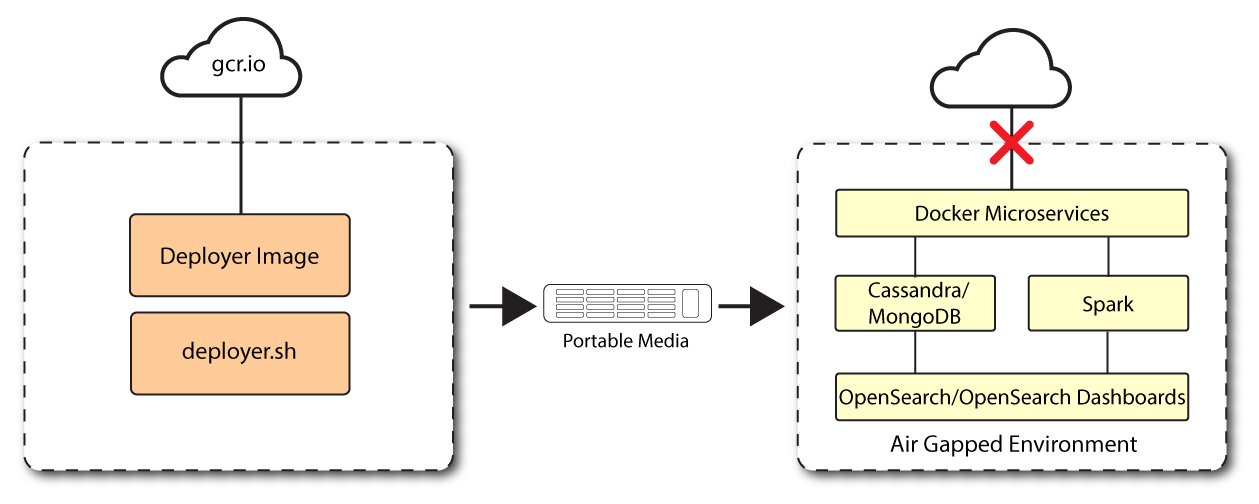Figure 1. A single-node air-gapped target deployment.
## Installation steps for an airgap deployment
The general procedure for an air-gap deployment is practically identical to that of a single node non-airgapped, except that you must prepare a tar file and copy the files to an air-gap machine.
* [Set up the nodes](#setup-nodes-singlenode-airgap)
* [Set up the third-party software dependencies](#setup-third-party-airgap)
* [Set up SSH on the deployer](#setup-ssh-deployer-airgap)
* [Prepare the tar file](#prepare-tar-airgap)
* [Install Ping Autonomous Identity](#install-autoid-singlenode-airgap)
## Set up the nodes
Set up each node as presented in [Install a single node deployment](chap-install-singlenode-target.html).
Make sure you have sufficient storage for your particular deployment. For more information on sizing considerations, refer to [Deployment Planning Guide](../deployment-planning/chap-topology-planning.html).
## Set up the third-party software dependencies
Download and unpack the third-party software dependencies in [Install third-party components](chap-install-singlenode-target.html#install-third-party).
## Set up SSH on the deployer
While SSH is not necessary to connect the deployer to the target node as the machines are isolated from one another. You still need SSH on the deployer so that it can communicate with itself.
1. On the deployer machine, run `ssh-keygen` to generate an RSA keypair, and then click Enter. You can use the default filename. Enter a password for protecting your private key.
```
ssh-keygen -t rsa -C "autoid"
```
The public and private rsa key pair is stored in `home-directory/.ssh/id_rsa` and `home-directory/.ssh/id_rsa.pub`.
2. Copy the SSH key to the `~/autoid-config` directory.
```
cp ~/.ssh/id_rsa ~/autoid-config
```
3. Change the privileges to the file.
```
chmod 400 ~/autoid-config/id_rsa
```
## Prepare the tar file
Run the following steps on an Internet-connected host machine:
1. On the deployer machine, change to the installation directory.
```
cd ~/autoid-config/
```
2. Sign on to the Ping Google Cloud Registry using the registry key. The registry key is only available to Ping Autonomous Identity customers. For specific instructions on obtaining the registry key, refer to [How To Configure Service Credentials (Push Auth, Docker) in Backstage](https://backstage.forgerock.com/knowledge/backstagehelp/article/a92326771).
```
docker login -u _json_key -p "$(cat autoid_registry_key.json)" https://gcr.io/forgerock-autoid
```
The following output is displayed:
```
Login Succeeded
```
3. Run the `create-template` command to generate the `deployer.sh` script wrapper. The command sets the configuration directory on the target node to `/config`. Note that the `--user` parameter eliminates the need to use `sudo` while editing the hosts file and other configuration files.
```
docker run --user=$(id -u) -v ~/autoid-config:/config -it gcr.io/forgerock-autoid/deployer-pro:2022.11.12 create-template
```
4. Open the `~/autoid-config/vars.yml` file, set the `offline_mode` property to `true`, and then save the file.
```
offline_mode: true
```
5. Download the Docker images. This step downloads software dependencies needed for the deployment and places them in the `autoid-packages` directory.
```
./deployer.sh download-images
```
6. Create a tar file containing all of the Ping Autonomous Identity binaries.
```
tar czf autoid-packages.tgz deployer.sh autoid-packages/*
```
7. Copy the `autoid-packages.tgz` , `deployer.sh` , and SSH key (`id_rsa` ) to a portable hard drive.
## Install on the air-gap target
Before you begin, make sure you have CentOS Stream 8 and Docker installed on your air-gapped target machine.
1. Create the `~/autoid-config` directory if you haven't already.
```
mkdir ~/autoid-config
```
2. Copy the `autoid-package.tgz` tar file from the portable storage device.
3. Unpack the tar file.
```
tar xf autoid-packages.tgz -C ~/autoid-config
```
4. On the air-gap host node, copy the SSH key to the `~/autoid-config` directory.
5. Change the privileges to the file.
```
chmod 400 ~/autoid-config/id_rsa
```
6. Change to the configuration directory.
```
cd ~/autoid-config
```
7. Import the deployer image.
```
./deployer.sh import-deployer
```
The following output is displayed:
```
…
db631c8b06ee: Loading layer [=============================================⇒] 2.56kB/2.56kB
2d62082e3327: Loading layer [=============================================⇒] 753.2kB/753.2kB
Loaded image: gcr.io/forgerock-autoid/deployer:2022.11.12
```
8. Create the configuration template using the `create-template` command. This command creates the configuration files: `ansible.cfg` , `vars.yml` , `vault.yml` and `hosts`.
```
./deployer.sh create-template
```
The following output is displayed:
```
Config template is copied to host machine directory mapped to /config
```
## Install Ping Autonomous Identity
Make sure you have the following prerequisites:
* IP address of machines running Opensearch, MongoDB, or Cassandra.
* The Ping Autonomous Identity user should have permission to write to `/opt/autoid` on all machines
* To download the deployment images for the install, you still need your registry key to log into the Ping Google Cloud Registry to download the artifacts.
* Make sure you have the proper Opensearch certificates with the exact names for both pem and JKS files copied to `~/autoid-config/certs/elastic`:
* esnode.pem
* esnode-key.pem
* root-ca.pem
* elastic-client-keystore.jks
* elastic-server-truststore.jks
* Make sure you have the proper MongoDB certificates with exact names for both pem and JKS files copied to `~/autoid-config/certs/mongo`:
* mongo-client-keystore.jks
* mongo-server-truststore.jks
* mongodb.pem
* rootCA.pem
* Make sure you have the proper Cassandra certificates with exact names for both pem and JKS files copied to \~/autoid-config/certs/cassandra:
* Zoran-cassandra-client-cer.pem
* Zoran-cassandra-client-keystore.jks
* Zoran-cassandra-server-cer.pem
* zoran-cassandra-server-keystore.jks
* Zoran-cassandra-client-key.pem
* Zoran-cassandra-client-truststore.jks
* Zoran-cassandra-server-key.pem
* Zoran-cassandra-server-truststore.jks
Install Ping Autonomous Identity:
1. Create a certificate directory for elastic.
```
mkdir -p autoid-config/certs/elastic
```
2. Copy the Opensearch certificates and JKS files to `autoid-config/certs/elastic`.
3. Create a certificate directory for MongoDB.
```
mkdir -p autoid-config/certs/mongo
```
4. Copy the MongoDB certificates and JKS files to `autoid-config/certs/mongo`.
5. Create a certificate directory for Cassandra.
```
mkdir -p autoid-config/certs/cassandra
```
6. Copy the Cassandra certificates and JKS files to `autoid-config/certs/cassandra`.
7. Update the `hosts` file with the IP addresses of the machines. The `hosts` file must include the IP addresses for Docker nodes, Spark main/livy, and the MongoDB master. While the deployer pro doesn't install or configure the MongoDB main server, the entry is required to run the MongoDB CLI to seed the Ping Autonomous Identity schema.
```
[docker-managers]
[docker-workers]
[docker:children]
docker-managers
docker-workers
[spark-master-livy]
[cassandra-seeds]
#For replica sets, add the IPs of all Cassandra nodes
[mongo_master]
# Add the MongoDB main node in the cluster deployment
# For example: 10.142.15.248 mongodb_master=True
[odfe-master-node]
# Add only the main node in the cluster deployment
```
8. Update the `vars.yml` file:
1. Set `offline_mode` to `true`.
2. Set `db_driver_type` to `mongo` or `cassandra`.
3. Set `elastic_host`, `elastic_port`, and `elastic_user` properties.
4. Set `kibana_host`.
5. Set the Apache livy install directory.
6. Ensure the `elastic_user`, `elastic_port`, and `mongo_part` are correctly configured.
7. Update the `vault.yml` passwords for elastic and mongo to refect your installation.
8. Set the `mongo_ldap` variable to `true` if you want Ping Autonomous Identity to authenticate with Mongo DB, configured as LDAP.
| | |
| - | --------------------------------------------------------------------------------------------------------------------------------------------------------------------------------------------------------------------- |
| | The `mongo_ldap` variable only appears in fresh installs of 2022.11.0 and its upgrades (2022.11.1+). If you upgraded from a 2021.8.7 deployment, the variable is not available in your upgraded 2022.11.x deployment. |
9. If you are using Cassandra, set the Cassandra-related parameters in the `vars.yml` file. Default values are:
```
cassandra:
enable_ssl: "true"
contact_points: 10.142.15.248 # comma separated values in case of replication set
port: 9042
username: zoran_dba
cassandra_keystore_password: "Acc#1234"
cassandra_truststore_password: "Acc#1234"
ssl_client_key_file: "zoran-cassandra-client-key.pem"
ssl_client_cert_file: "zoran-cassandra-client-cer.pem"
ssl_ca_file: "zoran-cassandra-server-cer.pem"
server_truststore_jks: "zoran-cassandra-server-truststore.jks"
client_truststore_jks: "zoran-cassandra-client-truststore.jks"
client_keystore_jks: "zoran-cassandra-client-keystore.jks"
```
9. Install Apache Livy.
* The official release of Apache Livy doesn't support Apache Spark 3.3.1 or 3.3.2. Ping Identity has re-compiled and packaged Apache Livy to work with Apache Spark 3.3.1 hadoop 3 and Apache Spark 3.3.2 hadoop 3. Use the zip file located at `autoid-config/apache-livy/apache-livy-0.8.0-incubating-SNAPSHOT-bin.zip` to install Apache Livy on the Spark-Livy machine.
* For Livy configuration, refer to .
10. On the Spark-Livy machine, run the following commands to install the python package dependencies:
1. Change to the `/opt/autoid` directory:
```
cd /opt/autoid
```
2. Create a `requirements.txt` file with the following content:
```
six==1.11
certifi==2019.11.28
python-dateutil==2.8.1
jsonschema==3.2.0
cassandra-driver
numpy==1.22.0
pyarrow==6.0.1
wrapt==1.11.0
PyYAML==6.0
requests==2.31.0
urllib3==1.26.18
pymongo
pandas==1.3.5
tabulate
openpyxl
wheel
cython
```
3. Install the requirements file:
```
pip3 install -r requirements.txt
```
11. Make sure that the `/opt/autoid` directory exists and that it is both readable and writable.
12. Run the deployer script:
```
./deployer.sh run
```
13. On the Spark-Livy machine, run the following commands to install the Python egg file:
1. Install the egg file:
```
cd /opt/autoid/eggs
pip3.10 install autoid_analytics-2021.3-py3-none-any.whl
```
2. Source the `.bashrc` file:
```
source ~/.bashrc
```
3. Restart Spark and Livy.
```
./spark/sbin/stop-all.sh
./livy/bin/livy-server stop
./spark/sbin/start-all.sh
./livy/bin/livy-server start
```
## Resolve Hostname
After installing Ping Autonomous Identity, set up the hostname resolution for your deployment.
Resolve the hostname:
1. Configure your DNS servers to access Ping Autonomous Identity dashboard on the target node. The following domain names must resolve to the IP address of the target node: `-ui.`.
2. If DNS cannot resolve target node hostname, edit it locally on the machine that you want to access Ping Autonomous Identity using a browser. Open a text editor and add an entry in the `/etc/hosts` (Linux/Unix) file or `C:\Windows\System32\drivers\etc\hosts` (Windows) for the self-service and UI services for each managed target node.
```
-ui.
```
For example:
```
34.70.190.144 autoid-ui.forgerock.com
```
3. If you set up a custom domain name and target environment, add the entries in `/etc/hosts`. For example:
```
34.70.190.144 myid-ui.abc.com
```
For more information on customizing your domain name, refer to [Customize Domains](../admin-guide/chap-customize-domain.html).
## Access the Dashboard
Access the Ping Autonomous Identity console UI:
1. Open a browser. If you set up your own url, use it for your login.
```
https://autoid-ui.forgerock.com/
```
2. Log in as a test user.
```
test user: bob.rodgers@forgerock.com
password:
```
## Check Apache Cassandra
Check Cassandra:
1. Make sure Cassandra is running in cluster mode. For example
```
/opt/autoid/apache-cassandra-3.11.2/bin/nodetool status
```
## Check MongoDB
Check MongoDB:
1. Make sure MongoDB is running. For example:
```
mongo --tls \
--host \
--tlsCAFile /opt/autoid/mongo/certs/rootCA.pem \
--tlsAllowInvalidCertificates \
--tlsCertificateKeyFile /opt/autoid/mongo/certs/mongodb.pem
```
## Check Apache Spark
Check Spark:
1. SSH to the target node and open Spark dashboard using the bundled text-mode web browser
```
elinks http://localhost:8080
```
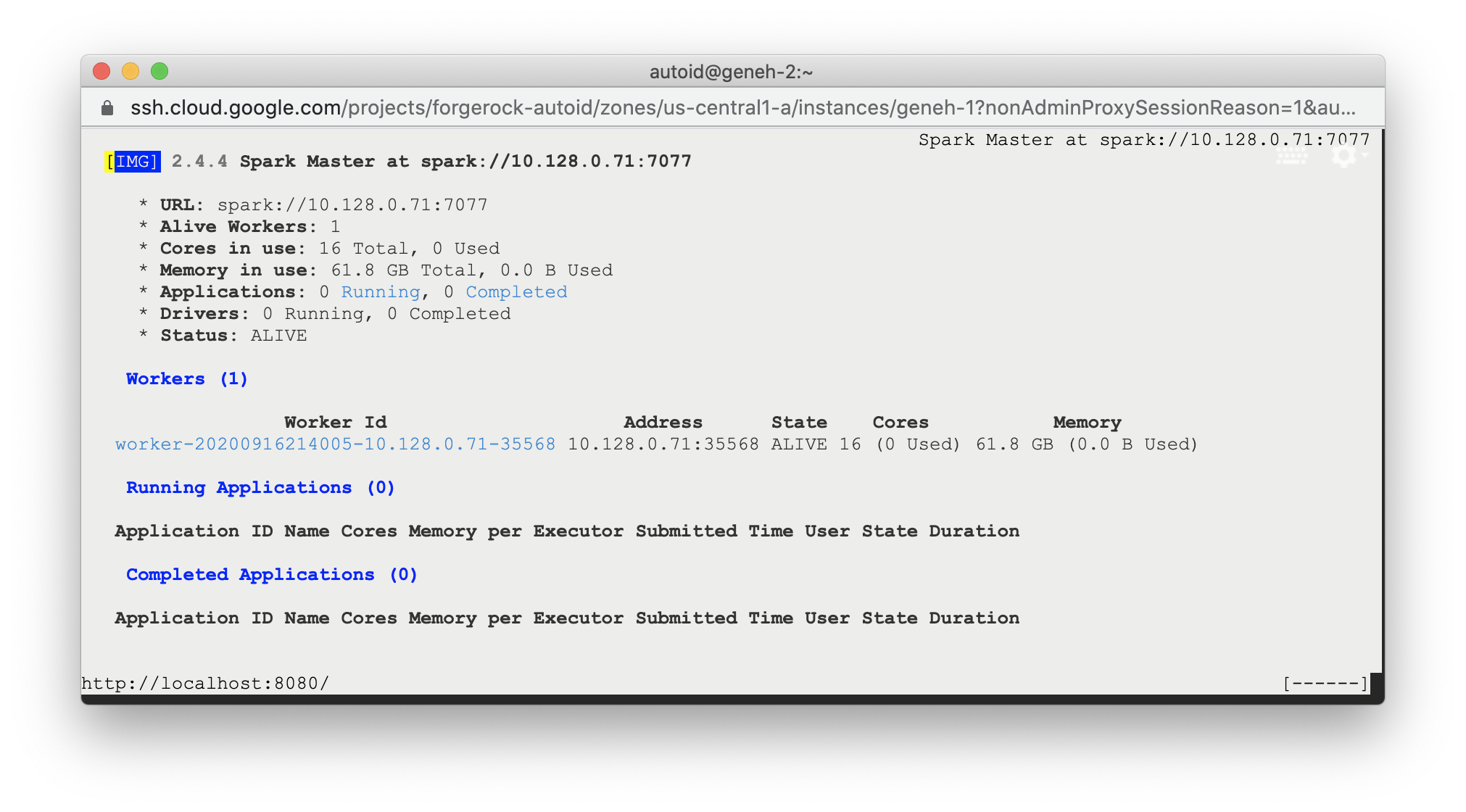
Spark Master status should display as ALIVE and worker(s) with State ALIVE.
> **Collapse: Click to display an example of the Spark dashboard**
>
> 
## Start the Analytics
If the previous installation steps all succeeded, you must now prepare your data's entity definitions, data sources, and attribute mappings prior to running your analytics jobs. These step are required and are critical for a successful analytics process.
For more information, refer to [Set Entity Definitions](../admin-guide/set-entity-definitions.html).