---
title: Deploy and test the Fedlet on the SP
description: This page covers the two options for deploying the Fedlet.
component: pingam
version: 8.1
page_id: pingam:am-saml2:fedlet-deploy-test
canonical_url: https://docs.pingidentity.com/pingam/8.1/am-saml2/fedlet-deploy-test.html
keywords: ["SAML 2.0", "Single Sign-on (SSO)", "Federation", "Fedlet", "Java"]
page_aliases: ["saml2-guide:fedlet-deploy-test.adoc"]
section_ids:
install-fedlet-as-demo: Install and configure the Fedlet as a demo application
unconfigured-fedlet-embedding: Embed the Java Fedlet in a web application
testing-fedlet-sso-slo: Test Fedlet single sign-on and single logout
---
# Deploy and test the Fedlet on the SP
This page covers the two options for deploying the Fedlet.
## Install and configure the Fedlet as a demo application
To deploy the Fedlet on the SP, you require the following:
* The configuration files, as created in [Create and configure the Fedlet](create-configure-fedlet.html).
* The Fedlet `.war` file, provided in the `Fedlet-8.1.0.zip`, within the AM distribution file; `AM-8.1.0.zip`.
1. Create a `fedlet` directory, in the home directory of the user that runs the AM web container:
```bash
$ cd $HOME
$ mkdir fedlet
```
2. Copy the fedlet configuration files to the `$HOME/fedlet` directory.
The result may resemble the following:
```bash
$ cd /Users/tomcat-user/fedlet
$ ls -A1
FederationConfig.properties
fedlet.cot
idp-extended.xml
idp.xml
sp-extended.xml
sp.xml
```
3. Deploy the Fedlet `.war` file into your web container:
```bash
$ cp fedlet.war /path/to/tomcat/webapps
```
Upon completion, you can proceed to [Test Fedlet single sign-on and single logout](#testing-fedlet-sso-slo).
## Embed the Java Fedlet in a web application
The Fedlet `.war` file, `fedlet.war`, serves as an example and to provide the code needed to embed the Fedlet in your web application.
The basic steps for using the Fedlet in your application are as follows:
1. Unpack the Fedlet `.zip` file to a working directory, remove any files you do not want to keep, such as `index.jsp` or `fedletEncode.jsp`, and merge the Fedlet files with those of your web application.
2. To integrate single sign-on into your application, modify the functionality in the `fedletSampleApp.jsp` page or add it to your application's logic.
If you add it to your application's logic, then you must also edit your application's deployment descriptor file, `web.xml`, to set the assertion consumer URI, which by default is `/fedletapplication` in the basic SP XML for the Fedlet. Add `servlet` and `servlet-mapping` elements as shown in the following example.
```xml
yourapplication
/your-application.jsp
yourapplication
/fedletapplication
```
3. Build a `.war` file from your web application with embedded Fedlet files.
This is the version of the application to deploy. When you deploy your `.war` file, also provide the Fedlet configuration files. For information on where to put the configuration files and how to deploy the `.war` file with embedded Fedlet, see [Install and configure the Fedlet as a demo application](#install-fedlet-as-demo).
## Test Fedlet single sign-on and single logout
To test single sign-on and single logout from the Fedlet, go to the Fedlet URL. For example, `https://sp.example.com:8443/fedlet`.
Try one or more examples from the Fedlet home page:
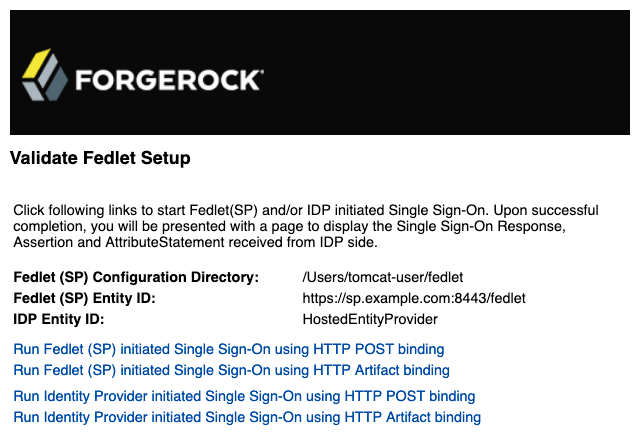
You can log in to the IdP with a test user.