---
title: Managing environments
description: All environments managed within PingCentral, as well as connected PingFederate and PingAccess environments, display on the Environments page, where you can view and update information about each environment and delete them from PingCentral when they are no longer needed.
component: pingcentral
version: 1.11
page_id: pingcentral:pingcentral_for_iam_administrators:pingcentral_mng_environments
canonical_url: https://docs.pingidentity.com/pingcentral/2.2/pingcentral_for_iam_administrators/pingcentral_mng_environments.html
llms_txt: https://docs.pingidentity.com/pingcentral/llms.txt
docs_for_agents: https://developer.pingidentity.com/build-with-ai/docs-for-agents.md
revdate: August 3, 2023
superseded_by: https://docs.pingidentity.com/pingcentral/2.2/pingcentral_for_iam_administrators/pingcentral_mng_environments.html
section_ids:
adding-environments: Adding environments
steps: Steps
result: Result:
result-2: Result:
updating-environments: Updating environments
steps-2: Steps
deleting-environments: Deleting environments
steps-3: Steps
result-3: Result:
result-4: Result:
configuring-pingfederate-as-a-pingaccess-token-provider: Configuring PingFederate as a PingAccess token provider
about-this-task: About this task
steps-4: Steps
adding-trusted-ca-certificates-to-pingcentral: Adding trusted CA certificates to PingCentral
steps-5: Steps
result-5: Result:
result-6: Result:
---
# Managing environments
All environments managed within PingCentral, as well as connected PingFederate and PingAccess environments, display on the **Environments** page, where you can view and update information about each environment and delete them from PingCentral when they are no longer needed.
Items worth mentioning:
* If you add PingAccess environments to PingCentral, ensure that PingFederate is configured as the PingAccess token provider. See [Configuring PingFederate as a PingAccess token provider](pingcentral_configuring_pf_token_provider.html) for details.
* If your application owners promote SAML applications to PingFederate or PingAccess environments, ensure that the appropriate trusted certificate authority (CA) certificates are available in PingCentral. See [Adding trusted CA certificates to PingCentral](pingcentral_add_trusted_certs.html) for details.
| | |
| - | ----------------------------------------------------------------------------------------------------------------------------------------------------------------------------------------------------------------------------------------------------------------------- |
| | Starting with PingCentral 1.8, trusted CA certificates are stored in the PingCentral database instead of an external trust store. Certificates that exist in this trust store in previous versions are imported to the PingCentral database during the upgrade process. |
- Adding environments
- Updating environments
- Deleting environments
## Adding environments
Use the wizard to add PingFederate and PingAccess environments to PingCentral.
### Steps
1. On the **Environments** page, click **Add Environment**.
2. On the **Connect to Instances** page, connect to a PingFederate environment:
1. Complete the **PingFederate Admin**, **PingFederate Admin Username**, and **PingFederate Admin Password** fields with your authentication information.
If this is the first time you have set up this environment, and you set it up correctly, you won't see a **Skip Verification** option. However, if the initial validation fails, this option shows. If selected, it allows you to skip the validation process.
1. Click **Next**.
2. On the **Name Environment** page, complete the **Name**, **Short Code**, and **Description** fields.
3. **Optional:** : To prevent non-administrators from promoting applications to the environment, select the **Protect** check box.
4. Click **Save and Continue**.
5. **Optional:** To add an identity provider certificate, select the appropriate certificate in the **Signing Certificate** list or to upload your own certificate, click **Choose** and enter the certificate password in the appropriate field. Click **Save and Close**.
#### Result:
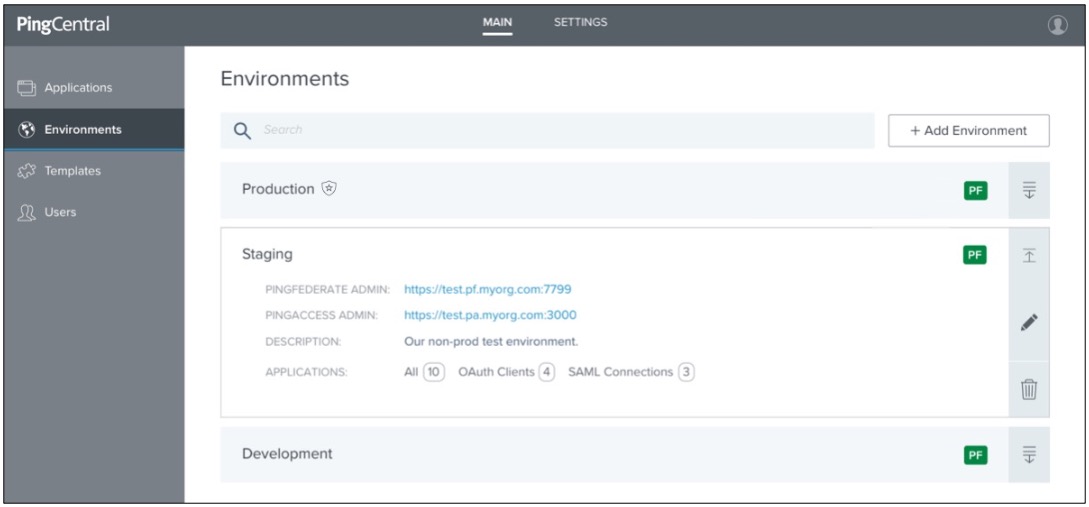
The environment is displayed on the **Environments** page. If you chose to protect the environment, a shield icon displays next to its name. A **PF** icon also displays. The color of this icon represents the status of the environment. A green **PF** icon indicates that the environment is verified while a red **PF** icon indicates that the environment isn't verified.
6. Click the expandable icon associated with the environment to view environment details.Environment details include:
* A link to PingFederate.
* A description of the environment.
* The total number of applications hosted on this environment and a breakdown of OAuth/OIDC clients and SAML service provider (SP) connections. Click these links to access filtered lists of these applications on the **Applications** page.
3. To add a PingAccess environment instance to PingCentral, access the **Connect to Instances** page by either clicking on **Add Environment** or by clicking the **Pencil** icon for an existing PingAccess application.
1. Complete the **PingAccess Admin**, **PingAccess Admin Username**, and **PingAccess Admin Password** fields with your authentication information.
If this is the first time you have set up this PingAccess environment, and you set it up correctly, you won't see a **Skip Verification** option. However, if the initial validation fails, this option displays. If selected, it allows you to skip the validation process.
2. Click **Next**.
3. On the **Name Environment** page, complete the **Name**, **Short Code**, and **Description** fields.
4. **Optional:** To prevent non-administrators from promoting applications to the environment, select the **Protect** check box.
5. Click **Save and Continue**.
#### Result:
The environment is displayed on the **Environments** page. If you chose to protect the environment, a shield icon displays next to its name. A **PA** icon also displays. The color of this icon represents the status of the environment. A green **PA** icon indicates that the environment is verified while a red **PA** icon indicates that the environment isn't verified.
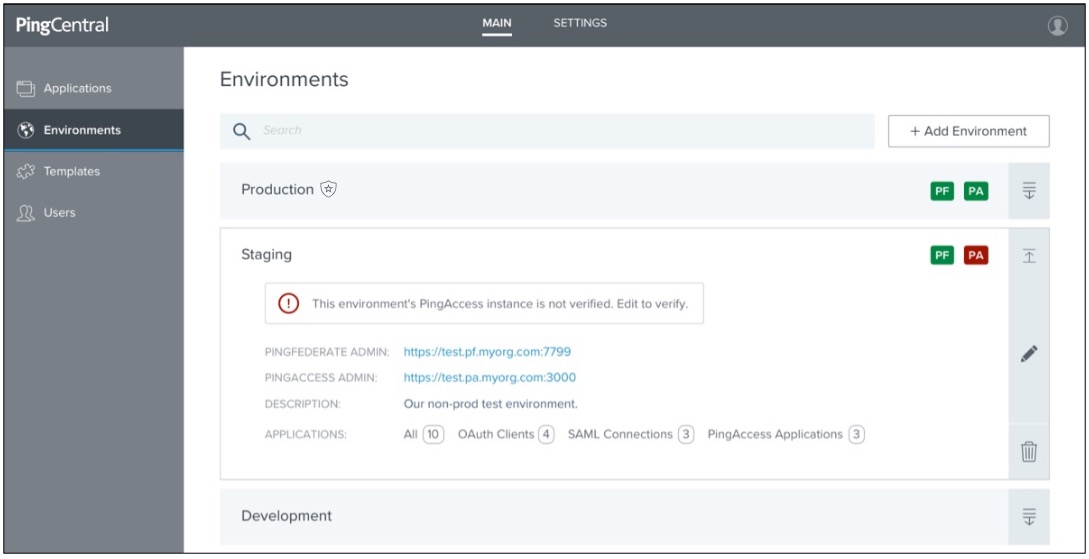
6. Click the expandable icon associated with the environment to view environment details.
Environment details include:
* A link to PingFederate.
* A link to PingAccess.
* A description of the environment.
* The total number of applications hosted on this environment and a breakdown of OAuth/OIDC clients, SAML SP connections, and PingAccess applications. Click these links to access filtered lists of these applications on the **Applications** page.
| | |
| - | -------------------------------------------------------------------------------------------------------------- |
| | If an environment is unavailable, applications in that environment don't display on the **Applications** page. |
If the environment is not verified, you receive an error message.
7. Ensure that PingFederate is configured as a token provider for PingAccess.
For more information, see [Configuring PingFederate as a PingAccess token provider](pingcentral_configuring_pf_token_provider.html).
## Updating environments
Update PingFederate and PingAccess environment information at any time.
### Steps
1. To edit environment information, click the expandable icon associated with it, and then click the **Pencil** icon. All of the editable information displays on one page.
| Option | Description |
| ----------------------------------------------- | ---------------------------------------------------------------------------------------------------------------------------------------------------------------------------------------------------------------------------------------------------------------------------------------------------------------------------------------------------------------- |
| To update the name and description: | To update the name and description, change the information in the **Name**, **Short Code**, and **Description** fields. |
| To update the assertion encryption certificate: | To update the assertion encryption certificate, click **Choose** to upload a new certificate and enter the certificate password in the appropriate field. |
| To update connection information: | To update the connection information for either a PingFederate or PingAccess environment, change the information in the **Username** and **Password** fields.+
If a PingAccess environment is added to PingCentral and removed through the edit page, the connection information is saved and restored if the PingAccess environment is selected again. |
| To add or remove protection status: | To add or remove the protected status of an environment, which prevents non-administrators from promoting applications to the environment, select or clear the **Only Administrators Can Promote Applications** check box. |
| To update the signing certificate: | To update the signing certificate used to promote SAML applications, select the appropriate certificate in the **Signing Certificate** list or upload your own. |
| To update the SP certificate: | To update the SP certificate, click **Choose** to upload a new certificate and enter the certificate password in the appropriate field. |
| To update the assertion encryption certificate: | To update the assertion encryption certificate, click **Choose** to upload a new certificate and enter the certificate password in the appropriate field. |
2. Click **Save**.
## Deleting environments
Delete environments from PingCentral when they are no longer needed.
### Steps
1. Click the expandable icon associated with the environment to view environment details.
2. To delete the environment from PingCentral, click its associated **Delete** icon.
#### Result:
A message displays asking you if you want to delete the environment.
3. Click **Delete**.
#### Result:
A message displays saying that the environment was deleted.
| | |
| - | ---------------------------------------------------------------------------------------------------------------------------------------------- |
| | When an environment is deleted, applications that were promoted to that environment retain the promotion details from the deleted environment. |
## Configuring PingFederate as a PingAccess token provider
To add PingAccess environments to PingCentral, PingFederate must be configured as the token provider. If you have PingFederate and PingAccess environments established, this configuration is likely in place.
### About this task
To configure PingFederate as the token provider for PingAccess, the Issuer URL in PingAccess must either match the Base URL in PingFederate, or one of the virtual hosts defined in PingFederate.
### Steps
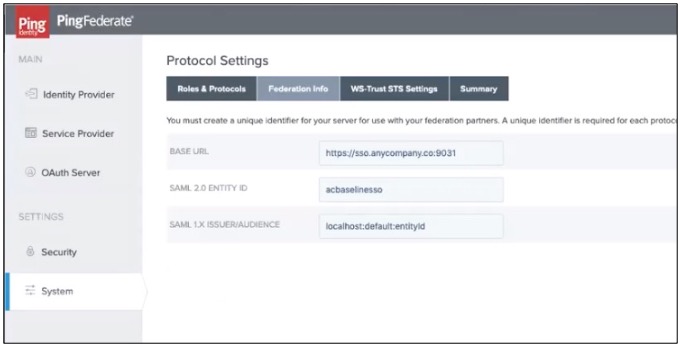
1. To configure PingFederate as a PingAccess token provider, ensure the PingAccess **Issuer URL** and the PingFederate **Base URL** match.
If a virtual host is defined in PingFederate, continue to step 3.
2. To locate this information:
* In PingFederate, to locate the **Base URL** field, go to **System → Protocol Settings → Federation Info**, as shown in the following example.
* In PingAccess, to locate the **Issuer URL**field, go to **System → Token Provider**.
| | |
| - | ---------------------------------------------------------------------------------------------------- |
| | In some versions of PingAccess, the Issuer URL might exist as separate **Host** and **Port** fields. |
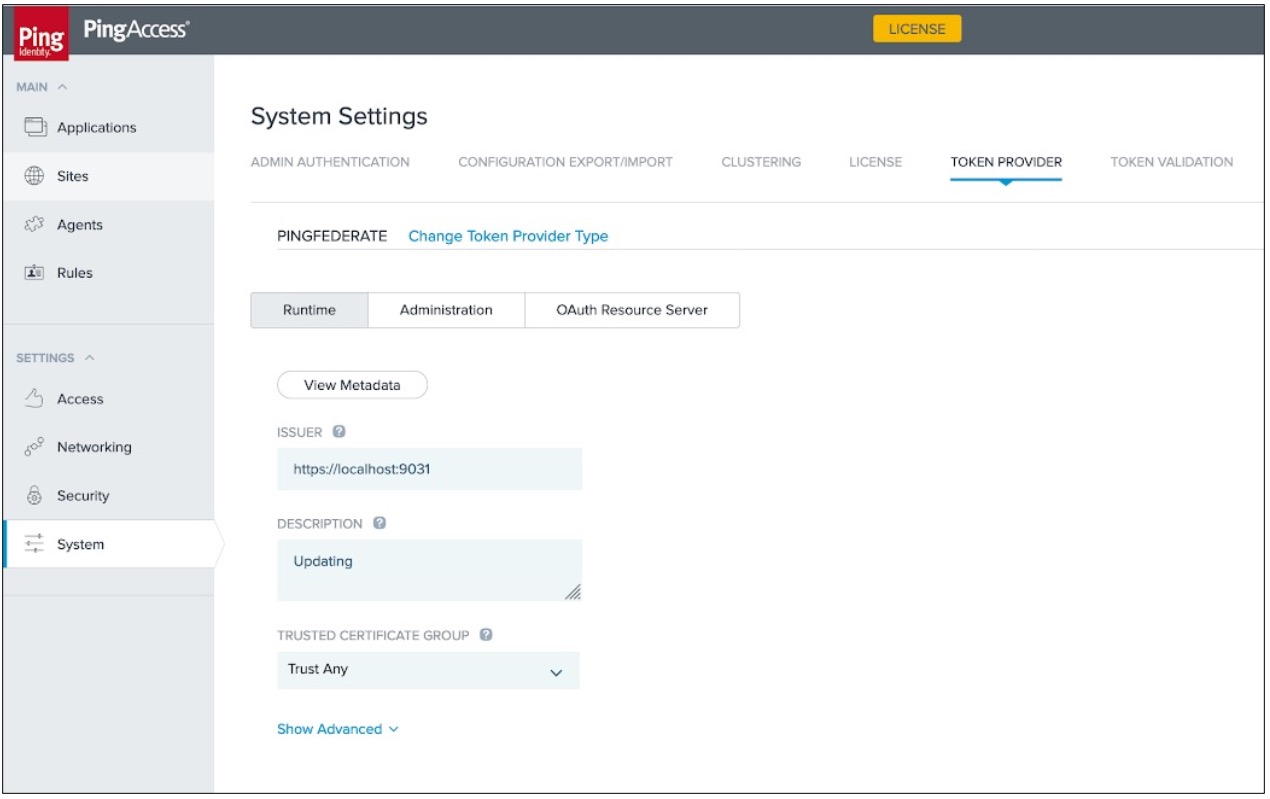
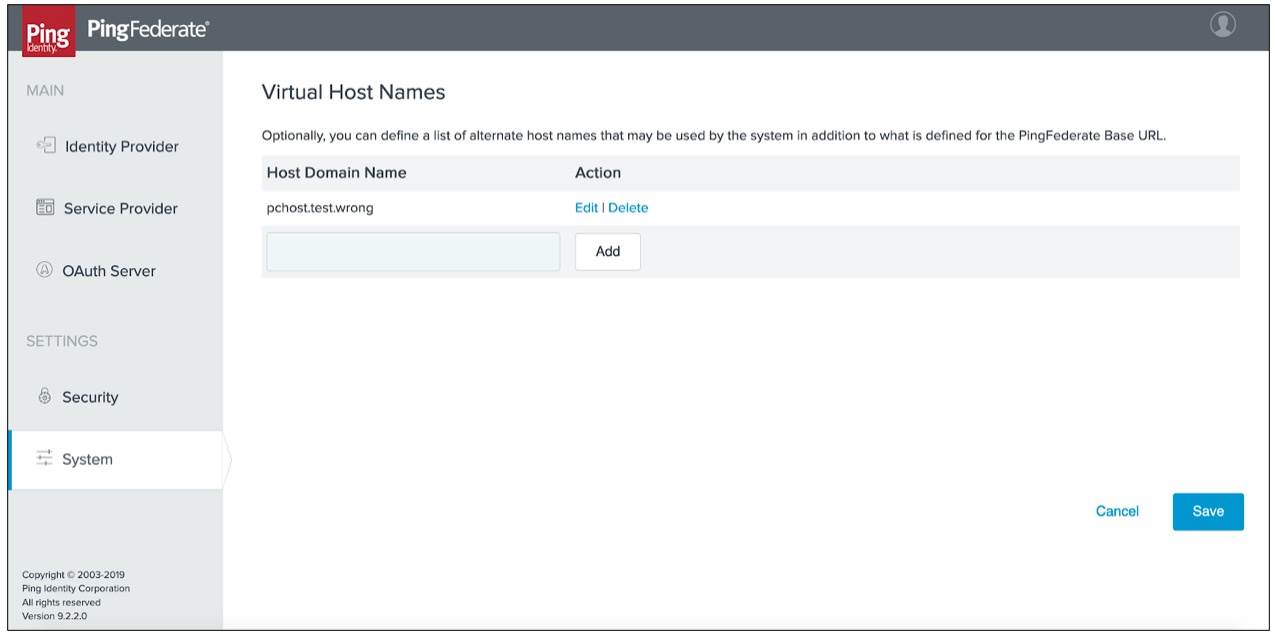
1. If a virtual host is defined in PingFederate, the PingAccess Issuer URL can reference that instead of Base URL. In PingFederate, to locate the virtual host, go the **System → Virtual Host Names** page and review the information in the **Host Domain Name** field.
## Adding trusted CA certificates to PingCentral
For application owners to securely promote Security Assertion Markup Language (SAML) *(tooltip: \
\
A standard, XML-based, message-exchange framework enabling the secure transmittal of authentication tokens and other user attributes across domains.\
\
)* applications to PingFederate and PingAccess environments, trusted certificate authority (CA) *(tooltip: \
\
An entity that issues digital certificates.\
\
)* certificates must be available in PingCentral.
### Steps
1. To add a trusted certificate to PingCentral, select the **Settings** tab.
2. Expand the **Security** menu and select **Trusted CA Certificates**.
#### Result:
The **Trusted CA Certificates** page displays a list of the certificates currently available in PingCentral.
3. Click **Add Certificate**.
4. In the **Add Certificate** window, in the **Alias** field, enter a unique name for the certificate.
5. Click **Choose File**, select the certificate, and click **Add** to upload it.
#### Result:
The certificate displays in the list of trusted CA certificates.
6. Click the **Expand** icon for the certificate to view details.
\+ image::dwn1624648315152.png\[alt="An screen capture of the Trusted CA Certificate page containing several certificates. The Test signing cert certificate is expanded.",role="border-no-padding"]