---
title: Configuring PingFederate as a PingAccess token provider
description: To add PingAccess environments to PingCentral, PingFederate must be configured as the token provider. If you have PingFederate and PingAccess environments established, this configuration is likely in place.
component: pingcentral
version: 2.2
page_id: pingcentral:pingcentral_for_iam_administrators:pingcentral_configuring_pf_token_provider
canonical_url: https://docs.pingidentity.com/pingcentral/2.2/pingcentral_for_iam_administrators/pingcentral_configuring_pf_token_provider.html
revdate: August 3, 2023
section_ids:
about-this-task: About this task
steps: Steps
adding-trusted-ca-certificates-to-pingcentral: Adding trusted CA certificates to PingCentral
steps-2: Steps
result: Result:
result-2: Result:
---
# Configuring PingFederate as a PingAccess token provider
To add PingAccess environments to PingCentral, PingFederate must be configured as the token provider. If you have PingFederate and PingAccess environments established, this configuration is likely in place.
## About this task
To configure PingFederate as the token provider for PingAccess, the Issuer URL in PingAccess must either match the Base URL in PingFederate, or one of the virtual hosts defined in PingFederate.
## Steps
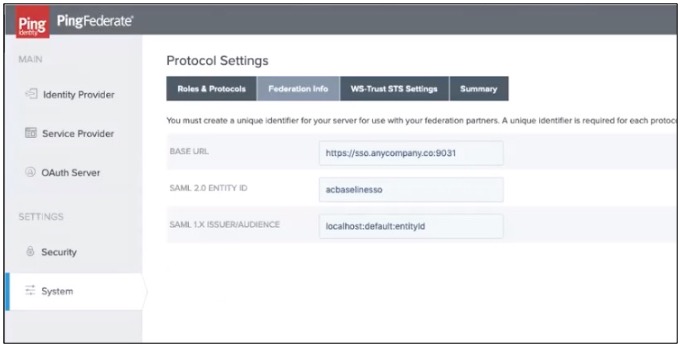
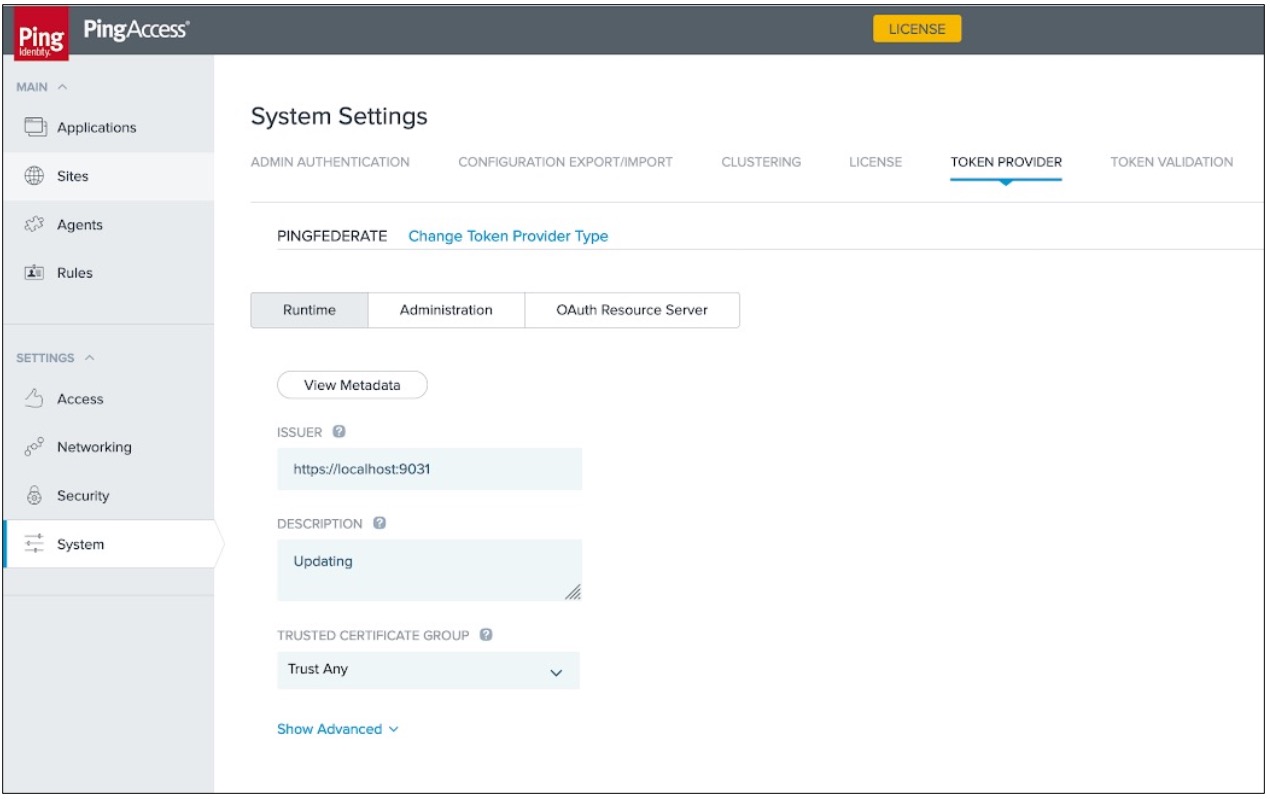
1. To configure PingFederate as a PingAccess token provider, ensure the PingAccess **Issuer URL** and the PingFederate **Base URL** match.
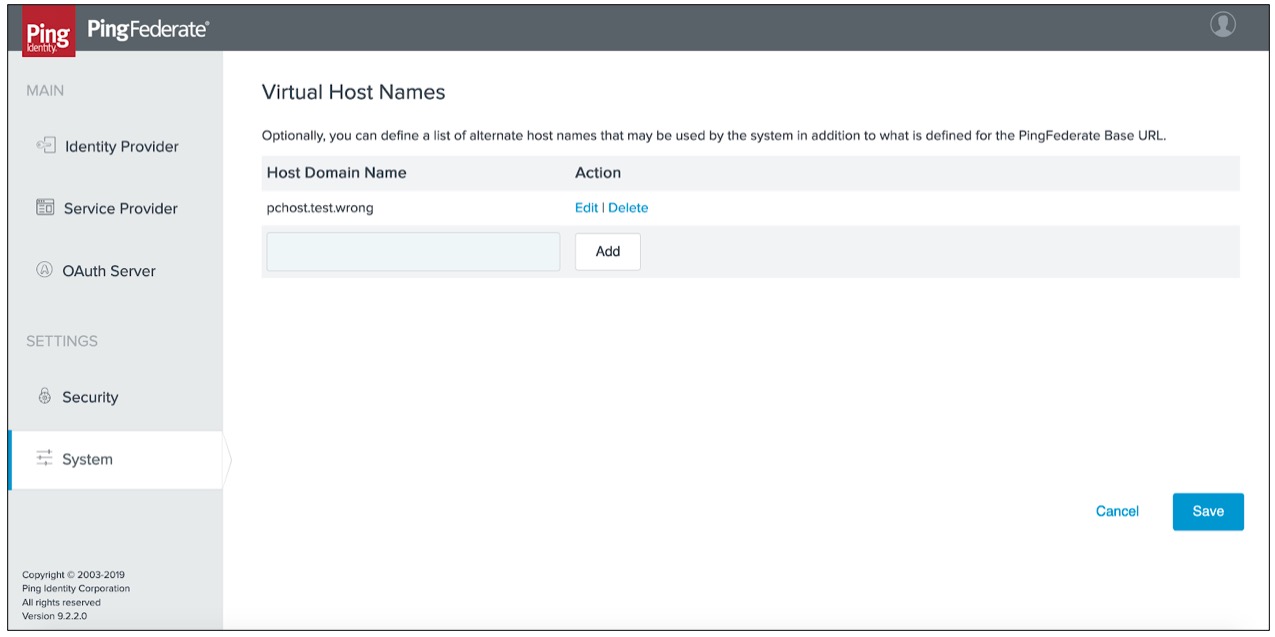
If a virtual host is defined in PingFederate, continue to step 3.
2. To locate this information:
* In PingFederate, to locate the **Base URL** field, go to **System → Protocol Settings → Federation Info**, as shown in the following example.
* In PingAccess, to locate the **Issuer URL**field, go to **System → Token Provider**.
| | |
| - | ---------------------------------------------------------------------------------------------------- |
| | In some versions of PingAccess, the Issuer URL might exist as separate **Host** and **Port** fields. |
3. If a virtual host is defined in PingFederate, the PingAccess Issuer URL can reference that instead of Base URL. In PingFederate, to locate the virtual host, go the **System → Virtual Host Names** page and review the information in the **Host Domain Name** field.
## Adding trusted CA certificates to PingCentral
For application owners to securely promote Security Assertion Markup Language (SAML) *(tooltip: \
\
A standard, XML-based, message-exchange framework enabling the secure transmittal of authentication tokens and other user attributes across domains.\
\
)* applications to PingFederate and PingAccess environments, trusted certificate authority (CA) *(tooltip: \
\
An entity that issues digital certificates.\
\
)* certificates must be available in PingCentral.
### Steps
1. To add a trusted certificate to PingCentral, select the **Settings** tab.
2. Expand the **Security** menu and select **Trusted CA Certificates**.
#### Result:
The **Trusted CA Certificates** page displays a list of the certificates currently available in PingCentral.
3. Click **Add Certificate**.
4. In the **Add Certificate** window, in the **Alias** field, enter a unique name for the certificate.
5. Click **Choose File**, select the certificate, and click **Add** to upload it.
#### Result:
The certificate displays in the list of trusted CA certificates.
6. Click the **Expand** icon for the certificate to view details.
\+ image::dwn1624648315152.png\[alt="An screen capture of the Trusted CA Certificate page containing several certificates. The Test signing cert certificate is expanded.",role="border-no-padding"]