---
title: Act as an OAuth 2.0 resource server
description: The following sections describe how IG acts as an OAuth 2.0 Resource Server, to resolve and validate access tokens, and inject them into the context.
component: pinggateway
version: 7.2
page_id: pinggateway:gateway-guide:oauth2-rs
canonical_url: https://docs.pingidentity.com/pinggateway/7.2/gateway-guide/oauth2-rs.html
revdate: 2022-04-25T11:07:10Z
section_ids:
about-oauth2-rs: About IG as an OAuth 2.0 resource server
oauth2-rs-introspect: Validate access tokens through the introspection endpoint
oauth2-rs-stateless: Validate stateless access tokens with the StatelessAccessTokenResolver
oauth2-rs-stateless-signed-sat: Validate signed access tokens with the StatelessAccessTokenResolver and JwkSetSecretStore
oauth2-rs-stateless-signed-ksss: Validate signed access tokens with the StatelessAccessTokenResolver and KeyStoreSecretStore
oauth2-rs-stateless-encrypted: Validating encrypted access tokens with the StatelessAccessTokenResolver and KeyStoreSecretStore
oauth2-rs-introspect-mtls: Validate certificate-bound access tokens
oauth2-rs-introspect-mtls-certificate: mTLS using standard TLS client certificate authentication
oauth2-rs-introspect-mtls-header: mTLS using trusted headers
oauth2-rs-pwreplay: Use the OAuth 2.0 context to log in to the sample application
oauth2-rs-cacheatr: Cache access tokens
---
# Act as an OAuth 2.0 resource server
The following sections describe how IG acts as an OAuth 2.0 Resource Server, to resolve and validate access tokens, and inject them into the context.
For information about allowing third-party applications to access users' resources without having users' credentials, see [The OAuth 2.0 authorization framework](http://www.rfc-editor.org/rfc/rfc6749).
For information about the context, see [OAuth2Context](../reference/RequestsResponsesContexts.html#OAuth2Context). For examples that use fields in OAuth2Context to throttle access to the sample application, see [Configure mapped throttling](throttling.html#throttling-mapped) and [Configure scriptable throttling](throttling.html#throttling-scriptable).
When auditing is enabled, OAuth 2.0 token tracking IDs can be logged in access audit events for routes that contain an OAuth2ResourceServerFilter. For information, see [Auditing your deployment](../maintenance-guide/auditing.html) and [Audit framework](../reference/AuditFramework.html).
## About IG as an OAuth 2.0 resource server
OAuth 2.0 includes the following entities:
* *Resource owner* : A user who owns protected resources on a resource server. For example, a resource owner can store photos in a web service.
* *Resource server* : A service that gives authorized client applications access to the resource owner's protected resources. In OAuth 2.0, an authorization server grants authorization to a client application, based on the resource owner's consent. For example, a resource server can be a web service that holds a user's photos.
* *Client* : An application that requests access to the resource owner's protected resources, on behalf of the resource owner. For example, a client can be a photo printing service requesting access to a resource owner's photos stored on a web service, after the resource owner gives the client consent to download the photos.
* *Authorization server* : A service responsible for authenticating resource owners, and obtaining their consent to allow client applications to access their resources. For example, AM can act as the OAuth 2.0 authorization server to authenticate resource owners and obtain their consent. Other services, such as Google and Facebook can provide OAuth 2.0 authorization services.
The following image illustrates the steps for a client application to access a user's protected resources, with AM as the authorization server and IG as the resource server:
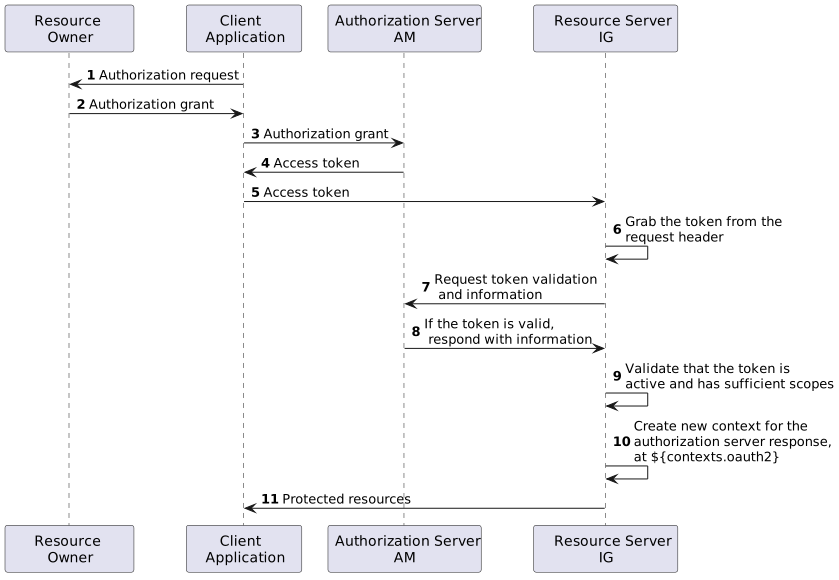Figure 1. Handling OAuth 2.0 Requests as an OAuth 2.0 Resource Server
* The application obtains an *authorization grant*, representing the resource owner's consent. For information about the different OAuth 2.0 grant mechanisms supported by AM, see [OAuth 2.0 grant flows](https://docs.pingidentity.com/pingam/7.2/oauth2-guide/oauth2-implementing-flows.html) in AM's *OAuth 2.0 guide*.
* The application authenticates to the authorization server and requests an *access token*. The authorization server returns an access token to the application.
An OAuth 2.0 access token is an opaque string issued by the authorization server. When the client interacts with the resource server, the client presents the access token in the `Authorization` header. For example:
```http
Authorization: Bearer 7af...da9
```
Access tokens are the credentials to access protected resources. The advantage of access tokens over passwords or other credentials is that access tokens can be granted and revoked without exposing the user's credentials.
The access token represents the authorization to access protected resources. Because an access token is a bearer token, anyone who has the access token can use it to get the resources. Access tokens must therefore be protected, so that requests involving them go over HTTPS.
In OAuth 2.0, the token scopes are strings that identify the scope of access authorized to the client, but can also be used for other purposes.
* The application supplies the access token to the resource server, which then resolves and validates the access token by using an access token resolver, as described in [Access token resolvers](../reference/AccessTokenResolvers.html).
If the access token is valid, the resource server permits the client access to the requested resource.
## Validate access tokens through the introspection endpoint
This section sets up IG as an OAuth 2.0 resource server, using the introspection endpoint.
For more information about configuring AM as an OAuth 2.0 authorization service, see AM's [OAuth 2.0 guide](https://docs.pingidentity.com/pingam/7.2/oauth2-guide/index.html).
| | |
| - | ----------------------------------------------------------------------------------------------------------------------------------------------------------------------------------------------------------------------------------------------------------------------------------------------- |
| | This procedure uses the *Resource Owner Password Credentials* grant type. According to information in the [The OAuth 2.0 Authorization Framework](https://datatracker.ietf.org/doc/html/rfc6749#section-10.7), minimize use of this grant type and utilize other grant types whenever possible. |
Before you start, prepare AM, IG, and the sample application as described in [Example installation for this guide](preface.html#preface-examples).
1. Set up AM:
1. Select Applications > Agents > Identity Gateway, add an agent with the following values:
* Agent ID: `ig_agent`
* Password: `password`
* Token Introspection: `Realm Only`
2. Create an OAuth 2.0 Authorization Server:
1. Select Services > Add a Service > OAuth2 Provider.
2. Add a service with the default values.
3. Create an OAuth 2.0 Client to request OAuth 2.0 access tokens:
1. Select Applications > OAuth 2.0 > Clients, and add a client with the following values:
* Client ID: `client-application`
* Client secret: `password`
* Scope(s): `mail`, `employeenumber`
2. (From AM 6.5) On the Advanced tab, select the following value:
* Grant Types: `Resource Owner Password Credentials`
2. Set up IG
1. Set an environment variable for the IG agent password, and then restart IG:
```bash
$ export AGENT_SECRET_ID='cGFzc3dvcmQ='
```
The password is retrieved by a SystemAndEnvSecretStore, and must be base64-encoded.
2. Add the following route to IG:
* Linux
* Windows
```
$HOME/.openig/config/routes/rs-introspect.json
```
```
%appdata%\OpenIG\config\routes\rs-introspect.json
```
```json
{
"name": "rs-introspect",
"baseURI": "http://app.example.com:8081",
"condition": "${find(request.uri.path, '^/rs-introspect$')}",
"heap": [
{
"name": "SystemAndEnvSecretStore-1",
"type": "SystemAndEnvSecretStore"
},
{
"name": "AmService-1",
"type": "AmService",
"config": {
"agent": {
"username": "ig_agent",
"passwordSecretId": "agent.secret.id"
},
"secretsProvider": "SystemAndEnvSecretStore-1",
"url": "http://am.example.com:8088/openam/",
"version": "7.2"
}
}
],
"handler": {
"type": "Chain",
"config": {
"filters": [
{
"name": "OAuth2ResourceServerFilter-1",
"type": "OAuth2ResourceServerFilter",
"config": {
"scopes": [
"mail",
"employeenumber"
],
"requireHttps": false,
"realm": "OpenIG",
"accessTokenResolver": {
"name": "TokenIntrospectionAccessTokenResolver-1",
"type": "TokenIntrospectionAccessTokenResolver",
"config": {
"amService": "AmService-1",
"providerHandler": {
"type": "Chain",
"config": {
"filters": [
{
"type": "HttpBasicAuthenticationClientFilter",
"config": {
"username": "ig_agent",
"passwordSecretId": "agent.secret.id",
"secretsProvider": "SystemAndEnvSecretStore-1"
}
}
],
"handler": "ForgeRockClientHandler"
}
}
}
}
}
}
],
"handler": {
"type": "StaticResponseHandler",
"config": {
"status": 200,
"headers": {
"Content-Type": [ "text/html; charset=UTF-8" ]
},
"entity": "Decoded access_token: ${contexts.oauth2.accessToken.info}
"
}
}
}
}
}
```
For information about how to set up the IG route in Studio, see [Token validation using the introspection endpoint in Structured Editor](../studio-guide/examples-se.html#example-rsintrospect-se).
Notice the following features of the route:
* The route matches requests to `/rs-introspect`.
* The `OAuth2ResourceServerFilter` expects an OAuth 2.0 access token in the header of the incoming authorization request, with the scopes `mail` and `employeenumber`.
The `accessTokenResolver` uses the AM server declared in the heap. The introspection endpoint to validate the access token is extrapolated from the URL of the AM server.
For convenience in this test, `requireHttps` is false. In production environments, set it to true.
* After the filter validates the access token, it creates a new context from the authorization server response. The context is named `oauth2`, and can be reached at `contexts.oauth2` or `contexts['oauth2']`.
The context contains information about the access token, which can be reached at `contexts.oauth2.accessToken.info`. Filters and handlers further down the chain can access the token info through the context.
If there is no access token in the request, or token validation does not complete successfully, the filter returns an HTTP error status to the user-agent, and IG does not continue processing the request. This is done as specified in the RFC, [The OAuth 2.0 Authorization Framework: Bearer Token Usage](https://www.rfc-editor.org/rfc/rfc6750).
* The HttpBasicAuthenticationClientFilter adds the credentials to the outgoing token introspection request.
* The StaticResponseHandler returns the content of the access token from the context `${contexts.oauth2.accessToken.info}`.
3. Test the setup:
1. In a terminal window, use a `curl` command similar to the following to retrieve an access token:
```bash
$ mytoken=$(curl -s \
--user "client-application:password" \
--data "grant_type=password&username=demo&password=Ch4ng31t&scope=mail%20employeenumber" \
http://am.example.com:8088/openam/oauth2/access_token | jq -r ".access_token")
```
2. Validate the access token returned in the previous step:
```bash
$ curl -v http://ig.example.com:8080/rs-introspect --header "Authorization: Bearer ${mytoken}"
{
active = true,
scope = employeenumber mail,
realm=/,
client_id = client - application,
user_id = demo,
token_type = Bearer,
exp = 158...907,
...
}
```
## Validate stateless access tokens with the StatelessAccessTokenResolver
The StatelessAccessTokenResolver confirms that stateless access tokens provided by AM are well-formed, have a valid issuer, have the expected access token name, and have a valid signature.
After the StatelessAccessTokenResolver resolves an access token, the OAuth2ResourceServerFilter checks that the token is within the expiry time, and that it provides the required scopes. For more information, see [StatelessAccessTokenResolver](../reference/AccessTokenResolvers.html#StatelessAccessTokenResolver).
The following sections provide examples of how to validate signed and encrypted access tokens:
### Validate signed access tokens with the StatelessAccessTokenResolver and JwkSetSecretStore
This section provides examples of how to validate signed access tokens with the StatelessAccessTokenResolver, using a JwkSetSecretStore. For more information about JwkSetSecretStore, see [JwkSetSecretStore](../reference/secrets.html#JwkSetSecretStore).
| | |
| - | ----------------------------------------------------------------------------------------------------------------------------------------------------------------------------------------------------------------------------------------------------------------------------------------------- |
| | This procedure uses the *Resource Owner Password Credentials* grant type. According to information in the [The OAuth 2.0 Authorization Framework](https://datatracker.ietf.org/doc/html/rfc6749#section-10.7), minimize use of this grant type and utilize other grant types whenever possible. |
1. Set up AM:
1. Configure an OAuth 2.0 Authorization Provider:
1. Select Services, and add an OAuth 2.0 Provider.
2. Accept all of the default values, and select Create. The service is added to the Services list.
3. On the Core tab, select the following option:
* Use Client-Based Access & Refresh Tokens : `on`
4. On the Advanced tab, select the following options:
* Client Registration Scope Whitelist : `myscope`
* OAuth2 Token Signing Algorithm : `RS256`
* Encrypt Client-Based Tokens : Deselected
2. Create an OAuth2 Client to request OAuth 2.0 access tokens:
1. Select Applications > OAuth 2.0 > Clients, and add a client with the following values:
* Client ID : `client-application`
* Client secret : `password`
* Scope(s) : `myscope`
2. (From AM 6.5) On the Advanced tab, select the following values:
* Grant Types : `Resource Owner Password Credentials`
* Response Types : `code token`
3. On the Signing and Encryption tab, include the following setting:
* ID Token Signing Algorithm : `RS256`
2. Set up IG:
1. Add the following route to IG:
* Linux
* Windows
```
$HOME/.openig/config/routes/rs-stateless-signed.json
```
```
%appdata%\OpenIG\config\routes\rs-stateless-signed.json
```
```json
{
"name": "rs-stateless-signed",
"condition": "${find(request.uri.path, '/rs-stateless-signed')}",
"heap": [
{
"name": "SecretsProvider-1",
"type": "SecretsProvider",
"config": {
"stores": [
{
"type": "JwkSetSecretStore",
"config": {
"jwkUrl": "http://am.example.com:8088/openam/oauth2/connect/jwk_uri"
}
}
]
}
}
],
"handler": {
"type": "Chain",
"capture": "all",
"config": {
"filters": [
{
"name": "OAuth2ResourceServerFilter-1",
"type": "OAuth2ResourceServerFilter",
"config": {
"scopes": ["myscope"],
"requireHttps": false,
"accessTokenResolver": {
"type": "StatelessAccessTokenResolver",
"config": {
"secretsProvider": "SecretsProvider-1",
"issuer": "http://am.example.com:8088/openam/oauth2",
"verificationSecretId": "any.value.in.regex.format"
}
}
}
}
],
"handler": {
"type": "StaticResponseHandler",
"config": {
"status": 200,
"headers": {
"Content-Type": [ "text/html; charset=UTF-8" ]
},
"entity": "Decoded access_token: ${contexts.oauth2.accessToken.info}
"
}
}
}
}
}
```
Notice the following features of the route:
* The route matches requests to `/rs-stateless-signed`.
* A SecretsProvider in the heap declares a JwkSetSecretStore to manage secrets for signed access tokens.
* The JwkSetSecretStore specifies the URL to a JWK set on AM, that contains the signing keys.
* The OAuth2ResourceServerFilter expects an OAuth 2.0 access token in the header of the incoming authorization request, with the scope `myscope`.
* The `StatelessAccessTokenResolver` uses the SecretsProvider to verify the signature of the provided access token.
* After the OAuth2ResourceServerFilter validates the access token, it creates the `OAuth2Context` context. For more information, see [OAuth2Context](../reference/RequestsResponsesContexts.html#OAuth2Context).
* If there is no access token in a request, or token validation does not complete successfully, the filter returns an HTTP error status to the user-agent, and IG does not continue processing the request. This is done as specified in the RFC [The OAuth 2.0 Authorization Framework: Bearer Token Usage](https://www.rfc-editor.org/rfc/rfc6750).
* The StaticResponseHandler returns the content of the access token from the context.
3. Test the setup for a signed access token:
1. Get an access token for the demo user, using the scope `myscope`:
```bash
$ mytoken=$(curl -s \
--user "client-application:password" \
--data "grant_type=password&username=demo&password=Ch4ng31t&scope=myscope" \
http://am.example.com:8088/openam/oauth2/access_token | jq -r ".access_token")
```
2. Display the token:
```bash
$ echo ${mytoken}
```
Note that the token is structured as a signed token.
3. Access the route by providing the token returned in the previous step:
```bash
$ curl -v http://ig.example.com:8080/rs-stateless-signed --header "Authorization: Bearer ${mytoken}"
...
Decoded access_token: {
sub=(usr!demo),
cts=OAUTH2_STATELESS_GRANT,
...
```
### Validate signed access tokens with the StatelessAccessTokenResolver and KeyStoreSecretStore
This section provides examples of how to validate signed access tokens with the StatelessAccessTokenResolver, using a KeyStoreSecretStore. For more information about KeyStoreSecretStore, see [KeyStoreSecretStore](../reference/secrets.html#KeyStoreSecretStore).
Set Up Keys for Signing
1. Locate the following directories for keys, keystores, and certificates, and in a terminal create variables for them:
* Directory where the keystore is created: `keystore_directory`
* AM keystore directory: `am_keystore_directory`
* IG keystore directory: `ig_keystore_directory`
2. Set up the keystore for signing keys:
1. Generate a private key called `signature-key`, and a corresponding public certificate called `x509certificate.pem`:
```bash
$ openssl req -x509 \
-newkey rsa:2048 \
-nodes \
-subj "/CN=ig.example.com/OU=example/O=com/L=fr/ST=fr/C=fr" \
-keyout $keystore_directory/signature-key.key \
-out $keystore_directory/x509certificate.pem \
-days 365
...
writing new private key to '$keystore_directory/signature-key.key'
```
2. Convert the private key and certificate files into a PKCS12 file, called `signature-key`, and store them in a keystore named `keystore.p12`:
```bash
$ openssl pkcs12 \
-export \
-in $keystore_directory/x509certificate.pem \
-inkey $keystore_directory/signature-key.key \
-out $keystore_directory/keystore.p12 \
-passout pass:password \
-name signature-key
```
3. List the keys in `keystore.p12`:
```bash
$ keytool -list \
-v \
-keystore "$keystore_directory/keystore.p12" \
-storepass "password" \
-storetype PKCS12
...
Your keystore contains 1 entry
Alias name: signature-key
```
3. Set up keys for AM:
1. Copy the signing key `keystore.p12` to AM:
```bash
$ cp $keystore_directory/keystore.p12 $am_keystore_directory/AM_keystore.p12
```
2. List the keys in the AM keystore:
```bash
$ keytool -list \
-v \
-keystore "$am_keystore_directory/AM_keystore.p12" \
-storepass "password" \
-storetype PKCS12
...
Your keystore contains 1 entry
Alias name: signature-key
```
3. Add a file called `keystore.pass`, containing the store password `password`:
```bash
$ cd $am_keystore_directory
$ echo -n 'password' > keystore.pass
```
| | |
| - | --------------------------------------------------------------------------------------------------------- |
| | Make sure that the password file contains only the password, with no trailing spaces or carriage returns. |
The filename corresponds to the secret ID of the store password and entry password for the KeyStoreSecretStore.
4. Restart AM.
4. Set up keys for IG:
1. Import the public certificate to the IG keystore, with the alias `verification-key`:
```bash
$ keytool -import \
-trustcacerts \
-rfc \
-alias verification-key \
-file "$keystore_directory/x509certificate.pem" \
-keystore "$ig_keystore_directory/IG_keystore.p12" \
-storetype PKCS12 \
-storepass "password"
...
Trust this certificate? [no]: yes
Certificate was added to keystore
```
2. List the keys in the IG keystore:
```bash
$ keytool -list \
-v \
-keystore "$ig_keystore_directory/IG_keystore.p12" \
-storepass "password" \
-storetype PKCS12
...
Your keystore contains 1 entry
Alias name: verification-key
```
3. In the IG configuration, set an environment variable for the keystore password:
```bash
$ export KEYSTORE_SECRET_ID='cGFzc3dvcmQ='
```
4. Restart IG.
Validate signed access tokens with the StatelessAccessTokenResolver and KeyStoreSecretStore
| | |
| - | ----------------------------------------------------------------------------------------------------------------------------------------------------------------------------------------------------------------------------------------------------------------------------------------------- |
| | This procedure uses the *Resource Owner Password Credentials* grant type. According to information in the [The OAuth 2.0 Authorization Framework](https://datatracker.ietf.org/doc/html/rfc6749#section-10.7), minimize use of this grant type and utilize other grant types whenever possible. |
1. Set up AM:
1. Create a KeyStoreSecretStore to manage the new AM keystore:
1. In AM, select [icon: eye-slash, set=fa]Secret Stores, and then add a secret store with the following values:
* Secret Store ID : `keystoresecretstore`
* Store Type : `Keystore`
* File : `am_keystore_directory/AM_keystore.p12`
* Keystore type : `PKCS12`
* Store password secret ID : `keystore.pass`
* Entry password secret ID : `keystore.pass`
2. Select the Mappings tab, and add a mapping with the following values:
* Secret ID : `am.services.oauth2.stateless.signing.RSA`
* Aliases : `signature-key`
The mapping sets `signature-key` as the active alias to use for signature generation.
2. Create a FileSystemSecretStore to manage secrets for the KeyStoreSecretStore:
1. Select [icon: eye-slash, set=fa]Secret Stores, and then create a secret store with the following configuration:
* Secret Store ID : `filesystemsecretstore`
* Store Type : `File System Secret Volumes`
* Directory : `am_keystore_directory`
* File format : `Plain text`
3. Configure an OAuth 2.0 Authorization Provider:
1. Select Services, and add an OAuth 2.0 Provider.
2. Accept all of the default values, and select Create. The service is added to the Services list.
3. On the Core tab, select the following option:
* Use Client-Based Access & Refresh Tokens : `on`
4. On the Advanced tab, select the following options:
* Client Registration Scope Whitelist : `myscope`
* OAuth2 Token Signing Algorithm : `RS256`
* Encrypt Client-Based Tokens : Deselected
4. Create an OAuth2 Client to request OAuth 2.0 access tokens:
1. Select Applications > OAuth 2.0 > Clients, and add a client with the following values:
* Client ID : `client-application`
* Client secret : `password`
* Scope(s) : `myscope`
2. (From AM 6.5) On the Advanced tab, select the following values:
* Grant Types : `Resource Owner Password Credentials`
* Response Types : `code token`
3. On the Signing and Encryption tab, include the following setting:
* ID Token Signing Algorithm : `RS256`
2. Set up IG:
1. Add the following route to IG, and replace the path to IG\_keystore.p12:
* Linux
* Windows
```
$HOME/.openig/config/routes/rs-stateless-signed-ksss.json
```
```
%appdata%\OpenIG\config\routes\rs-stateless-signed-ksss.json
```
```json
{
"name": "rs-stateless-signed-ksss",
"condition" : "${find(request.uri.path, '/rs-stateless-signed-ksss')}",
"heap": [
{
"name": "SystemAndEnvSecretStore-1",
"type": "SystemAndEnvSecretStore"
},
{
"name": "KeyStoreSecretStore-1",
"type": "KeyStoreSecretStore",
"config": {
"file": "/IG_keystore.p12",
"storeType": "PKCS12",
"storePassword": "keystore.secret.id",
"keyEntryPassword": "keystore.secret.id",
"secretsProvider": "SystemAndEnvSecretStore-1",
"mappings": [
{
"secretId": "stateless.access.token.verification.key",
"aliases": [ "verification-key" ]
}
]
}
}
],
"handler" : {
"type" : "Chain",
"capture" : "all",
"config" : {
"filters" : [ {
"name" : "OAuth2ResourceServerFilter-1",
"type" : "OAuth2ResourceServerFilter",
"config" : {
"scopes" : [ "myscope" ],
"requireHttps" : false,
"accessTokenResolver": {
"type": "StatelessAccessTokenResolver",
"config": {
"secretsProvider": "KeyStoreSecretStore-1",
"issuer": "http://am.example.com:8088/openam/oauth2",
"verificationSecretId": "stateless.access.token.verification.key"
}
}
}
} ],
"handler": {
"type": "StaticResponseHandler",
"config": {
"status": 200,
"headers": {
"Content-Type": [ "text/html; charset=UTF-8" ]
},
"entity": "Decoded access_token: ${contexts.oauth2.accessToken.info}
"
}
}
}
}
}
```
Notice the following features of the route:
* The route matches requests to `/rs-stateless-signed-ksss`.
* The keystore password is provided by the SystemAndEnvSecretStore in the heap.
* The OAuth2ResourceServerFilter expects an OAuth 2.0 access token in the header of the incoming authorization request, with the scope `myscope`.
* The `accessTokenResolver` uses a `StatelessAccessTokenResolver` to resolve and verify the authenticity of the access token. The secret is provided by the KeyStoreSecretStore in the heap.
* After the OAuth2ResourceServerFilter validates the access token, it creates the `OAuth2Context` context. For more information, see [OAuth2Context](../reference/RequestsResponsesContexts.html#OAuth2Context).
* If there is no access token in a request, or if the token validation does not complete successfully, the filter returns an HTTP error status to the user-agent, and IG stops processing the request, as specified in the RFC, [The OAuth 2.0 Authorization Framework: Bearer Token Usage](https://www.rfc-editor.org/rfc/rfc6750).
* The StaticResponseHandler returns the content of the access token from the context.
3. Test the setup for a signed access token:
1. Get an access token for the demo user, using the scope `myscope`:
```bash
$ mytoken=$(curl -s \
--user "client-application:password" \
--data "grant_type=password&username=demo&password=Ch4ng31t&scope=myscope" \
http://am.example.com:8088/openam/oauth2/access_token | jq -r ".access_token")
```
2. Display the token:
```bash
$ echo ${mytoken}
```
3. Access the route by providing the token returned in the previous step:
```bash
$ curl -v http://ig.example.com:8080/rs-stateless-signed-ksss --header "Authorization: Bearer ${mytoken}"
...
Decoded access_token: {
sub=(usr!demo),
cts=OAUTH2_STATELESS_GRANT,
...
```
### Validating encrypted access tokens with the StatelessAccessTokenResolver and KeyStoreSecretStore
Set up keys for encryption
1. Locate the following directories for keys, keystores, and certificates, and in a terminal create variables for them:
* Directory where the keystore is created: `keystore_directory`
* AM keystore directory: `am_keystore_directory`
* IG keystore directory: `ig_keystore_directory`
2. Set up keys for AM:
1. Generate the encryption key:
```bash
$ keytool -genseckey \
-alias encryption-key \
-dname "CN=ig.example.com, OU=example, O=com, L=fr, ST=fr, C=fr" \
-keystore "$am_keystore_directory/AM_keystore.p12" \
-storetype PKCS12 \
-storepass "password" \
-keyalg AES \
-keysize 256
```
2. List the keys in the AM keystore:
```bash
$ keytool -list \
-v \
-keystore "$am_keystore_directory/AM_keystore.p12" \
-storepass "password" \
-storetype PKCS12
...
Your keystore contains 1 entry
Alias name: encryption-key
```
3. Add a file called `keystore.pass`, with the content `password`:
```bash
$ cd $am_keystore_directory
$ echo -n 'password' > keystore.pass
```
| | |
| - | --------------------------------------------------------------------------------------------------------- |
| | Make sure that the password file contains only the password, with no trailing spaces or carriage returns. |
The filename corresponds to the secret ID of the store password and entry password for the KeyStoreSecretStore.
4. Restart AM.
3. Set up keys for IG:
1. Import `encryption-key` into the IG keystore, with the alias `decryption-key`:
```bash
$ keytool -importkeystore \
-srcalias encryption-key \
-srckeystore "$am_keystore_directory/AM_keystore.p12" \
-srcstoretype PKCS12 \
-srcstorepass "password" \
-destkeystore "$ig_keystore_directory/IG_keystore.p12" \
-deststoretype PKCS12 \
-destalias decryption-key \
-deststorepass "password" \
-destkeypass "password"
```
2. List the keys in the IG keystore:
```bash
$ keytool -list \
-v \
-keystore "$ig_keystore_directory/IG_keystore.p12" \
-storepass "password" \
-storetype PKCS12
...
Your keystore contains 1 entry
Alias name: decryption-key
```
3. In the IG configuration, set an environment variable for the keystore password:
```bash
$ export KEYSTORE_SECRET_ID='cGFzc3dvcmQ='
```
4. Restart IG.
Validate encrypted access tokens with the StatelessAccessTokenResolver and KeyStoreSecretStore
1. Set up AM:
1. Set up AM as described in [Validate signed access tokens with the StatelessAccessTokenResolver and KeyStoreSecretStore](#proc-oauth2-rs-stateless-signed-ksss).
2. Add a mapping for the encryption keystore:
1. Select [icon: eye-slash, set=fa]Secret Stores > `keystoresecretstore`.
2. Select the Mappings tab, and add a mapping with the following values:
* Secret ID : `am.services.oauth2.stateless.token.encryption`
* Alias : `encryption-key`
3. Enable token encryption on the OAuth 2.0 Authorization Provider:
1. Select Services > OAuth2 Provider.
2. On the Advanced tab, select Encrypt Client-Based Tokens.
2. Set up IG:
1. Add the following route to IG, and replace ig\_keystore\_directory:
* Linux
* Windows
```
$HOME/.openig/config/routes/rs-stateless-encrypted.json
```
```
%appdata%\OpenIG\config\routes\rs-stateless-encrypted.json
```
```json
{
"name": "rs-stateless-encrypted",
"condition": "${find(request.uri.path, '/rs-stateless-encrypted')}",
"heap": [
{
"name": "SystemAndEnvSecretStore-1",
"type": "SystemAndEnvSecretStore"
},
{
"name": "KeyStoreSecretStore-1",
"type": "KeyStoreSecretStore",
"config": {
"file": "/IG_keystore.p12",
"storeType": "PKCS12",
"storePassword": "keystore.secret.id",
"keyEntryPassword": "keystore.secret.id",
"secretsProvider": "SystemAndEnvSecretStore-1",
"mappings": [
{
"secretId": "stateless.access.token.decryption.key",
"aliases": [ "decryption-key" ]
}
]
}
}
],
"handler": {
"type": "Chain",
"capture": "all",
"config": {
"filters": [ {
"name": "OAuth2ResourceServerFilter-1",
"type": "OAuth2ResourceServerFilter",
"config": {
"scopes": [ "myscope" ],
"requireHttps": false,
"accessTokenResolver": {
"type": "StatelessAccessTokenResolver",
"config": {
"secretsProvider": "KeyStoreSecretStore-1",
"issuer": "http://am.example.com:8088/openam/oauth2",
"decryptionSecretId": "stateless.access.token.decryption.key"
}
}
}
} ],
"handler": {
"type": "StaticResponseHandler",
"config": {
"status": 200,
"headers": {
"Content-Type": [ "text/html; charset=UTF-8" ]
},
"entity": "Decoded access_token: ${contexts.oauth2.accessToken.info}
"
}
}
}
}
}
```
Notice the following features of the route compared to `rs-stateless-signed.json`, used in: [Validate signed access tokens with the StatelessAccessTokenResolver and KeyStoreSecretStore](#oauth2-rs-stateless-signed-ksss):
* The route matches requests to `/rs-stateless-encrypted`.
* The OAuth2ResourceServerFilter and KeyStoreSecretStore refer to the configuration for a decryption key instead of a verification key.
Test the setup for an encrypted access token
1. Get an access token for the demo user, using the scope `myscope`:
```bash
$ mytoken=$(curl -s \
--user "client-application:password" \
--data "grant_type=password&username=demo&password=Ch4ng31t&scope=myscope" \
http://am.example.com:8088/openam/oauth2/access_token | jq -r ".access_token")
```
2. Display the token:
```bash
$ echo ${mytoken}
```
Note that the token is structured as an encrypted token.
3. Access the route by providing the token returned in the previous step:
```bash
$ curl -v http://ig.example.com:8080/rs-stateless-encrypted --header "Authorization: Bearer ${mytoken}"
...
Decoded access_token: {
sub=demo,
cts=OAUTH2_STATELESS_GRANT,
...
```
## Validate certificate-bound access tokens
Clients can authenticate to AM through mutual TLS (mTLS) and X.509 certificates. Certificates must be self-signed or use public key infrastructure (PKI), as described in version 12 of the draft [OAuth 2.0 Mutual TLS Client Authentication and Certificate Bound Access Tokens](https://tools.ietf.org/html/draft-ietf-oauth-mtls).
When a client requests an access token from AM through mTLS, AM can use a *confirmation key* to bind the access token to the presented client certificate. The confirmation key is the certificate *thumbprint*, computed as `base64url-encode(sha256(der(certificate)))`. The access token is then *certificate-bound*. For more information, see [Authenticating clients using mutual TLS](https://docs.pingidentity.com/pingam/7.2/oauth2-guide/client-auth-mtls.html) in AM's *OAuth 2.0 guide*.
When the client connects to IG by using that certificate, IG can verify that the confirmation key corresponds to the presented certificate. This proof-of-possession interaction ensures that only the client in possession of the key corresponding to the certificate can use the access token to access protected resources.
### mTLS using standard TLS client certificate authentication
IG can validate the thumbprint of certificate-bound access tokens by reading the client certificate from the TLS connection. When the web container that is running IG performs a successful TLS connection handshake, the connected client is trusted.
For this example, the client must be connected directly to IG through a TLS connection, for which IG is the TLS termination point. If TLS is terminated at a reverse proxy or load balancer before IG, use the example in [mTLS Using Trusted Headers](#oauth2-rs-introspect-mtls-header).
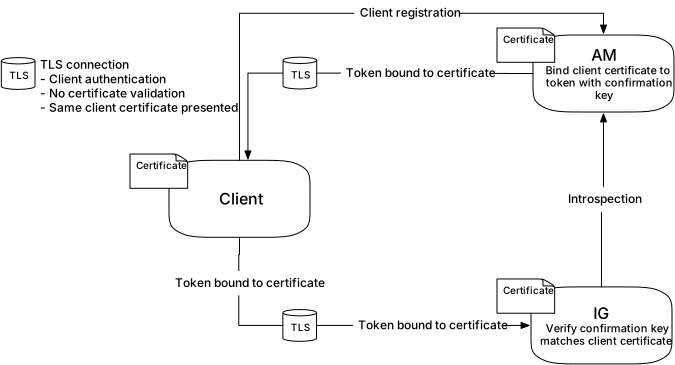Figure 2. Connections for mTLS Using Standard TLS Client Certificate Authentication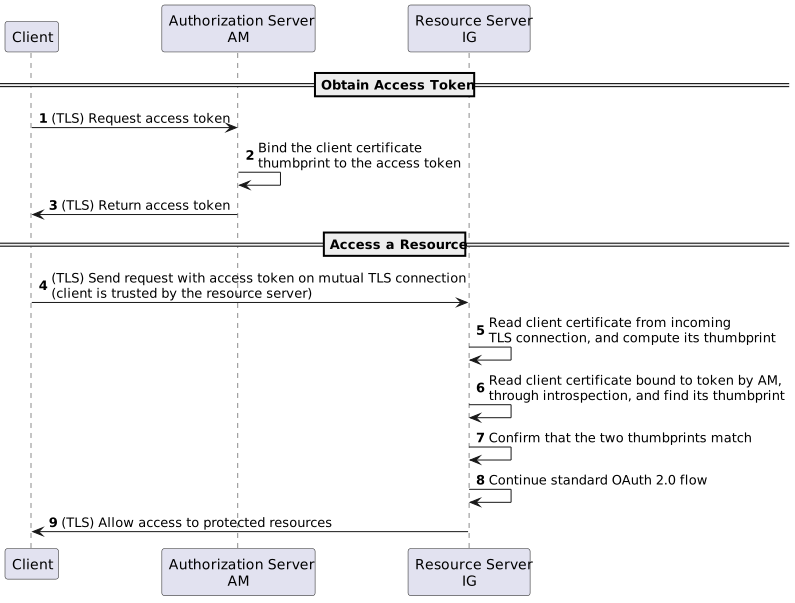
Perform the procedures in this section to set up and test mTLS using standard TLS client certificate authentication:
Set up keystores and truststores
1. Locate the following keystore directories, and in a terminal create variables for them:
* `oauth2_client_keystore_directory`
* `am_keystore_directory`
* `ig_keystore_directory`
2. Create self-signed RSA key pairs for AM, IG, and the client:
```bash
$ keytool -genkeypair \
-alias openam-server \
-keyalg RSA \
-keysize 2048 \
-keystore $am_keystore_directory/keystore.p12 \
-storepass changeit \
-storetype PKCS12 \
-keypass changeit \
-validity 360 \
-dname CN=am.example.com,O=Example,C=FR
```
```bash
$ keytool -genkeypair \
-alias openig-server \
-keyalg RSA \
-keysize 2048 \
-keystore $ig_keystore_directory/keystore.p12 \
-storepass changeit \
-storetype PKCS12 \
-keypass changeit \
-validity 360 \
-dname CN=ig.example.com,O=Example,C=FR
```
```bash
$ keytool -genkeypair \
-alias oauth2-client \
-keyalg RSA \
-keysize 2048 \
-keystore $oauth2_client_keystore_directory/keystore.p12 \
-storepass changeit \
-storetype PKCS12 \
-keypass changeit \
-validity 360 \
-dname CN=test
```
3. Export the certificates to .pem so that the `curl` client can verify the identity of the AM and IG servers:
```bash
$ keytool -export \
-rfc \
-alias openam-server \
-keystore $am_keystore_directory/keystore.p12 \
-storepass changeit \
-storetype PKCS12 \
-file $am_keystore_directory/openam-server.cert.pem
Certificate stored in file .../openam-server.cert.pem
```
```bash
$ keytool -export \
-rfc \
-alias openig-server \
-keystore $ig_keystore_directory/keystore.p12 \
-storepass changeit \
-storetype PKCS12 \
-file $ig_keystore_directory/openig-server.cert.pem
Certificate stored in file openig-server.cert.pem
```
4. Extract the certificate and client private key to .pem so that the `curl` command can identity itself as the client for the HTTPS connection:
```bash
$ keytool -export \
-rfc \
-alias oauth2-client \
-keystore $oauth2_client_keystore_directory/keystore.p12 \
-storepass changeit \
-storetype PKCS12 \
-file $oauth2_client_keystore_directory/client.cert.pem
Certificate stored in file .../client.cert.pem
```
```bash
$ openssl pkcs12 \
-in $oauth2_client_keystore_directory/keystore.p12 \
-nocerts \
-nodes \
-passin pass:changeit \
-out $oauth2_client_keystore_directory/client.key.pem
...verified OK
```
You can now delete the client keystore.
5. Create the CACerts truststore so that AM can validate the client identity:
```bash
$ keytool -import \
-noprompt \
-trustcacerts \
-file $oauth2_client_keystore_directory/client.cert.pem \
-keystore $oauth2_client_keystore_directory/cacerts.p12 \
-storepass changeit \
-storetype PKCS12 \
-alias client-cert
Certificate was added to keystore
```
Set up AM for HTTPS (server-side) in Tomcat
This procedure sets up AM for HTTPS in Tomcat. For more information, see [Configuring AM's container for HTTPS](https://docs.pingidentity.com/pingam/7.2/install-guide/configure-container-HTTPS.html) in AM's *Installation guide*.
1. Add the following connector configuration to AM's Tomcat `server.xml`, replacing the values for the keystore directories with your paths:
```xml
```
The `optionalNoCA` property allows the presentation of client certificates to be optional. Tomcat does not check them against the list of trusted CAs.
2. In AM, export an environment variable for the base64-encoded value of the password (`changeit`) for the `cacerts.p12` truststore:
```bash
$ export PASSWORDSECRETID='Y2hhbmdlaXQ='
```
3. Restart AM, and make sure that you can access it on the secure port .
Set up IG for HTTPS (server-side) in Tomcat
This procedure sets up IG for HTTPS in Tomcat. For other container types, see [Configure IG for HTTPS (Server-Side) in Jetty](../installation-guide/install-jetty.html#jetty-https) and [Configure IG for HTTPS (Server-Side) in JBoss EAP](../installation-guide/install-jboss.html#jboss-https).
If IG is installed in standalone mode, follow [Set Up IG for HTTPS (Server-Side) in Standalone Mode](#mtls-ig-deployment-standalone) instead.
1. Add the following connector configuration to IG's Tomcat `server.xml`, replacing the values for the keystore directories with your paths:
```xml
```
The `optionalNoCA` property allows the presentation of client certificates to be optional. Tomcat does not check them against the list of trusted CAs.
2. Restart IG, and make sure that you can access the welcome page on the secure port .
Set up IG for HTTPS (server-side) in standalone mode
This procedure sets up IG for HTTPS in standalone mode. Before you start, install IG in standalone mode, as described in [Download and start IG in standalone mode](../getting-started/start-product.html#starting-standalone).
When IG is installed in web container mode, follow [Set Up IG for HTTPS (server-side) in Tomcat](#mtls-ig-deployment-container) instead.
1. In ig\_keystore\_directory, add a file called `keystore.pass` containing the keystore password:
```bash
$ cd $ig_keystore_directory
$ echo -n 'changeit' > keystore.pass
```
| | |
| - | --------------------------------------------------------------------------------------------------------- |
| | Make sure that the password file contains only the password, with no trailing spaces or carriage returns. |
2. Add the following route to IG, replacing instances of ig\_keystore\_directory and oauth2\_client\_keystore\_directory with your path:
* Linux
* Windows
```
$HOME/.openig/config/admin.json
```
```
%appdata%\OpenIG\config\admin.json
```
```json
{
"mode": "DEVELOPMENT",
"connectors": [
{
"port": 8080
},
{
"port": 8443,
"tls": {
"type": "ServerTlsOptions",
"config": {
"alpn": {
"enabled": true
},
"clientAuth": "REQUEST",
"keyManager": {
"type": "SecretsKeyManager",
"config": {
"signingSecretId": "key.manager.secret.id",
"secretsProvider": {
"type": "KeyStoreSecretStore",
"config": {
"file": "/keystore.p12",
"storePassword": "keystore.pass",
"secretsProvider": "SecretsPasswords",
"mappings": [
{
"secretId": "key.manager.secret.id",
"aliases": [
"openig-server"
]
}
]
}
}
}
},
"trustManager": {
"type": "SecretsTrustManager",
"config": {
"verificationSecretId": "trust.manager.secret.id",
"secretsProvider": {
"type": "KeyStoreSecretStore",
"config": {
"file": "/cacerts.p12",
"storePassword": "keystore.pass",
"secretsProvider": "SecretsPasswords",
"mappings": [
{
"secretId": "trust.manager.secret.id",
"aliases": [
"client-cert"
]
}
]
}
}
}
}
}
}
}
],
"heap": [
{
"name": "SecretsPasswords",
"type": "FileSystemSecretStore",
"config": {
"directory": "",
"format": "PLAIN"
}
}
]
}
```
Notice the following features of the route:
* IG starts on port `8080`, and on `8443` over TLS.
* IG's private keys for TLS are managed by the SecretsKeyManager, which references the KeyStoreSecretStore that holds the keys.
* The password of the KeyStoreSecretStore is provided by the FileSystemSecretStore.
* The KeyStoreSecretStore maps the keystore alias to the secret ID for retrieving the private signing keys.
3. Start IG:
* Linux
* Windows
```bash
$ /path/to/identity-gateway-7.2.0/bin/start.sh
...
... started in 1234ms on ports : [8080 8443]
```
```windows
C:\path\to\identity-gateway-7.2.0\bin\start.bat
```
By default, the base location for IG configuration files is in `%appdata%\OpenIG`.
Set up AM as an authorization server with mTLS
Before you start, install and configure AM on .
1. Select Applications > Agents > Identity Gateway, add an agent with the following values:
* Agent ID: `ig_agent`
* Password: `password`
* Token Introspection: `Realm Only`
2. Configure an OAuth 2.0 Authorization Server:
1. Select Services > Add a Service > OAuth2 Provider, and add a service with the default values.
2. On the Advanced tab, select the following value:
* Support TLS Certificate-Bound Access Tokens: enabled
3. Configure an OAuth 2.0 client to request access tokens:
1. Select Applications > OAuth 2.0 > Clients, and add a client with the following values:
* Client ID: `client-application`
* Client secret: `password`
* Scope(s): `test`
2. On the Advanced tab, select the following values:
* Grant Types: `Client Credentials`
The `password` is the only grant type used by the client in the example.
* Token Endpoint Authentication Method: `tls_client_auth`
3. On the signing and Encryption tab, select the following values:
* mTLS Subject DN: `CN=test`
When this option is set, AM requires the subject DN in the client certificate to have the same value. This ensures that the certificate is from the client, and not just any valid certificate trusted by the trust manager.
* Use Certificate-Bound Access Tokens: Enabled
4. Set up AM secret stores to trust the client certificate:
1. Select [icon: eye-slash, set=fa]Secret Stores, and add a store with the following values:
* Secret Store ID: `trusted-ca-certs`
* Store Type: `Keystore`
* File: `$oauth2_client_keystore_directory/cacerts.p12`
* Keystore type: `PKCS12`
* Store password secret ID: `passwordSecretId`
2. Select Mappings and add the following mapping:
* Secret ID: `am.services.oauth2.tls.client.cert.authentication`
* Aliases: `client-cert`
When the token endpoint authentication method is `tls_client_auth`, this secret is used to validate the client certificate. Add an alias in this list for each client that uses `tls_client_auth`. For certificates signed by a CA, add the CA certificate to the list.
Set up IG as a resource server with mTLS
1. Set an environment variable for the IG agent password, and then restart IG:
```bash
$ export AGENT_SECRET_ID='cGFzc3dvcmQ='
```
The password is retrieved by a SystemAndEnvSecretStore, and must be base64-encoded.
2. Add the following route to IG:
* Linux
* Windows
```
$HOME/.openig/config/routes/mtls-certificate.json
```
```
%appdata%\OpenIG\config\routes\mtls-certificate.json
```
```json
{
"name": "mtls-certificate",
"condition": "${find(request.uri.path, '/mtls-certificate')}",
"heap": [
{
"name": "SystemAndEnvSecretStore-1",
"type": "SystemAndEnvSecretStore"
},
{
"name": "AmService-1",
"type": "AmService",
"config": {
"agent": {
"username": "ig_agent",
"passwordSecretId": "agent.secret.id"
},
"secretsProvider": "SystemAndEnvSecretStore-1",
"url": "http://am.example.com:8088/openam/",
"version": "7.2"
}
}
],
"handler": {
"type": "Chain",
"capture": "all",
"config": {
"filters": [
{
"name": "OAuth2ResourceServerFilter-1",
"type": "OAuth2ResourceServerFilter",
"config": {
"scopes": [
"test"
],
"requireHttps": false,
"accessTokenResolver": {
"type": "ConfirmationKeyVerifierAccessTokenResolver",
"config": {
"delegate": {
"name": "token-resolver-1",
"type": "TokenIntrospectionAccessTokenResolver",
"config": {
"amService": "AmService-1",
"providerHandler": {
"type": "Chain",
"config": {
"filters": [
{
"type": "HttpBasicAuthenticationClientFilter",
"config": {
"username": "ig_agent",
"passwordSecretId": "agent.secret.id",
"secretsProvider": "SystemAndEnvSecretStore-1"
}
}
],
"handler": "ForgeRockClientHandler"
}
}
}
}
}
}
}
}
],
"handler": {
"name": "StaticResponseHandler-1",
"type": "StaticResponseHandler",
"config": {
"status": 200,
"headers": {
"Content-Type": [ "text/plain; charset=UTF-8" ]
},
"entity": "mTLS\n Valid token: ${contexts.oauth2.accessToken.token}\n Confirmation keys: ${contexts.oauth2}"
}
}
}
}
}
```
Notice the following features of the route:
* The route matches requests to `/mtls-certificate`.
* The OAuth2ResourceServerFilter uses the ConfirmationKeyVerifierAccessTokenResolver to validate the certificate thumbprint against the thumbprint from the resolved access token, provided by AM.
The ConfirmationKeyVerifierAccessTokenResolver then delegates token resolution to the TokenIntrospectionAccessTokenResolver.
* The `providerHandler` adds an authorization header to the request, containing the username and password of the OAuth 2.0 client with the scope to examine (introspect) access tokens.
* The OAuth2ResourceServerFilter checks that the resolved token has the required scopes, and injects the token info into the context.
* The StaticResponseHandler returns the content of the access token from the context.
Test the setup
1. Get an access token from AM, over TLS:
```bash
$ mytoken=$(curl --request POST \
--cacert $am_keystore_directory/openam-server.cert.pem \
--cert $oauth2_client_keystore_directory/client.cert.pem \
--key $oauth2_client_keystore_directory/client.key.pem \
--header 'cache-control: no-cache' \
--header 'content-type: application/x-www-form-urlencoded' \
--data 'client_id=client-application&grant_type=client_credentials&scope=test' \
https://am.example.com:8445/openam/oauth2/access_token | jq -r .access_token)
```
2. Introspect the access token on AM:
```bash
$ curl --request POST \
-u ig_agent:password \
--header 'content-type: application/x-www-form-urlencoded' \
--data token=${mytoken} \
http://am.example.com:8088/openam/oauth2/realms/root/introspect | jq
{
"active": true,
"scope": "test",
"realm": "/",
"client_id": "client-application",
"user_id": "client-application",
"token_type": "Bearer",
"exp": 155...833,
"sub": "(age!client-application)",
"subname": "client-application",
"iss": "http://am.example.com:8088/openam/oauth2",
"cnf": {
"x5t#S256": "T4u...R9Q"
},
"authGrantId": "dfE...2vk",
"auditTrackingId": "e366...524"
}
```
The `cnf` property indicates the value of the confirmation code, as follows:
* `x5`: X509 certificate
* `t`: thumbprint
* `#`: separator
* `S256`: algorithm used to hash the raw certificate bytes
3. Access the IG route to validate the token's confirmation thumbprint with the ConfirmationKeyVerifierAccessTokenResolver:
```bash
$ curl --request POST \
--cacert $ig_keystore_directory/openig-server.cert.pem \
--cert $oauth2_client_keystore_directory/client.cert.pem \
--key $oauth2_client_keystore_directory/client.key.pem \
--header "authorization: Bearer ${mytoken}" \
https://ig.example.com:8443/mtls-certificate
mTLS
Valid token: 2Bp...s_k
Confirmation keys: {
...
}
```
The validated token and confirmation keys are displayed.
### mTLS using trusted headers
IG can validate the thumbprint of certificate-bound access tokens by reading the client certificate from a configured, trusted HTTP header.
Use this method when TLS is terminated at a reverse proxy or load balancer before IG. IG cannot authenticate the client through the TLS connection's client certificate because:
* If the connection is over TLS, the connection presents the certificate of the TLS termination point before IG.
* If the connection is not over TLS, the connection presents no client certificate.
If the client is connected directly to IG through a TLS connection, for which IG is the TLS termination point, use the example in [mTLS Using Standard TLS Client Certificate Authentication](#oauth2-rs-introspect-mtls-certificate).
Configure the proxy or load balancer to:
* Forward the encoded certificate to IG in the trusted header.
Encode the certificate in an HTTP-header compatible format that can convey a full certificate, so that IG can rebuild the certificate.
* Strip the trusted header from incoming requests, and change the default header name to something an attacker can't guess.
| | |
| - | ----------------------------------------------------------------------------------------------------------------------------------------------------------------------------------------------------------------------------------------------------------- |
| | For IG in web container mode, sending or receiving headers or trailers whose names or values contain non-ASCII characters can cause unspecified behavior at the HTTP server level, and character corruption at the ClientHandler/ReverseProxyHandler level. |
\+ Because there is a trust relationship between IG and the TLS termination point, IG doesn't authenticate the contents of the trusted header. IG accepts any value in a header from a trusted TLS termination point.
Use this example when the IG instance is running behind a load balancer or other ingress point. If the IG instance is running behind the TLS termination point, consider the example in [mTLS Using Standard TLS Client Certificate Authentication](#oauth2-rs-introspect-mtls-certificate).
The following image illustrates the connections and certificates required by the example:
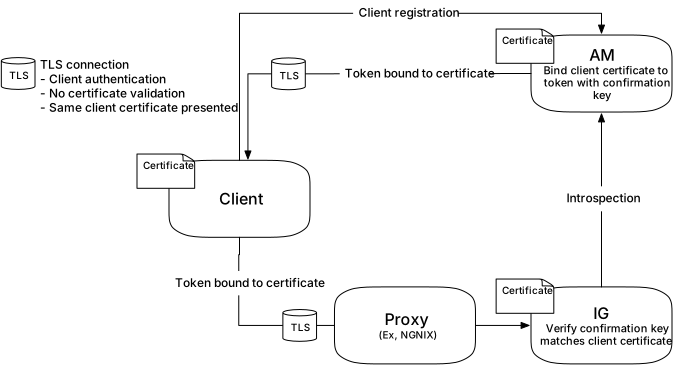Figure 3. Connections for mTLS Using Trusted Headers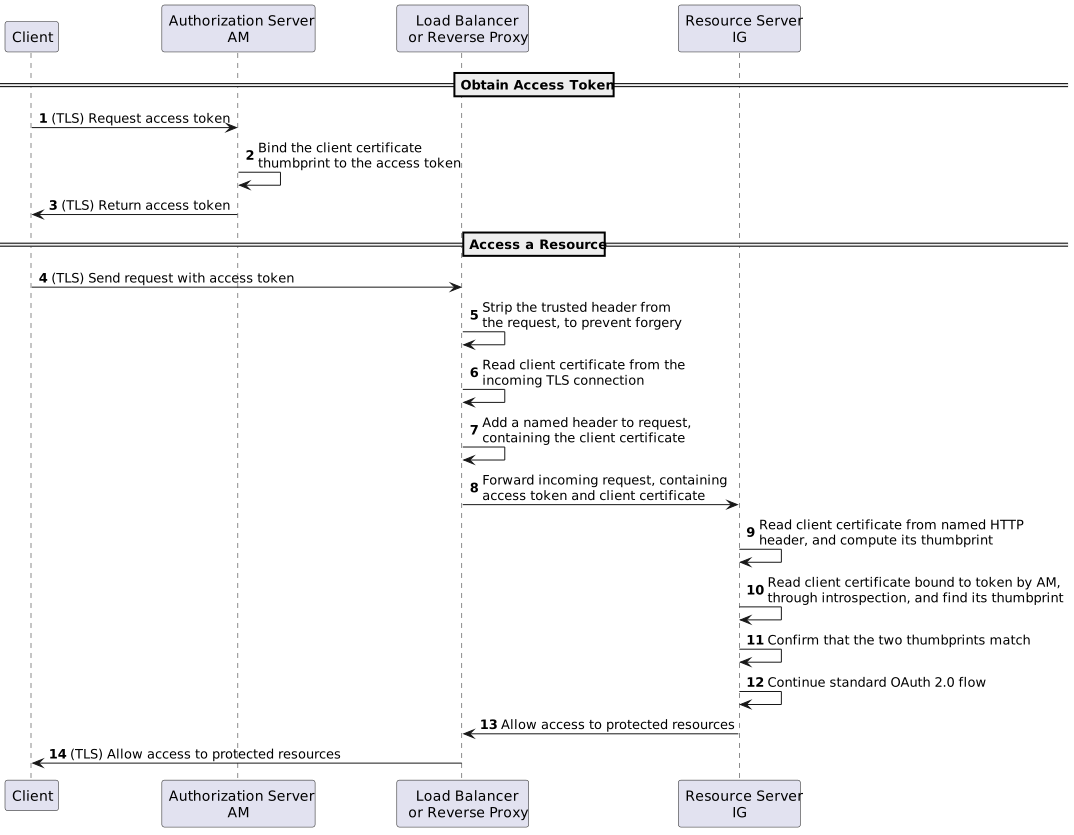Set up mTLS using trusted headers
1. Set up the keystores, truststores, AM, and IG as described in [mTLS Using Standard TLS Client Certificate Authentication](#oauth2-rs-introspect-mtls-certificate).
2. Base64-encode the value of `$oauth2_client_keystore_directory/client.cert.pem`. The value is used in the final POST.
3. Add the following route to IG:
* Linux
* Windows
```
$HOME/.openig/config/routes/mtls-header.json
```
```
%appdata%\OpenIG\config\routes\mtls-header.json
```
```json
{
"name": "mtls-header",
"condition": "${find(request.uri.path, '/mtls-header')}",
"heap": [
{
"name": "SystemAndEnvSecretStore-1",
"type": "SystemAndEnvSecretStore"
},
{
"name": "AmService-1",
"type": "AmService",
"config": {
"agent": {
"username": "ig_agent",
"passwordSecretId": "agent.secret.id"
},
"secretsProvider": "SystemAndEnvSecretStore-1",
"url": "http://am.example.com:8088/openam/",
"version": "7.2"
}
}
],
"handler": {
"type": "Chain",
"capture": "all",
"config": {
"filters": [
{
"name": "CertificateThumbprintFilter-1",
"type": "CertificateThumbprintFilter",
"config": {
"certificate": "${pemCertificate(decodeBase64(request.headers['ssl_client_cert'][0]))}",
"failureHandler": {
"type": "ScriptableHandler",
"config": {
"type": "application/x-groovy",
"source": [
"def response = new Response(Status.TEAPOT);",
"response.entity = 'Failure in CertificateThumbprintFilter'",
"return response"
]
}
}
}
},
{
"name": "OAuth2ResourceServerFilter-1",
"type": "OAuth2ResourceServerFilter",
"config": {
"scopes": [
"test"
],
"requireHttps": false,
"accessTokenResolver": {
"type": "ConfirmationKeyVerifierAccessTokenResolver",
"config": {
"delegate": {
"name": "token-resolver-1",
"type": "TokenIntrospectionAccessTokenResolver",
"config": {
"amService": "AmService-1",
"providerHandler": {
"type": "Chain",
"config": {
"filters": [
{
"type": "HttpBasicAuthenticationClientFilter",
"config": {
"username": "ig_agent",
"passwordSecretId": "agent.secret.id",
"secretsProvider": "SystemAndEnvSecretStore-1"
}
}
],
"handler": "ForgeRockClientHandler"
}
}
}
}
}
}
}
}
],
"handler": {
"name": "StaticResponseHandler-1",
"type": "StaticResponseHandler",
"config": {
"status": 200,
"headers": {
"Content-Type": [ "text/plain; charset=UTF-8" ]
},
"entity": "mTLS\n Valid token: ${contexts.oauth2.accessToken.token}\n Confirmation keys: ${contexts.oauth2}"
}
}
}
}
}
```
Notice the following features of the route compared to `mtls-certificate.json`:
* The route matches requests to `/mtls-header`.
* The CertificateThumbprintFilter extracts a Java certificate from the trusted header, computes the SHA-256 thumbprint of that certificate, and makes the thumbprint available for the ConfirmationKeyVerifierAccessTokenResolver.
4. Test the setup:
1. Get an access token from AM, over TLS:
```bash
$ mytoken=$(curl --request POST \
--cacert $am_keystore_directory/openam-server.cert.pem \
--cert $oauth2_client_keystore_directory/client.cert.pem \
--key $oauth2_client_keystore_directory/client.key.pem \
--header 'cache-control: no-cache' \
--header 'content-type: application/x-www-form-urlencoded' \
--data 'client_id=client-application&grant_type=client_credentials&scope=test' \
https://am.example.com:8445/openam/oauth2/access_token | jq -r .access_token)
```
2. Introspect the access\_token on AM:
```bash
$ curl --request POST \
-u ig_agent:password \
--header 'content-type: application/x-www-form-urlencoded' \
--data token=${mytoken} \
http://am.example.com:8088/openam/oauth2/realms/root/introspect | jq
{
"active": true,
"scope": "test",
"realm": "/",
"client_id": "client-application",
"user_id": "client-application",
"token_type": "Bearer",
"exp": 157...994,
"sub": "(age!client-application)",
"subname": "client-application",
"iss": "http://am.example.com:8088/openam/oauth2",
"cnf": {
"x5t#S256": "1QG...Wgc"
},
"authGrantId": "lto...8vw",
"auditTrackingId": "119...480"
}
```
The `cnf` property indicates the value of the confirmation code, as follows:
* `x5`: X509 certificate
* `t`: thumbprint
* `#`: separator
* `S256`: algorithm used to hash the raw certificate bytes
3. Access the IG route to validate the confirmation key, using the base64-encoded value of `$oauth2_client_keystore_directory/client.cert.pem`:
```bash
$ curl --request POST \
--header "authorization:Bearer $mytoken" \
--header 'ssl_client_cert:base64-encoded-cert'
http://ig.example.com:8080/mtls-header
Valid token: zw5...Sj1
Confirmation keys: {
...
}
```
The validated token and confirmation keys are displayed.
## Use the OAuth 2.0 context to log in to the sample application
The introspection returns scopes in the context. This section contains an example route that retrieves the scopes, assigns them as the IG session username and password, and uses them to log the user directly in to the sample application.
For information about the context, see [OAuth2Context](../reference/RequestsResponsesContexts.html#OAuth2Context).
1. Set up AM:
1. Set up AM as described in [Validate access tokens through the introspection endpoint](#oauth2-rs-introspect).
2. Select [icon: address-card, set=fa]Identities, and change the email address of the demo user to `demo`.
3. Select [icon: code, set=fa]\(scripts) > OAuth2 Access Token Modification Script, and replace the default script as follows:
```groovy
import org.forgerock.http.protocol.Request
import org.forgerock.http.protocol.Response
import com.iplanet.sso.SSOException
import groovy.json.JsonSlurper
def attributes = identity.getAttributes(["mail"].toSet())
accessToken.setField("mail", attributes["mail"][0])
accessToken.setField("password", "{amDemoPw}")
```
The AM script adds user profile information to the access token, and adds a `password` field with the value `Ch4ng31t`.
**Do not use this example in production!** If the token is stateless and unencrypted, the password value is easily accessible when you have the token.
2. Set up IG:
1. Set an environment variable for the IG agent password, and then restart IG:
```bash
$ export AGENT_SECRET_ID='cGFzc3dvcmQ='
```
The password is retrieved by a SystemAndEnvSecretStore, and must be base64-encoded.
2. Add the following route to IG:
* Linux
* Windows
```
$HOME/.openig/config/routes/rs-pwreplay.json
```
```
%appdata%\OpenIG\config\routes\rs-pwreplay.json
```
```json
{
"name" : "rs-pwreplay",
"baseURI" : "http://app.example.com:8081",
"condition" : "${find(request.uri.path, '^/rs-pwreplay')}",
"heap": [
{
"name": "SystemAndEnvSecretStore-1",
"type": "SystemAndEnvSecretStore"
},
{
"name": "AmService-1",
"type": "AmService",
"config": {
"agent": {
"username": "ig_agent",
"passwordSecretId": "agent.secret.id"
},
"secretsProvider": "SystemAndEnvSecretStore-1",
"url": "http://am.example.com:8088/openam/",
"version": "7.2"
}
}
],
"handler" : {
"type" : "Chain",
"config" : {
"filters" : [
{
"name" : "OAuth2ResourceServerFilter-1",
"type" : "OAuth2ResourceServerFilter",
"config" : {
"scopes" : [ "mail", "employeenumber" ],
"requireHttps" : false,
"realm" : "OpenIG",
"accessTokenResolver": {
"name": "TokenIntrospectionAccessTokenResolver-1",
"type": "TokenIntrospectionAccessTokenResolver",
"config": {
"amService": "AmService-1",
"providerHandler": {
"type": "Chain",
"config": {
"filters": [
{
"type": "HttpBasicAuthenticationClientFilter",
"config": {
"username": "ig_agent",
"passwordSecretId": "agent.secret.id",
"secretsProvider": "SystemAndEnvSecretStore-1"
}
}
],
"handler": "ForgeRockClientHandler"
}
}
}
}
}
},
{
"type": "AssignmentFilter",
"config": {
"onRequest": [{
"target": "${session.username}",
"value": "${contexts.oauth2.accessToken.info.mail}"
},
{
"target": "${session.password}",
"value": "${contexts.oauth2.accessToken.info.password}"
}
]
}
},
{
"type": "StaticRequestFilter",
"config": {
"method": "POST",
"uri": "http://app.example.com:8081/login",
"form": {
"username": [
"${session.username}"
],
"password": [
"${session.password}"
]
}
}
}
],
"handler": "ReverseProxyHandler"
}
}
}
```
Notice the following features of the route compared to `rs-introspect.json`:
* The route matches requests to `/rs-pwreplay`.
* The AssignmentFilter accesses the context, and injects the username and password into the SessionContext, `${Session}`.
* The StaticRequestFilter retrieves the username and password from `session`, and replaces the original HTTP GET request with an HTTP POST login request that contains the credentials to authenticate.
3. Test the setup:
1. In a terminal window, use a `curl` command similar to the following to retrieve an access token:
```bash
$ mytoken=$(curl -s \
--user "client-application:password" \
--data "grant_type=password&username=demo&password=Ch4ng31t&scope=mail%20employeenumber" \
http://am.example.com:8088/openam/oauth2/access_token | jq -r ".access_token")
```
2. Validate the access token returned in the previous step:
```bash
$ curl -v http://ig.example.com:8080/rs-pwreplay --header "Authorization: Bearer ${mytoken}"
```
HTML for the sample application is displayed.
## Cache access tokens
This section builds on the example in [Validate access tokens through the introspection endpoint](#oauth2-rs-introspect) to cache and then revoke access tokens.
When the access token **is not** cached, IG calls AM to validate the access token. When the access token **is** cached, IG doesn't validate the access token with AM.
*(From AM 6.5.3.)* When an access token is revoked on AM, the CacheAccessTokenResolver can delete the token from the cache when both of the following conditions are true:
* The `notification` property of AmService is enabled.
* The delegate AccessTokenResolver provides the token metadata required to update the cache.
When a refresh\_token is revoked on AM, all associated access tokens are automatically and immediately revoked.
1. Set up AM as described in [Validate access tokens through the introspection endpoint](#oauth2-rs-introspect).
2. Set up IG:
1. Set an environment variable for the IG agent password, and then restart IG:
```bash
$ export AGENT_SECRET_ID='cGFzc3dvcmQ='
```
The password is retrieved by a SystemAndEnvSecretStore, and must be base64-encoded.
2. Add the following route to IG:
* Linux
* Windows
```
$HOME/.openig/config/routes/rs-introspect-cache.json
```
```
%appdata%\OpenIG\config\routes\rs-introspect-cache.json
```
```json
{
"name": "rs-introspect-cache",
"baseURI": "http://app.example.com:8081",
"condition": "${find(request.uri.path, '^/rs-introspect-cache$')}",
"heap": [
{
"name": "SystemAndEnvSecretStore-1",
"type": "SystemAndEnvSecretStore"
},
{
"name": "AmService-1",
"type": "AmService",
"config": {
"url": "http://am.example.com:8088/openam",
"realm": "/",
"version": "7.2",
"agent" : {
"username" : "ig_agent",
"passwordSecretId" : "agent.secret.id"
},
"secretsProvider": "SystemAndEnvSecretStore-1"
}
}
],
"handler": {
"type": "Chain",
"config": {
"filters": [
{
"name": "OAuth2ResourceServerFilter-1",
"type": "OAuth2ResourceServerFilter",
"config": {
"scopes": [
"mail",
"employeenumber"
],
"requireHttps": false,
"realm": "OpenIG",
"accessTokenResolver": {
"name": "CacheAccessTokenResolver-1",
"type": "CacheAccessTokenResolver",
"config": {
"enabled": true,
"defaultTimeout ": "1 hour",
"maximumTimeToCache": "1 day",
"amService":"AmService-1",
"delegate": {
"name": "TokenIntrospectionAccessTokenResolver-1",
"type": "TokenIntrospectionAccessTokenResolver",
"config": {
"amService": "AmService-1",
"providerHandler": {
"type": "Chain",
"config": {
"filters": [
{
"type": "HttpBasicAuthenticationClientFilter",
"config": {
"username": "ig_agent",
"passwordSecretId": "agent.secret.id",
"secretsProvider": "SystemAndEnvSecretStore-1"
}
}
],
"handler": {
"type": "Delegate",
"capture": "all",
"config": {
"delegate": "ForgeRockClientHandler"
}
}
}
}
}
}
}
}
}
}
],
"handler": {
"type": "StaticResponseHandler",
"config": {
"status": 200,
"headers": {
"Content-Type": [ "text/html; charset=UTF-8" ]
},
"entity": "Decoded access_token: ${contexts.oauth2.accessToken.info}
"
}
}
}
}
}
```
Notice the following features of the route compared to `rs-introspect.json`, in [Validate access tokens through the introspection endpoint](#oauth2-rs-introspect):
* The OAuth2ResourceServerFilter uses a CacheAccessTokenResolver to cache the access token, and then delegate token resolution to the TokenIntrospectionAccessTokenResolver.
* The `amService` property in CacheAccessTokenResolver enables WebSocket notifications from AM, for events such as token revocation.
* The TokenIntrospectionAccessTokenResolver uses a ForgeRockClientHandler and a capture decorator to capture IG's interactions with AM.
3. Test token caching:
1. In a terminal window, use a `curl` command similar to the following to retrieve an access token:
```bash
$ mytoken=$(curl -s \
--user "client-application:password" \
--data "grant_type=password&username=demo&password=Ch4ng31t&scope=mail%20employeenumber" \
http://am.example.com:8088/openam/oauth2/access_token | jq -r ".access_token")
```
2. Access the route, using the access token returned in the previous step:
```bash
$ curl http://ig.example.com:8080/rs-introspect-cache --header "Authorization: Bearer ${mytoken}"
{
active = true,
scope = employeenumber mail,
client_id = client - application,
user_id = demo,
token_type = Bearer,
exp = 158...907,
...
}
```
3. In the route log, note that IG calls AM to introspect the access token:
```
POST http://am.example.com:8088/openam/oauth2/realms/root/introspect HTTP/1.1
```
4. Access the route again, and in the route log note that this time IG doesn't call AM, because the token is cached.
5. Disable the cache and repeat the previous steps to cause IG to call AM to validate the access token for each request.
4. Test token revocation:
1. In a terminal window, use a `curl` command similar to the following to revoke the access token obtained in the previous step:
```bash
$ curl --request POST \
--data "token=${mytoken}" \
--data "client_id=client-application" \
--data "client_secret=password" \
"http://am.example.com:8088/openam/oauth2/realms/root/token/revoke"
```
2. Access the route, using the access token returned in the previous step, and and note that the request is not authorized because the token is revoked:
```bash
$ curl -v http://ig.example.com:8080/rs-introspect-cache --header "Authorization: Bearer ${mytoken}"
...
HTTP/1.1 401 Unauthorized
```