---
title: Authenticating with PingID using a YubiKey
description: You can use a YubiKey to access your account using a web browser, to access your company's VPN, or to access a Windows login or Mac login machine.
component: pingid-user-guide
page_id: pingid-user-guide:secure_authentication_with_pingid:pid_ug_auth_using_a_yubikey_intro
canonical_url: https://docs.pingidentity.com/pingid-user-guide/secure_authentication_with_pingid/pid_ug_auth_using_a_yubikey_intro.html
revdate: April 16, 2024
section_ids:
  before-you-begin: Before you begin
  about-this-task: About this task
  authenticating-using-a-yubikey: Authenticating using a YubiKey
  about-this-task-2: About this task
  steps: Steps
  result: Result:
  result-2: Result:
  result-3: Result:
  authenticating-using-a-yubikey-vpn: Authenticating using a YubiKey (VPN)
  about-this-task-3: About this task
  steps-2: Steps
  result-4: Result:
  result-5: Result:
  result-6: Result:
  authenticating-using-a-yubikey-windows-login: Authenticating using a YubiKey (Windows login)
  steps-3: Steps
  result-7: Result:
  result-8: Result:
  result-9: Result
  authenticating-using-a-yubikey-mac-login: Authenticating using a YubiKey (Mac Login)
  about-this-task-4: About this task
  steps-4: Steps
  result-10: Result:
  result-11: Result:
  result-12: Result:
---

# Authenticating with PingID using a YubiKey

You can use a YubiKey to access your account using a web browser, to access your company's VPN, or to access a Windows login or Mac login machine.

## Before you begin

Pair your YubiKey with your account to enable authentication. For more information, see [Using a YubiKey (OTP) for authentication with PingID](pid_setting_up_yubikey_intro.html).

## About this task

If you are using a virtual machine (VM) to connect to your accessing device and to authenticate with your YubiKey, configure your VM to recognize a USB device.

* Web

* VPN

* Windows login

* Mac login

## Authenticating using a YubiKey

Authenticate using your YubiKey hardware token.

### About this task

In a browser, sign on to your account and then use your YubiKey hardware token to authenticate.

### Steps

1. Sign on to your account or access an application that requires authentication.

   #### Result:

   The **YubiKey Authentication** window appears, prompting you to enter a YubiKey passcode.
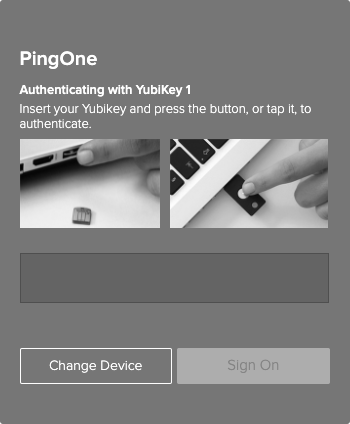
   ![A screen capture of the YubiKey Authentication window with the request message to insert your Yubikey to authenticate.](_images/cnz1634024990185.png)

2. Insert the YubiKey into your computer USB port. Press the YubiKey button.

   |   |                                                                                                                       |
   | - | --------------------------------------------------------------------------------------------------------------------- |
   |   | Make sure the **YubiKey Authentication** window is selected as the active screen before you press the YubiKey button. |

   #### Result:

   A one-time passcode (OTP) *(tooltip: \<div class="paragraph">
   \<p>A passcode valid for only one sign-on or transaction on a computer system or other digital device. Also known as a one-time password, one-time PIN, or dynamic password.\</p>
   \</div>)* automatically generates and enters into the **YubiKey Authentication** window.

3. Click **Sign On**.

   #### Result:

   A green check mark appears, indicating authentication is successful and your access is approved.

## Authenticating using a YubiKey (VPN)

Use your YubiKey hardware token to authenticate.

### About this task

In a browser, sign on to your account to use your YubiKey hardware token to authenticate.

### Steps

1. From your web browser or application, sign on to your VPN with your username and password and then:

   1. Enter your username and password.

   2. For multiple devices only: A message displays showing a numbered list of all your devices. Enter the number for YubiKey.

   3. Click **Sign In**.

      #### Result:

   The text entry field displays.

2. Insert your YubiKey into the USB port on your computer, and tap your YubiKey.

   Place your mouse cursor in the text entry field to ensure the OTP *(tooltip: \<div class="paragraph">
   \<p>A passcode valid for only one sign-on or transaction on a computer system or other digital device. Also known as a one-time password, one-time PIN, or dynamic password.\</p>
   \</div>)* is entered into the field automatically.

   #### Result:

   An OTP populates the text field.

3. Click **Sign In**.

   #### Result:

   After you have authenticated successfully, you are signed on to your VPN.

## Authenticating using a YubiKey (Windows login)

Use your YubiKey hardware token to authenticate to sign on to your Windows machine.

### Steps

1. Sign on to your Windows machine.

   #### Result:

   The **YubiKey Authentication** window appears, prompting you to enter a YubiKey passcode.

   ![A screen capture of the YubiKey Authentication window, prompting you to use your YubiKey to authenticate.](_images/nkp1564021147499.png)

2. Insert the YubiKey into your computer USB port and press the YubiKey button.

   |   |                                                                                                                       |
   | - | --------------------------------------------------------------------------------------------------------------------- |
   |   | Make sure the **YubiKey Authentication** window is selected as the active window before you press the YubiKey button. |

   #### Result:

   A OTP *(tooltip: \<div class="paragraph">
   \<p>A passcode valid for only one sign-on or transaction on a computer system or other digital device. Also known as a one-time password, one-time PIN, or dynamic password.\</p>
   \</div>)* is automatically generated and inserted into the **YubiKey Authentication** window.

3. Click **Sign On**.

### Result

The green **Authenticated** message appears with a check mark, indicating authentication is successful. You are signed on to your Windows machine.

![A screen capture of the Windows home desktop page.](_images/zoq1564021183904.png)

## Authenticating using a YubiKey (Mac Login)

Use your YubiKey hardware token to authenticate when you sign on to your Mac machine.

### About this task

Make sure your Apple Mac is running Mac OS 10.13 or later.

### Steps

1. Sign on to your Mac machine.

   #### Result:

   You'll see the **YubiKey Authentication** window, prompting you to enter a YubiKey passcode.

   ![A screen capture of the Authentication window showing the passcode field.](_images/nkp1564021147499.png)

2. Insert the YubiKey into your computer USB port, and then press the YubiKey button.

   |   |                                                                              |
   | - | ---------------------------------------------------------------------------- |
   |   | window is selected as the active window before you press the YubiKey button. |

   #### Result:

   A OTP *(tooltip: \<div class="paragraph">
   \<p>A passcode valid for only one sign-on or transaction on a computer system or other digital device. Also known as a one-time password, one-time PIN, or dynamic password.\</p>
   \</div>)* is automatically generated and inserted into the **YubiKey Authentication** window.

3. Click **Sign On**.

   #### Result:

   You'll see the green check mark indicating authentication is successful, and you'll be signed on to your machine.

   ![A screen capture of the Mac login desktop following successful sign-on.](_images/mac_login_success.png)
