---
title: Setting the WS-Trust version
description: Specify the WS-Trust version to use for the Microsoft 365 application in PingOne.
component: pingone
page_id: pingone:applications:p1_setting_ws-trust_version
canonical_url: https://docs.pingidentity.com/pingone/applications/p1_setting_ws-trust_version.html
section_ids:
before-you-begin: Before you begin
steps: Steps
next-steps: Next steps
---
# Setting the WS-Trust version
WS-Trust is an OASIS standard that directs web service clients and providers to interact with the security token service (STS) to issue, renew, and validate security tokens so that a trusted connection can be established. Learn more in [WS-Trust 1.3](https://docs.oasis-open.org/ws-sx/ws-trust/200512/ws-trust-1.3-os.html) on the OASIS Standards website.
You can specify which WS-Trust version PingOne uses when issuing security tokens for passive profile sign-on attempts to the Microsoft 365 application. PingOne supports WS-Trust versions 1.2 and 1.3. The **WS-Trust Version** setting applies only to passive profile sign-on attempts and not to active profile sign-ons. Learn more in [Adding Microsoft 365 to allow users to sign on using PingOne](p1_adding_microsoft_365.html).
## Before you begin
[Add a Microsoft 365 application](p1_adding_microsoft_365.html) in PingOne.
## Steps
1. In the PingOne admin console, go to **Applications > Applications** and click the **Microsoft 365 application** in the **Applications** list.
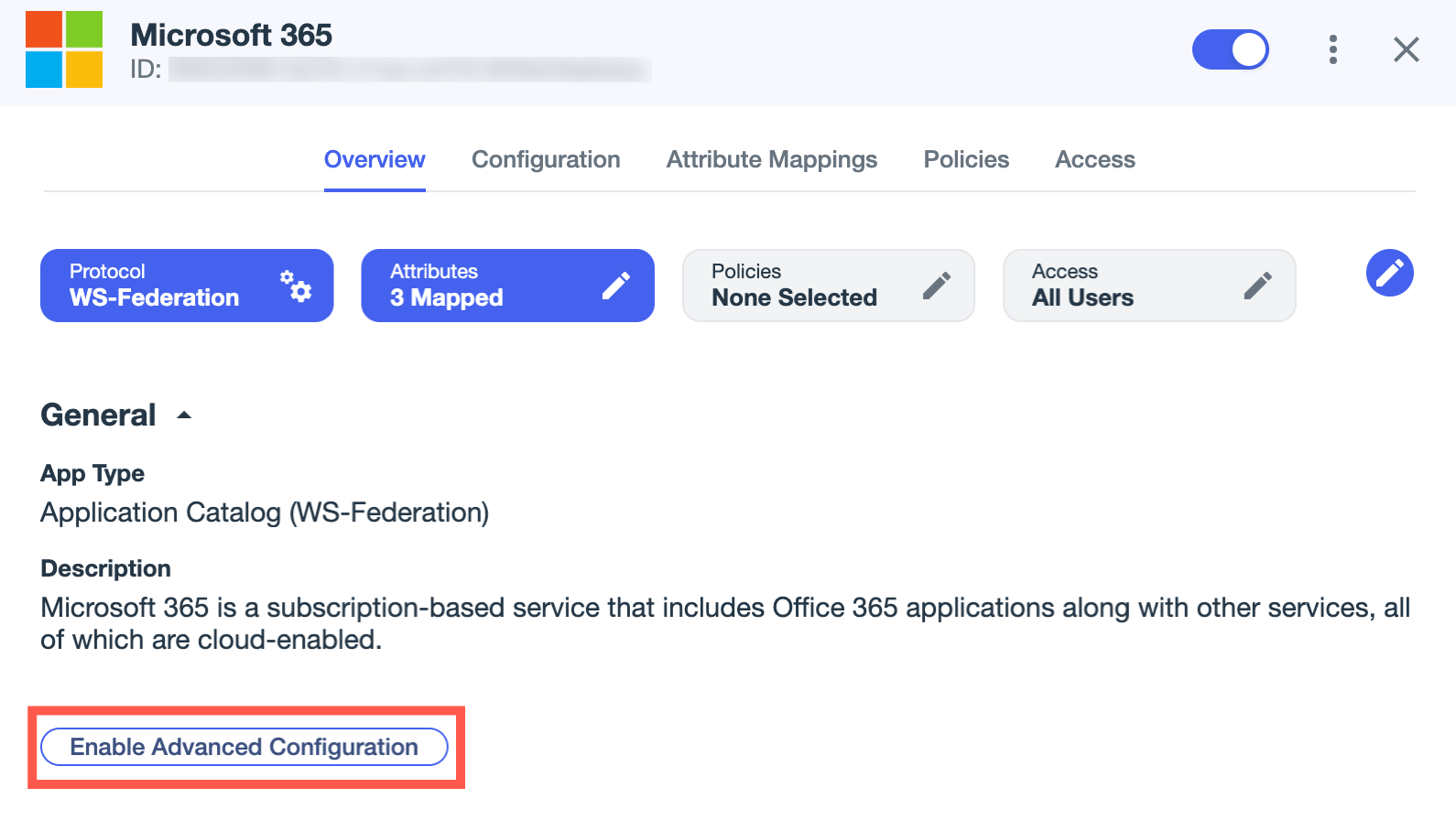
2. If you haven't already, click **Enable Advanced Configuration** on the **Overview** tab and click **Enable** in the confirmation modal.
3. On the **Configuration** tab, click the **Pencil** icon ([icon: pencil, set=fa]).
4. In the **WS-Trust Version** list, select either of the following versions:
* 1.2 (default): Leave the default for passive profile sign-ons.
When set to 1.2, PingOne wraps the request security token (RST) in an RST response (RSTR) as follows:
```
http://docs.oasis-open.org/wss/oasis-wss-saml-token-profile-1.1#SAMLV1.1
...
...
```
* 1.3: Select only if your application requires version 1.3.
When set to 1.3, PingOne wraps the RST in a collection and applies the corresponding OASIS namespace URI as follows:
```
http://docs.oasis-open.org/wss/oasis-wss-saml-token-profile-1.1#SAMLV1.1
...
...
```
## Next steps
[Fine-tune the assertion validity duration](p1_fine-tuning_assertion_validity_duration.html) as needed for the Microsoft 365 application using passive profile sign-on.