---
title: Reviewing risk evaluations
description: Review and analyze PingOne Protect risk evaluations to fine-tune your risk policy.
component: pingone
page_id: pingone:threat_protection_using_pingone_protect:p1_protect_reviewing_risk_evaluations
canonical_url: https://docs.pingidentity.com/pingone/threat_protection_using_pingone_protect/p1_protect_reviewing_risk_evaluations.html
revdate: FMarch 5, 2025
section_ids:
about-this-task: About this task
steps: Steps
choose-from: Choose from:
example: Example:
example-2: Example:
next-steps: Next steps
---
# Reviewing risk evaluations
Depending on your organization's goals and use cases, you should review and analyze risk evaluations to fine-tune your risk policy.
## About this task
To review a risk evaluation:
## Steps
1. View a risk evaluation.
### Choose from:
* Using the API: You can find information about creating a risk evaluation in the [PingOne Protect API documentation](https://developer.pingidentity.com/pingone-api/protect/risk-evaluations/create-risk-evaluation.html).
* Using the PingOne admin console:
1. In the PingOne admin console, go to **Monitoring > Audit**.
2. Edit the **Time Range** and **Within** fields as needed.
3. For **Filter Type**, select **Event Type**.
4. For **Filter**, select **Risk Evaluation Created** and **Risk Evaluation Updated**.
| | |
| - | ----------------------------------------------------------------------------------------------- |
| | You can enter `risk` in the **Search Filter Type** field to view only risk-related event types. |
You can find a complete list of events logged in PingOne in [Audit Reporting Events](https://developer.pingidentity.com/pingone-api/platform/reference/audit-reporting-events.html) in the PingOne API documentation.
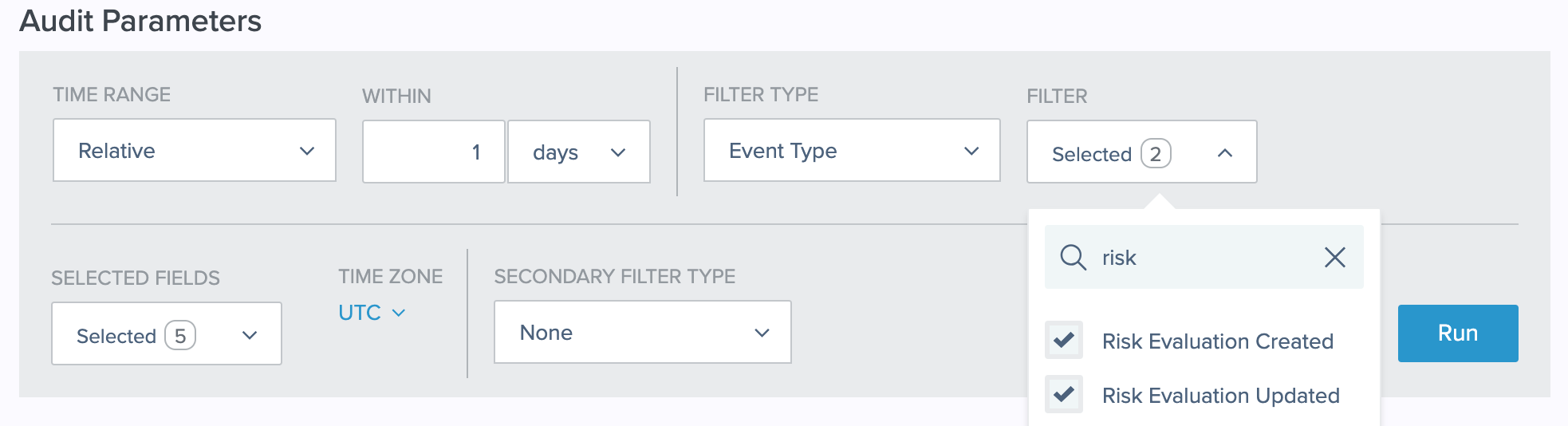
5. Click **Run**.
6. To view the specific data and scores from an event, click **View** in the **Details** column in the report summary.
### Example:
The following is an example response result from a risk evaluation:
```
"result": {
"level": "HIGH",
"score": 80.0,
"source": "AGGREGATED_SCORES",
"recommendedAction": "BOT_MITIGATION",
"type": "VALUE"
}
```
2. In the response result section, review the following attributes in this order:
1. `result.recommendedAction`
Possible values are:
* `ACCOUNT_RECOVERY`: There are indications that the user's account may have been compromised, so you should have them follow your account recovery procedure.
* `AITM_MITIGATION`: You should take steps to mitigate the damage from an Adversary-in-the-Middle (AitM) attack. For an AitM attack, the user's credentials have been intercepted, so in addition to blocking the access request, you should lock the user's account until the password is changed.
* `BOT_MITIGATION`: If this attribute is included in the result, a bot was detected, and your policy's risk level returned `HIGH`. In this case, you should halt the user flow or route the user to an additional bot mitigation tool.
| | |
| - | ------------------------------------------------------------------------------------------------------------------------------------------------------------------------------------------------------------------------------------------------------------------------------------------------------------------------------------------------------------------------------------------------------------------------------------------------------------------------ |
| | Make sure to set the bot detection predictor score higher than the overall **High risk threshold** in the risk policy. If the bot detection predictor score is not set higher than the **High risk threshold**, the risk policy result will not include the `recommendedAction: BOT_MITIGATION` attribute. Using this attribute allows you to test your risk policy or control the response from the risk policy instead of modifying the flow or code at the app level. |
* `DENY`: When a risk level of `HIGH` is calculated for a traffic anomaly predictor, you should deny access because the repeated risk evaluations are likely a sign of a brute force attack.
* `TEMP_EMAIL_MITIGATION`: The user has specified a disposable email address, which is an indication of a fraud attempt.
2. `result.mitigations`
This attribute is included in the result when a mitigation rule is configured in the risk policy to define custom recommended actions and the conditions of the rule are met. For example, you can configure a mitigation rule to recommend denying access if the email reputation predictor returns high risk. The recommended action that you configured in the rule is returned in the risk evaluation response as the value for `result.mitigations[].action`. Any text entered in the **Notes** field is also included in the risk evaluation response. You must then translate the recommended action, such as deny and suspend in the following example, into an action in your user flow.
The following is an example response result from a risk evaluation:
```
"result" : {
"mitigations" : [ {
"action" : "DENY_AND_SUSPEND"
} ],
"type" : "MITIGATION"
}
```
3. `result.value`
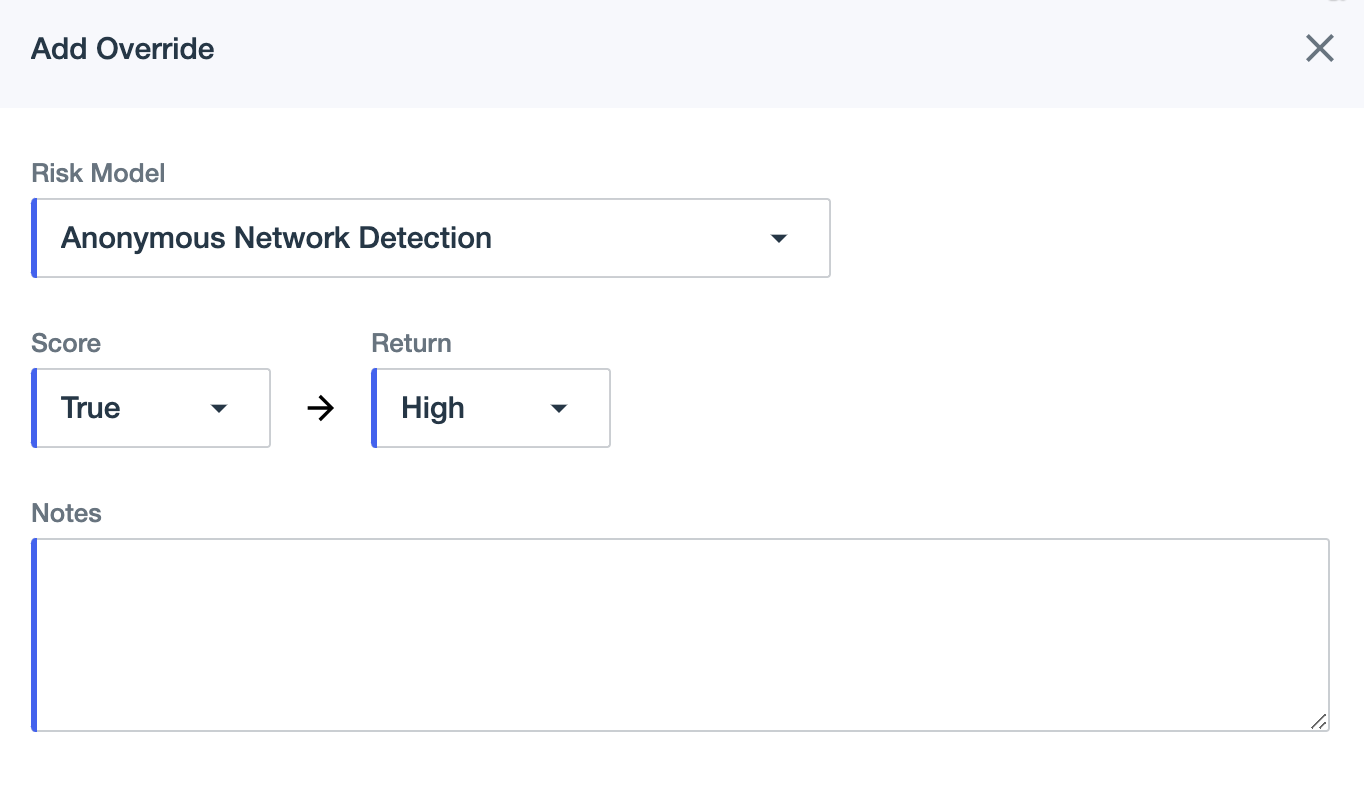
This attribute is included in the result when a risk policy has an override configured, and the **Notes** field of the override rule has free text entered.
Check the value returned in the result against the **Notes** text entered in the override rule. If you don't use overrides for blocking events, you do not need to check this attribute.
4. `result.level`
This attribute is always included in the response as one of three levels and affects the user flow as follows:
* `LOW`: Continue the user flow without additional friction.
* `MEDIUM`: Challenge the user with multi-factor authentication (MFA) *(tooltip: \
\
An electronic authentication method where a user is granted access only after presenting two or more verification factors for authentication.\
\
\
A passcode valid for only one sign-on or transaction on a computer system or other digital device. Also known as a one-time password, one-time PIN, or dynamic password.\
\
\
A set of open technical specifications developed by the FIDO Alliance for strong authentication.\
\