---
title: User self-registration
description: User self-registration lets your end users create their own accounts without assistance from an administrator.
component: pingoneaic
page_id: pingoneaic:self-service:self-registration
canonical_url: https://docs.pingidentity.com/pingoneaic/self-service/self-registration.html
keywords: ["Accounts", "Journeys", "Nodes & Trees", "Social Authentication", "CAPTCHA", "Security Questions", "Terms & Conditions"]
section_ids:
captcha: CAPTCHA services
security-questions: Security questions
configuration: Configuration
associated_nodes: Associated nodes
terms-conditions: Terms and conditions
configuration_2: Configuration
associated_nodes_2: Associated nodes
terms_and_conditions_content_formatting: Terms and conditions content formatting
link_to_terms_and_conditions_content: Link to terms and conditions content
privacy-consent: Privacy and consent
configuration_3: Configuration
associated_nodes_3: Associated nodes
registration-rest-sample: Example registration REST output
---
# User self-registration
User self-registration lets your end users create their own accounts without assistance from an administrator.
PingOne Advanced Identity Cloud includes a **Registration** journey template that lets end users create their own account for an app or service.
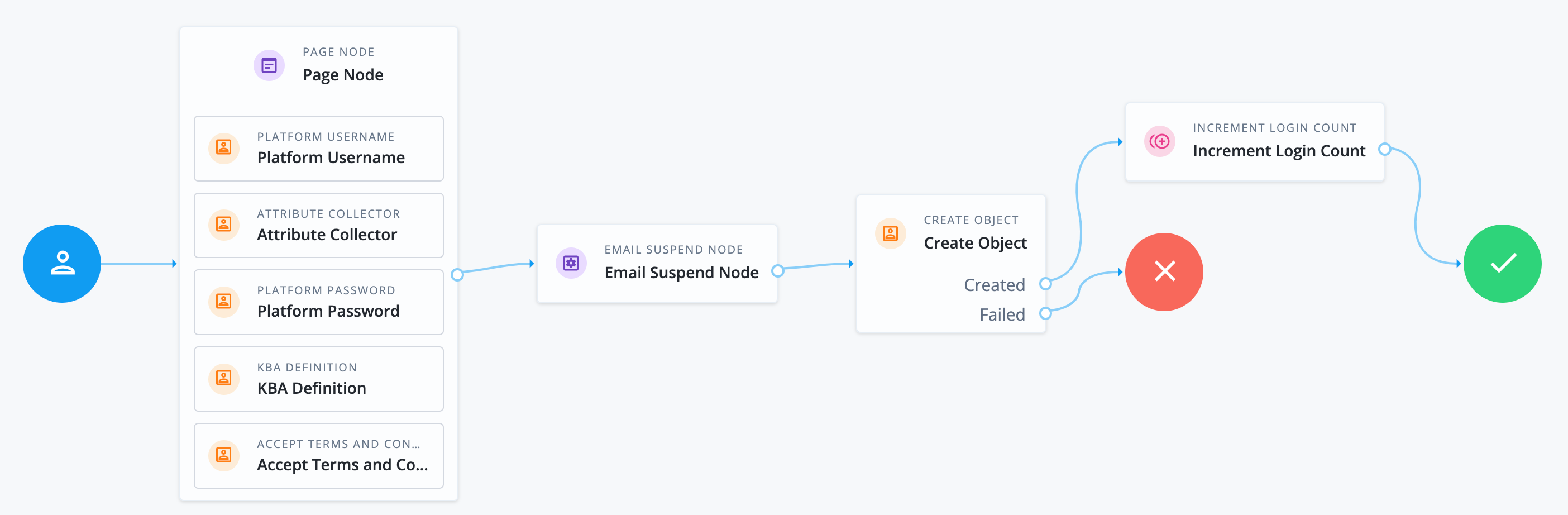
To configure self-registration in Advanced Identity Cloud, your registration journey requires at least the following nodes:
* [Platform Username node](https://docs.pingidentity.com/auth-node-ref/latest/platform-username.html)
If you have changed the `userName` attribute to something else, you must configure this node to use the new attribute, for example, if you changed your configuration to use the `mail` attribute instead.
* [Attribute Collector node](https://docs.pingidentity.com/auth-node-ref/latest/attribute-collector.html)
This collects information from the end user for any attributes that are required to create the end user profile.
By default, required attributes include `userName`, `givenName`, `sn` (surname), and `mail` (email). The node can collect optional attributes as well, as long as any required attributes are collected.
* [Create Object node](https://docs.pingidentity.com/auth-node-ref/latest/create-object.html)
This creates the end user in Advanced Identity Cloud.
All other nodes are optional. Some are strongly encouraged. For example, if you don't include a [Platform Password node](https://docs.pingidentity.com/auth-node-ref/latest/platform-password.html), the end user won't be able to enter a password to sign on. This node isn't always necessary, like when you provide another authentication method such as a social identity provider or when you generate a password for the end user.
Nodes that present or collect information each display on their own page by default. To collect multiple nodes into one page, place these nodes in a [Page node](https://docs.pingidentity.com/auth-node-ref/latest/page.html). There are some limitations to consider when adding nodes to a [Page node](https://docs.pingidentity.com/auth-node-ref/latest/page.html):
* Only add nodes that require interaction with the end user to a [Page node](https://docs.pingidentity.com/auth-node-ref/latest/page.html).
* At most, add one node with multiple possible outcomes in a [Page node](https://docs.pingidentity.com/auth-node-ref/latest/page.html).
* Do not add the [Email Suspend node](https://docs.pingidentity.com/auth-node-ref/latest/email-suspend.html) or the [Social Provider Handler node](https://docs.pingidentity.com/auth-node-ref/latest/social-provider-handler.html) to a [Page node](https://docs.pingidentity.com/auth-node-ref/latest/page.html).
Common nodes in a registration journey include:
* The [CAPTCHA node](https://docs.pingidentity.com/auth-node-ref/latest/captcha.html). Learn more in [CAPTCHA services](#captcha).
* The [KBA Definition node](https://docs.pingidentity.com/auth-node-ref/latest/kba-definition.html). Learn more in [Security questions](#security-questions).
* The [Accept Terms and Conditions node](https://docs.pingidentity.com/auth-node-ref/latest/accept-terms-and-conditions.html). Learn more in [Terms and conditions](#terms-conditions).
* The [Consent Collector node](https://docs.pingidentity.com/auth-node-ref/latest/consent-collector.html). Learn more in [Privacy and consent](#privacy-consent).
## CAPTCHA services
CAPTCHA is a way to challenge an end user to verify that they are human and includes a number of different services. Choose the CAPTCHA service that best suits your requirements. The default configuration in the [CAPTCHA node](https://docs.pingidentity.com/auth-node-ref/latest/captcha.html) is for Google's reCAPTCHA service. The node has been tested for use with reCAPTCHA v2 and hCaptcha v1. Other services should work, as long as they follow a similar configuration pattern.
You'll need to provide a CAPTCHA Site Key and CAPTCHA Secret Key. The rest of CAPTCHA configuration is done through the service that you are using.
## Security questions
Security questions let an end user provide answers to questions that can later be used to verify their identity. This process is also called Knowledge-Based Authentication (KBA).
### Configuration
To configure security questions:
1. In the Advanced Identity Cloud admin console, select Security > Security Questions. From here, you can configure the questions that are presented to end users and how they should be handled.
2. Click Add Question to set additional questions for the end user.
3. On the Add a Security Question modal:
1. Select a locale, provide the question text for that locale, and click Done.
2. To provide the question for different locales, click Add locale and repeat the previous step.
3. Click Save.
4. On the Settings tab, set the following:
* Must define refers to the minimum number of security questions the end user must set up during registration.
* Must answer refers to the minimum number of questions the end user must answer to satisfy a security prompt.
| | |
| - | --------------------------------------------------------------------------------------------------------------------------------------------------------------------------------------------- |
| | After you deploy these security questions, don't remove or change existing questions because end users might already have included those questions during the user self-registration process. |
### Associated nodes
There are three nodes associated with KBA:
* [KBA Definition node](https://docs.pingidentity.com/auth-node-ref/latest/kba-definition.html)
The [KBA Definition node](https://docs.pingidentity.com/auth-node-ref/latest/kba-definition.html) is used during registration. It prompts the end user to select security questions from a list and define answers to these questions for use during identity verification. The list includes an option for end users to define their own questions.
* [KBA Verification node](https://docs.pingidentity.com/auth-node-ref/latest/kba-verification.html)
The [KBA Verification node](https://docs.pingidentity.com/auth-node-ref/latest/kba-verification.html) is used to verify an end user's identity using security questions, such as during a Reset Password journey. It displays the number of questions set in the Must Answer field in the Security Questions settings. If the end user has defined answers for more questions than required, the displayed questions are randomized.
* [KBA Decision node](https://docs.pingidentity.com/auth-node-ref/latest/kba-decision.html)
The [KBA Decision node](https://docs.pingidentity.com/auth-node-ref/latest/kba-decision.html) is primarily used in cases of a Progressive Profile journey, where you ensure an end user has defined answers to the minimum number of questions required. This can be useful if the number of questions changes, so the end user can be prompted to complete additional questions when they next sign on. In this case, the [KBA Decision node](https://docs.pingidentity.com/auth-node-ref/latest/kba-decision.html) is used together with the [KBA Definition node](https://docs.pingidentity.com/auth-node-ref/latest/kba-definition.html). If the [KBA Decision node](https://docs.pingidentity.com/auth-node-ref/latest/kba-decision.html) evaluates false, the end user is directed to the [KBA Definition node](https://docs.pingidentity.com/auth-node-ref/latest/kba-definition.html).
## Terms and conditions
Terms and conditions display the terms and conditions for using your service. Configure the terms and conditions for using your service. These are not considered optional, and end users must accept the terms and conditions before they can progress in the account creation process.
### Configuration
To configure terms and conditions:
1. In the Advanced Identity Cloud admin console, select Terms & Conditions, and click + New Version.
2. Enter a version number for the new terms and conditions, then click Next.
Terms and conditions are tracked using versioning. The default placeholder set of terms and conditions has a version of `0.0`, but the versioning can follow other patterns, such as dates.
3. Enter the locale for which these terms and conditions apply, expressed as its [ISO 639-1](https://www.loc.gov/standards/iso639-2/php/code_list.php) code (for example, `en` or `fr`), then click Add.
4. Enter the text of your terms and conditions:
* Terms and conditions content is formatted using Markdown. You can also use HTML formatting, which is converted into Markdown when you save or publish. Learn more in [Terms and conditions content formatting](#terms_and_conditions_content_formatting).
| | |
| - | --------------------------------------------------------------------------------------------------------------------------------------------------------------------------------------------------------------------------------------------------------------------------------------------------------------------------------------------------------------------------------------------------------------------------------------------------------------------------------------------------------------------------------------- |
| | When using HTML formatting, `id` and `style` attributes are stripped out when Advanced Identity Cloud converts the HTML formatting to Markdown. However, you can use the following techniques to emulate `id` and `style` attributes:- To link to different parts of the terms and conditions content, use the formatted header IDs in the HTML output. Learn more in [Link to terms and conditions content](#link_to_terms_and_conditions_content).
- To apply CSS styles to the terms and conditions content, use the styles editor. |
* Click Styles to switch to the styles editor. Then, enter additional CSS styles to apply to the HTML that is rendered from the Markdown.
* The text supports localization. When you have added the terms and conditions for this locale, click Locale: locale-name, then click + Add locale to add the text for another locale.
* Click Try it out to check how your terms and conditions appear to end users.
5. Save or publish the new version.
| | |
| - | ------------------------------------------------------------------------------------------------------------------------------- |
| | When you have published a version, the terms and conditions cannot be edited. Be sure to proofread your text before publishing. |
* Click Save as Draft to save this version for future publication. You can edit a draft version.
* Click Publish to publish this version.
Select Set as Active Version to make this the active version of your terms and conditions. Only one version of terms and conditions can be active at a time, for each locale. Selecting this option will deactivate the currently active version, and make this version active instead.
### Associated nodes
There are two nodes associated with terms and conditions:
* [Accept Terms and Conditions node](https://docs.pingidentity.com/auth-node-ref/latest/accept-terms-and-conditions.html)
The [Accept Terms and Conditions node](https://docs.pingidentity.com/auth-node-ref/latest/accept-terms-and-conditions.html) presents the end user with a notice that continuing means they agree with the terms and conditions you have set, along with a link to view the terms and conditions, and a button to continue. Because this node includes a button to continue by default, it should generally be the last node in a [Page node](https://docs.pingidentity.com/auth-node-ref/latest/page.html), or on its own page. The node uses the currently active version of the terms and conditions by default, so you don't need to specify the version in the node.
* [Terms and Conditions Decision node](https://docs.pingidentity.com/auth-node-ref/latest/terms-and-conditions-decision.html)
The [Terms and Conditions Decision node](https://docs.pingidentity.com/auth-node-ref/latest/terms-and-conditions-decision.html) is used in progressive profile journeys, where you want to confirm that the end user has accepted the currently active terms and conditions. If you've updated the terms and conditions version, the decision evaluates to `false`. Connect this outcome to a [Accept Terms and Conditions node](https://docs.pingidentity.com/auth-node-ref/latest/accept-terms-and-conditions.html) to give the end user an opportunity to accept the new terms and conditions.
### Terms and conditions content formatting
The editor primarily uses Markdown to format the terms and conditions content.
You can also use HTML to add formatting to all or part of the content, but HTML is only a convenient input method, and the editor converts it to Markdown when you save or publish the content. This strips out any attributes in your HTML formatting, including `id` and `style` attributes.
| | |
| - | ------------------------------------------------------------------------------------------------------------------------------------------------------------------------------------------------------------------ |
| | Some HTML elements, such as definition lists, cannot be converted into Markdown, as there is no Markdown equivalent. These HTML elements are not converted and remain as HTML in the terms and conditions content. |
### Link to terms and conditions content
To display the terms and conditions content to the end user, the UI renders it from Markdown into HTML. When it renders the HTML output, it creates `id` attributes, but only on the header elements. To create a formatted value for each `id` attribute, it starts with the header element value, converts it to lowercase, and then removes spaces and special characters (except underscores).
Here are some examples:
| Markdown | Formatted header ID | HTML output |
| --------------------------------- | ------------------- | ------------------------------------------------------------- |
| `# Example 123` | `example123` | `Example 123
` |
| `# Example!` | `example` | `Example!
` |
| `# Example -/=()%^&\*@£` | `example` | `Example -/=()%^&\*@£
` |
| `# Example_1` | `example_1` | `Example_1
` |
| `# Example -/=()%^&\*@£_ Example` | `example_example` | `Example -/=()%^&\*@£_ Example
` |
To link to different parts of the terms and conditions content, you must therefore find the formatted header IDs in the HTML output and use them in your HTML anchors.
## Privacy and consent
In the context of registration and self-service, privacy and consent lets end users determine which external resources their information can be shared with, such as sales and marketing services. Advanced Identity Cloud manages these external resources as applications and lets you configure consent per application or mapping. The end user's information is *mapped* to the corresponding fields in the external service and is then synchronized. Learn more in [Resource mapping](../idm-synchronization/mappings.html).
### Configuration
To enable consent for a mapping:
1. In the Advanced Identity Cloud admin console, select Native Consoles > Identity Management.
2. Select Configure > Mappings, then select Edit on the mapping that you want to configure.
3. Select the Advanced tab, then enable Enable Privacy & Consent.
| | |
| - | --------------------------------------------------------------------------------------------------------------------------------------------------------------------------------------------------------------------------------------------------------------- |
| | The above steps assume you have already created at least one mapping. You can also enable privacy and consent when creating the mapping. The same Enable Privacy & Consent switch is present when you click Create Mapping during the mapping creation process. |
### Associated nodes
There is one node associated with privacy and consent:
* [Consent Collector node](https://docs.pingidentity.com/auth-node-ref/latest/consent-collector.html)
The [Consent Collector node](https://docs.pingidentity.com/auth-node-ref/latest/consent-collector.html) presents the end user with a list of all their mappings the user is affected by that have privacy and consent enabled. The end user can select or disable specific mappings. If you require all mappings to be allowed, there is an option in the node to make all mappings required.
The node can be used during registration or during progressive profile journeys. If using this node in a progressive profile journey, you'll need to use the [Query Filter Decision node](https://docs.pingidentity.com/auth-node-ref/latest/query-filter-decision.html) to check for the presence of your desired mappings in the end user's `consentedMappings` attribute.
## Example registration REST output
When calling a registration self-service endpoint, you'll receive a JSON object back, containing callbacks for each of the nodes included in the registration journey.
> **Collapse: Sample JSON callbacks**
>
> ```json
> {
> "authId": "",
> "callbacks": [
> {
> "type": "ValidatedCreateUsernameCallback",
> "output": [
> {
> "name": "policies",
> "value": {
> "policyRequirements": [
> "REQUIRED",
> "MIN_LENGTH",
> "VALID_TYPE",
> "UNIQUE",
> "CANNOT_CONTAIN_CHARACTERS"
> ],
> "fallbackPolicies": null,
> "name": "userName",
> "policies": [
> {
> "policyRequirements": [
> "REQUIRED"
> ],
> "policyId": "required"
> },
> {
> "policyRequirements": [
> "REQUIRED"
> ],
> "policyId": "not-empty"
> },
> {
> "policyRequirements": [
> "MIN_LENGTH"
> ],
> "policyId": "minimum-length",
> "params": {
> "minLength": 1
> }
> },
> {
> "policyRequirements": [
> "VALID_TYPE"
> ],
> "policyId": "valid-type",
> "params": {
> "types": [
> "string"
> ]
> }
> },
> {
> "policyId": "unique",
> "policyRequirements": [
> "UNIQUE"
> ]
> },
> {
> "policyId": "no-internal-user-conflict",
> "policyRequirements": [
> "UNIQUE"
> ]
> },
> {
> "policyId": "cannot-contain-characters",
> "params": {
> "forbiddenChars": [
> "/"
> ]
> },
> "policyRequirements": [
> "CANNOT_CONTAIN_CHARACTERS"
> ]
> }
> ],
> "conditionalPolicies": null
> }
> },
> {
> "name": "failedPolicies",
> "value": []
> },
> {
> "name": "validateOnly",
> "value": false
> },
> {
> "name": "prompt",
> "value": "Username"
> }
> ],
> "input": [
> {
> "name": "IDToken1",
> "value": ""
> },
> {
> "name": "IDToken1validateOnly",
> "value": false
> }
> ],
> "_id": 0
> },
> {
> "type": "StringAttributeInputCallback",
> "output": [
> {
> "name": "name",
> "value": "givenName"
> },
> {
> "name": "prompt",
> "value": "First Name"
> },
> {
> "name": "required",
> "value": true
> },
> {
> "name": "policies",
> "value": {
> "policyRequirements": [
> "REQUIRED",
> "VALID_TYPE"
> ],
> "fallbackPolicies": null,
> "name": "givenName",
> "policies": [
> {
> "policyRequirements": [
> "REQUIRED"
> ],
> "policyId": "required"
> },
> {
> "policyRequirements": [
> "VALID_TYPE"
> ],
> "policyId": "valid-type",
> "params": {
> "types": [
> "string"
> ]
> }
> }
> ],
> "conditionalPolicies": null
> }
> },
> {
> "name": "failedPolicies",
> "value": []
> },
> {
> "name": "validateOnly",
> "value": false
> },
> {
> "name": "value",
> "value": ""
> }
> ],
> "input": [
> {
> "name": "IDToken2",
> "value": ""
> },
> {
> "name": "IDToken2validateOnly",
> "value": false
> }
> ],
> "_id": 1
> },
> {
> "type": "StringAttributeInputCallback",
> "output": [
> {
> "name": "name",
> "value": "sn"
> },
> {
> "name": "prompt",
> "value": "Last Name"
> },
> {
> "name": "required",
> "value": true
> },
> {
> "name": "policies",
> "value": {
> "policyRequirements": [
> "REQUIRED",
> "VALID_TYPE"
> ],
> "fallbackPolicies": null,
> "name": "sn",
> "policies": [
> {
> "policyRequirements": [
> "REQUIRED"
> ],
> "policyId": "required"
> },
> {
> "policyRequirements": [
> "VALID_TYPE"
> ],
> "policyId": "valid-type",
> "params": {
> "types": [
> "string"
> ]
> }
> }
> ],
> "conditionalPolicies": null
> }
> },
> {
> "name": "failedPolicies",
> "value": []
> },
> {
> "name": "validateOnly",
> "value": false
> },
> {
> "name": "value",
> "value": ""
> }
> ],
> "input": [
> {
> "name": "IDToken3",
> "value": ""
> },
> {
> "name": "IDToken3validateOnly",
> "value": false
> }
> ],
> "_id": 2
> },
> {
> "type": "StringAttributeInputCallback",
> "output": [
> {
> "name": "name",
> "value": "mail"
> },
> {
> "name": "prompt",
> "value": "Email Address"
> },
> {
> "name": "required",
> "value": true
> },
> {
> "name": "policies",
> "value": {
> "policyRequirements": [
> "REQUIRED",
> "VALID_TYPE",
> "VALID_EMAIL_ADDRESS_FORMAT"
> ],
> "fallbackPolicies": null,
> "name": "mail",
> "policies": [
> {
> "policyRequirements": [
> "REQUIRED"
> ],
> "policyId": "required"
> },
> {
> "policyRequirements": [
> "VALID_TYPE"
> ],
> "policyId": "valid-type",
> "params": {
> "types": [
> "string"
> ]
> }
> },
> {
> "policyId": "valid-email-address-format",
> "policyRequirements": [
> "VALID_EMAIL_ADDRESS_FORMAT"
> ]
> }
> ],
> "conditionalPolicies": null
> }
> },
> {
> "name": "failedPolicies",
> "value": []
> },
> {
> "name": "validateOnly",
> "value": false
> },
> {
> "name": "value",
> "value": ""
> }
> ],
> "input": [
> {
> "name": "IDToken4",
> "value": ""
> },
> {
> "name": "IDToken4validateOnly",
> "value": false
> }
> ],
> "_id": 3
> },
> {
> "type": "BooleanAttributeInputCallback",
> "output": [
> {
> "name": "name",
> "value": "preferences/marketing"
> },
> {
> "name": "prompt",
> "value": "Send me special offers and services"
> },
> {
> "name": "required",
> "value": true
> },
> {
> "name": "policies",
> "value": {}
> },
> {
> "name": "failedPolicies",
> "value": []
> },
> {
> "name": "validateOnly",
> "value": false
> },
> {
> "name": "value",
> "value": false
> }
> ],
> "input": [
> {
> "name": "IDToken5",
> "value": false
> },
> {
> "name": "IDToken5validateOnly",
> "value": false
> }
> ],
> "_id": 4
> },
> {
> "type": "BooleanAttributeInputCallback",
> "output": [
> {
> "name": "name",
> "value": "preferences/updates"
> },
> {
> "name": "prompt",
> "value": "Send me news and updates"
> },
> {
> "name": "required",
> "value": true
> },
> {
> "name": "policies",
> "value": {}
> },
> {
> "name": "failedPolicies",
> "value": []
> },
> {
> "name": "validateOnly",
> "value": false
> },
> {
> "name": "value",
> "value": false
> }
> ],
> "input": [
> {
> "name": "IDToken6",
> "value": false
> },
> {
> "name": "IDToken6validateOnly",
> "value": false
> }
> ],
> "_id": 5
> },
> {
> "type": "ValidatedCreatePasswordCallback",
> "output": [
> {
> "name": "echoOn",
> "value": false
> },
> {
> "name": "policies",
> "value": {
> "policyRequirements": [
> "REQUIRED",
> "MIN_LENGTH",
> "VALID_TYPE",
> "AT_LEAST_X_CAPITAL_LETTERS",
> "AT_LEAST_X_NUMBERS",
> "CANNOT_CONTAIN_OTHERS"
> ],
> "fallbackPolicies": null,
> "name": "password",
> "policies": [
> {
> "policyRequirements": [
> "REQUIRED"
> ],
> "policyId": "not-empty"
> },
> {
> "policyRequirements": [
> "MIN_LENGTH"
> ],
> "policyId": "minimum-length",
> "params": {
> "minLength": 8
> }
> },
> {
> "policyRequirements": [
> "VALID_TYPE"
> ],
> "policyId": "valid-type",
> "params": {
> "types": [
> "string"
> ]
> }
> },
> {
> "policyId": "at-least-X-capitals",
> "params": {
> "numCaps": 1
> },
> "policyRequirements": [
> "AT_LEAST_X_CAPITAL_LETTERS"
> ]
> },
> {
> "policyId": "at-least-X-numbers",
> "params": {
> "numNums": 1
> },
> "policyRequirements": [
> "AT_LEAST_X_NUMBERS"
> ]
> },
> {
> "policyId": "cannot-contain-others",
> "params": {
> "disallowedFields": [
> "userName",
> "givenName",
> "sn"
> ]
> },
> "policyRequirements": [
> "CANNOT_CONTAIN_OTHERS"
> ]
> }
> ],
> "conditionalPolicies": null
> }
> },
> {
> "name": "failedPolicies",
> "value": []
> },
> {
> "name": "validateOnly",
> "value": false
> },
> {
> "name": "prompt",
> "value": "Password"
> }
> ],
> "input": [
> {
> "name": "IDToken7",
> "value": ""
> },
> {
> "name": "IDToken7validateOnly",
> "value": false
> }
> ],
> "_id": 6
> },
> {
> "type": "KbaCreateCallback",
> "output": [
> {
> "name": "prompt",
> "value": "Select a security question"
> },
> {
> "name": "predefinedQuestions",
> "value": [
> "What's your favorite color?",
> "Who was your first employer?"
> ]
> }
> ],
> "input": [
> {
> "name": "IDToken8question",
> "value": ""
> },
> {
> "name": "IDToken8answer",
> "value": ""
> }
> ],
> "_id": 7
> },
> {
> "type": "KbaCreateCallback",
> "output": [
> {
> "name": "prompt",
> "value": "Select a security question"
> },
> {
> "name": "predefinedQuestions",
> "value": [
> "What's your favorite color?",
> "Who was your first employer?"
> ]
> }
> ],
> "input": [
> {
> "name": "IDToken9question",
> "value": ""
> },
> {
> "name": "IDToken9answer",
> "value": ""
> }
> ],
> "_id": 8
> },
> {
> "type": "TermsAndConditionsCallback",
> "output": [
> {
> "name": "version",
> "value": "0.0"
> },
> {
> "name": "terms",
> "value": "Example terms..."
> },
> {
> "name": "createDate",
> "value": "2019-10-28T04:20:11.320Z"
> }
> ],
> "input": [
> {
> "name": "IDToken10",
> "value": false
> }
> ],
> "_id": 9
> }
> ],
> "header": "Sign Up",
> "description": "Signing up is fast and easy.
Already have an account? Sign In"
> }
> ```