---
title: Resetting a password through the HTML Form sign on page
description: Change your password through the HTML Form sign-on page.
component: solution-guides
page_id: solution-guides:customer_use_cases:htg_password_reset_p1_method_html_form
canonical_url: https://docs.pingidentity.com/solution-guides/customer_use_cases/htg_password_reset_p1_method_html_form.html
revdate: April 29, 2024
section_ids:
steps: Steps
---
# Resetting a password through the HTML Form sign on page
Change your password through the HTML Form sign-on page.
## Steps
1. Go to the **Sign On** page and click the **Trouble Signing On?** link. 
2. On the **Account Recovery** page, in the **Username** field, enter the username associated with your account. Click **Send Request**. 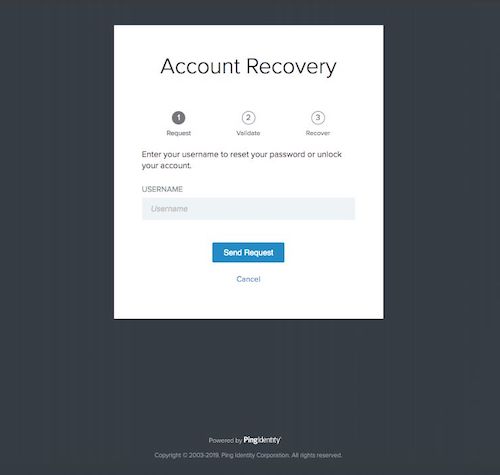
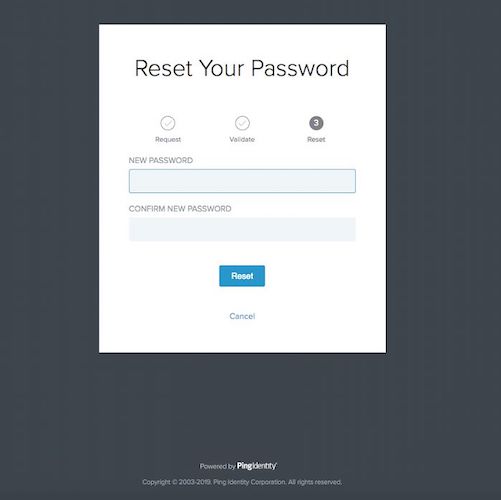
3. On the **Reset Your Password** page, enter a new password in the **New Password** and **Confirm New Password** fields. Click **Reset**.