Configuring Juniper as first factor authentication
Configure Juniper 8.0 as the first-factor ID provider using LDAP and PingFederate with PingID RADIUS password credential validator (PCV) as the second factor.
Steps
-
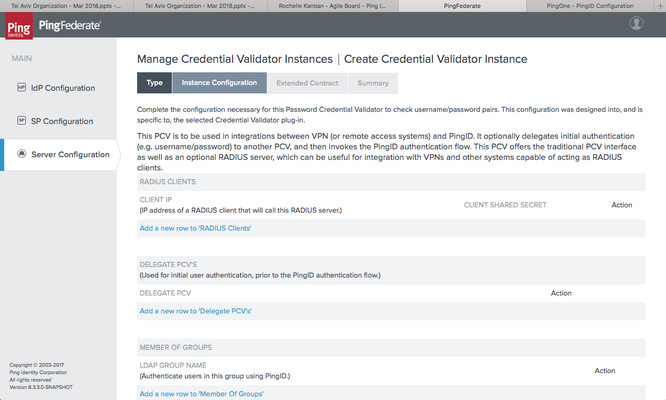
Configure PingFederate with a PingID RADIUS PCV, and leave the Delegate PCV section empty.
For more information, see Integration for devices using a RADIUS server.
-
In the Juniper admin portal, create and configure the PingID RADIUS configuration.
For more information, see Configuring Juniper for PingID multi-factor authentication.
-
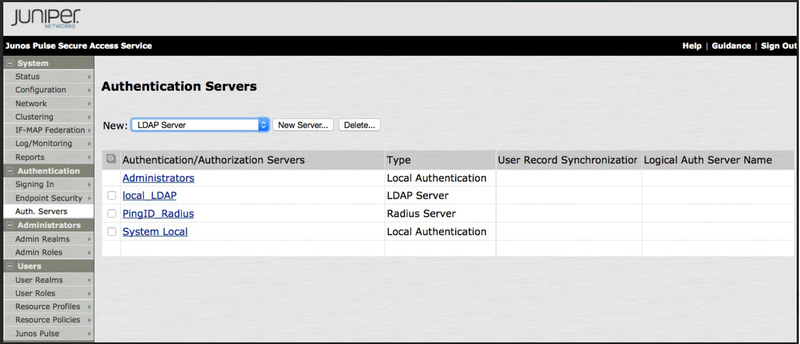
Go to Authentication → Authentication Servers.
-
From the New drop-down list, select LDAP Server, and then click New Server.
-
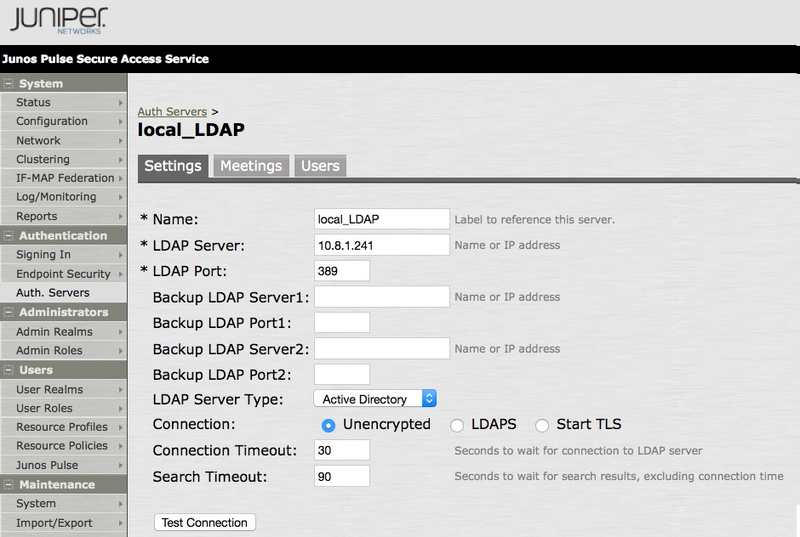
In the Settings tab, complete the following fields:
-
In the Name field, enter a name for the server.
-
In the LDAP Server field, enter the IP address or hostname of the LDAP server.
-
In the LDAP Port field, keep the default value of
389, or change it according to the LDAP configuration. -
From the LDAP Server Type list, select Active Directory.
-
From the Connection options, keep the default value of
Unencrypted, or change it to match the LDAP configuration. -
In the Connection Timeout field, enter
30. -
In the Search Timeout field, enter
90. -
Leave all other fields empty.
-
-
To confirm that the connection is valid before continuing, click Test Connection.
-
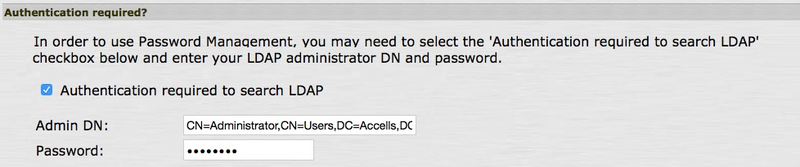
In the Authentication Required? section, complete the following fields:
-
Select the Authentication Required to Search LDAP check box.
-
In the Admin DN field, enter the admin DN.
For example,
CN=Administrator, CN=Users, DC=Accells, DC=Lab. -
In the Password field, enter the admin password.
-
-
In the Finding User Entries section, complete the following fields:
-
In the Base DN field, enter the Base DN.
For example,
CN=Users, DC=Accells, DC=Lab. -
In the Filter field, enter
samaccountname=<USER>.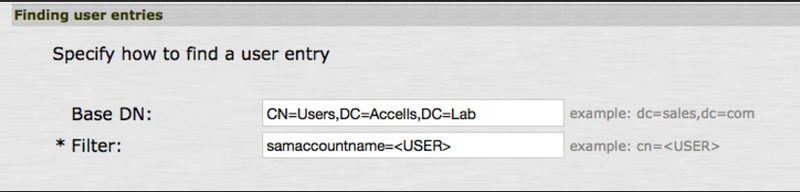
-
-
In the Determining Group Membership section, complete the following fields:
-
In the Base DN field, enter the Base DN.
For example,
CN=Users, DC=Accells, DC=Lab.-
In the Filter field, enter
CN=<GROUPNAME> -
In the Member Attribute field, enter
member.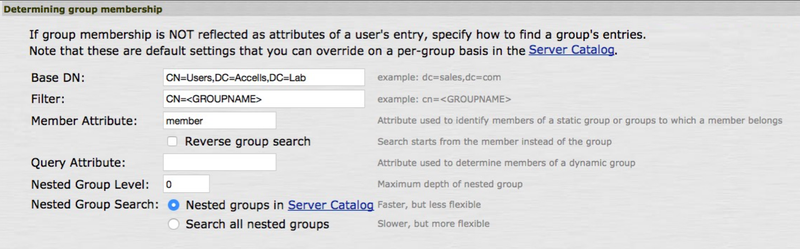
-
-
Click Save Changes.
-
Go to Authentication → Signing In → Sign-in Policies, and ensure that the first entry on the User URLs list is
*/.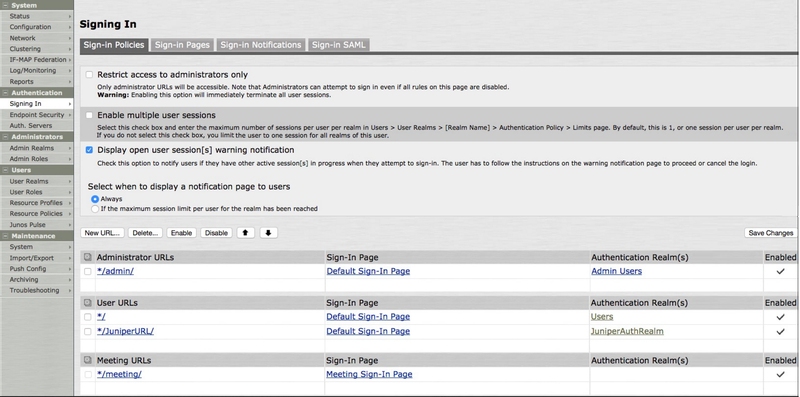
This differs from the instructions in the RADIUS PCV documentation.
-
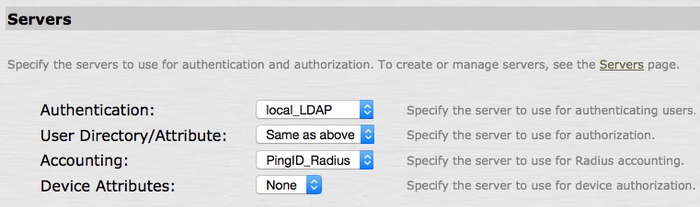
Go to Users → User Realms → Users and in the Servers section, complete the following fields:
-
From the Authentication list, choose the LDAP authentication server created earlier.
For example, local_LDAP.
-
From the User Directory/Attribute list, select Same as Above.
-
From the Accounting list, select the Juniper RADIUS authentication server created earlier.
For example, PingID_Radius.
-
-
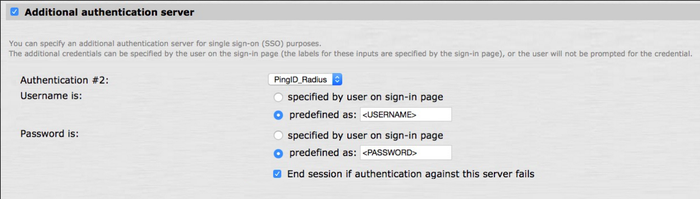
Select the Additional Authentication Server check box, and then complete the following fields:
-
From the Authentication #2 list, select the Juniper RADIUS authentication server created earlier.
For example, PingID_RADIUS.
-
In the Username is: section, click Predefined as and enter
<USERNAME>. -
In the Password is: section, click Predefined as and enter
<PASSWORD>. -
Select the End Session if Authentication Against this Server Fails check box.
-
-
Click Save Changes.
-
To sign on to Juniper while using the Juniper LDAP configuration as the first-factor for authentication, use the default user URL.
Example:
https://<juniper IP>, https://<juniper hostname>, or https://10.8.1.240/