Resetting a password through a text or SMS message
Configure an SMS provider in an HTML Form Adapter instance in PingFederate for users to receive a text message notification with a one-time passcode (OTP) to reset their password.
Before you begin
-
Make sure Password Reset Type is set to Text Message in your HTML Form Adapter instance configuration.
Steps
-
Go to AuthenticationIdP Adapters and, in the Instance Name list, select the adapter instance that you want to use.
-
Go to the IdP Adapter tab and click Manage SMS Provider Settings.

-
In the Manage SMS Provider Settings page, edit the Account SID, Auth Token, From Number fields to match your service account. Click Save.

+
Result:
+ You’re returned to the Create Adapter Instance page.
-
On the Summary tab, click Save.
-
Go to the Sign On page and click the Trouble Signing On? link.

Result:
A text message notification with an OTP is sent to your mobile phone.
-
In the Account Recovery page, in the Enter Security Code field, enter the OTP. Click Validate.
Result:
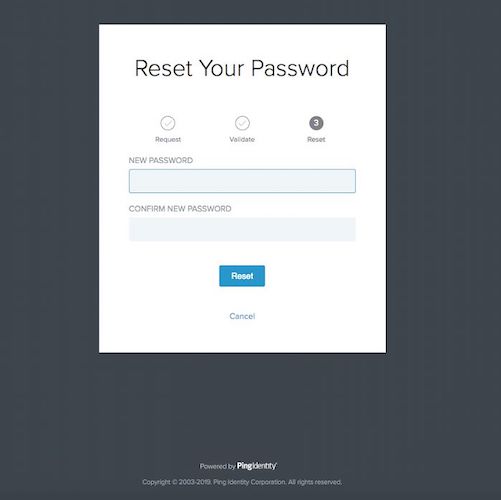
You’re directed to the Reset Your Password page.
-
Enter a new password in the New Password and the Confirm New Password fields. Click Reset.