Using a CA-signed certificate
About this task
To use a CA-signed SSL certificates, follow the process to create a private key, generate a certificate signing request (CSR), and request a certificate as shown in the following diagram.
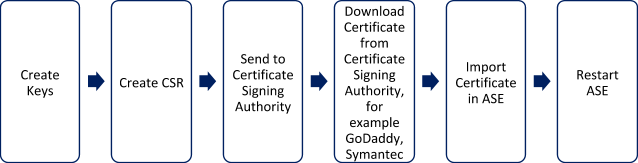
|
ASE internally validates the authenticity of the imported certificate. |
To use a CA-signed certificate:
Steps
-
Create a private key.
The ASE command-line interface (CLI) is used to create a 2048-bit private key and to store it in the key store.
Example:
/opt/pingidentity/ase/bin/cli.sh create_key_pair -u admin -p
Warning: create_key_pair will delete any existing key_pair, CSR and self-signed certificate
Do you want to proceed [y/n]:y
Ok, creating new key pair. Creating DH parameter may take around 20 minutes. Please wait
Key created in keystore
dh param file created at /opt/pingidentity/ase/config/certs/dataplane/dh1024.pem
-
Create a CSR.
ASE takes you through a CLI-based interactive session to create a CSR.
Example:
/opt/pingidentity/ase/bin/cli.sh create_csr -u admin -p
Warning: create_csr will delete any existing CSR and self-signed certificate
Do you want to proceed [y/n]:y
please provide following info
Country Code >US
State > Colorado
Location >Denver
Organization >Pingidentity
Organization Unit >Pingintelligence
Common Name >ase
Generating CSR. Please wait...
OK, csr created at /opt/pingidentity/ase/config/certs/dataplane/ase.csr
-
Upload the CSR that you created in step 2 to the CA signing authority’s website to get a CA-signed certificate.
-
Download the CA-signed certificate from the CA signing authority’s website.
-
Use the CLI to import the signed CA certificate into ASE.
Example:
/opt/pingidentity/ase/bin/cli.sh import_cert  <CA signed certificate path>  -u admin -p
Warning: import_cert will overwrite any existing signed certificate
Do you want to proceed [y/n]:y
Exporting certificate to API Security Enforcer...
OK, signed certificate added to keystore
Result:
The certificate is imported into the key store.
-
Restart ASE.
For more information, see Starting and stopping ASE.