am image
Prior to the ForgeOps 2026.1 release, the am Docker
image contained the AM configuration. In ForgeOps 2026.1 and later
releases, AM configuration has been separated from the AM image
into a BusyBox container that contains the configuration profiles.
This lets you customize configuration changes and build only the
BusyBox images.
Customization overview
-
Customize AM’s configuration data by using the AM admin UI and REST APIs.
-
Capture changes to the AM configuration by exporting them from the AM service running on Kubernetes to the staging area.
-
Save the modified AM configuration to a configuration profile in your
forgeopsrepository clone. -
Build a BusyBox container image using the exported configuration profile.
-
Redeploy AM.
-
Verify that changes you’ve made to the AM configuration are in the new Docker image.
Detailed steps
-
Verify that:
-
You have access to a single-instance ForgeOps deployment.
-
The namespace where the platform is deployed is set in your Kubernetes context.
-
All required third-party software is installed in your local environment (minikube|GKE|EKS|AKS).
-
You’ve set up your environment to push to your Docker registry.
-
-
Perform version control activities on your
forgeopsrepository clone:-
Run the git status command.
-
Review the state of the docker/am/config-profiles/my-profile directory.
-
(Optional) Run the git commit command to commit changes to files that have been modified.
-
-
Modify the AM configuration using the AM admin UI or the REST APIs.
You can find more information about how to access the AM admin UI or REST APIs in AM Services.
You can find important information about configuring values that vary at run-time, such as passwords and host names in About property value substitution.
-
Export the changes you made to the AM configuration in the running ForgeOps deployment to a configuration profile. To use the version of
am-config-upgraderfor your release, speciy the--release-nameoption:$ cd /path/to/forgeops/bin $ ./forgeops config export am --release-name my-release my-profile --sort ...
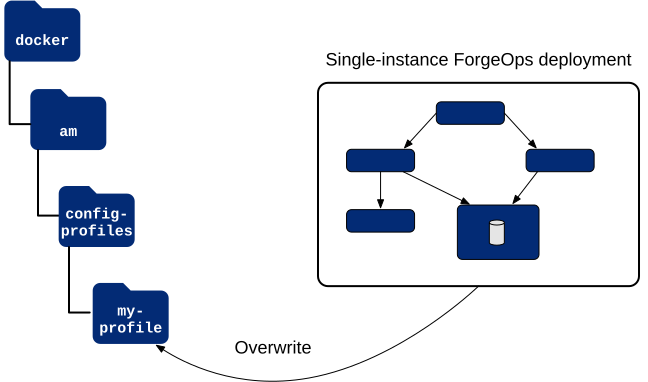
If the configuration profile doesn’t exist yet, the forgeops config export command creates it.
The forgeops config export am my-profile command copies AM static configuration from the ForgeOps deployment to the configuration profile:
-
Perform version control activities on your
forgeopsrepository clone:-
Review the differences in the files you exported to the configuration profile. For example:
$ git diff
diff --git a/docker/am/config-profiles/my-profile/config/services/realm/root/selfservicetrees/1.0/organizationconfig/default.json b/docker/am/config-profiles/my-profile/config/services/realm/root/selfservicetrees/1.0/organizationconfig/default.json
index 970c5a257..19f4f17f0 100644
--- a/docker/am/config-profiles/my-profile/config/services/realm/root/selfservicetrees/1.0/organizationconfig/default.json
+ b/docker/am/config-profiles/my-profile/config/services/realm/root/selfservicetrees/1.0/organizationconfig/default.json
@@ -9,6 +9,7 @@
     "enabled": true,
     "treeMapping": {
       "Test": "Test",
+      "Test1": "Test1",
       "forgottenUsername": "ForgottenUsername",
       "registration": "Registration",
       "resetPassword": "ResetPassword",
The first time you export AM configuration changes to a configuration profile, the git diff command doesn’t show any changes.
-
Run the git status command.
-
If you have new untracked files in your clone, run the git add command.
-
Review the state of the docker/am/config-profiles/my-profile directory.
-
(Optional) Run the git commit command to commit changes to files that have been modified.
-
-
Identify the repository to which you’ll push the Docker image. You’ll use this location to specify the --push-to argument value in the build am image step.
-
Decide on the image tag name to tag each build of the image. You’ll use this tag name to specify the --tag argument in the build am image step.
-
Build a new
BusyBoximage that includes AM static configuration change:While the forgeops build command uses the Docker engine by default for ForgeOps deployments, it supports Podman as well. If you are using Podman engine instead of Docker in your environment, then set the
CONTAINER_ENGINEenvironment variable topodmanbefore running the forgeops build command, for example:$ export CONTAINER_ENGINE="podman"
$ ./forgeops config build --env-name my-env am \
  --config-profile my-profile --push-to my-repo --tag my-am-tag
...
-
Redeploy AM using your new AM BusyBox image:
-
If you installed the platform using the forgeops command, follow the steps in Redeploy AM: Kustomize deployments.
-
If you installed the platform using Helm, follow the steps in Redeploy AM: Helm deployments.
-
Redeploy AM: Kustomize deployments
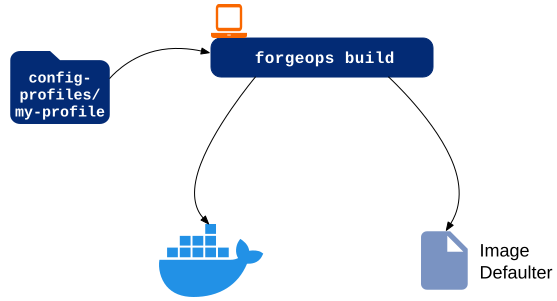
The forgeops build command calls Docker to build a new
am Docker image and to push the image to your Docker
repository. The new image includes your configuration profile. It also updates
the image defaulter file so that the next
time you install AM, the forgeops apply command gets
AM static configuration from your new custom Docker image.
-
Perform version control activities on your
forgeopsrepository clone:-
Run the git status command.
-
Review the state of the kustomize/overlay/my-env/image-defaulter/kustomization.yaml file.
-
(Optional) Run the git commit command to commit changes to the image defaulter file.
-
-
Remove AM from your ForgeOps deployment:
$ ./forgeops delete am --env-name my-env
... platform detected in namespace: "my-namespace".
Uninstalling component(s): ['am'] from namespace: "my-namespace".
OK to delete components? [Y/N] Y
service "am" deleted
deployment.apps "am" deleted
-
Redeploy AM:
$ ./forgeops apply am --env-name my-env
Checking cert-manager and related CRDs: cert-manager CRD found in cluster.
Checking secret-agent operator and related CRDs: secret-agent CRD found in cluster

Installing component(s): ['am'] ... from deployment manifests in ...

service/am created
deployment.apps/am created

Enjoy your deployment!
-
Validate that AM has the expected configuration:
-
Run the kubectl get pods command to monitor the status of the AM pod. Wait until the pod is ready before proceeding to the next step.
-
Describe the AM pod. Locate the tag of the Docker image that Kubernetes loaded, and verify that it’s your new custom Docker image’s tag.
-
Start the AM admin UI and verify that your configuration changes are present.
-
Redeploy AM: Helm deployments
-
Locate the
Successfully taggedmessage in the forgeops build output, which contains the new AM Docker image’s repository and tag. -
Redeploy AM using the new AM Docker image:
$ helm upgrade identity-platform ./ \
 --namespace my-namespace \
 --values /path/to/forgeops/helm/my-env/values.yaml
-
Validate that AM has the expected configuration:
-
Run the kubectl get pods command to monitor the status of the AM pod. Wait until the pod is ready before proceeding to the next step.
-
Describe the AM pod. Locate the tag of the Docker image that Kubernetes loaded, and verify that it’s your new custom Docker image’s tag.
-
Start the AM admin UI and verify that your configuration changes are present.
-