Authentication
After you have linked an account, you can authenticate using the Keyless App. To authenticate, the service you linked sends a push notification to Keyless Authenticator on your smartphone.
Authentication is simple and fast, with a consistent user experience no matter which service you are authenticating to.
Windows login
Passwordless login
Windows passwordless login allows you to log in to your workstation easily and securely without a password. Follow the steps below.
|
On your first Keyless passwordless login attempt, you are required to enter your existing password. This is a one-time operation to maintain high security. |
-
From your Windows lock screen, click Sign in.
-
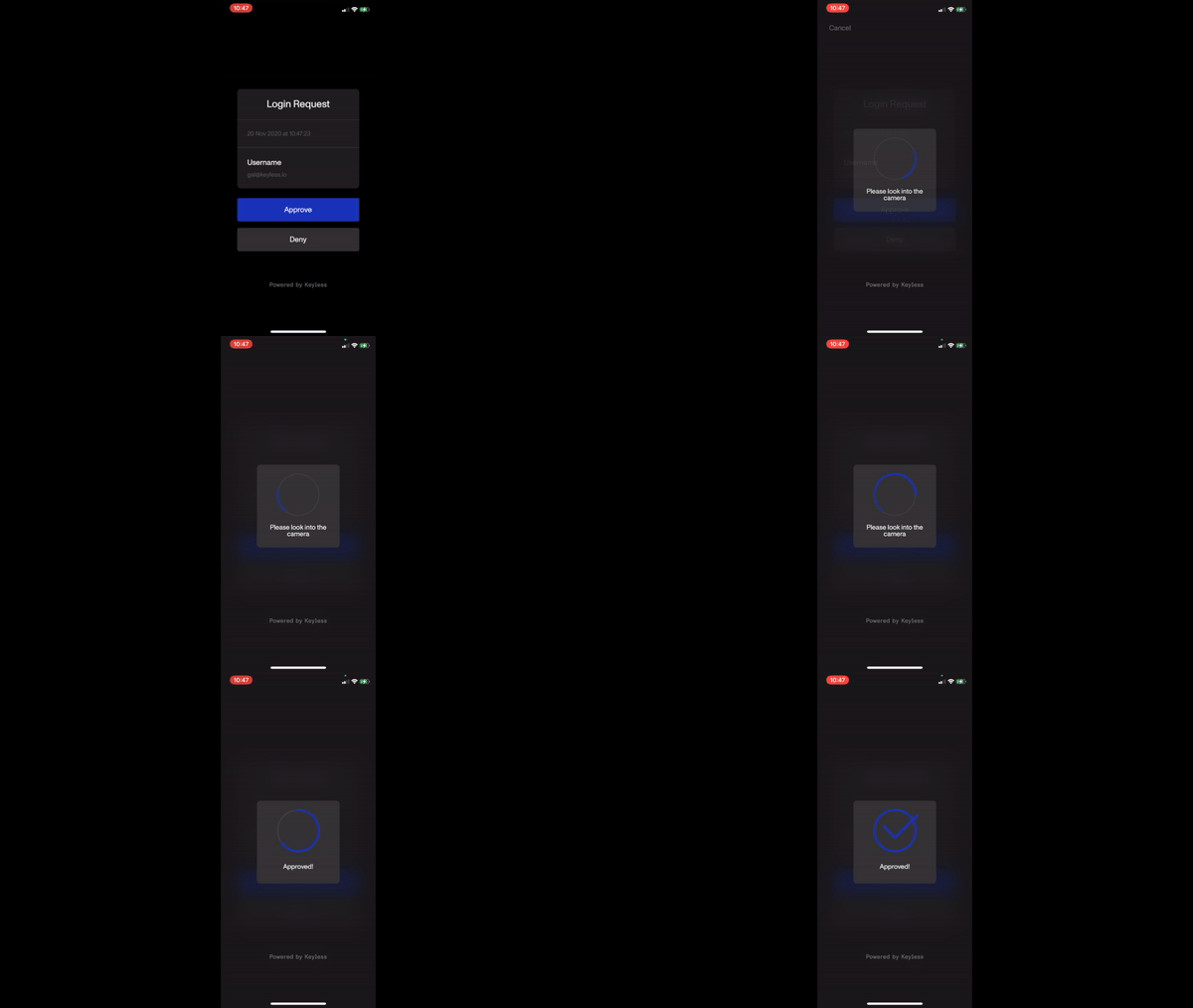
You receive a push notification on your mobile phone. Clicking the notification opens the Keyless application.
-
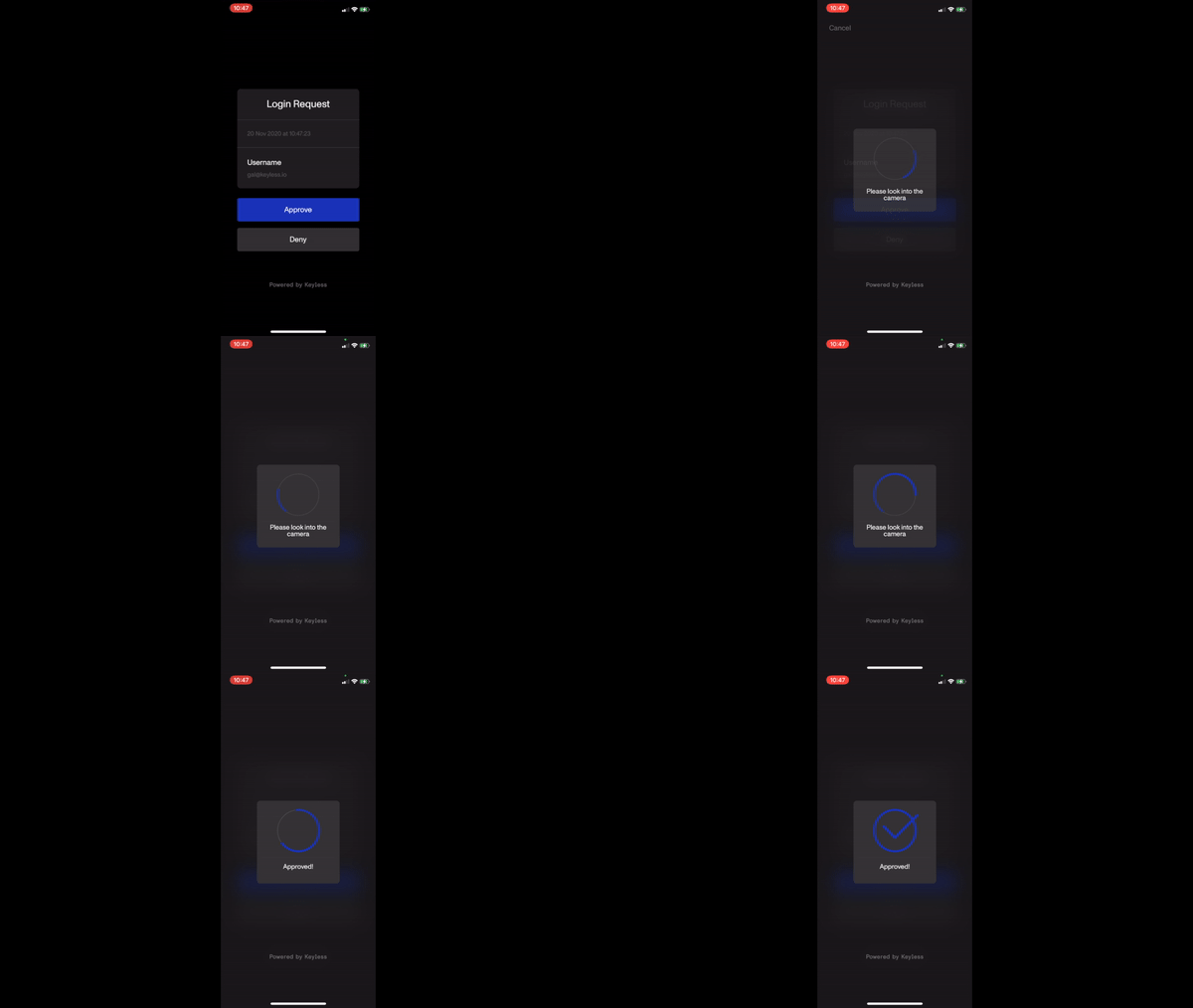
Confirm your login attempt by clicking Approve in the login request screen.
-
Authenticate by looking straight into your phone camera.
Password + Keyless mode
Windows Password + Keyless mode allows you to log in to your workstation by adding Keyless as another layer of security on top of your Windows password. Follow the steps below.
|
If you want to use Keyless passwordless mode and avoid entering your password, contact your IT administrator. |
-
Enter your user password on the Windows lock screen and click Sign in.
-
You receive a push notification on your mobile phone. Clicking the notification opens the Keyless application.
-
Confirm your login attempt by clicking Approve in the login request screen.
-
Authenticate by looking straight into your phone camera.
Offline mode
Offline mode enables you to perform a workstation login when there is no internet connection. It is up to you when to enable and disable offline login.
Enabling offline mode
|
All users can enable and disable offline mode without escalated privileges. |
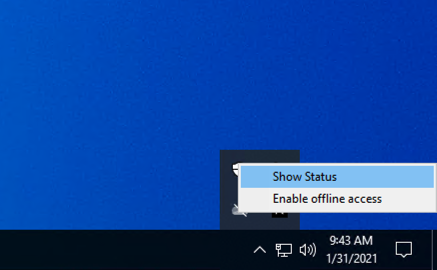
Enabling and disabling offline mode is done through the Keyless tray application in the tray bar:
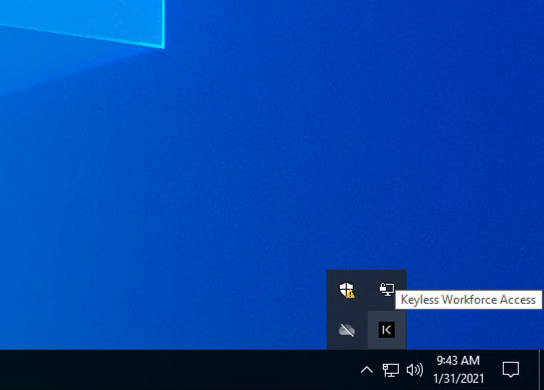
By default, offline mode is enabled for all users on the specified workstation. To enable offline mode, click the Keyless tray icon and select Enable Offline Access.
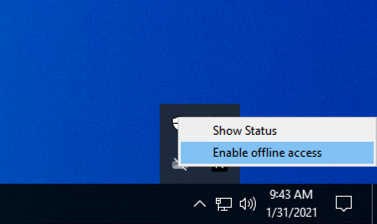
To ensure maximum security, once enabled, Offline Mode is available for at most 7 days and 10 login attempts. Once either limit is reached, offline mode is automatically disabled and users need to re-enable offline mode or use standard online login.
|
Each successful online login resets the counters back to 7 days and 10 login attempts. |
|
If you want to change the default values of 7 days and 10 login attempts, contact Keyless customer support. |
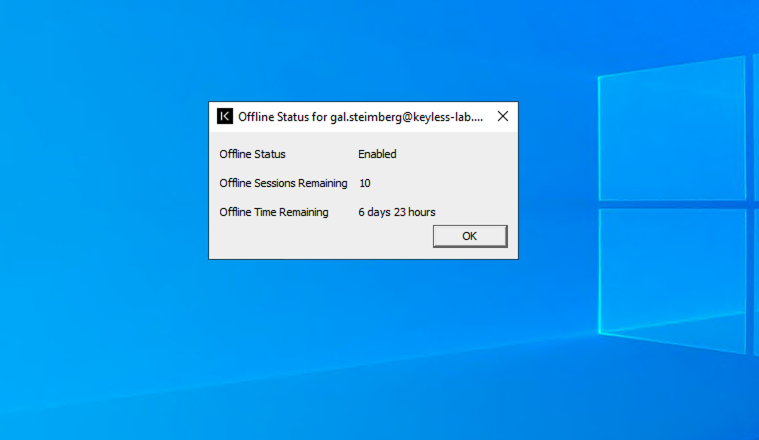
A user can view current offline access status by clicking Show Status from the Keyless tray app:
-
Offline Status: Enabled or Disabled
-
Offline Sessions Remaining: Number of consecutive offline logins left for the user on the workstation; resets on a successful online login.
-
Offline Time Remaining: Amount of time left for the user on the workstation for offline access; resets on a successful online login.
Authenticating when offline
After enabling offline mode, follow these steps to log in when offline.
-
From the Windows lock screen, select the Offline Login checkbox (if you are using Password + Keyless mode, first enter your password).
-
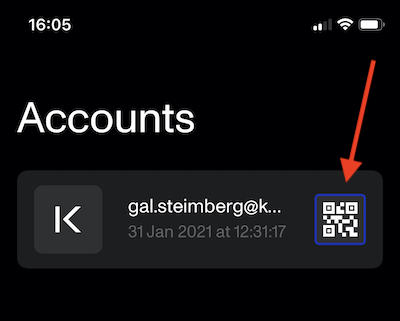
Scan the QR code with your Keyless mobile app by clicking the QR code image next to the account name inside the Keyless app.
-
Scan the QR code using the Keyless app. This generates an 8-digit one-time passcode.
-
Enter the 8-digit passcode into the password input box on your workstation.
RDP authentication
Keyless authentication is used for RDP sessions into all workstations that have the Keyless Workforce Access Client installed.
|
Keyless authentication is used only for users who are not excluded from Keyless for the specific workstation. |
Step-by-step guide
-
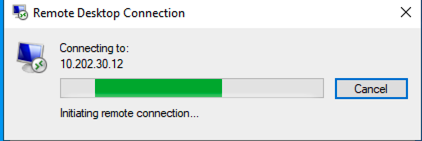
Using the Remote Desktop Protocol application on your workstation, or using the command line, initiate an RDP session for a Keyless-enabled user to a Keyless-enabled workstation:
mstsc /v:<your-ip-address>
# Example: mstsc /v:10.20.30.01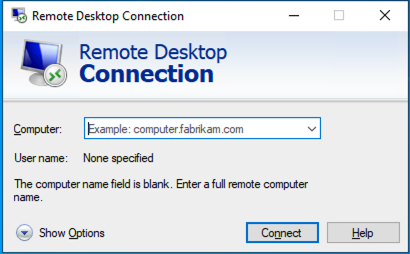
-
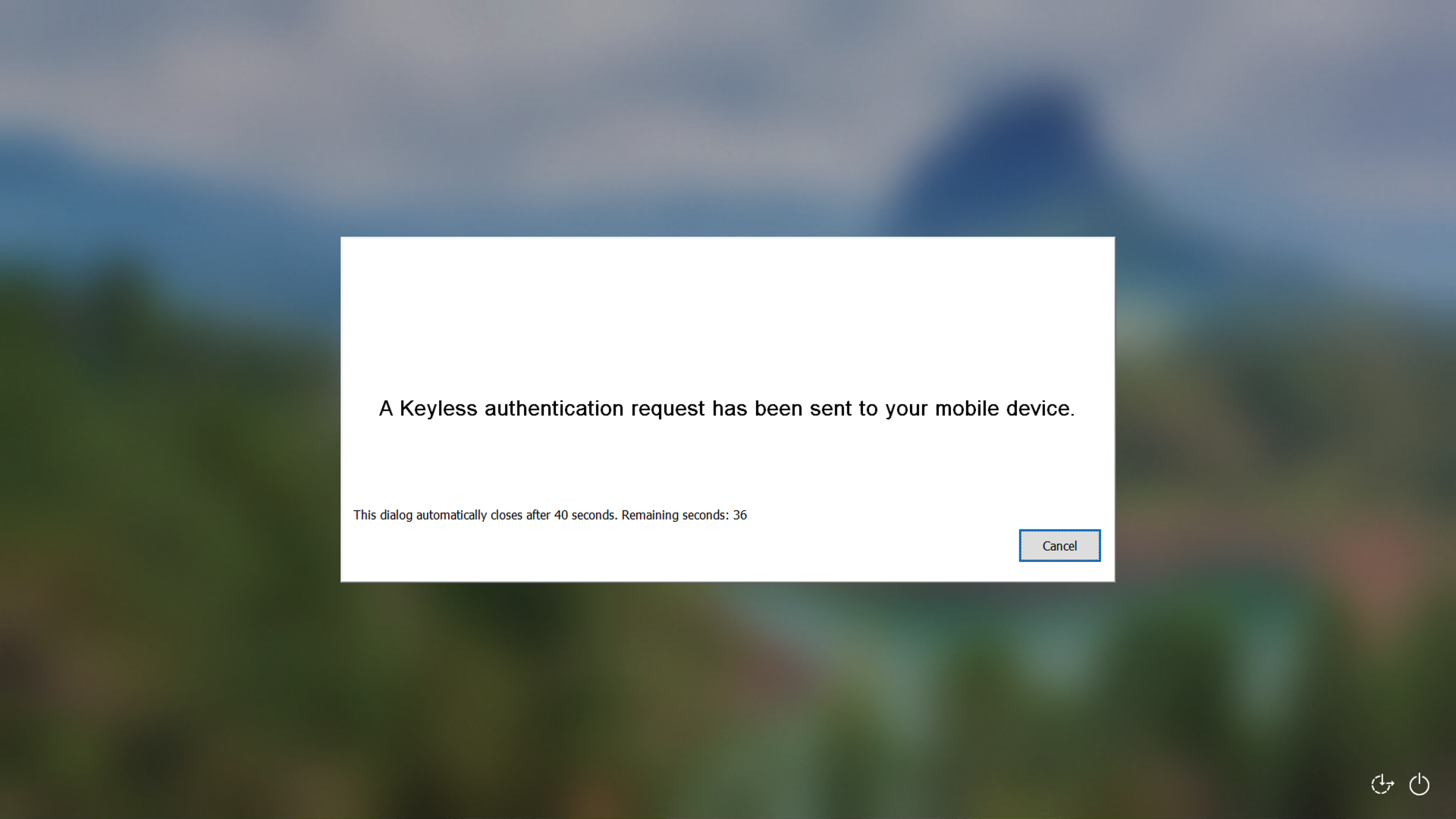
Once connected, you’re prompted to authenticate on your mobile device.
-
Authenticate on your device:
-
Access the workstation: