Setting up your environment in PingOne
This topic guides administrators through setting up a new environment for PingOne Privilege, which is the first step to enabling secure, centralized privileged access management (PAM) for your organization.
Before you begin
-
You must have access to the PingOne admin console.
-
Your account must have the following administrator roles assigned for the initial setup: Identity Data Admin, PingOne Privilege Administrator, and Application Owner.
-
You need a PingOne environment and a solution built with PingOne SSO. Learn more in Building solutions in the PingOne documentation.
-
(Optional) In Endpoint Controller-based models, you can also add PingID to your environment to require PingID multi-factor authentication (MFA) when users connect through the Endpoint Controller. Learn more in Requiring PingID MFA for PingOne Privilege app connections.
Step 1: Add the PingOne Privilege service
First, add the PingOne Privilege service to your PingOne environment. Learn more in Adding a service to an environment in the PingOne documentation.
-
In the PingOne admin console, go to Overview.
-
In the Services section, click the icon.
-
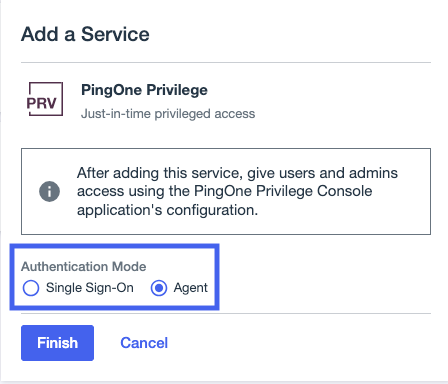
In the Add a Service list, select PingOne Privilege.
-
Select the Authentication Mode.
The authentication mode determines how you deploy PingOne Privilege and how users authenticate.
-
For No Endpoint Controller-based deployments, users authenticate through PingOne SSO.
-
For Endpoint Controller-based deployments, users authenticate through the Endpoint Controller.
Learn more in Choosing a deployment model.
-
-
Click Finish.
Step 2: Create and configure user groups
Next, create the groups that need access to PingOne Privilege and grant them access to the application. Learn more in Managing groups in the PingOne documentation.
-
In the PingOne admin console, go to Directory > Groups.
-
Click the icon and create the following groups:
-
Privilege Adminsfor PingOne Privilege administrators. -
Privilege Usersfor users who access resources through PingOne Privilege.
-
-
Click Save.
Step 3: Grant access to groups
Users can only access PingOne Privilege if they belong to a group that has access to the PingOne Privilege application.
-
In the PingOne admin console, go to Applications > Applications.
-
In the list, click the PingOne Privilege application.
-
In the Access tab, click the Pencil () icon.
-
Select the PingOne Privilege groups that need access.
-
Click Save.
Step 4: Assign roles and add users to the administrator group
Finally, add users to the administrator group and assign them the necessary roles. Learn more in Managing administrator roles in the PingOne documentation.
-
In the PingOne admin console, go to Directory > Users.
-
Select a user to be a PingOne Privilege administrator.
-
In the user’s profile, go to the Groups tab and add the user to the PingOne Privilege administrator group you created.
-
Go to the Roles tab and assign the following roles to the user:
The following roles are required for the initial setup of PingOne Privilege:
-
PingOne Privilege Administrator: Required to create onboarding links and manage PingOne Privilege resources. Assign this role to the administrator group, for example,
Privilege Admins, or to individual administrators. -
Identity Data Administrator: Required to manage users and groups in the directory.
-
Application Owner: Required to grant application access to groups.
-
-
Click Save.
-
Repeat these steps for each user who needs to be a PingOne Privilege administrator.