Installing the Endpoint Controller and accessing the admin console
In an Endpoint Controller-based deployment, you access the PingOne Privilege admin console through the Endpoint Controller. The Endpoint Controller is also the workstation component that Agent Privilege uses to discover personal agents on managed desktops. To onboard a workstation, you generate a download link and an onboarding link, then the user installs the Endpoint Controller and opens the onboarding link to register the device and access the user console.
Before you begin
Ensure the following:
-
You’ve completed Starting a trial and setting up your environment.
-
You’ve created the necessary users, groups, and permissions.
Install the Endpoint Controller
You access the PingOne Privilege admin console through the Endpoint Controller, so you install it on your own admin workstation first.
Because you haven’t installed the Endpoint Controller yet, use the onboarding link for the administrator to install it and open the console for the first time:
-
In the PingOne admin console, go to Directory > Users.
-
Click the administrator user you created.
Result:
The details panel for the user opens.
-
On the Services tab, select Privilege.
-
Click Generate Onboarding Link.
Result:
A link is automatically sent through email to the PingOne admin user you created.
-
Open the link sent to email or copy the generated onboarding link and open it in a new browser tab.
-
Download the Endpoint Controller and complete the installation on your computer.
|
If you can’t see the administrator onboarding options, confirm that you have the PingOne Privilege Administrator role assigned and that your user is in the environment containing PingOne Privilege. Sign off and sign on again after changing role assignments. |
Complete the Endpoint Controller configuration for your operating system
-
macOS: Approve the system extensions and grant Full Disk Access. Learn more in Approve macOS system extensions and Grant Full Disk Access on macOS.
-
Windows: No additional operating system approval steps are required.
Approve macOS system extensions
| Admin rights are required for these steps. |
Complete these steps when the test workstation runs macOS and the Endpoint Controller requests system-extension access.
-
On your Mac, open the Endpoint Controller from the system tray to start extension activation.
-
Open System Settings and go to General > Login Items & Extensions.
-
In the extensions list, find PingOne Privilege and click the information icon next to it.
-
Enable the Network Extension and the Security Extension toggles.
-
Click Done.
Grant Full Disk Access on macOS
| Admin rights are required for these steps. |
The macOS endpoint security extension requires Full Disk Access to discover personal agents.
-
Open System Settings and go to Privacy & Security > Full Disk Access.
-
In the list, find the PingOne Privilege endpoint security component and toggle it on.
-
Return to the Endpoint Controller.
-
Confirm that the Endpoint Controller reports
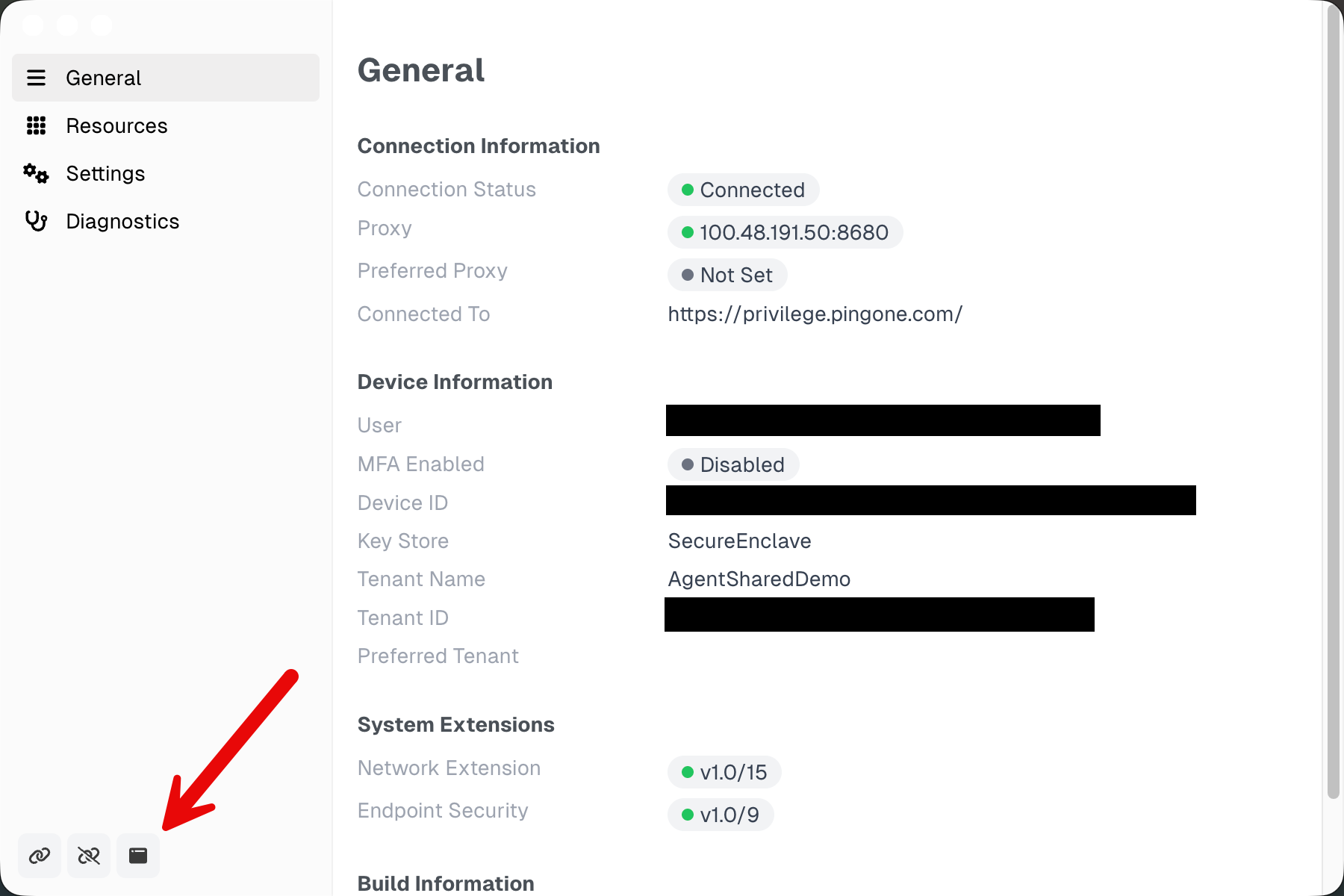
Connectedfor Connection Status.If the Endpoint Controller doesn’t detect the permission change, quit the Endpoint Controller, then reopen it.
Access the admin console
After installing the Endpoint Controller on your device, you’re ready to access the PingOne Privilege admin console.
-
Open the Endpoint Controller on your workstation.
-
Click the Open Console icon in the bottom left.
Result:
The PingOne Privilege admin console opens in a browser tab.
Result
After completing these steps, the Endpoint Controller is installed on your device and you’re able to access the PingOne Privilege admin console as an administrator.
Next steps
After installing the Endpoint Controller and accessing the PingOne Privilege admin console, you’re ready to discover agents in your environment.
Continue with Discover agents in your environment.