Slack integration
The PingOne Privilege Slack integration allows your teams to receive notifications of access requests or approvals.
Configuring notifications for approvals
To send approval notifications to a Slack channel, you must first create an incoming webhook in Slack and then add it to PingOne Privilege.
Step 1: Create an incoming webhook in Slack
-
In a web browser, go to the Slack Marketplace.
-
Sign on with your Slack credentials.
-
In the search bar, type
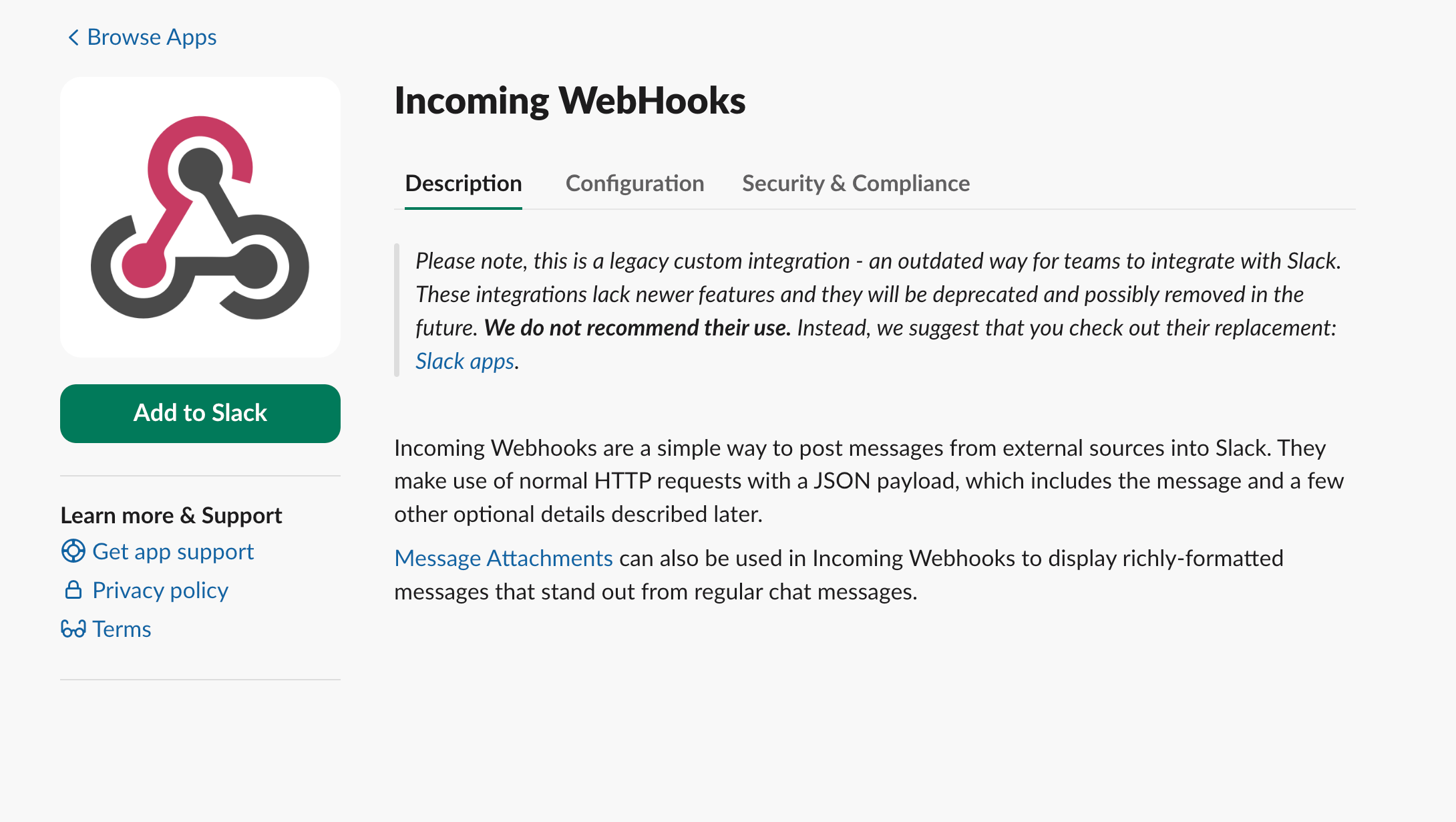
Incoming webhooks. -
Click Add to Slack.
-
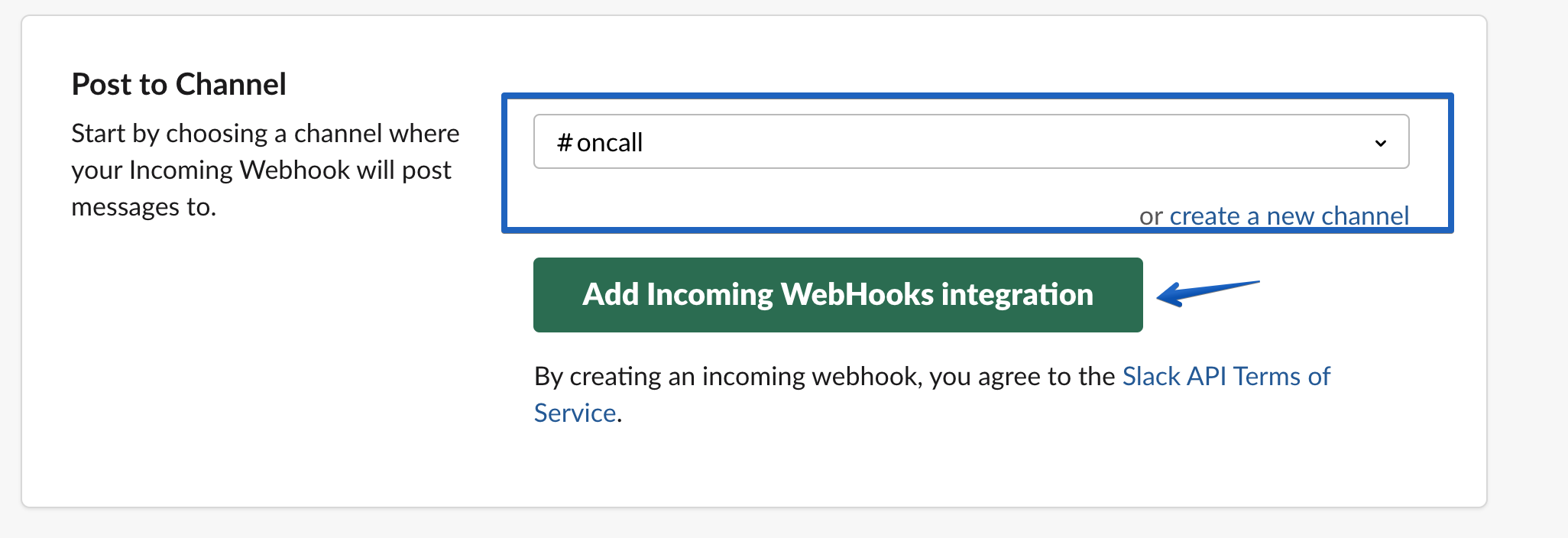
In the list, select the channel where PingOne Privilege notifications should be posted.
-
Click Add Incoming WebHooks Integration.
-
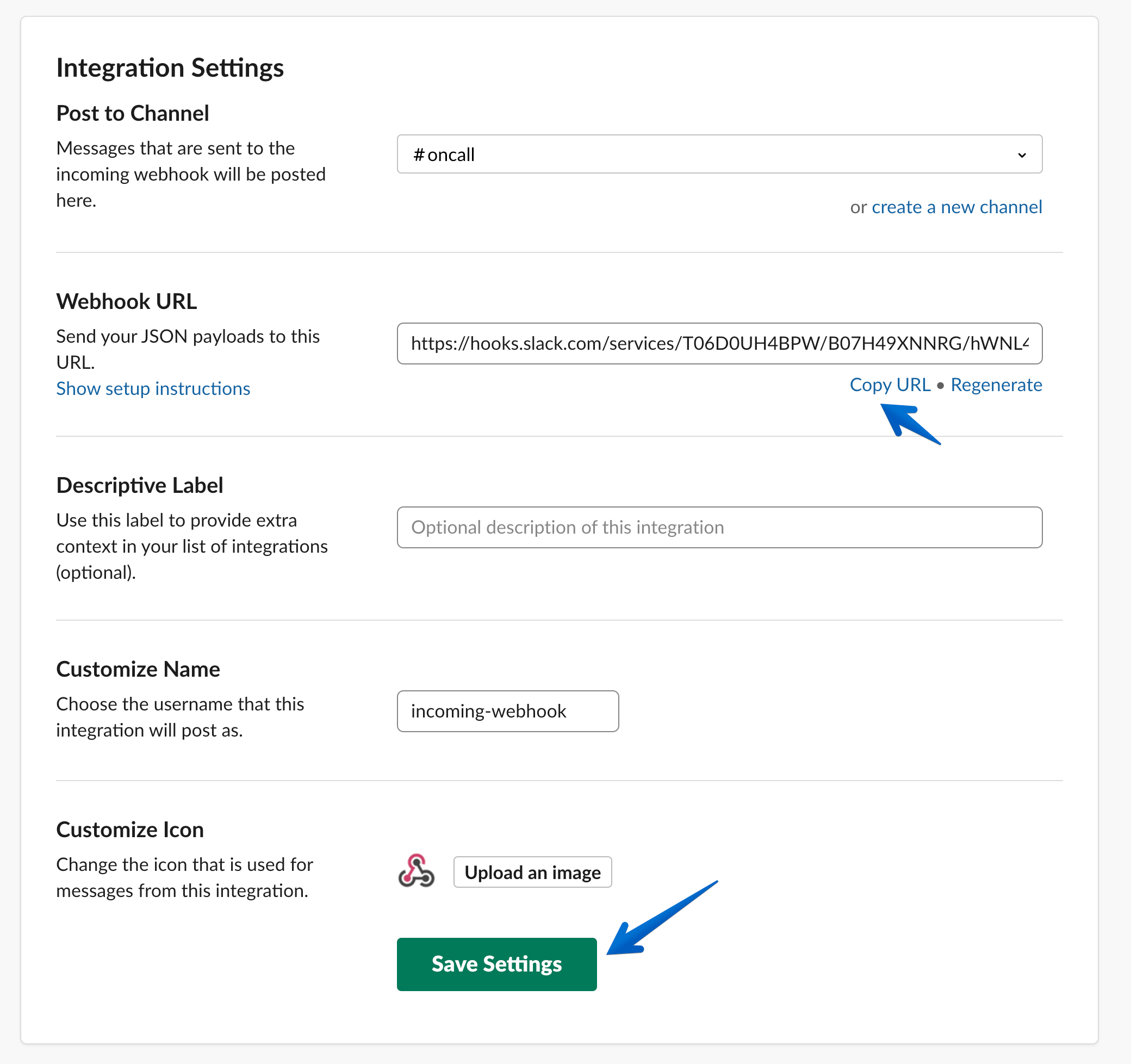
Copy the generated Webhook URL. Save this for the next step.
-
Click Save Settings.
Step 2: Add the webhook to PingOne Privilege
-
In the PingOne Privilege admin console, go to Infrastructure > Integrations.
-
Click the All Integrations tab.
-
In the Slack tile, click Integrate .
-
Enter a descriptive Integration Name, such as
DevOps Team Approvals. -
Paste the webhook URL you copied from Slack into the Webhook Url field.
-
Click Continue to create the integration.
-
On the Active tab, locate your new Slack integration and click Manage Integration.
-
In the Channel-Account linking section, click the menu button. Click Manage.
-
Add the cloud accounts whose JIT notifications should be handled by this integration and click Update.
-
In the Notification section, click Select to configure the Gateway Notification Channel and the Private Server Notification Channel.
Result
You can create multiple integrations to send notifications for different sets of accounts to different Slack channels.