Onboarding Amazon Web Services (AWS) accounts
When you add an Amazon Web Services (AWS) account to PingOne Privilege, its resources are automatically discovered and can be managed for just-in-time (JIT) access. You can onboard either a single AWS account or an entire AWS Organization Unit (OU).
Step 1: Start the Add Account wizard
-
In the PingOne Privilege admin console, go to Cloud > Clouds.
-
Click Add Account Wizard.
-
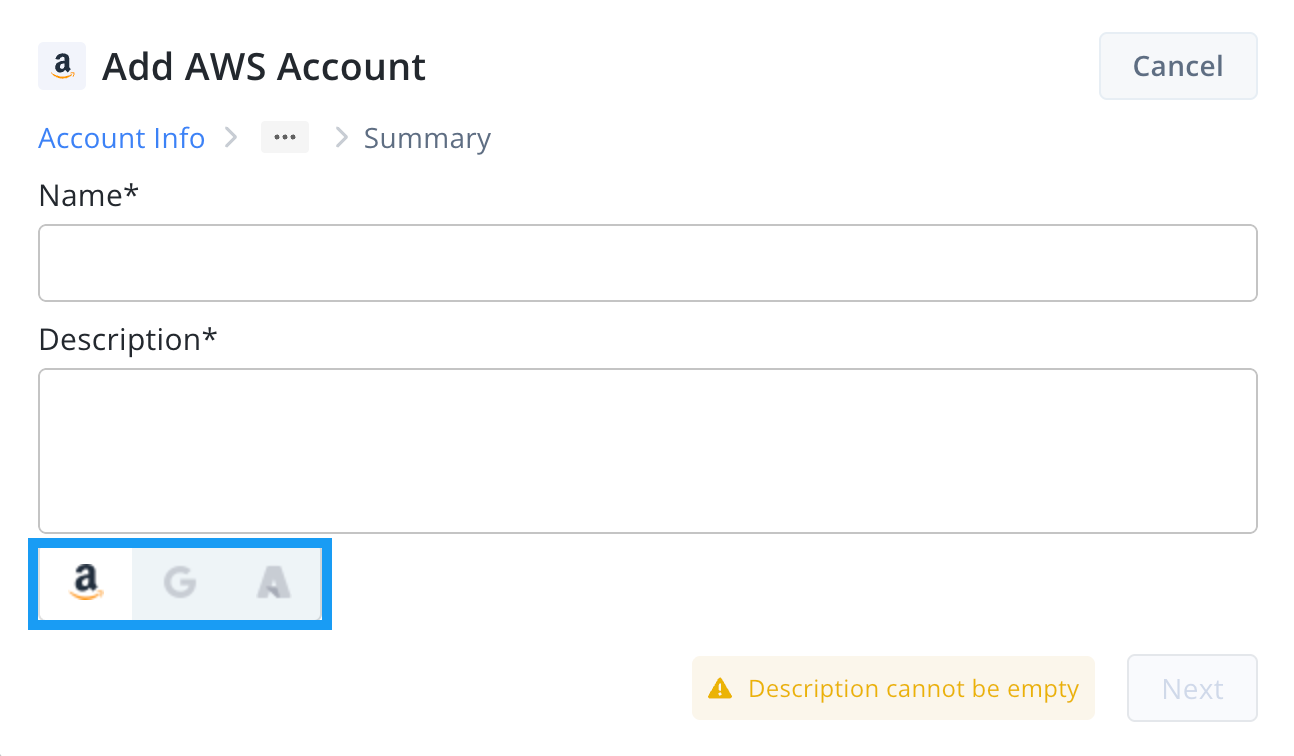
In the Add Account modal, select the AWS icon.
-
Enter a Name and Description for the connection. Click Next.
-
When asked if you are onboarding an Organization Unit (OU), select Yes or No. Click Next.
Step 2: Deploy the CloudFormation template in AWS
-
Copy the provided CloudFormation (CFN) template or click Open CF Template to open it in your AWS account.
-
In your AWS management account, deploy the CloudFormation template.
You must have sufficient IAM permissions to create the required resources. During deployment, provide the following parameters when prompted:
-
ExternalID: Enter a unique, memorable string that acts as a shared secret. You can copy this value directly from the PingOne Privilege UI.
-
OrgID (OU Only): Enter the ID of the AWS Organization Unit you are onboarding.
-
-
After you create the CloudFormation stack, go to its Outputs tab and copy the generated values.
Step 3: Complete the configuration in PingOne Privilege
-
In the PingOne Privilege admin console, go to the Add Account wizard in Cloud > Clouds.
-
Enter the values you copied from the CloudFormation stack outputs:
-
Cross Account Role ARN: The ARN of the role created by the template.
-
Organization Unit (OU) ID (For OUs only): The ID of the onboarded OU.
-
Advanced Discovery TAGS (optional): Limit discovery to resources with matching tags.
-
Advanced Discovery REGION (optional): By default, the discovery scan covers all enabled regions. Select specific regions to limit the discovery scope.
-
-
Click Verify & Add Account.
Result
The AWS account or OU appears in the Cloud Accounts list.
Next steps
To ensure the onboarding process was successful:
-
Sign on to the AWS console for the onboarded account.
-
Go to the IAM service.
-
Select Identity providers.
-
Verify that an identity provider (IdP) exists with the name
Procyon-<YourTenantName>-<YourAWSAccountName>, where<YourTenantName>is your PingOne Privilege tenant name and<YourAWSAccountName>is the name you provided in the wizard.