Starting a trial and setting up your environment
To evaluate Agent Privilege, you need a PingOne environment with the PingOne Privilege and PingOne SSO services, a test user and group with access to the PingOne Privilege application, and an administrator who can configure the environment.
Even if you already have a PingOne license, you can still start a PingOne trial to evaluate Agent Privilege. Choose the appropriate procedure:
-
Start a trial if you’re new to PingOne
-
Create an environment for Agent Privilege if you already have a PingOne tenant
Start a trial
-
Go to pingidentity.com and click Try Ping.

-
To activate your trial, open your email inbox and click Verify Email in the email sent to you.
-
Enter your first and last name, job title, and phone number in the appropriate fields.
By default, you’re granted the Organization Admin role, which allows you to set up your PingOne environment for Agent Privilege. -
Select your region from the list of regions available to your PingOne organization.
-
Create a password, select the checkbox to agree to the terms and conditions, and click Start Trial.
-
Enter the username and password you just created and click Sign On.
Result:
You’re prompted to enroll in multi-factor authentication (MFA) to enhance your account security.
-
Click Continue.
-
Select the MFA method that you want to use to authenticate:
-
Email: You provide your email address, receive an email with a passcode, and enter the passcode to sign on.
-
Authenticator App: You access the mobile authenticator app, receive a passcode, and enter the passcode to sign on.
-
Passkey: You create a passkey on your device using a biometric sensor or PIN and use that sensor or PIN to sign on.
For the Agent Privilege evaluation, we recommend the Email method because it requires no additional configuration.
-
Result
After you complete the registration process, you’re redirected to the Environments page, where you can create an environment for Agent Privilege.
Next steps
After you complete registration, continue with Create an environment for Agent Privilege.
Create an environment for Agent Privilege
If you already have a PingOne tenant, use a dedicated evaluation environment rather than a production environment. A separate environment keeps the test users, groups, and policies for the evaluation isolated from your production configuration.
-
In the PingOne admin console sidebar, click the Ping Identity logo to open the Environments page.
-
Click the icon.
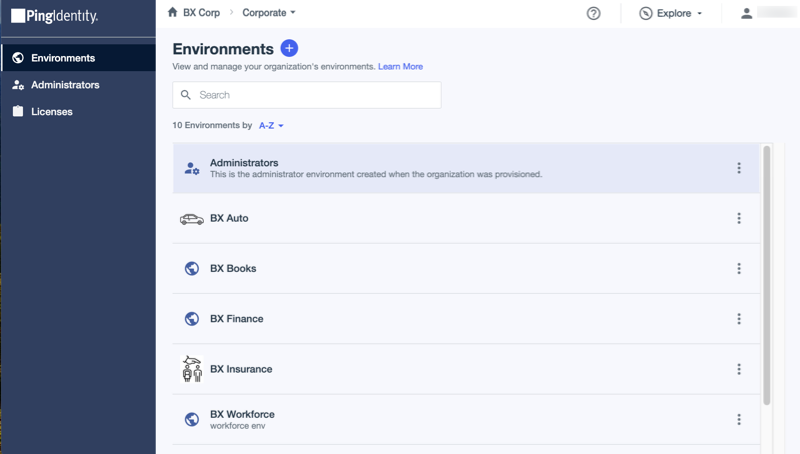
Result:
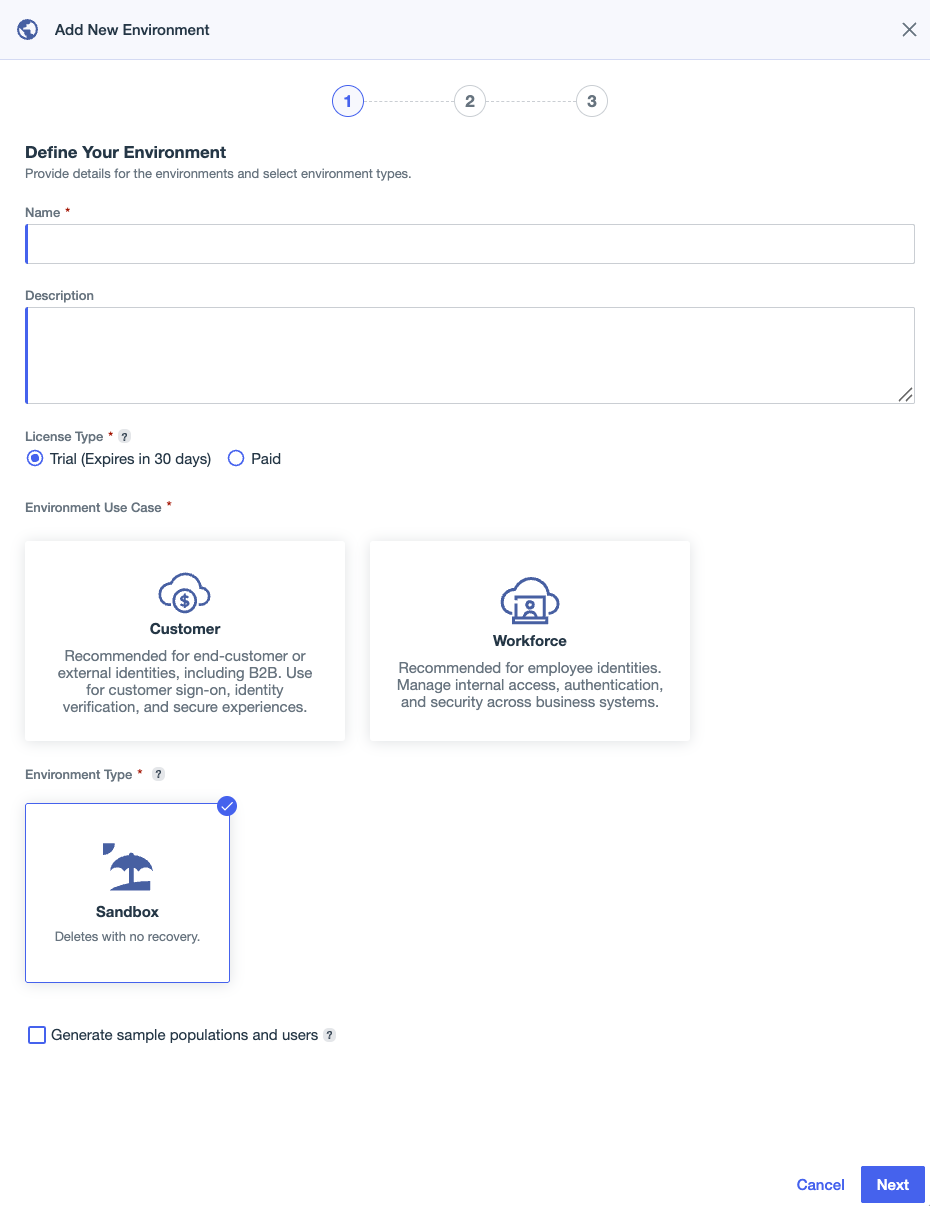
The Add New Environment setup assistant starts.
-
Define your environment by entering the following:
-
Name: A unique identifier for the environment, such as
Agent Privilege. -
Description (optional): A brief description of the environment, such as
Evaluation of Agent Privilege -
License Type: Select Trial (or Paid if you’re using an existing PingOne license).
If you don’t already have a trial license for PingOne, selecting the Trial option creates a 30-day trial environment which you can use to test and evaluate Agent Privilege. -
Environment Use Case: Select Workforce, which allows you to design single sign-on experiences for accessing the PingOne Privilege admin console.
-
Environment Type: Sandbox is the only option for Trial licenses.
-
-
Click Next, then Do It Myself.
-
Select the capabilities for your environment:
-
PingOne SSO: Required for PingOne Privilege.
-
PingOne Privilege: Adds the PingOne Privilege capability to your PingOne environment.
-
(Optional) PingID: Select this capability to use MFA workflows for sign-on or privileged activity.
-
-
Click Next.
-
Under Authentication Mode for the PingOne Privilege capability, select Controller.
This getting started guide uses the Controller to leverage the Endpoint Controller for quick deployment. Learn more about the different deployment options for PingOne Privilege in Choosing a deployment model. -
Click Save.
Result
You’re directed to your new environment in PingOne, which has the necessary configurations and capabilities to get started with Agent Privilege.
Next steps
After you set up an environment for Agent Privilege, you’re ready to set up users and groups in PingOne.
Continue with Creating users and groups.