Discover and manage NHI agents
AI discovery for non-human identity (NHI) agents finds the AI workloads running in your containers and helps you govern them. The PingOne Privilege node sensor observes these workloads, and PingOne Privilege both inventories them and enforces policy on them.
Discovery does not require every AI workload to be registered as an NHI before the sensor can find it. The sensor identity must be registered so the sensor can authenticate to PingOne Privilege. Register a workload identity separately when you need to associate the workload with that identity or match it in identity-based policy. Learn more in Registering non-human identities.
How the pieces fit together
The workflow is:
-
Register a non-human identity for the sensor itself. Learn more in Registering non-human identities.
-
Deploy the sensor on your Kubernetes clusters or Docker hosts. Learn more in Deploying the node sensor.
-
Review the discovery findings on the NHI Agents dashboard.
-
Configure NHI agent policy for the sensor to enforce.
Before you begin
To discover and manage NHI agents, ensure you have the following:
-
A non-human identity registered in PingOne Privilege for the sensor, so the sensor can authenticate its reports. Learn more in Registering non-human identities.
-
The node sensor deployed on your Kubernetes clusters or Docker hosts. Learn more in Deploying the node sensor.
-
For identity-based policy, the non-human identities your agents use registered in the directory. Learn more in Registering non-human identities.
NHI agents discovery
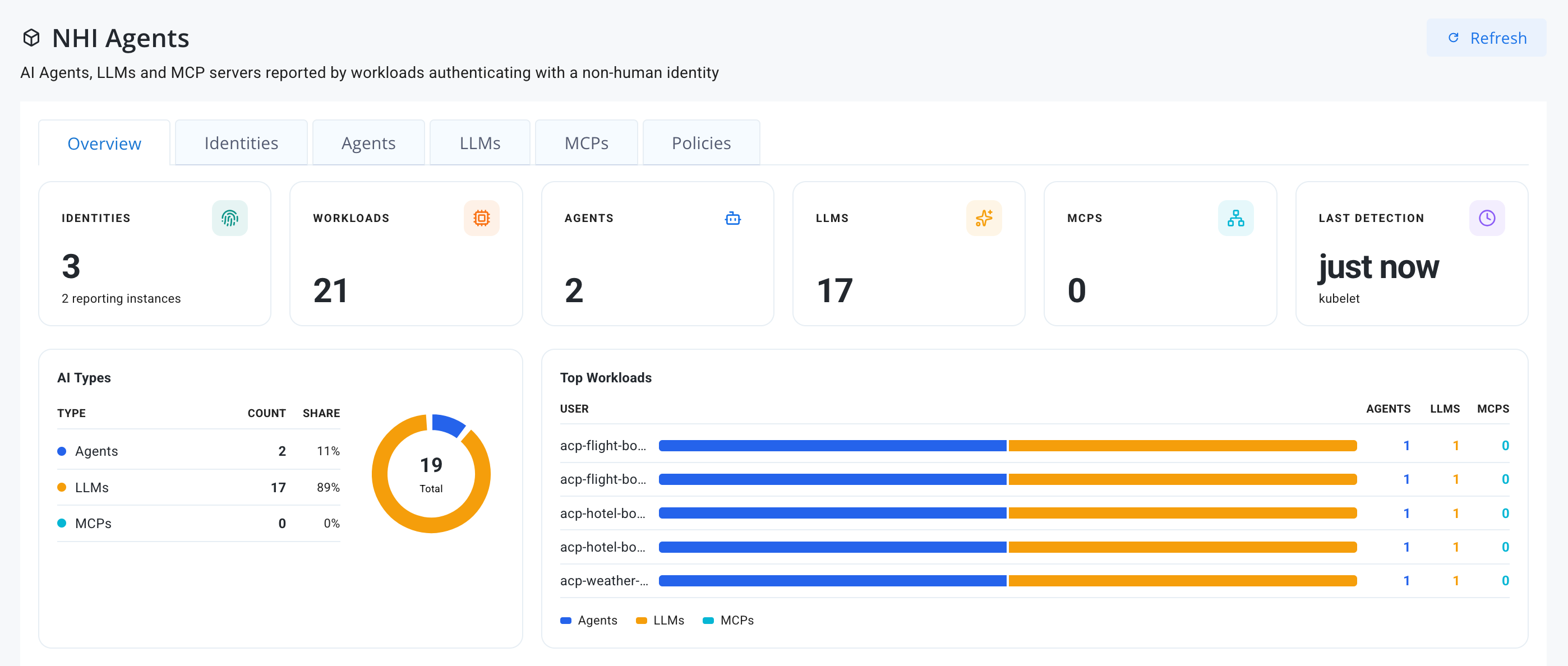
To review what discovery finds for NHI agents:
-
In the PingOne Privilege admin console, go to AI Security > NHI Agents.
Your NHI Agents dashboard provides an overview of the agents operating under non-human identities in your environment.
-
Review the overview. The dashboard shows the following:
-
What discovery found, including:
-
The number of registered identities reporting
-
The workloads observed
-
The agents, LLMs, and MCP servers discovered
-
-
The time of the most recent detection and the sensor instance that produced it.
-
The share of each AI type among the findings, and the workloads with the most findings.
-
-
Explore the other tabs in the dashboard:
-
The Identities tab displays the non-human identities registered in PingOne Privilege.
-
The Agents, LLMs, and MCPs tabs show what has been discovered for each kind of workload. Each finding gives the classification of the workload and attributes it to the pod or container that produced it:
-
AI agents and agent frameworks observed running in your containers.
-
MCP servers, detected from process execution and the port the process listens on.
-
Self-hosted model servers listening on inference ports.
-
The model endpoints each workload calls, identified from the unencrypted handshake. No TLS is terminated and no traffic is decrypted.
-
-
The Policies tab lists the policies you configured.
-
-
Investigate findings to decide what remediation actions to take.
Creating a node policy
Create policies to govern the AI workloads in the Policies tab on the NHI Agents page.
| You can also create policies for specific NHI agents found in the Agents, LLMs, and MCPs tabs. Creating a policy for an agent in the list populates the fields specific to the agent you’re configuring a policy for. |
-
In the PingOne Privilege admin console, go to AI Security > NHI Agents.
-
Click the Policies tab.
-
Click Create Node Policy.
-
Enter a Name and Description for the policy.
-
Select the entities the policy applies to:
-
Agents
-
Local models
-
MCP servers
If you don’t select any, the policy applies to every kind.
-
-
Click Next.
-
Create one or more Matches for the policy to apply to:
-
Name: Process name on execution. An interpreted agent is named by its script and interpreter.
-
Process path: Full path of the binary, which is never truncated. Select this option when several programs share one process name.
-
Host: Where the workload connects to, read from the TLS handshake.
-
Tool: A tool an MCP server advertises when probed.
-
Identity key: What the software was identified as, whatever the process is called.
-
-
Click Next.
-
Configure the identities for the policy:
-
In the Token issuer type list, select the platform the policy is for.
-
In the Non-human identities list, select the hosts the policy reaches through those identities. Leave empty to deliver this policy to every reporting identity.
-
-
Review the Summary for the policy.
-
In the Namespace list, select an option for which namespaces the policy applies to:
-
All namespaces: The policy reaches every node and matches nothing.
-
Named namespaces: A node checks the namespace before acting. Enter the specific Kubernetes namespaces in the text field.
-
-
Select an action for the policy:
-
Monitor: Reports the process and doesn’t take any action.
-
Allow: Exempts it from a broader deny.
-
Warn: Reports a warning, but the process still runs.
-
Deny: Terminates the process when it starts.
-
-
For policy state, you can either:
-
Leave the policy Enabled by default, which enacts the policy when it’s created.
-
Toggle the policy to Disabled. The policy appears in the list of policies, but delivers no actions to nodes.
-
-
Click Create Policy.
Result:
The policy appears in the list of policies.
Managing node policies
-
In the PingOne Privilege admin console, go to AI Security > NHI Agents.
-
Click the Policies tab.
-
In the list, find the node policy you want to manage.
-
(Optional) From the list, you can either:
-
Click Edit to view and change any of the node policy configuration fields.
-
Click Delete to delete the policy.
-