Post-installation steps
After you install the software, check that you set up your environment correctly.
Check Windows Services
Use Window services to verify that the Ping Identity Radius Proxy is running.
-
Press Windows + R on your keyboard.
-
Type services.msc.
-
Select Enter to open the service.
-
Search for the service under the name column. The service name is Ping Identity Radius Proxy.
Verify installation of folders and files
Make sure the installer places all folders and files under C:\Program Files{ping_name}\Radius Agent.
|
The installer saves the configuration settings in |
Verify functionality with RADIUS client
After you configure and install the Enterprise Connect Windows RADIUS proxy on a Windows machine, test the setup.
Before beginning the verification process, make sure you’ve met the following prerequisites:
-
The Enterprise Connect Windows RADIUS proxy is installed.
-
On a separate Windows machine, a test RADIUS client is installed. For example,
NTRadPing.-
Ensure the appropriate network connectivity is allowed between the two Windows machines. The default port is
1812unless changed in the installation of the Enterprise Connect Windows RADIUS proxy.
-
-
Have a test account with a username and password.
Validate that the service is listening
To validate the service is listening, use a tool such as netstat on the Windows machine running the Enterprise Connect Windows RADIUS proxy:
netstat -ano | find "1812"Test with RADIUS client
To test with the RADIUS client, you must have the following information from the Enterprise Connect Windows RADIUS proxy installation:
-
Enterprise Connect Windows RADIUS proxy server and port.
-
RADIUS Secret.
-
Test account with username and password to use with the RADIUS client. Ensure the user account exists in the Ping Identity environment.
For this example, NTRadPing is used as a test RADIUS client. However, any other RADIUS client works.
Display an example
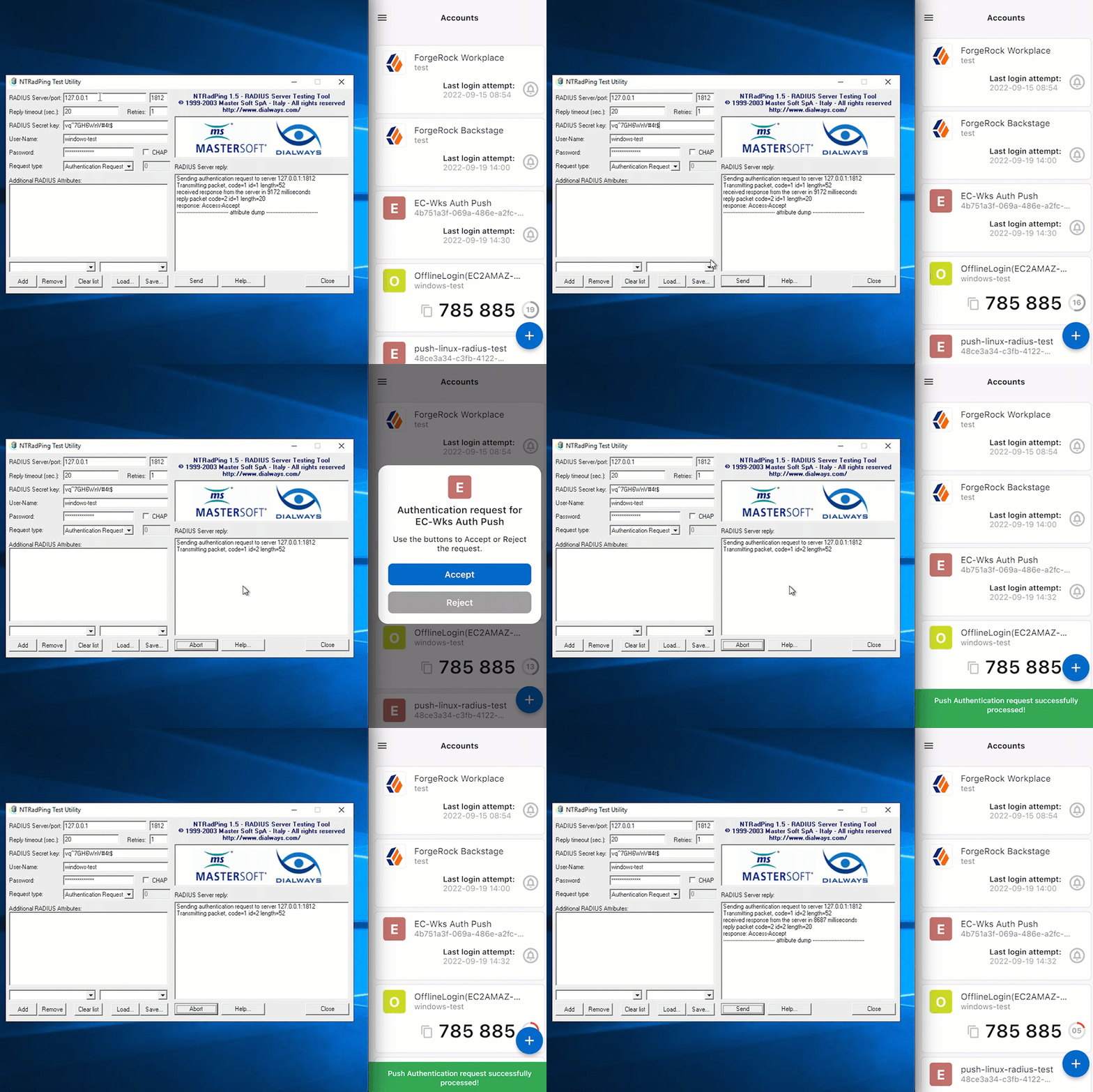
-
Open the RADIUS client. In this case,
NTRadPing. -
Enter the Enterprise Connect Windows RADIUS proxy specific items. This includes the server, port, secret, and username and password for the test account.
-
Click Send to initiate communication from the RADIUS client to the Enterprise Connect Windows RADIUS proxy.
-
If you selected the multi-factor authentication (MFA) push method, approve the sign-on attempt from the PingID mobile app.
For push, users must pre-register as described in Prerequisites and Create push journey.
-
Await a response from the Enterprise Connect Windows RADIUS proxy (server) that states
Access-Accept.
Change Enterprise Connect Windows RADIUS proxy secret
Due to security reasons or change management, it might be necessary to change the secret you configured for the Enterprise Connect Windows RADIUS proxy (during installation).
The installation path includes an executable to assist with the updating of the secret:
-
Using Command Prompt, go to C:\Program Files{ping_name}\Radius Agent on your Windows machine.
-
Run the ConfigTool.exe file with the appropriate parameters:
ConfigTool.exe set-secret --secret enterNewSecretHere -
A message such as
`appsettings.Production.json` Updated Successfully!should appear. -
The Enterprise Connect Windows RADIUS proxy secret has now been updated.
Ensure you update the new Ping Identity RADIUS proxy secret on dependent applications using the service.
Use the new secret after you restart the Windows service
Ping Identity Radius Proxy.