Actions reference
Actions are predefined sets of nodes designed to perform specific tasks. They are not complete flows, but you can use them during flow creation to simplify the process.
Actions can be placed in the following categories:
-
Registration: Actions that are used in the creation of new users.
-
Authentication: Actions that are used to authenticate existing users.
-
Account Recovery: Actions that are used to help a user recover an account.
Registration
Registration actions are used in the creation of new users.
Sign up with TOS Agreement
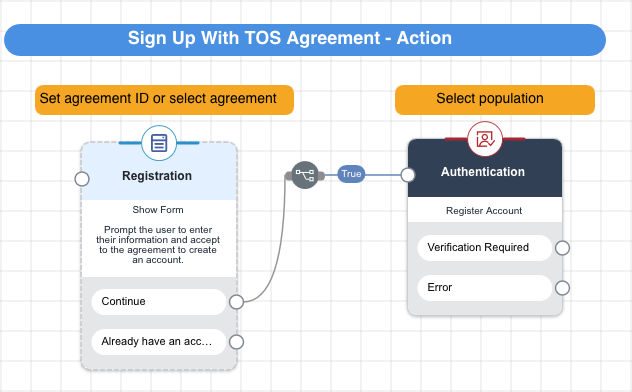
This action lets a user create an account and agree to a TOS.
Description
This action presents the user with an account registration form including an agreement. It then uses an authentication connector to create the user account.
Required configuration
To configure the action:
-
Click the Registration node, then in the Agreement field, select an agreement to present to the user.
To find the agreement ID, sign on to PingOne and go to User Experience > Agreements. Select the agreement and click the API tab to view the policy ID.
-
Click the Authentication node, then in the Population field, select a user population in which to create the user.
To find the population ID, sign on to PingOne and go to Directory > Populations. Select the population to view the population ID.
-
Connect the beginning and ending nodes to the rest of your flow.
Email verification
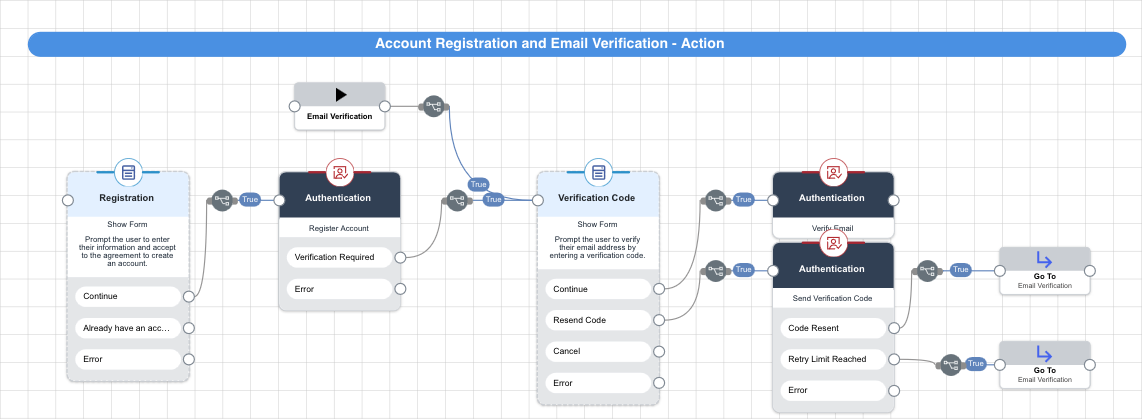
This action lets a user verify an email address.
Description
This action presents the user with a registration form. An authentication node creates the user and sends a verification code, then an email verification form displays. If the user submits a verification code, an authentication node verifies the code. If the user clicks Resend Code, an authentication node resends the code if the retry limit has not been reached.
Required configuration
To configure the action:
-
Click the first Authentication node, then in the Population field, select a user population in which to create the user.
To find the population ID, sign on to PingOne and go to Directory > Populations. Select the population to view the population ID.
-
Connect the beginning and ending nodes to the rest of your flow.
MFA Device Registration
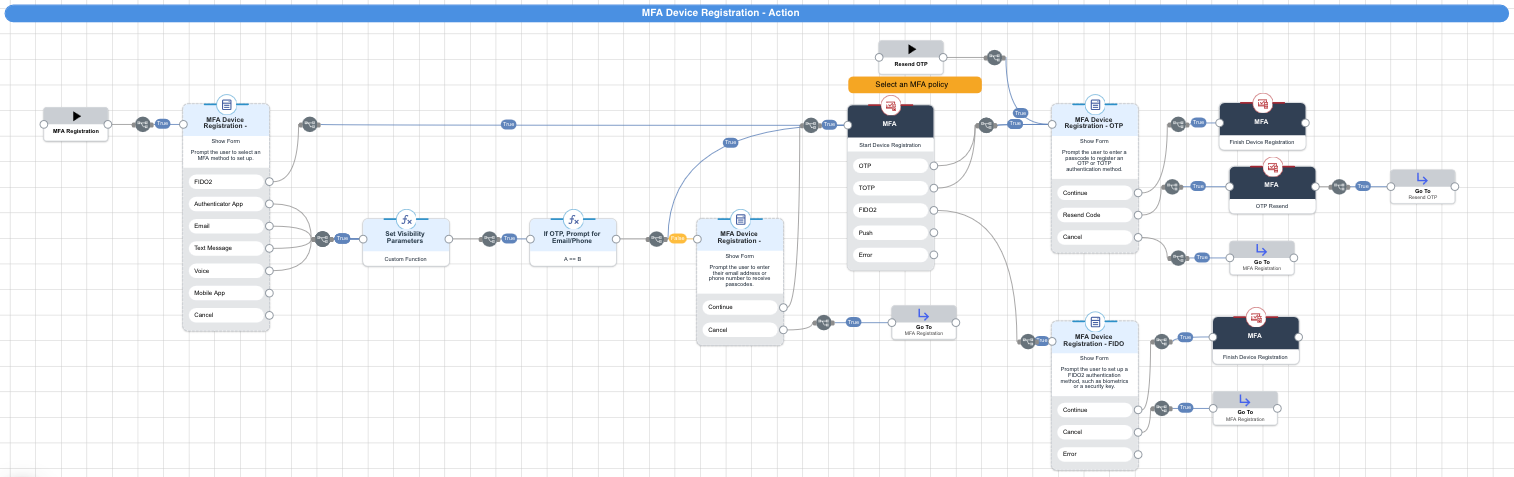
This action lets a user register an MFA device.
Description
This action presents users with a form for selecting an MFA device. If the user selects authenticator, email, text, or voice, it uses a function connector to set visibility parameters, then if the MFA method uses OTP, it presents the user with a form on which to enter their email or phone number.
The action then uses an MFA node to begin device registration. If the device type is OTP or TOTP, it presents a form on which the user can enter a passcode. If the device type is FIDO, it presents a form on which the user can configure a FIDO2 authentication method. In either case, an MFA node then completes the device registration.
Required configuration
To configure the action:
-
Click the first MFA node, then in the MFA Policy ID list, select an MFA policy to use.
To find the MFA policy ID, sign on to PingOne and go to Authentication > MFA. Select the policy to view the policy ID.
-
Connect the beginning and ending nodes to the rest of your flow.
Authentication
Authentication actions are used to authenticate existing users.
MFA Device Authentication
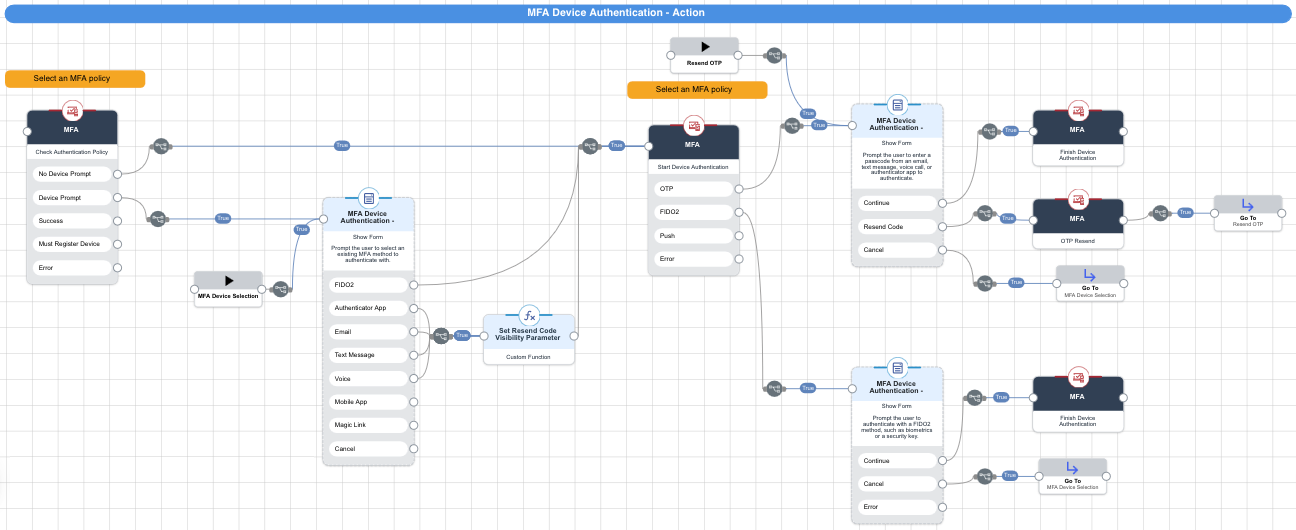
This action lets a user authenticate using a known MFA device.
Description
This action uses an MFA node to check the authentication policy. If the MFA policy’s method selection is set to Prompt user to select, a form prompts the user to select an MFA device. If the user selects authenticator, email, text, or voice, it uses a function connector to set visibility parameters.
The action then uses an MFA node to begin device authentication. If the device type is OTP or TOTP, it presents a form on which the user can enter a passcode. If the device type is FIDO, it presents a form on which the user can configure a FIDO2 authentication method. In either case, an MFA node then completes the device authentication.
Required configuration
To configure the action:
-
Click the first MFA node, then in the MFA Policy ID list, select an MFA policy to use.
To find the MFA policy ID, sign on to PingOne and go to Authentication > MFA. Select the policy to view the policy ID.
-
Connect the beginning and ending nodes to the rest of your flow.
Sign On with Password Reset
This action lets a user sign on and reset their password if necessary.
Description
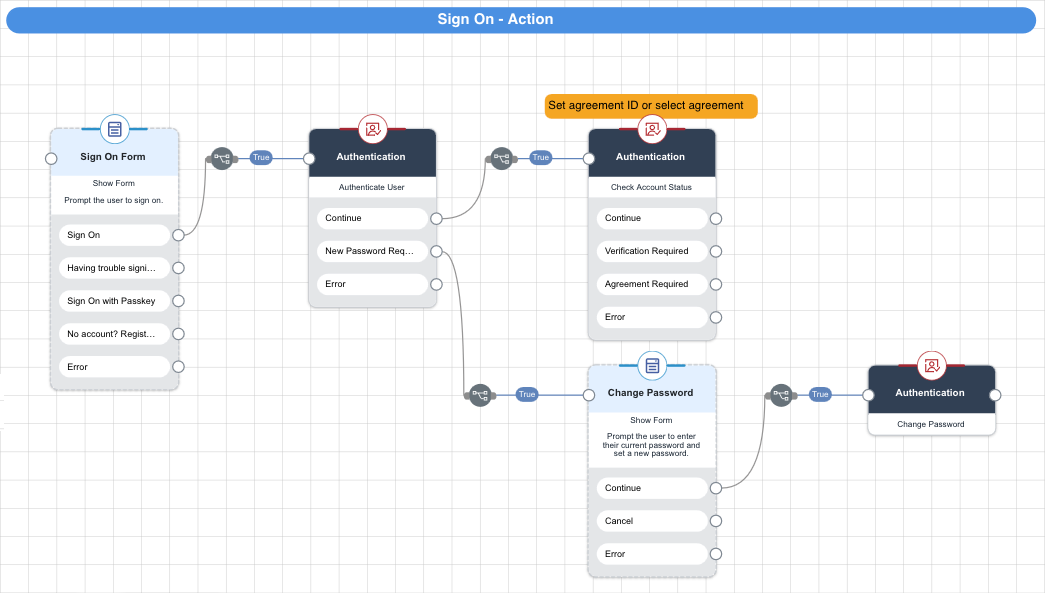
This action presents the user with a sign on form. An Authentication node checks if the user requires a new password. If the user does not require a new password, an authentication node authenticates the user. If the user requires a new password, a form prompts the user for a new password, then an authentication node updates the password.
Required configuration
To configure the action:
-
Click the second Authentication node, then in the Agreement field, select an agreement to present to the user.
To find the agreement ID, sign on to PingOne and go to User Experience > Agreements. Select the agreement and click the API tab to view the policy ID.
-
Connect the beginning and ending nodes to the rest of your flow.
Account Recovery
Account recovery actions are used to help a user recover an account.
Account Recovery
This action lets a user recover an account.
Description
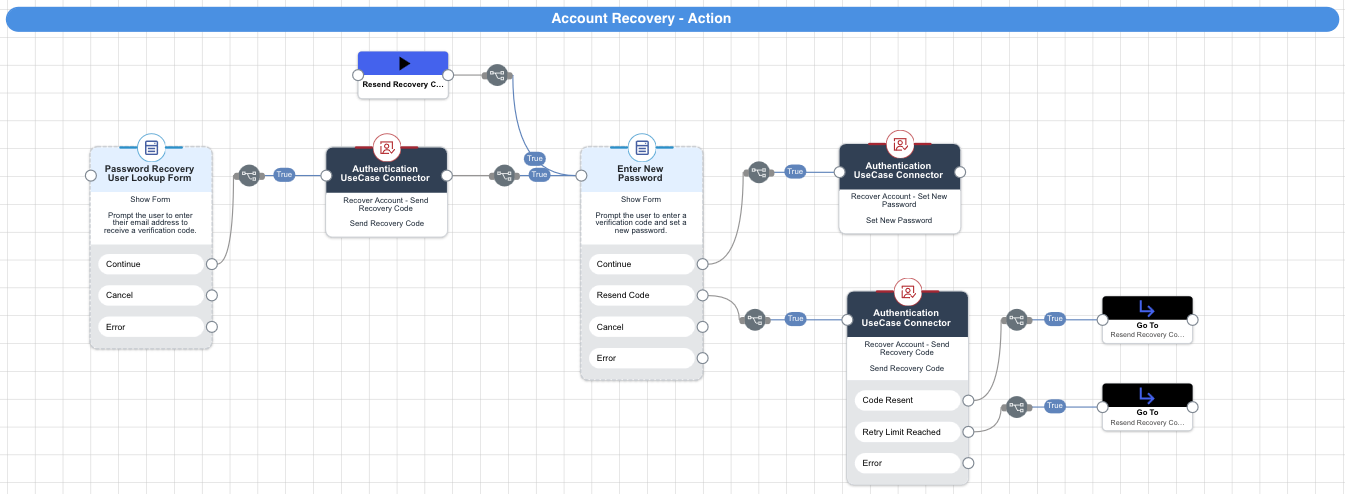
This action presents the user with a password recovery form. It then uses an authentication node to send a recovery code, and presents the user with a new password form. If the user completes the form and continues, an authentication node resets their password. If the user resends the code, an authentication node checks the number of retries and resends the code if the retry limit has not been reached.