Social Provider Handler node
The Social Provider Handler node attempts to authenticate a user with the social identity provider selected in the Select Identity Provider node.
The node performs the following actions:
-
Validates the
id_tokenreturned by the provider to ensure its integrity, verifying the token’s signature and checking that claims such asiss(issuer) andaud(audience) match the values defined in the social provider configuration. -
Collects relevant user profile information from the provider.
-
Transforms the profile information using the script specified in the social provider configuration.
-
Searches for a matching user account in AM.
It does this by retrieving the claim name from the Auth ID Key field in the social provider configuration, which defaults to
sub(subject). It then compares the value of that claim from theid_tokenagainst the values stored in theiplanet-am-user-alias-listattribute (standalone AM) or thealiasListattribute (Ping Identity Platform deployments) of existing user accounts.
Examples
This example shows the Social Provider Handler and Select Identity Provider nodes in a social authentication journey.
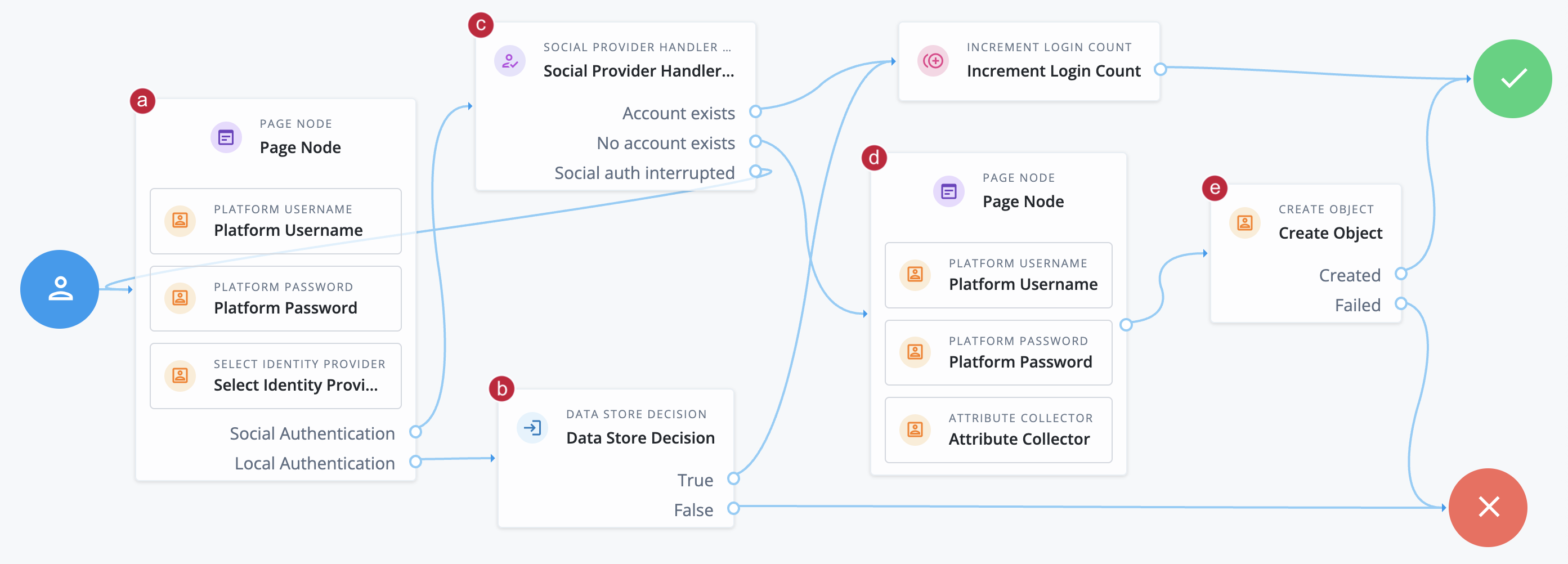
a The Page node containing the Select Identity Provider node prompts the user to select a social identity provider or to authenticate with a username and password.
b If the user selects local authentication, the Data Store Decision node takes care of the authentication.
c If the user selects social authentication, the Social Provider Handler node does the following:
-
Routes the user to the selected social provider to authenticate there
-
Retrieves the user’s profile information, and transforms it into a format that AM can use
-
Assesses whether the user has an existing user account in AM
-
If the user has an existing user account, authenticates that user
-
If the user doesn’t have a user account, routes the user to another page node
-
If the user interrupts the social authentication, routes the user back to the Select Identity Provider node
-
d The nodes on the page node request the information required to register a new user account.
e The Create Object node creates the new user account in AM.
Availability
| Product | Available? |
|---|---|
PingOne Advanced Identity Cloud |
Yes |
PingAM (self-managed) |
Yes |
Ping Identity Platform (self-managed) |
Yes |
Inputs
This node reads the user’s selected social identity provider from shared state.
Implement the Select Identity Provider node before this node to capture the social provider name.
Dependencies
-
The Social Identity Provider service must be configured with the details of at least one social identity provider.
-
The user must have selected a social identity provider in a previous node in the journey.
Configuration
| Property | Usage | ||
|---|---|---|---|
Transformation Script (required) |
The normalization script of each provider maps that provider’s attributes to a profile format AM can use. The transformation script then transforms the normalized social profile to a user account. Select You can use either the next-generation script type (
|
||
Username Attribute |
The attribute in the underlying identity service that contains the username for this object. |
||
Client Type |
The client type you’re using to authenticate to the provider. Select one of the following:
|
||
Store Tokens |
Select this option to store access and refresh tokens in the transient state for use by subsequent nodes in the journey. Sometimes, the social provider requires these tokens, for example, to revoke user authorization. If you choose to store tokens, you can configure a Scripted Decision node later in the journey to handle your social provider use case. Default: |
||
Detect Connection Time Out |
Select this option to detect if the connection to the social identity provider has timed out.
If the connection times out, the node follows the Default: |
||
Subject Attribute |
The attribute in the underlying identity store that’s used to search for an existing user. This attribute is only used in AM standalone deployments that use an identity store other than PingDS. Default: |
Outputs
-
If no profile information is returned from the social provider, the journey follows the
Social auth interruptedoutcome. -
If the node retrieves profile information from the social identity provider, it transforms a normalized version of the profile and stores it in
objectAttributesin transient state. -
To link existing users, the
iplanet-am-user-alias-listattribute (standalone AM) or thealiasListattribute (Ping Identity Platform deployments) is updated and saved toobjectAttributesin transient state. -
The node stores the social identity subject as the
usernameboth directly in shared state and in itsobjectAttributes. -
The node also updates
socialOAuthDatain transient state with all existing node state, social provider data, and associated tokens.
| Make sure you copy required transient data to shared state because all transient data is removed if the node is followed by an interactive page later in the journey. |
Callbacks
The node sends either a RedirectCallback or an IdPCallback, depending on the selected client type.
Learn more in Supported callbacks.
Outcomes
Account exists-
Social authentication succeeded, and a matching user account exists.
No account exists-
Social authentication succeeded, but no matching user account exists.
-
Standalone AM:
To ensure existing users are dynamically linked, complete these additional steps:
-
Connect the
No account existsoutcome to a Scripted Decision node. -
Write a Scripted Decision node script and use the
idRepositorybinding’sget-andsetAttributemethods to check for an existing account and add a link by updating the account-linking attribute,iplanet-am-user-alias-list.For multiple OIDC providers, add links to the existing list. For example:
"iplanet-am-user-alias-list": [ "google_IDP-123456789", "amazon_IDP-987654321" ], -
Connect the Scripted Decision node to a Provision Dynamic Account node to update the account.
-
-
Ping Identity Platform deployments:
To ensure existing users are dynamically linked, connect the
No account existsoutcome to an Identify Existing User node followed by a Patch Object node to create the link.
-
Social auth interrupted-
The user interrupted the social authentication journey after the node requested profile information from the social identity provider. This can happen in the following situations:
-
The user clicks the Back button in their browser from the social identity provider’s login page
-
The user clicks the Cancel button on the social identity provider’s login page
-
The user re-enters the journey URL in the same browser window
In this case, the node routes the user back to the Select Identity Provider node to select a social identity provider again.
-
Time Out-
The connection to the social identity provider has timed out.