Configure a remote connector server (RCS)
RCS runs in one of two modes:
- Client mode
-
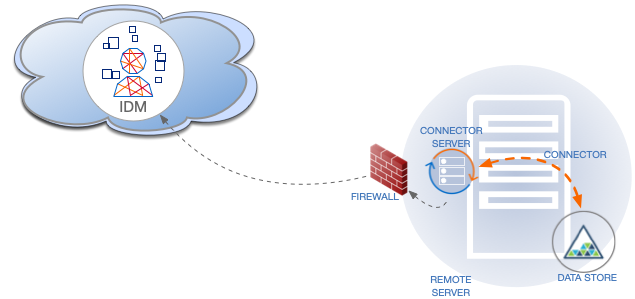
In client mode, RCS initiates the connection with IDM. Run the RCS in client mode if you need to communicate with a system that’s behind a firewall and IDM is outside that firewall (such as Advanced Identity Cloud).
The following diagram shows an RCS in client mode:
- Server mode
-
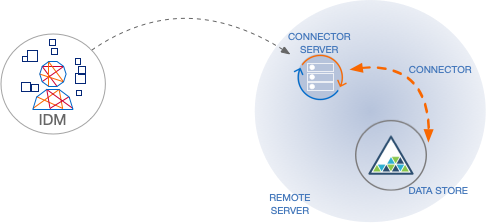
In server mode, RCS acts as the server, with IDM acting as a client. IDM initiates the connection with the RCS. Run the RCS in server mode if IDM can initiate the connection.
The following diagram shows an RCS in server mode:
Create an RCS configuration
|
Server mode isn’t compatible with PingOne Advanced Identity Cloud. If you’re using Advanced Identity Cloud, use client mode. |
The RCS configuration will differ between server mode and client mode. Refer to RCS Properties for a list of properties and the mode to which they apply.
-
To generate the core configuration, use the
createConnectorServerCoreConfigaction on thesystemendpoint. Include at least the RCStypeand thesystemTypein the JSON payload. ThetypeisremoteConnectorClientin client mode, andremoteConnectorServerin server mode. ThesystemTypeis alwaysprovisioner.openicf, regardless of the RCS type:-
Client mode
-
Server mode
curl \
--header "X-OpenIDM-Username: openidm-admin" \
--header "X-OpenIDM-Password: openidm-admin" \
--header "Accept-API-Version: resource=1.0" \
--header "Content-Type: application/json" \
--request POST \
--data '{
  "type": "remoteConnectorClient",
  "systemType": "provisioner.openicf"
}' \
"http://localhost:8080/openidm/system?_action=createConnectorServerCoreConfig"
{
  "displayName": "",
  "name": "",
  "enabled": true,
  "usessl": false
}
curl \ --header "X-OpenIDM-Username: openidm-admin" \ --header "X-OpenIDM-Password: openidm-admin" \ --header "Accept-API-Version: resource=1.0" \ --header "Content-Type: application/json" \ --request POST \ --data '{ "type": "remoteConnectorServer", "systemType": "provisioner.openicf" }' \ "http://localhost:8080/openidm/system?_action=createConnectorServerCoreConfig" { "displayName": "", "proxyPassword": null, "proxyHost": null, "enabled": true, "usessl": false, "proxyPort": 8080, "port": "", "name": "", "host": "", "proxyUser": null, "housekeepingInterval": 20, "connectionGroupCheckInterval": 60, "pingPongInterval": 60, "key": "password", "webSocketConnections": 2 }IDM returns the configuration properties for an RCS in the selected mode. The configuration that’s returned isn’t functional. It doesn’t contain the required configuration property values, such as the name of the RCS, or the host name and port of the RCS.
-
-
Use the output returned by the previous example to create your complete RCS configuration. In client mode, specify at least the
nameof the RCS. In server mode, specify at least thehostandportof the RCS. Use a PUT request on theconfigendpoint.This creates an RCS configuration on IDM. The values of these properties must match the RCS configuration, specified in the ConnectorServer.propertiesfile on the RCS.-
Client mode
-
Server mode
curl \
--header "X-OpenIDM-Username: openidm-admin" \
--header "X-OpenIDM-Password: openidm-admin" \
--header "Accept-API-Version: resource=1.0" \
--header "Content-Type: application/json" \
--request PUT \
--data '{
  "_id": "provisioner.openicf.connectorinfoprovider",
  "connectorsLocation": "connectors",
  "enabled": true,
  "remoteConnectorClients": [
    {
      "displayName": "On premise 1",
      "name": "onprem",
      "enabled": true
    }
  ]
}' \
"http://localhost:8080/openidm/config/provisioner.openicf.connectorinfoprovider"
{
  "_id": "provisioner.openicf.connectorinfoprovider",
  "connectorsLocation": "connectors",
  "enabled": true,
  "remoteConnectorClients": [
    {
      "displayName": "On premise 1",
      "name": "onprem",
      "enabled": true
    }
  ]
}
curl \ --header "X-OpenIDM-Username: openidm-admin" \ --header "X-OpenIDM-Password: openidm-admin" \ --header "Accept-API-Version: resource=1.0" \ --header "Content-Type: application/json" \ --request PUT \ --data '{ "_id": "provisioner.openicf.connectorinfoprovider", "connectorsLocation": "connectors", "enabled": true, "remoteConnectorServers": [ { "type": "remoteConnectorServer", "displayName": "Remote Connector Server 1", "proxyPassword": null, "proxyHost": null, "enabled": true, "usessl": false, "proxyPort": 8080, "port": 8759, "name": "rcs1", "host": "rcs.example.com", "proxyUser": null, "housekeepingInterval": 20, "connectionGroupCheckInterval": 60, "pingPongInterval": 60, "key": "Passw0rd", "webSocketConnections": 2 } ] }' \ "http://localhost:8080/openidm/config/provisioner.openicf.connectorinfoprovider" { "_id": "provisioner.openicf.connectorinfoprovider", "connectorsLocation": "connectors", "enabled": true, "remoteConnectorServers": [ { "type": "remoteConnectorServer", "displayName": "Remote Connector Server 1", "proxyPassword": null, "proxyHost": null, "enabled": true, "usessl": false, "proxyPort": 8080, "port": 8759, "name": "rcs1", "host": "rcs.example.com", "proxyUser": null, "housekeepingInterval": 20, "connectionGroupCheckInterval": 60, "pingPongInterval": 60, "key": { "$crypto": { "type": "x-simple-encryption", "value": { "cipher": "AES/CBC/PKCS5Padding", "stableId": "openidm-sym-default", "salt": "3Mq1UJuZXqANx2AzUtbFbg==", "data": "4WHBEI3nSVWJ2DfIs2dPZg==", "keySize": 16, "purpose": "idm.config.encryption", "iv": "BvFAQ4sjwJCNY2e7WZPkGw==", "mac": "ximBz/BlqC8SEsBTuYQX5Q==" } } }, "webSocketConnections": 2 } ] } -
RCS failover
For failover purposes, you can configure a group of RCSs, in either server or client mode. Failover is particularly important when you configure an RCS in client mode because IDM has no way of knowing whether the RCS is available.
To prevent the RCS from being a single point of failure, you can specify a list of RCS servers that the connector can target. To set up a failover configuration, you create either a remoteConnectorServersGroup or a remoteConnectorClientsGroup and list the RCS servers. The connector attempts to contact the first RCS in the list. If that RCS is down, it proceeds to the next RCS.
Configure failover for RCS servers
This example configures an RCS group that lists two remote RCS servers, on hosts remote-host-1 and remote-host-2. The RCS servers are listed by their name property. You can configure multiple groups and multiple servers per group.
-
First, generate the core configuration to obtain the required properties:
-
Client mode
-
Server mode
curl \
--header "X-OpenIDM-Username: openidm-admin" \
--header "X-OpenIDM-Password: openidm-admin" \
--header "Accept-API-Version: resource=1.0" \
--header "Content-Type: application/json" \
--request POST \
--data '{
  "type" : "remoteConnectorClientsGroup",
  "systemType" : "provisioner.openicf"
}' \
"http://localhost:8080/openidm/system?_action=createConnectorServerCoreConfig"
{
   "displayName": "",
   "name": "",
   "serversList": [],
   "algorithm": "failover"
 }
curl \ --header "X-OpenIDM-Username: openidm-admin" \ --header "X-OpenIDM-Password: openidm-admin" \ --header "Accept-API-Version: resource=1.0" \ --header "Content-Type: application/json" \ --request POST \ --data '{ "type" : "remoteConnectorServersGroup", "systemType" : "provisioner.openicf" }' \ "http://localhost:8080/openidm/system?_action=createConnectorServerCoreConfig" { "displayName": "", "name": "", "serversList": [], "algorithm": "failover" } -
-
Use the output returned by the previous example to create your RCS group configuration. Use a PUT request on the
configendpoint:-
Client mode
-
Server mode
curl \
--header "X-OpenIDM-Username: openidm-admin" \
--header "X-OpenIDM-Password: openidm-admin" \
--header "Accept-API-Version: resource=1.0" \
--header "Content-Type: application/json" \
--request PUT \
--data '{
  "_id": "provisioner.openicf.connectorinfoprovider",
  "connectorsLocation": "connectors",
  "enabled": true,
  "remoteConnectorClients": [
    {
      "type": "remoteConnectorClientsGroup",
      "displayName": ".NET Failover Group",
      "name" : "dotnet-ha",
      "algorithm" : "failover",
      "serversList" : [
        {"name": "remote-host-1"},
        {"name": "remote-host-2"}
      ]
    }
  ]
}' \
"http://localhost:8080/openidm/config/provisioner.openicf.connectorinfoprovider"
{
  "_id": "provisioner.openicf.connectorinfoprovider",
  "connectorsLocation": "connectors",
  "enabled": true,
  "remoteConnectorClients": [
    {
      "type": "remoteConnectorClientsGroup",
      "displayName": ".NET Failover Group",
      "name": "dotnet-ha",
      "algorithm": "failover",
      "serversList": [
        {
          "name": "remote-host-1"
        },
        {
          "name": "remote-host-2"
        }
      ]
    }
  ]
}
curl \ --header "X-OpenIDM-Username: openidm-admin" \ --header "X-OpenIDM-Password: openidm-admin" \ --header "Accept-API-Version: resource=1.0" \ --header "Content-Type: application/json" \ --request PUT \ --data '{ "_id": "provisioner.openicf.connectorinfoprovider", "connectorsLocation": "connectors", "enabled": true, "remoteConnectorServers": [ { "type": "remoteConnectorServersGroup", "displayName": ".NET Failover Group", "name" : "dotnet-ha", "algorithm" : "failover", "serversList" : [ {"name": "remote-host-1"}, {"name": "remote-host-2"} ] } ] }' \ "http://localhost:8080/openidm/config/provisioner.openicf.connectorinfoprovider" { "_id": "provisioner.openicf.connectorinfoprovider", "connectorsLocation": "connectors", "enabled": true, "remoteConnectorServers": [ { "type": "remoteConnectorServersGroup", "displayName": ".NET Failover Group", "name": "dotnet-ha", "algorithm": "failover", "serversList": [ { "name": "remote-host-1" }, { "name": "remote-host-2" } ] } ] }The
algorithmcan be eitherfailoverorroundrobin. If the algorithm isfailover, requests are always sent to the first RCS in the list, unless it’s unavailable; in which case, requests are sent to the next RCS in the list. If the algorithm isroundrobin, requests are distributed equally between the RCS servers in the list, in the order in which they’re received. -
-
In your connector configuration (
provisioner.openicf-connectorName.json), reference the RCS group, rather than a single RCS. For example, the following excerpt of a PowerShell connector configuration file references thedotnet-haRCS group created in the previous example:{ "connectorRef" : { "bundleName" : "MsPowerShell.Connector", "connectorName" : "Org.ForgeRock.OpenICF.Connectors.MsPowerShell.MsPowerShellConnector", "connectorHostRef" : "dotnet-ha", "bundleVersion" : "[1.4.3.0,1.5.0.0)" }, ... }
List available RCS and groups
You can list the configured RCS and groups using the availableConnectorServers action on the openidm/system endpoint:
curl \
--header "X-OpenIDM-Username: openidm-admin" \
--header "X-OpenIDM-Password: openidm-admin" \
--header "Accept-API-Version: resource=1.0" \
--request POST \
"http://localhost:8080/openidm/system?_action=availableConnectorServers"
{
  "connectorServers": [
    {
      "displayName": "Remote Connector Server",
      "systemType": "provisioner.openicf",
      "type": "remoteConnectorServer"
    },
    {
      "displayName": "Remote Connector Servers Group",
      "systemType": "provisioner.openicf",
      "type": "remoteConnectorServersGroup"
    },
    {
      "displayName": "Remote Connector Server in Client mode",
      "systemType": "provisioner.openicf",
      "type": "remoteConnectorClient"
    },
    {
      "displayName": "Remote Connector Servers Group in Client mode",
      "systemType": "provisioner.openicf",
      "type": "remoteConnectorClientsGroup"
    }
  ]
}
Secure the connection to RCS with SSL
|
The following section doesn’t apply to Advanced Identity Cloud, as it requires filesystem access to your installation. |
The SSL configuration for an RCS depends on whether you’re running the RCS in server mode or in client mode:
-
In server mode, IDM initiates the connection to the RCS.
The RCS needs a public/private key pair and a certificate (either self-signed or CA-signed). The RCS sends its certificate to the client (IDM) during the SSL handshake.
If you’re using a CA-signed certificate, IDM will trace the certificate back to the root certificate. If you’re using a self-signed certificate (or a certificate that depends on an unreachable issuer in the chain from the root certificate), you must import the certificate into the IDM truststore.
-
In client mode, the RCS initiates the connection to IDM. IDM sends its certificate during the SSL handshake. If you’re using the IDM self-signed certificate, you must import the certificate into the RCS truststore.
If you’re using TLS Mutual Authentication, the RCS needs a public/private key pair and a certificate. IDM requests the certificate from the RCS during the SSL handshake.
Configure the RCS for SSL
On the RCS, edit the conf/ConnectorServer.properties
file to specify a secure connection between IDM and the RCS:
- RCS in server mode
-
-
Set
connectorserver.usessl=true. -
Specify the RCS keystore and truststore. For example:
connectorserver.trustStoreFile=security/truststore.pkcs12
connectorserver.trustStoreType=PKCS12
connectorserver.trustStorePass=changeit
connectorserver.keyStoreFile=security/keyStore.pkcs12
connectorserver.keyStoreType=PKCS12
connectorserver.keyStorePass=changeit
connectorserver.keyPass=changeit
-
- RCS in client mode
-
-
Connection security is determined by the value of the
connectorserver.urlproperty. Use thewssprotocol to establish a WebSocket over an encrypted TLS connection, for example,wss://my-tenant.forgeblocks.com/openicf.The
connectorserver.usesslproperty isn’t used in client mode. -
Specify the RCS keystore and truststore. For example:
connectorserver.trustStoreFile=security/truststore.pkcs12
connectorserver.trustStoreType=PKCS12
connectorserver.trustStorePass=changeit
connectorserver.keyStoreFile=security/keyStore.pkcs12
connectorserver.keyStoreType=PKCS12
connectorserver.keyStorePass=changeit
connectorserver.keyPass=changeit
-
Configure IDM for SSL
In your conf/provisioner.openicf.connectorinfoprovider.json
file, set "usessl" : true.
Generate keys for an RCS in server mode
-
Generate the RCS private/public key pair and create a new PKCS12 keystore:
keytool \
-genkeypair \
-keyalg EC \
-alias icf-rcs \
-dname "CN=icf.example.com,O=Example Corp,C=FR" \
-keystore rcsKeystore \
-storetype PKCS12 \
-storepass changeit \
-
Verify the contents of the new keystore:
keytool \
-list \
-v \
-keystore rcsKeystore
Enter keystore password:  changeit
Keystore type: PKCS12
Keystore provider: SUN

Your keystore contains 1 entry

Alias name: icf-rcs
Creation date: Jul 13, 2020
Entry type: PrivateKeyEntry
Certificate chain length: 1
Certificate[1]:
Owner: CN=icf.example.com, O=Example Corp, C=FR
Issuer: CN=icf.example.com, O=Example Corp, C=FR
Serial number: 611e093d
Valid from: Mon Jul 13 23:58:49 SAST 2020 until: Sun Oct 11 23:58:49 SAST 2020
Certificate fingerprints:
SHA1: Fingerprint
SHA256: Fingerprint
Signature algorithm name: SHA256withECDSA
Subject Public Key Algorithm: 256-bit EC key
...
-
Export the RCS certificate:
keytool \
-export \
-alias icf-rcs \
-file rcs.cert \
-keystore rcsKeystore.pkcs12
Enter keystore password: changeit
Certificate stored in file <rcs.cert>
-
If you aren’t using a self-signed certificate, have the certificate signed by a Certificate Authority (CA):
-
Create a Certificate Signing Request (CSR):
keytool \
-keystore rcsKeystore.pkcs12 \
-certreq \
-alias icf-rcs \
-file rcs.csr
more rcs.csr
-----BEGIN NEW CERTIFICATE REQUEST-----

MIIEKTCCA9QCAQAwVzELMAkGA1UEBhMCRlIxCzAJBgNVBAgTAkZSMQswCQYDVQQH
xZ47rzcY6OrElh8+/TYG50NRqcQYMzm4CefCrhxTm6dHW4XQEa24tHmHdUmEaVys
A1UdDgQWBBSivxV9AzgbrIo3gG6vCBlNaXf3wjANBglghkgBZQMEAwIFAANAADA9
...
AhxL791/ikf1hqxOD3uttV7qumg+TNednsgtk6uOAh0AlINk+1LBeyUkQA7iUHy/
3KLYWog/Npu5USdCeA==

-----END NEW CERTIFICATE REQUEST-----
-
Submit the CSR to your CA for signature.
-
-
Import the signed certificate into the RCS keystore:
keytool \
-importcert \
-trustcacerts \
-file rcs.cert \
-keystore rcsKeystore.pkcs12 \
-storetype pkcs12 \
-alias icf-rcs
Enter keystore password: changeit
Certificate reply was installed in keystore
If your CA certificate isn’t trusted, you might need to import the CA certificate into the keystore too. -
Import the RCS certificate into the IDM truststore:
keytool \
-import \
-alias icf-rcs \
-keystore /path/to/openidm/truststore \
-file rcs.cert
Enter keystore password: changeit
Owner: CN=icf.example.com, O=Example Corp, C=FR
Issuer: CN=icf.example.com, O=Example Corp, C=FR
Serial number: 611e093d
Valid from: Fri Apr 05 16:04:04 CEST 2019 until: Mon Aug 17 16:04:04 CEST 2020
Certificate fingerprints:
MD5:  Fingerprint
SHA1: Fingerprint
SHA256: Fingerprint
Signature algorithm name: SHA256withRSA
Subject Public Key Algorithm: 2048-bit DSA key
Version: 1
Trust this certificate? [no]:  yes
Certificate was added to keystore
Generate keys for an RCS in client mode
-
Generate the RCS private/public key pair and create a new PKCS12 keystore:
keytool \
-genkeypair \
-keyalg EC \
-alias icf-rcs \
-dname "CN=icf.example.com,O=Example Corp,C=FR" \
-keystore rcsKeystore \
-storetype PKCS12 \
-storepass changeit \
-
Verify the contents of the new keystore:
keytool \
-list \
-v \
-keystore rcsKeystore
Enter keystore password:  changeit
Keystore type: PKCS12
Keystore provider: SUN

Your keystore contains 1 entry

Alias name: icf-rcs
Creation date: Jul 13, 2020
Entry type: PrivateKeyEntry
Certificate chain length: 1
Certificate[1]:
Owner: CN=icf.example.com, O=Example Corp, C=FR
Issuer: CN=icf.example.com, O=Example Corp, C=FR
Serial number: 611e093d
Valid from: Mon Jul 13 23:58:49 SAST 2020 until: Sun Oct 11 23:58:49 SAST 2020
Certificate fingerprints:
SHA1: Fingerprint
SHA256: Fingerprint
Signature algorithm name: SHA256withECDSA
Subject Public Key Algorithm: 256-bit EC key
...
-
Export the RCS certificate:
keytool \
-export \
-alias icf-rcs \
-file rcs.cert \
-keystore rcsKeystore.pkcs12
Enter keystore password: changeit
Certificate stored in file <rcs.cert>
-
If you are not using a self-signed certificate, have the certificate signed by a Certificate Authority (CA):
-
Create a Certificate Signing Request (CSR):
keytool \
-keystore rcsKeystore.pkcs12 \
-certreq \
-alias icf-rcs \
-file rcs.csr
more rcs.csr
-----BEGIN NEW CERTIFICATE REQUEST-----

MIIEKTCCA9QCAQAwVzELMAkGA1UEBhMCRlIxCzAJBgNVBAgTAkZSMQswCQYDVQQH
xZ47rzcY6OrElh8+/TYG50NRqcQYMzm4CefCrhxTm6dHW4XQEa24tHmHdUmEaVys
A1UdDgQWBBSivxV9AzgbrIo3gG6vCBlNaXf3wjANBglghkgBZQMEAwIFAANAADA9
...
AhxL791/ikf1hqxOD3uttV7qumg+TNednsgtk6uOAh0AlINk+1LBeyUkQA7iUHy/
3KLYWog/Npu5USdCeA==

-----END NEW CERTIFICATE REQUEST-----
-
Submit the CSR to your CA for signature.
-
-
Import the signed certificate into the RCS keystore:
keytool \
-importcert \
-trustcacerts \
-file rcs.cert \
-keystore rcsKeystore.pkcs12 \
-storetype pkcs12 \
-alias icf-rcs
Enter keystore password: changeit
Certificate reply was installed in keystore
If your CA certificate isn’t trusted, you might need to import the CA certificate into the keystore too. -
Import the RCS certificate into the IDM truststore:
keytool \
-import \
-alias icf-rcs \
-keystore /path/to/openidm/truststore \
-file rcs.cert
Enter keystore password: changeit
Owner: CN=icf.example.com, O=Example Corp, C=FR
Issuer: CN=icf.example.com, O=Example Corp, C=FR
Serial number: 611e093d
Valid from: Fri Apr 05 16:04:04 CEST 2019 until: Mon Aug 17 16:04:04 CEST 2020
Certificate fingerprints:
MD5:  Fingerprint
SHA1: Fingerprint
SHA256: Fingerprint
Signature algorithm name: SHA256withRSA
Subject Public Key Algorithm: 2048-bit DSA key
Version: 1
Trust this certificate? [no]:  yes
Certificate was added to keystore
-
Export the IDM self-signed certificate:
keytool \
-export \
-alias openidm-localhost \
-keystore keystore.jceks \
-storetype jceks \
-file idm.cert \
Enter keystore password: changeit
Certificate stored in file <idm.cert>
-
Import the IDM self-signed certificate into the RCS truststore:
keytool \
-import \
-alias openidm-localhost \
-keystore /path/to/rcs/security/truststore.pkcs12 \
-storetype pkcs12 \
-file idm.cert
Enter keystore password: changeit

Owner: CN=openidm-localhost, O=OpenIDM Self-Signed Certificate, OU=None, L=None, ST=None, C=None
Issuer: CN=openidm-localhost, O=OpenIDM Self-Signed Certificate, OU=None, L=None, ST=None, C=None
Serial number: 16981c79d8d
Valid from: Wed Feb 13 15:35:36 CET 2019 until: Thu Mar 15 15:35:36 CET 2029
Certificate fingerprints:
MD5:  fingerprint
SHA1: fingerprint
SHA256: fingerprint
Signature algorithm name: SHA512withRSA
Subject Public Key Algorithm: 2048-bit RSA key
Version: 3
Trust this certificate? [no]:  yes

Certificate was added to keystore
RCS configuration properties
The following table displays the complete list of RCS configuration properties with truncated property names for readability. The full name for each property is prefixed with connectorserver. in the conf/ConnectorServer.properties configuration file included with RCS.
| Property / RCS mode | Description | Example | ||
|---|---|---|---|---|
|
Name of the remote connector client. This name is used to identify the remote connector server in the list of connector reference objects. The name must be lower case alphanumeric characters ( |
|
||
|
The IDM or Advanced Identity Cloud server URL. To use multiple values, use the correct delimiter:
|
Notice the |
||
|
Unique identifier for the RCS. |
|
||
|
Proxy server host. |
|||
|
Proxy server port number. |
|||
|
Proxy server principal. |
|||
|
Proxy server password. |
|||
|
Interval at which RCS checks WebSockets to determine if they should be closed and recycled according to the specified interval, in seconds. |
20 |
||
|
Interval at which RCS checks WebSocket connection groups (group of WebSocket connections associated with the same IDM <-> RCS link) to see if they should be closed, in seconds. WebSocket connection groups are closed when they no longer contain any active WebSocket connections. |
60 |
||
|
Number of WebSocket connections to open. |
2 |
||
|
Time to live of a WebSocket connection, in seconds. |
300 |
||
|
Interval at which RCS establishes new WebSocket connections, in seconds. Ensures that connection establishment is staggered. |
10 |
||
|
Token endpoint from which to retrieve the access token if you’re using OAuth2 to authenticate against AM. |
|
||
|
OAuth2 token scope, if you’re using OAuth2 to authenticate against AM. |
fr:idm:* |
||
|
OAuth2 Client ID used to request an access token. |
RCSClient |
||
|
||||
|
OAuth2 Client Secret. |
openidm |
||
|
Interval at which RCS sends ping/pong messages between IDM <-> RCS, in seconds. Used to determine health/connectivity of the underlying WebSocket connection. The purpose of the ping is to keep connections alive (for firewalls or load balancers that honor connections in use). If your firewall or load balancer doesn’t honor connections in use (that is, connections are timed out, regardless of their usage), the ping has no effect, and you should disable it. Set this property to |
60 |
||
|
The IDM truststore file. You don’t need to set this property if the IDM certificate is a CA-signed certificate. |
|
||
|
The IDM truststore type. You don’t need to set this property if the IDM certificate is a CA-signed certificate. |
|
||
|
The IDM truststore password. You don’t need to set this property if the IDM certificate is a CA-signed certificate. |
changeit |
||
|
The IDM keystore file. You don’t need to set this property if the IDM certificate is a CA-signed certificate. |
|
||
|
The IDM keystore type. You don’t need to set this property if the IDM certificate is a CA-signed certificate. |
|
||
|
The IDM keystore password. You don’t need to set this property if the IDM certificate is a CA-signed certificate. |
changeit |
||
|
The IDM certificate password. You don’t need to set this property if the IDM certificate is a CA-signed certificate. |
changeit |
||
|
Directory on the RCS host in which connector library file dependencies are located (relative to |
|
||
|
Directory on the RCS host in which connector .jar files are located (relative to |
|
||
|
The RCS logger class. |
|
||
|
Principal to authenticate to the RCS. This property isn’t used if the RCS obtains its access token through PingAM (AM) (which is the case when using Advanced Identity Cloud). |
anonymous |
||
|
Password to authenticate to the RCS. This property isn’t used if the RCS obtains its access token through AM (which is the case when using Advanced Identity Cloud. |
changeit |
||
|
Whether the connection between IDM and the RCS should be over SSL. |
false/true |
||
|
Port on which the RCS listens for the connection from IDM. |
8759 |
||
Mask clear text passwords in RCS
When you configure the RCS, you specify the settings for your server in the ConnectorServer.properties file. By default, you enter clear text passwords for multiple settings, such as connectorserver.clientSecret and connectorserver.password. Depending on your requirements, you might want to mask specific details for security reasons. You can do this using OPENICF_OPTS environment variables.
Use OPENICF_OPTS environment variables
If you don’t want to save clear text information in the ConnectorServer.properties file, you can specify potentially sensitive settings at runtime through the OPENICF_OPTS environment variables.
For example, to set connectorserver.clientSecret and connectorserver.password, you can run the following command before starting the RCS:
cd /path/to/openicf/bin
export OPENICF_OPTS="-Dconnectorserver.clientSecret=Passw0rd! -Dconnectorserver.password=Passw0rd!"
./ConnectorServer.sh /start
You can use OPENICF_OPTS environment variables for as many settings as you require.
ICFServlet configuration options
You can configure the following optional ICFServlet settings in your conf/provisioner.openicf.connectorinfoprovider.json file:
maxMessageSize-
Integer.
You can set a maximum message size in kilobytes. The default is 20MB.
idleTimeout-
Integer.
The maximum time, in minutes, that a WebSocket connection can be idle before it’s removed. The default is 5 minutes.
provisioner.openicf.connectorinfoprovider.json:{
"_id": "provisioner.openicf.connectorinfoprovider",
"connectorsLocation": "connectors",
"ICFServlet": {
"maxMessageSize": 40960,
"idleTimeout": 5
},
...
}