Authentication Use Case Connector
The Authentication use case connector lets you quickly orchestrate flows in PingOne DaVinci for common authentication use cases, eliminating the need for complex subflows composed of granular nodes.
The Authentication use case connector supports the following common user experiences:
-
Authenticating users
-
Registering user accounts
-
Email verification
-
Recording agreement consent
-
Account recovery
-
Password change
Why use the Authentication use case connector?
Use case connectors, such as the Authentication use case connector, are designed to make common integration patterns easier and faster to implement. Instead of building flows with many granular nodes (PingOne Connector, PingOne Authentication Connector, and Core connectors), you can achieve the same outcomes with just a few nodes. This approach significantly reduces complexity and setup time.
The Authentication use case connector is useful in scenarios where you want to quickly implement common authentication flow patterns without delving into the complexities of granular node configurations.
|
Building a flow with granular nodes offers more control and customization for advanced use cases. For more advanced authentication flows, you should use DaVinci flow templates and customize as needed. |
Using the connector in a flow
Account status checking
In many authentication flows, checking the user’s account status is a necessary step to determine if additional actions are required, such as email verification or password change. The Authentication use case connector’s Check Account Status capability simplifies this process by reducing the number of nodes required to implement account status checks.
|
For registration flows, check if the agreement is disabled in PingOne before using the Check Account Status capability. If disabled, the capability won’t execute as expected in your flow. Enable the agreement in PingOne to fix this. For authentication flows, if you want to check for agreement consent, ensure that the agreement is enabled in PingOne before using the Check Account Status capability. If it’s disabled and the user hasn’t accepted any agreement, the user won’t be able to accept the new agreement, but the step will be silently bypassed without throwing an error. To fix this, enable the agreement in PingOne. |
Before checking a user’s account status, you must present a form to collect user credentials.
|
You can easily create a sign-on form in PingOne and implement in DaVinci with the Form Connector. Learn more in Configuring a Sign-On Form in the PingOne documentation. |
User authentication
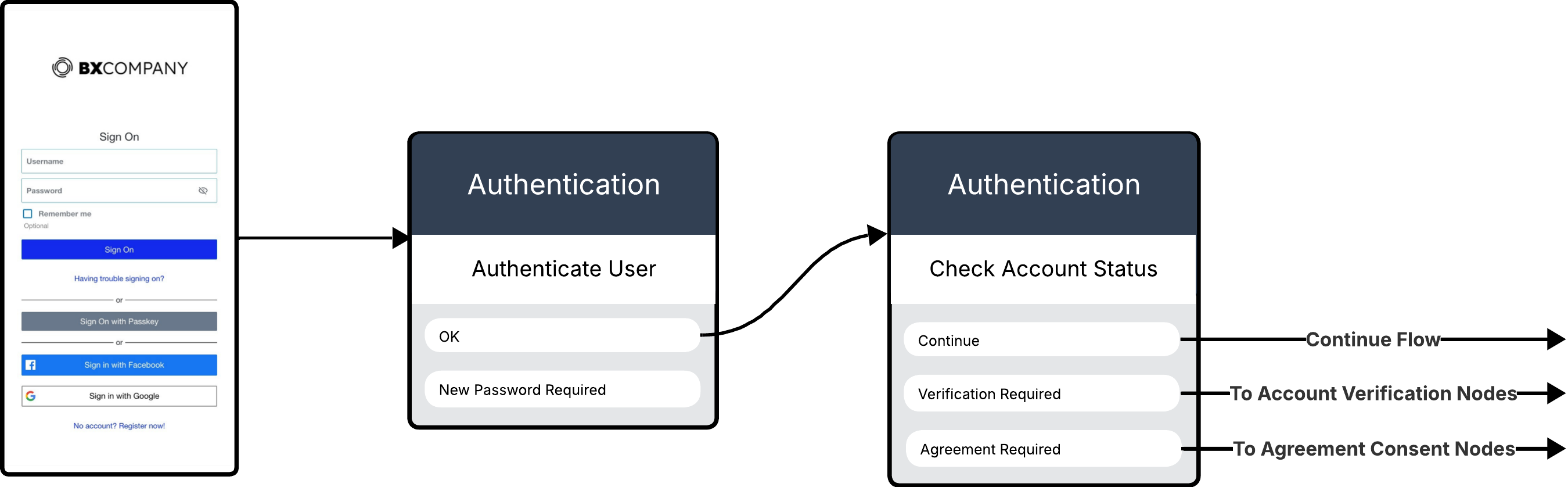
In the context of a larger authentication flow, user authentication is a logical starting point to verify user credentials. The Authentication use case connector’s Authenticate User and Check Account Status capabilities simplify this process by reducing the number of nodes required to implement user authentication.
Before proceeding with user authentication with the Authentication use case connector, you must present a form to collect user credentials.
To use the Authentication use case connector for user authentication:
-
Add a Authenticate User node to check the user’s credentials. This capability includes outcomes for success, error and password change.
-
Continuing from the OK outcome on the Authenticate User node, branch to a Check Account Status node to evaluate the user’s account status.
-
Based on the result, you can continue the flow to nodes for email verification, password change, or agreement consent, depending on what the user needs to complete authentication.
Agreement consent recording
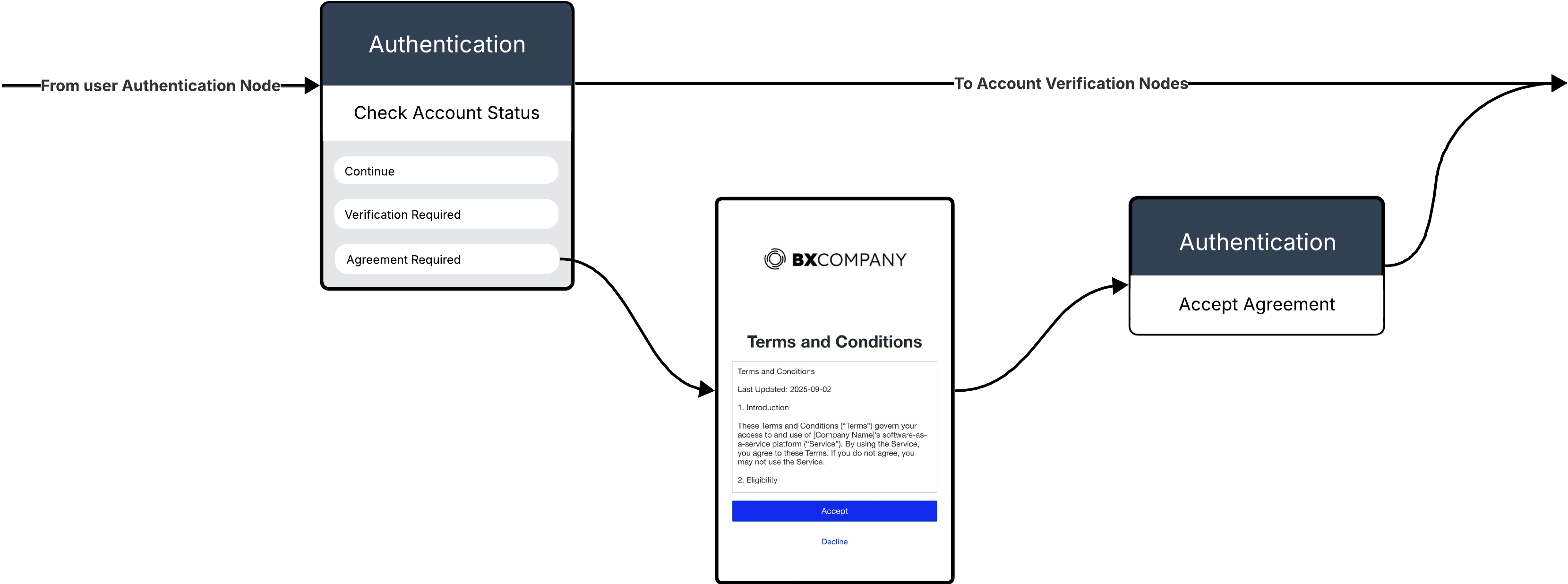
In your authentication flow, you might want to include the TOS acceptance step to ensure compliance with your organization’s policies. The Authentication use case connector’s Accept Agreement capability simplifies this compliance step by capturing user consent without building separate flows.
To use the Authentication use case connector for agreement consent recording:
-
Include a Check Account Status node to check status.
-
If the user’s account requires agreement acceptance, branch from the Agreement Required outcome to a form to get consent for any required agreements.
-
Use an Accept Agreement node to record the user’s consent to terms of service.
Password change
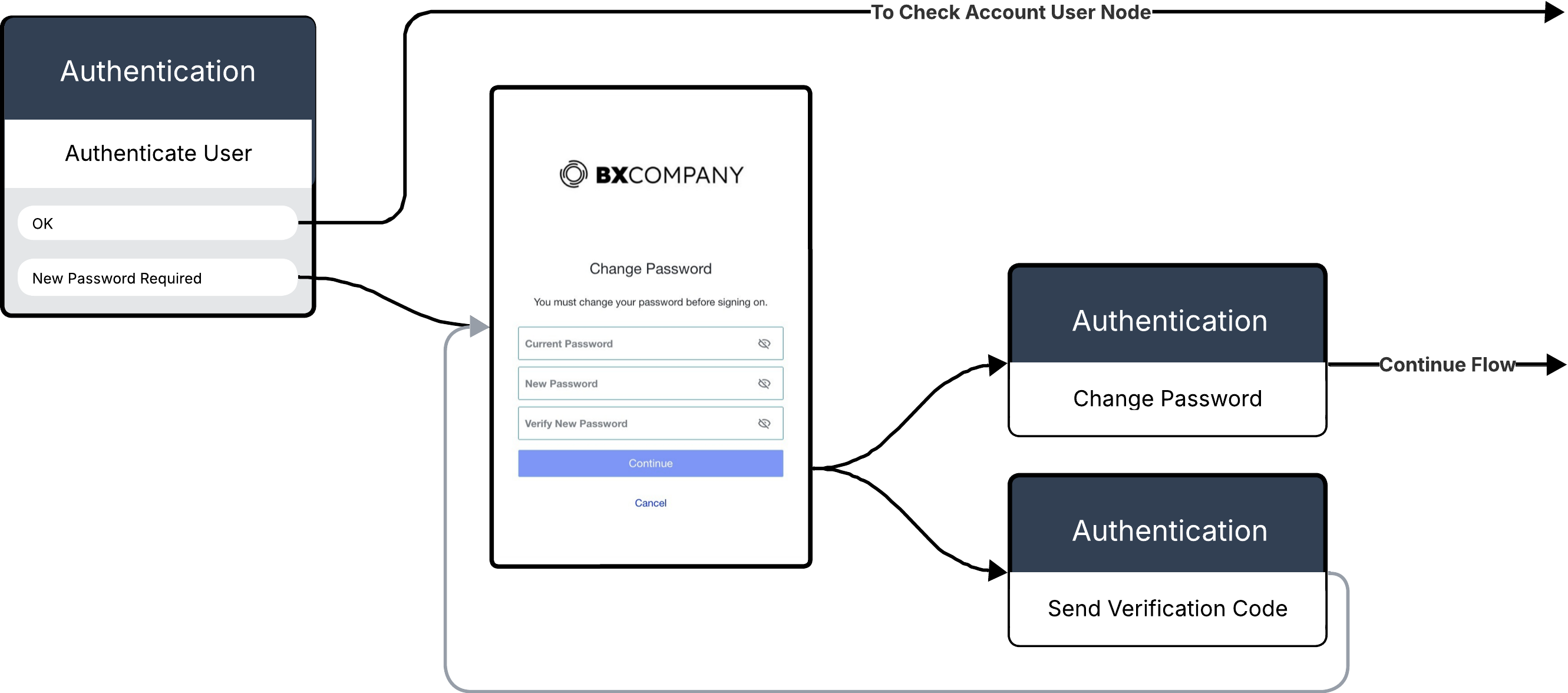
Password change is another helpful user experience to include in your authentication flows that enables secure password updates for users.
To use the Authentication use case connector for password change:
-
From the Authenticate User node’s New Password Required outcome, branch to a form that collects the current and new password inputs.
-
Add a Change password capability after successful authentication, when a user requests to update their password. This node validates the current password, sets the new one, and sends a confirmation email to the user.
-
If the password change fails, branch from the form to a Send Verification Code node to allow the user to retry. Then, branch back to the password change form.
-
Following the Change password node, present a success or error message to the user.
|
You can use the HTTP Connector or Error Message Connector to present a user-facing message. |
User account registration
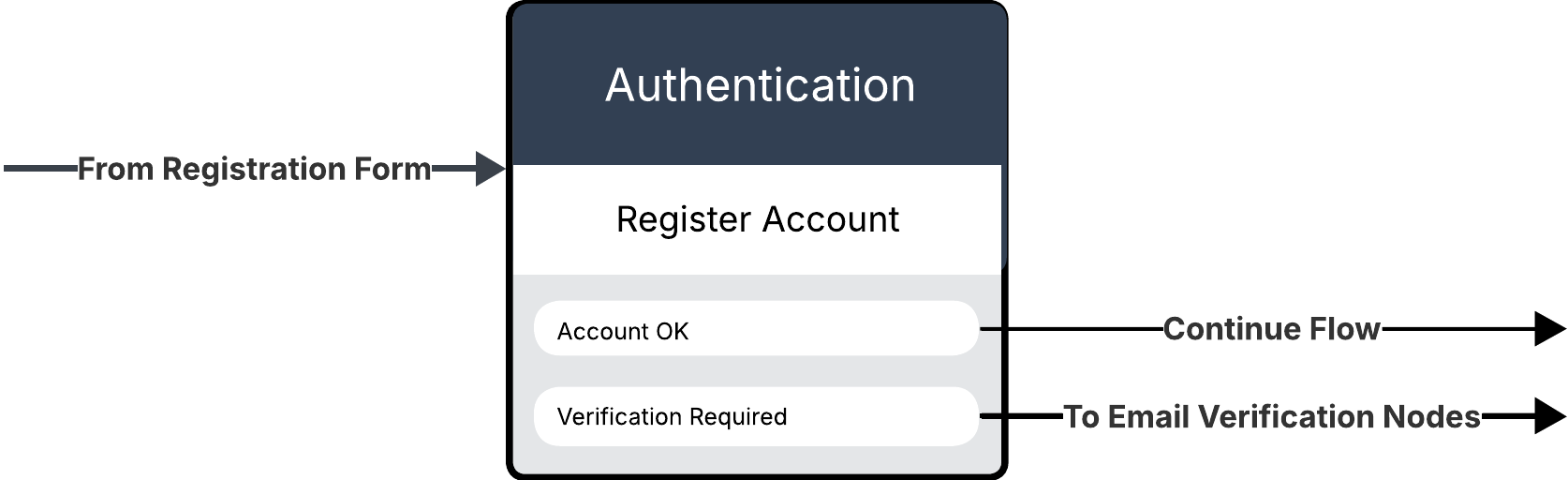
User account registration is a common flow configuration that allows new users to create accounts. The Authentication connector simplifies this process by checking account status before continuing the flow.
Before proceeding with account registration with the Authentication connector, you must present a form to collect user attributes.
|
You can easily create a registration form in PingOne and implement in DaVinci with the Form Connector. Learn more in Configuring a Registration Form. |
To use the Authentication use case connector for user account registration:
-
Add a Register Account node that continues from the user-facing registration form.
-
From the Account Required outcome, continue the flow from the Account OK outcome.
-
If email verification is required, you can follow steps for Email verification.
Email verification
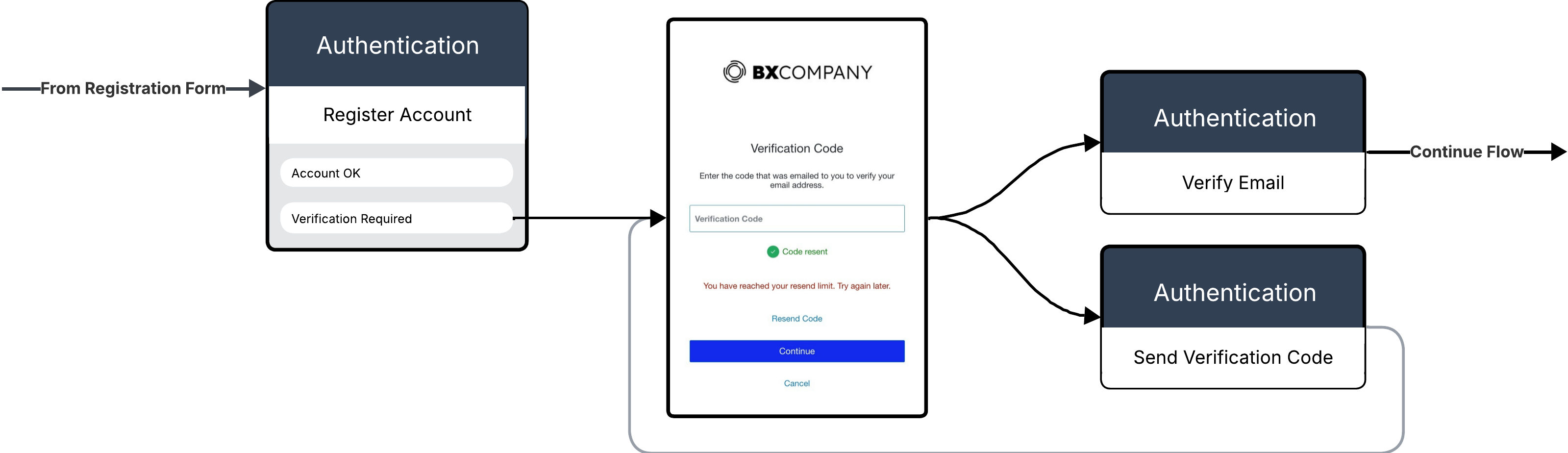
If email verification is required for account registration, the Authentication use case connector’s Verification Required outcome branches to a form to capture email OTP input. This simplifies the email verification process by reducing the number of nodes required to implement this use case.
To use the Authentication use case connector for email verification:
-
Add a Register Account node that continues from the user-facing registration form.
-
From the Verification Required outcome, branch to an additional Form node that captures email OTP.
-
You can also branch from the Resend Code outcome to the Send Verification Code node can resend OTPs as needed.
-
Following the email OTP form, add a Verify Email node to validate the OTP and complete email verification.
-
Branch from the Verify Email node to a successful registration message.
Account recovery
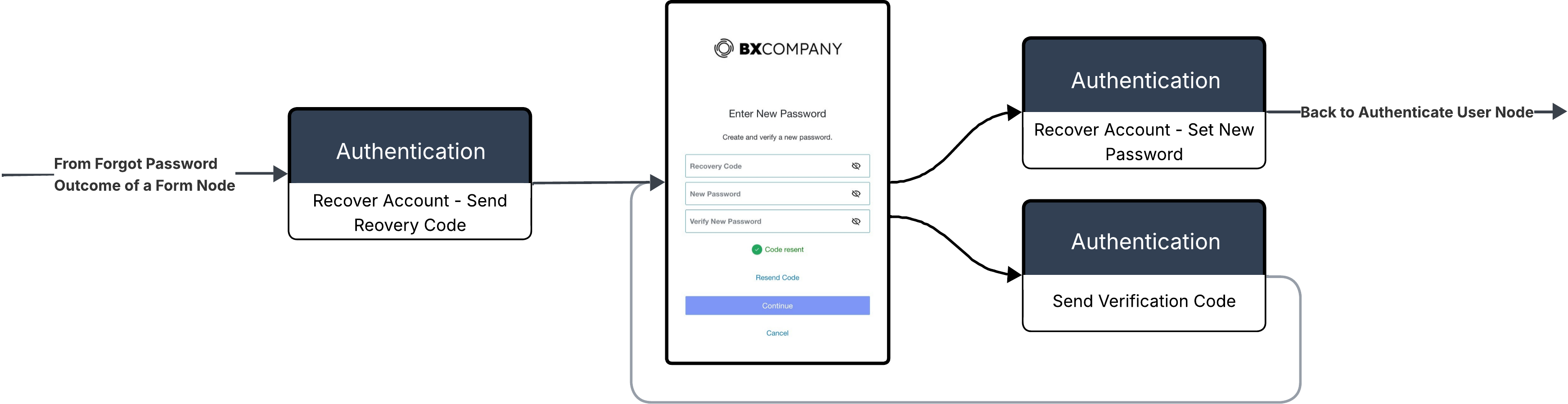
Account recovery is a critical user experience that helps users regain access to their accounts when they forget their passwords. The Authentication use case connector simplifies this process by combining user identification, code delivery, and password reset into fewer nodes.
Before proceeding with account recovery with the Authentication use case connector, you must present a form to collect user identification information.
To use the Authentication use case connector for account recovery:
-
Use the Recover Account - Send Recovery Code capability to identify the user and send a recovery code by email.
-
Add another node to present a form to capture OTP and new password inputs.
-
Use a Recover Account - Set New Password node to validate the recovery code, set a new password, and notify the user by email.
-
Use another Recover Account - Set New Password node to branch from an unsuccessful outcome to resend the OTP, branching back to your sign-on form.
Capabilities
Register Account
Creates a user account with the provided attributes and records the user’s consent to an agreement. Includes an outcome for users that require email verification.
Show details
-
Properties
-
Input Schema
-
Output Schema
- Username textField required
-
The unique identifier for the user.
- Population dropDown
-
The name of the population.
-
Use Population ID (Default)
-
- Population ID textField required
-
The unique identifier for the population.
- Password textField
-
The user’s password to validate.
- Given Name textField
-
The user’s given name, such as "John".
- Family Name textField
-
The user’s family name, such as "Smith".
- Email textField required
-
The user’s email address, such as "jsmith@example.com". When Require Email Verification is enabled, this field is required.
- Email textField required
-
The user’s email address, such as "jsmith@example.com". When Require Email Verification is enabled, this field is required.
- Require user to verify their email toggleSwitch
-
When enabled, the user must verify their account to finish registration. PingOne sends a verification code to the address provided in the Email field. Following this node, prompt the user to enter the verification code. When disabled, the user does not have to verify their email address.
- Phone textField
-
The user’s phone number, such as "+1-555-555-1234".
- Other Attributes variableInputList
-
Add other attributes and their values.
- Agreement ID textField required
-
A unique identifier for the agreement the user has to accept
-
default object
-
language string
-
properties object
-
population string required minLength: 0 maxLength: 100
Population
-
populationId string minLength: 0 maxLength: 100
Population ID
-
requireUserToVerifyEmail boolean
-
given string
-
family string
-
email string
-
mobilePhone string
-
username string required
-
password string
-
agreementId string
The unique identifier for the agreement information to ensure the correct agreement revision and language is being accepted.
-
-
-
output object
-
user object
-
preferredLanguage string
-
environment object
-
id string
-
-
timezone string
-
lastSignOn object
-
at string
-
remoteIp string
-
-
title string
-
type string
-
locale string
-
enabled boolean
-
identityProvider object
-
id string
-
type string
-
-
lifecycle object
-
status string
-
-
createdAt string
-
verifyStatus string
-
nickname string
-
mfaEnabled boolean
-
id string
-
email string
-
emailVerified boolean
-
updatedAt string
-
address object
-
streetAddress string
-
locality string
-
region string
-
postalCode string
-
countryCode string
-
-
externalId string
-
photo object
-
href string
-
-
population object
-
id string
-
-
primaryPhone string
-
accountId string
-
mobilePhone string
-
name object
-
formatted string
-
given string
-
middle string
-
family string
-
honorificPrefix string
-
honorificSuffix string
-
-
account object
-
canAuthenticate boolean
-
status string
-
lockedAt string
-
secondsUntilUnlock string
-
unlockAt string
-
-
username string
-
-
userAgreement object
-
status string
-
agreement object
-
id string
-
name string
-
enabled string
-
-
lastConsentAt string
-
-
Accept Agreement
Records the user’s consent to an agreement.
Show details
-
Properties
-
Input Schema
-
Output Schema
- Agreement sectionLabel
- Agreement dropDown
-
The name of the agreement.
-
Use Agreement ID (Default)
-
- Agreement ID textField required
-
A unique identifier for the agreement the user has to accept
-
default object
-
authentication object
-
userId string
-
methods array
-
-
language string
-
properties object
-
agreement string required
Agreement
-
agreementId string minLength: 0 maxLength: 100
Agreement ID
-
-
-
output object
-
agreement object
-
id string
-
name string
-
environment object
-
id string
-
-
-
user object
-
id string
-
-
status string
-
lastConsent object
-
language object
-
id string
-
-
revision object
-
id string
-
-
-
Verify Email
Checks the one-time code provided by the user, updates their account verification status, then sends the user a confirmation email.
Show details
-
Properties
-
Input Schema
-
Output Schema
- Verification Code textField
-
The code emailed to the user to verify their email address.
- Notification Settings sectionLabel
- Show advanced fields toggleSwitch
-
Show advance fields.
- Notification Policy dropDown
-
A unique identifier for the policy.
- Notification Name dropDown
-
The name of a custom notification defined in PingOne. If the form you want is not listed, select Enter Custom Value.
-
Enter Custom Value
-
None
-
- Custom Value textField
-
You can enter a custom template name, or leave blank to use the default template. You can also enter a parameter from a previous connector, or any text.
- Notification Variables variableInputList
-
If Custom variables are defined in the notification body, map them here.
-
default object
-
authentication object
-
userId string
-
methods array
-
-
language string
-
properties object
-
verificationCode string required
The code emailed to the user to verify their email address.
-
templateVariant null/string/number
-
customTemplateVariant null/string/object
-
templateVariables array
If custom variables are defined in the notification body, map them here.
-
showAdvancedFields boolean
-
notificationPolicyId string
A unique identifier for the policy.
-
-
-
output object
-
notificationRequestSent boolean
-
user object
-
preferredLanguage string
-
timezone string
-
lastSignOn object
-
at string
-
remoteIp string
-
-
title string
-
type string
-
locale string
-
enabled boolean
-
identityProvider object
-
id string
-
type string
-
-
lifecycle object
-
status string
-
-
createdAt string
-
verifyStatus string
-
nickname string
-
mfaEnabled boolean
-
id string
-
email string
-
emailVerified boolean
-
updatedAt string
-
address object
-
streetAddress string
-
locality string
-
region string
-
postalCode string
-
countryCode string
-
-
externalId string
-
photo object
-
href string
-
-
population object
-
id string
-
-
primaryPhone string
-
accountId string
-
mobilePhone string
-
name object
-
formatted string
-
given string
-
middle string
-
family string
-
honorificPrefix string
-
honorificSuffix string
-
-
account object
-
canAuthenticate boolean
-
status string
-
lockedAt string
-
secondsUntilUnlock string
-
unlockAt string
-
-
username string
-
-
Recover Account - Send Recovery Code
Sends a one-time account recovery code to the user’s email address.
Show details
-
Properties
-
Input Schema
- Username textField required
-
The unique identifier for the user.
- Resend Password Recovery Code toggleSwitch
-
When enabled, resend password recovery code mode is enabled.
-
default object
-
language string
-
p1UserId string
-
properties object
-
username string required
PingOne username to identify a user with.
-
resendPasswordRecoveryCode boolean
Toggle to enable resend mode.
-
-
Recover Account - Set New Password
Checks the one-time code provided by user, sets the new password, then sends the user a confirmation email.
Show details
-
Properties
-
Input Schema
-
Output Schema
- Password Authentication Settings sectionLabel
- Recovery Code textField
-
The code to validate.
- New Password textField
-
The user’s new password.
- Notification Settings sectionLabel
- Show advanced fields toggleSwitch
-
Show advance fields.
- Notification Name dropDown
-
The name of a custom notification defined in PingOne. If the form you want is not listed, select Enter Custom Value.
-
Enter Custom Value
-
None
-
- Custom Value textField
-
You can enter a custom template name, or leave blank to use the default template. You can also enter a parameter from a previous connector, or any text.
- Notification Variables variableInputList
-
If Custom variables are defined in the notification body, map them here.
-
default object
-
p1UserId string
-
language string
-
properties object
-
recoveryCode string required
-
newPassword string required minLength: 1
-
templateVariant null/string
-
customTemplateVariant null/string/object
-
templateVariables array
-
-
-
output object
-
notificationRequestSent boolean
-
passwordState object
-
environment object
-
id string
-
-
user object
-
id string
-
-
passwordPolicy object
-
id string
-
-
warnings object
-
expires string
-
noChangeUntil string
-
failuresRemaining number
-
-
status string
-
lastChangedAt string
-
-
Output Example
{
  "rawResponse": {}
}
Authenticate User
Checks the user’s credentials. Includes outcomes for users that require password change
Show details
-
Properties
-
Input Schema
-
Output Schema
- User Details sectionLabel
- Username textField required
-
The unique identifier for the user.
- Password textField
-
The user’s password to validate.
-
default object
-
language string
-
properties object
-
username string required
Username
-
password string required minLength: 1
Password
-
-
-
output object
-
passwordState object
-
environment object
-
id string
-
-
user object
-
id string
-
-
passwordPolicy object
-
id string
-
-
warnings object
-
expires string
-
noChangeUntil string
-
failuresRemaining number
-
-
status string
-
lastChangedAt string
-
-
user object
-
preferredLanguage string
-
timezone string
-
lastSignOn object
-
at string
-
remoteIp string
-
-
title string
-
type string
-
locale string
-
enabled boolean
-
identityProvider object
-
id string
-
type string
-
-
lifecycle object
-
status string
-
-
createdAt string
-
verifyStatus string
-
nickname string
-
mfaEnabled boolean
-
id string
-
email string
-
emailVerified boolean
-
updatedAt string
-
address object
-
streetAddress string
-
locality string
-
region string
-
postalCode string
-
countryCode string
-
-
externalId string
-
photo object
-
href string
-
-
population object
-
id string
-
-
primaryPhone string
-
accountId string
-
mobilePhone string
-
name object
-
formatted string
-
given string
-
middle string
-
family string
-
honorificPrefix string
-
honorificSuffix string
-
-
account object
-
canAuthenticate boolean
-
status string
-
lockedAt string
-
secondsUntilUnlock string
-
unlockAt string
-
-
username string
-
-
Change Password
Checks the current password provided by user, sets the new password, then sends the user a confirmation email.
Show details
-
Properties
-
Input Schema
-
Output Schema
- Password Settings sectionLabel
- Current Password textField
-
The user’s current password.
- New Password textField
-
The user’s new password.
-
default object
-
language string
-
p1UserId string
-
authentication object
-
userId string
-
methods array
-
-
properties object
-
newPassword string required minLength: 1
-
currentPassword string required minLength: 1
-
-
-
output object
-
passwordState object
-
environment object
-
id string
-
-
user object
-
id string
-
-
passwordPolicy object
-
id string
-
-
warnings object
-
expires string
-
noChangeUntil string
-
failuresRemaining number
-
-
status string
-
lastChangedAt string
-
-
Check Account Status
Checks whether the user has verified their email address and consented to the selected agreement.
Show details
-
Properties
-
Input Schema
-
Output Schema
- Account Verification sectionLabel
- Check Account Verification Status toggleSwitch
-
When enabled, DaVinci checks whether the user has verified their email address. If they haven’t, DaVinci sends a verification code to the email address and continues from the Verification Required outcome. Your flow should collect the verification code from the user and verify it.
- Agreement Consent sectionLabel
- Check Agreement Consent toggleSwitch
-
When enabled, DaVinci checks whether the user has not consented to the latest version of the selected agreement. If they haven’t, the flow continues from the Agreement Required outcome. Your flow should present the agreement and record whether the user accepts or declines it.
- Agreement dropDown
-
The name of the agreement.
-
Use Agreement ID (Default)
-
- Agreement ID textField required
-
A unique identifier for the agreement the user has to accept
-
default object
-
authentication object
-
userId string
-
methods array
-
-
language string
-
properties object
-
checkAccountVerificationStatus boolean
Check Account Verification Status
-
checkAgreementConsent boolean
Check Agreement Consent
-
checkAccountStatusAgreement string required
Agreement
-
checkAccountStatusAgreementId string minLength: 0 maxLength: 100
Agreement ID
-
-
-
output object
-
verificationRequired boolean
-
agreementRequired boolean
-
Send Verification Code
Sends email verification code to the user.
Show details
-
Properties
-
Input Schema
-
Output Schema
- This capability does not require any additional configuration. label
-
default object
-
authentication object
-
userId string
-
methods array
-
-
language string
-
properties object
-
-
output object
-
codeResent boolean
-
retryLimitReached boolean
-