MFA Use Case Connector
The MFA use case connector provides a fast way to orchestrate flows in PingOne DaVinci for common multi-factor authentication (MFA) use cases without the need for complex subflows made up of granular nodes.
The MFA use case connector supports the following common user experiences:
-
Registering an MFA device
-
Authenticating with an MFA device
-
Remembering a device so that users can skip authentication steps the next time they sign on from the same device
-
Backup authentication so that users who have lost their MFA device can authenticate with a one-time device
Why use the MFA use case connector?
Use case connectors, such as the MFA use case connector, are designed to make common integration patterns easier and faster to implement. Instead of building flows with many granular nodes (PingOne Connector, PingOne MFA Connector, and Core connectors), you can achieve the same outcomes with just a few nodes. This approach significantly reduces complexity and setup time.
The MFA use case connector is useful in scenarios where you want to quickly implement MFA device registration and authentication without delving into the complexities of granular node configurations.
|
Building a flow with granular nodes offers more control and customization for advanced use cases. For more advanced MFA flows, you should use DaVinci flow templates for premade solutions that you can customize to meet your needs. |
Using the connector in a flow
MFA device registration
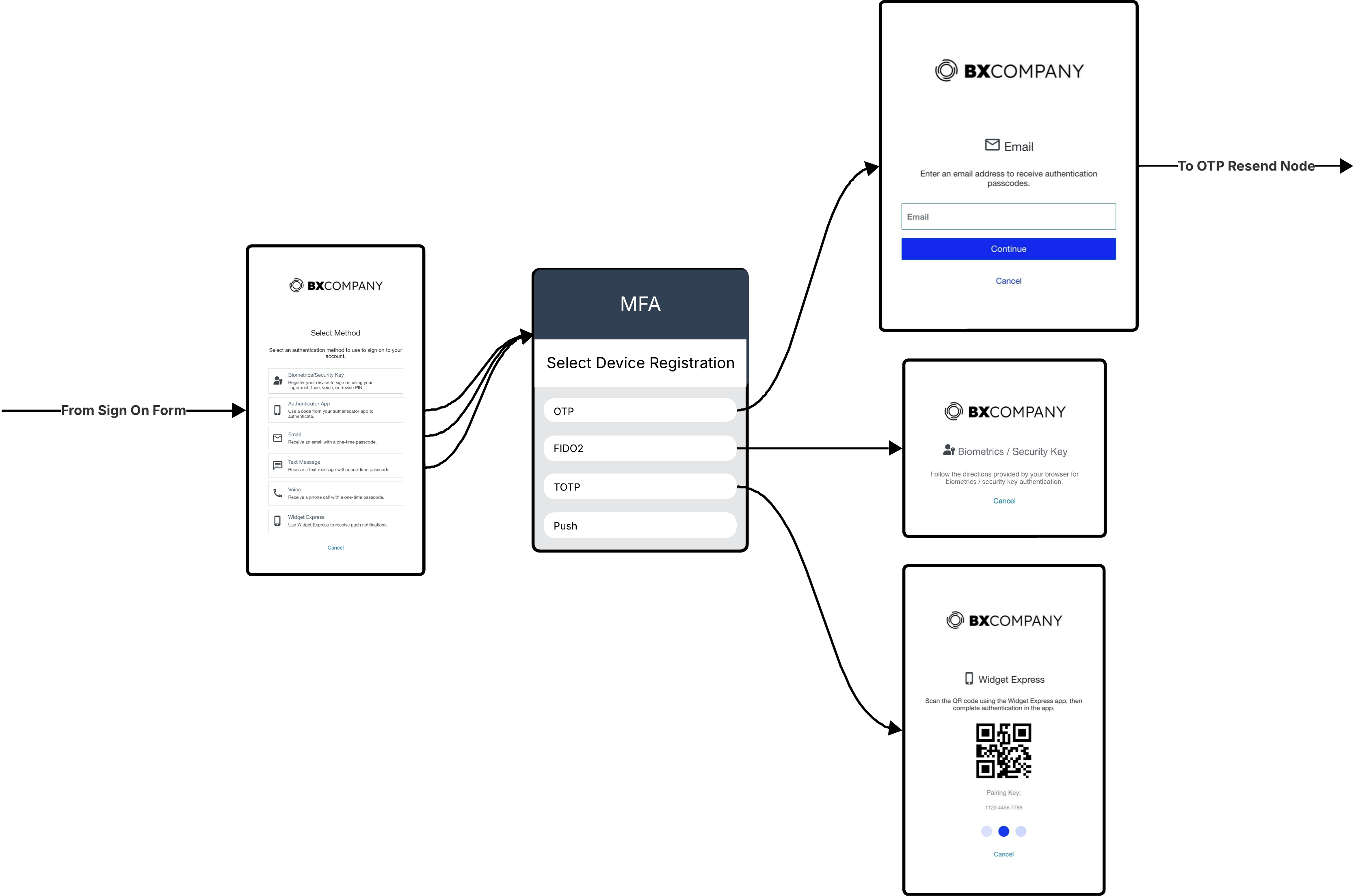
MFA device registration is a common flow configuration that allows users to register their MFA devices for future authentication. The MFA use case connector simplifies this process by reducing the number of nodes required to implement the registration flow.
Before proceeding with device registration with the MFA use case connector, you must present a form to collect user credentials and validate the user.
|
You can easily create an MFA form in PingOne and implement in DaVinci with the Form Connector. Learn more in Configuring an MFA Form. |
To use the MFA use case connector for device registration:
-
Add a Start Device Registration node that continues from the user-facing form. The available device types depend on the authentication methods enabled in your MFA policy.
-
From each outcome on the Start Device Registration node, your flow should prompt the user to complete the device authentication. For example, from the OTP outcome, your flow should include a form with prompts the user for a one-time passcode (OTP).
The outcome will be success or failure.
You can use HTTP Connector or Error Message Connector nodes to display a message, or the PingOne Connector to redirect the user after registration.
After successful registration, you can use the Update Device Nickname capability to let users rename their device when renaming is allowed by your MFA policy.
MFA device authentication
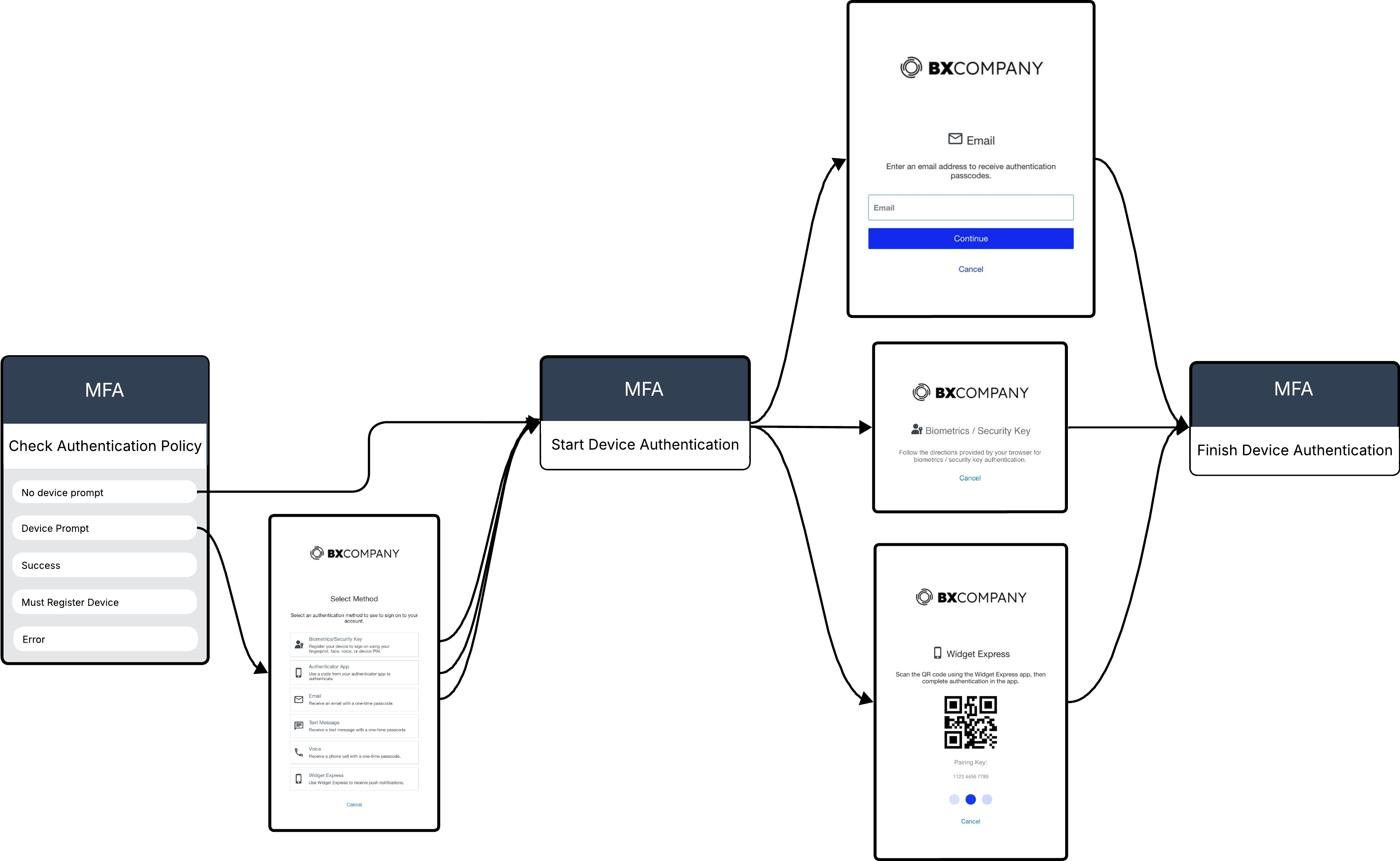
MFA device authentication uses a trusted second factor to verify a user’s identity during sign-on. The MFA use case connector simplifies this process by reducing the number of nodes required to implement the authentication flow.
Before proceeding with MFA device authentication with the MFA use case connector, you must present a form to collect user credentials and validate the user.
To use the MFA use case connector for device authentication:
-
Add a Check Authentication Policy node to determine whether the user is blocked, can bypass MFA, must register a device, or must select a device for authentication.
-
From each outcome on the Check Authentication Policy node, branch to the appropriate next step. For example, from the Prompt User to Select outcome, branch to a form that allows the user to select their registered MFA device.
-
Following the device selection or prompt form or branching from the other outcomes of the Check Authentication Policy node, use a Start Device Authentication node to initiate the authentication process in PingOne MFA.
-
Based on the selected device or prompt, present the user with the appropriate form to complete the authentication. For example, if the user selected an OTP device, present a form to collect the OTP.
The diagram shows only some of the possible outcomes. The Start Device Authentication node includes an outcome for each device type, such as OTP, FIDO2, and Mobile App. The available outcomes depend on the authentication methods enabled in your MFA policy. -
Following the device authentication prompt form, use a Finish Device Authentication node to verify and complete the authentication process in PingOne MFA.
The outcome will be success or failure.
-
Continue the flow to a success or failure message.
Remember me
Remember me lets users skip authentication steps the next time they sign on from a device that they have already used for authentication. To use Remember me, you must:
-
Embed the Signals SDK in the UI of your application to generate the device payload.
-
Enable the Remember me option in your MFA policies and define how long a device is remembered. Learn more in MFA policies.
To use the MFA use case connector for Remember me:
-
Add a Check Authentication Policy node and provide the Remember Me Payload generated by the Signals SDK. Optionally, provide the Remember Me Session ID for an added layer of security, and the Remember Me Cookie returned when the device was previously remembered.
If the device is recognized as a remembered device, the authentication completes immediately and the flow branches on the Success outcome. Otherwise, authentication proceeds as usual.
-
After the user completes authentication successfully, use a Finish Device Authentication node with a Remember Me Payload to register the device as remembered.
The node output includes
rememberMeStatusandrememberMeSetCookiewhen registration succeeds. Save the cookie and pass it back in the Remember Me Cookie field on future authentication attempts.
|
To maintain security, only use Remember me on private devices and browsers, and make sure your UI warns users not to enable it on public or shared devices. |
Backup authentication
Backup authentication lets users who have lost their MFA device authenticate with a one-time device, such as an email address or phone number from the information in your organization’s directory. Because the one-time device isn’t paired to the user’s account, the user can complete authentication for a single session only.
To use the MFA use case connector for Back Up Authentication:
-
Add a Check Authentication Policy node and enable Back Up Authentication.
-
Provide the one-time device details:
-
Device Type: The one-time device type, such as SMS, voice, or email.
-
SMS Phone Number, Voice Phone Number, or Email: The contact detail from your directory to associate with the one-time device.
-
-
Continue the flow to a form that collects the OTP sent to the one-time device, then use a Finish Device Authentication node to verify and complete the authentication.
|
No flow outcomes are returned when Back Up Authentication is enabled, so the flow continues unconditionally to the next node. |
One-time passcode resend
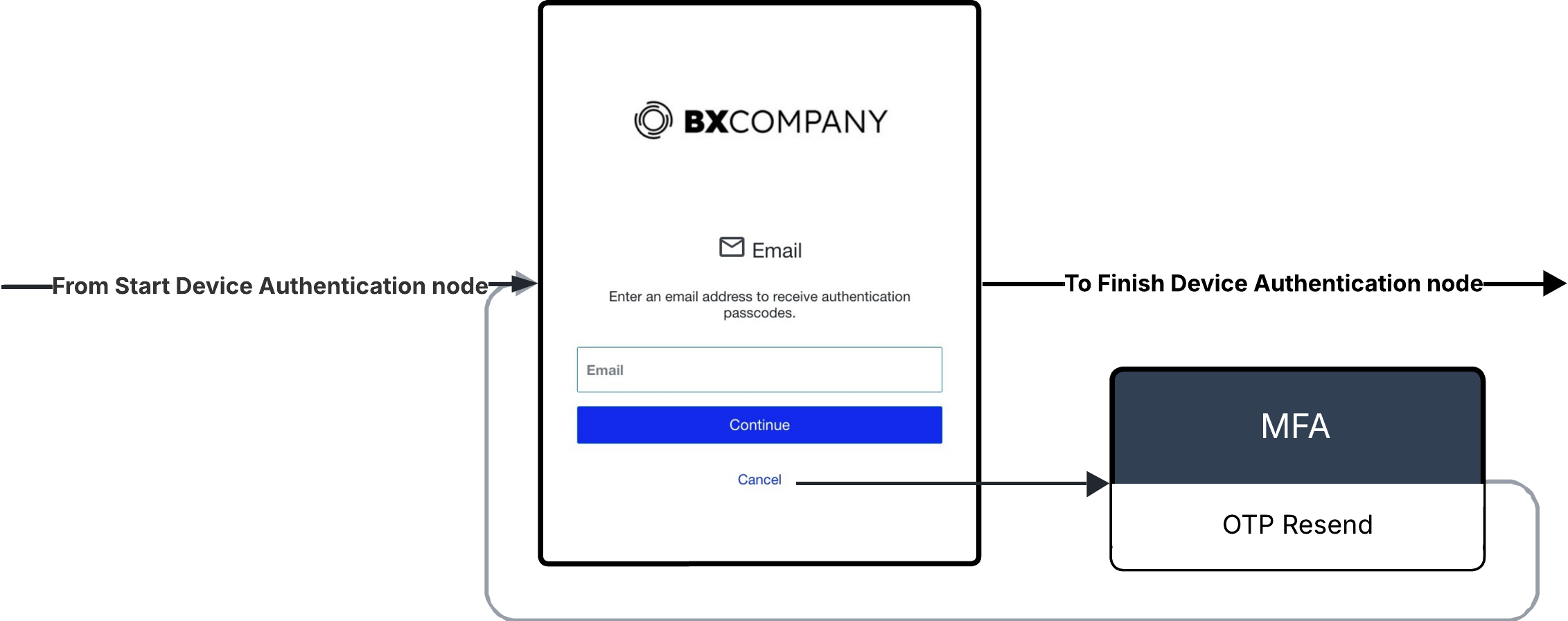
For both MFA device registration and authentication, you can use the OTP Resend capability to resend an OTP to the user via email or SMS.
To use the OTP resend capability:
-
For either the Start Device Registration or Start Device Authentication nodes, branch to a user-facing OTP form.
-
From the Resend OTP outcome, branch to a OTP Resend node.
-
Branch the flow back to the OTP form to allow the user to enter the new code.
Capabilities
Start Device Registration
Starts the registration process for the selected device. Includes outcomes for each device type.
Show details
-
Properties
-
Input Schema
-
Output Schema
- User and Device Details sectionLabel
- MFA Policy ID dropDown
-
The ID of your PingOne MFA device authentication policy.
-
Use Policy ID
-
- MFA Policy ID textField required
- Device Type dropDown
-
The type of device used during authentication.
-
Email
-
SMS
-
Voice
-
Authenticator App
-
Mobile Applications
-
Fido2 Biometrics
-
Enter Device Type
-
- Enter Device Type textField
- Device Nickname textField
-
A nickname that identifies this device. The device nickname is limited to 100 characters.
- Activation Status dropDown
-
The current status of the device. If a device has an ACTIVATION_REQUIRED status, activate it before you add it as a trusted device.
-
ACTIVE
-
ACTIVATION REQUIRED
-
- OTP Settings sectionLabel
- Show advanced fields toggleSwitch
-
Show advanced fields for OTP Settings.
- Email textField
-
The email address to associate with the device. Applies only to devices that use email during authentication.
- Serial Number textField
-
The unique identifier for the OATH token
- Phone Number textField
-
The phone number to associate with the device. Applies only to devices that use SMS and Voice SMS messages during authentication.
- YubiKey textField
-
The one-time passcode used to authenticate the YubiKey.
- Extension textField
-
The phone extension for this device. It can include digits, comma, # and *. If there is more than one extension then a comma should separate the extension and the nested extension.
- FIDO2 Settings sectionLabel
- Relying Party ID textField
-
If you define a Relying Party ID (RPID) here, it overrides the RPID defined in the FIDO policy in the PingOne admin console.
- Relying Party Name textField
-
A string that specifies the relying party’s human-readable display name.
- Push Settings sectionLabel
- Applications dropDownMultiSelect
-
Select the application(s) that can be used with the push settings. Leave this list empty to allow all available native applications in the environment to be used.
- Notification Settings sectionLabel
- Show advanced fields toggleSwitch
-
Show advanced fields for Notification Settings.
- Notification Policy dropDown
-
A unique identifier for the policy.
-
Enter Notification Policy ID
-
- Notification Policy ID textField
- Notification Name dropDown
-
The name of a custom notification defined in PingOne. If the form you want is not listed, select Enter Custom Value.
-
Enter Custom Value
-
- Custom Value textField
-
You can enter a custom template name, or leave blank to use the default template. You can also enter a parameter from a previous connector, or any text.
- Notification Variables variableInputList
-
If Custom variables are defined in the notification body, map them here.
-
default object
-
authentication object
-
userId string
-
methods array
-
-
p1UserId string
-
language string
-
userAgent string
-
properties object
-
showAdvancedFields boolean
-
applicationIds null/array
-
array
-
null
-
-
deviceAuthenticationPolicyId string
-
customDeviceAuthenticationPolicyId null/string/object
-
otpSettings string
-
serialNumber string
-
deviceType string required
-
customDeviceType null/string/object
-
activationStatus string required
-
nickname string
-
phone string
-
extension string
-
email string
-
rpId string
Relying Party ID
-
rpName string
Relying Party Name
-
yubiKey string
The one-time passcode used to authenticate the YubiKey.
-
fido2Settings boolean
-
pushSettings boolean
-
notificationSettings boolean
-
-
-
output object
-
device object
-
id string
-
type string
-
status string
-
nickname string
-
phone string
-
extension string
-
email string
-
secret string
-
keyUri string
-
oathToken string
-
serialNumber string
-
rp object
-
id string
-
name string
-
-
platform string
-
publicKeyCredentialCreationOptions string
-
pingIdDesktopCredentialCreationOptions string
-
attributes object
-
previousDeviceType string
-
isCrossPlatform boolean
-
-
displayName string
-
createdAt string
-
updatedAt string
-
-
maskedDeviceInfo string
-
promptForNicknameOnPairing boolean
-
browserName string
-
deviceOSName string
-
applications array
-
pairingKey object
-
id string
-
code string
-
status string
-
applicationName string
-
error object
-
code string
-
message string
-
-
createdAt string
-
updatedAt string
-
expiresAt string
-
-
Finish Device Registration
Verifies the device pairing information and completes the registration process.
Show details
-
Properties
-
Input Schema
-
Output Schema
- One-time Passcode textField
-
The one-time passcode (OTP) sent to the user.
- Attestation textField
-
A read-only string that specifies the public key and signed challenge used to complete registration and device activation. The attestation is generated by the browser as a response to a specific user action, such as a fingerprint scan or tap on a security key.
- OATH Token Resync toggleSwitch
-
Indicates if OATH token resync is permitted during registration
-
default object
-
authentication object
-
userId string
-
methods array
-
-
p1UserId string
-
origin string
-
language string
-
properties object
-
otp string
Passcode
-
attestation string
WebAuthn assertion
-
oathResync boolean
OATH resync flag
-
-
-
output object
-
device object
-
id string
-
type string
-
status string
-
nickname string
-
phone string
-
extension string
-
email string
-
secret string
-
keyUri string
-
oathToken string
-
serialNumber string
-
rp object
-
id string
-
name string
-
-
platform string
-
publicKeyCredentialCreationOptions string
-
attributes object
-
previousDeviceType string
-
isCrossPlatform boolean
-
-
displayName string
-
createdAt string
-
updatedAt string
-
-
pairingKeyStatus string
-
Check Authentication Policy
Determines whether the user is blocked, can bypass MFA, must register a device, or must select a device for authentication. Use this before the Start Device Authentication node.
Show details
-
Properties
-
Input Schema
-
Output Schema
- User and Device Details sectionLabel
- Device ID textField
-
The MFA device type unique identifier (UUID) to be used for authentication. If this value is not provided, Authentication will be as per MFA policy settings.
- MFA Settings sectionLabel
- Show advanced fields toggleSwitch
-
Show advanced fields for MFA Settings.
- MFA Policy ID dropDown
-
The ID of your PingOne MFA device authentication policy.
-
Use Policy ID
-
- MFA Policy ID textField required
- Mobile Payload textField
-
A signed challenge generated by PingOne MFA mobile SDK.
- Application dropDown
-
The unique identifier of the native application which initiated the authentication flow.
-
Enter Application ID
-
- Application ID textField
- Notification Settings sectionLabel
- Show advanced fields toggleSwitch
-
Show advanced fields for Notification Settings.
- Notification Type dropDown
-
Indicates whether the notification is intended for a user authentication flow.
-
Strong Authentication
-
Transaction
-
- Notification Policy dropDown
-
A unique identifier for the policy.
-
Enter Notification Policy ID
-
- Notification Policy ID textField
- Notification Name dropDown
-
The name of a custom notification defined in PingOne. If the form you want is not listed, select Enter Custom Value.
-
Enter Custom Value
-
- Custom Value textField
-
You can enter a custom template name, or leave blank to use the default template. You can also enter a parameter from a previous connector, or any text.
- Notification Variables variableInputList
-
If Custom variables are defined in the notification body, map them here.
- BackUp Authentication sectionLabel
- Back Up Authentication toggleSwitch
-
When enabled, the capability creates a new Device Authentication with one-time device with no flow outcomes returned.
- Device Type textField
-
The one-time device type
- SMS Phone Number textField
-
The phone number to associate with the one-time SMS device.
- Voice Phone Number textField
-
The phone number to associate with the one-time Voice device.
- Email textField
-
The email address to associate with the one-time device.
- Remember Me Settings sectionLabel
- Remember Me Session ID textField
-
The active PingOne session for the user.
- Remember Me Payload textField
-
Identify the device via a unique device ID combined with a digital signature that ensures information collected about the device has not been tampered with.
- Remember Me Cookie textField
-
The cookie that was generated when the remembered device was created.
-
default object
-
authentication object
-
userId string
-
methods array
-
-
parameters object
-
authorizationrequest object
-
mobilepayload string
-
-
-
p1UserId string
-
language string
-
properties object
-
deviceAuthenticationPolicyId string
-
customDeviceAuthenticationPolicyId null/string/object
-
mfaSettings boolean
-
notificationSettings boolean
-
authTemplateName null/string
-
string
-
STRONG_AUTHENTICATION
-
TRANSACTION
-
-
null
-
-
mobilePayload string
Mobile Payload
-
applicationId string
-
customApplicationId null/string/object
-
notificationPolicyId string minLength: 0 maxLength: 100
-
customNotificationPolicyId null/string/object
-
templateVariant null/string
-
customTemplateVariant null/string/object
-
templateVariables array
-
backUpAuthentication boolean
-
oneTimeDeviceType string
-
oneTimeSmsDevice string
-
oneTimeVoiceDevice string
-
oneTimeEmailDevice string
-
rememberMeSessionId string
-
rememberMePayload string
-
rememberMeCookie string
-
-
-
output object
-
deviceAuthentication object
-
id string
-
user object
-
id string
-
-
environment object
-
id string
-
-
policy object
-
id string
-
-
selectedDevice object
-
id string
-
type string
-
-
application object
-
id string
-
-
status string
-
authenticators array
-
publicKeyCredentialRequestOptions string
-
_embedded object
-
devices array
-
-
-
usableDevices object
-
registerDevice object
-
maskedDeviceInfo string
-
deviceNickName string
-
Start Device Authentication
Starts the authentication process for the selected device. Includes outcomes for each device type.
Show details
-
Properties
-
Input Schema
-
Output Schema
- Device ID textField
-
The MFA device type unique identifier (UUID) to be used for authentication. If this value is not provided, Authentication will be as per MFA policy settings.
- MFA Policy ID dropDown
-
The ID of your PingOne MFA device authentication policy.
-
Use Policy ID
-
- MFA Policy ID textField required
-
default object
-
language string
-
userAgent string
-
properties object
-
deviceId string
-
deviceAuthenticationPolicyId string
-
customDeviceAuthenticationPolicyId null/string/object
-
-
-
output object
-
authenticatingDevice object
-
deviceId string
-
type string
-
-
publicKeyCredentialRequestOptions string
-
pingIdDesktopCredentialRequestOptions string
-
applicationName string
-
numberMatching number
-
emailOtp boolean
-
smsOtp boolean
-
VoiceOtp boolean
-
authenticatorOtp boolean
-
mobileOtp boolean
-
whatsAppOtp boolean
-
oathTokenOtp boolean
-
yubikeyOtp boolean
-
maskedDeviceInfo string
-
deviceNickName string
-
browserName string
-
deviceOSName string
-
applications array
-
Finish Device Authentication
Verifies and completes the authentication process.
Show details
-
Properties
-
Input Schema
-
Output Schema
- OTP Settings sectionLabel
- One-time Passcode textField
-
The one-time passcode (OTP) sent to the user.
- FIDO2 Settings sectionLabel
- Assertion textField
-
A string that specifies the authenticator assertion response. The string contains the signed challenge needed to complete the MFA authentication.
- Remember Me Settings sectionLabel
- Remember Me Session ID textField
-
The active PingOne session for the user.
- Remember Me Payload textField
-
Identify the device via a unique device ID combined with a digital signature that ensures information collected about the device has not been tampered with.
-
default object
-
language string
-
origin string
-
properties object
-
assertion string
WebAuthn assertion
-
otp string
Passcode
-
rememberMeSessionId string
-
rememberMePayload string
-
-
-
output object
-
deviceAuthentication object
-
authenticationStatus string
-
rememberMeStatus boolean
-
rememberMeSetCookie string
-
OTP Resend
If user did not receive the one-time passcode (OTP) that was sent for pairing a device, you can resend the OTP.
Show details
-
Input Schema
-
Output Schema
-
default object
-
language string
-
authentication object
-
userId string
-
methods array
-
-
p1UserId string
-
-
output object
-
otpResendResponse object
-
codeResent boolean
-
allowResend boolean
-
retriesRemaining number
-
Start FIDO2 Authentication
Initiates passwordless authentication without requiring a username.
Show details
-
Properties
-
Input Schema
-
Output Schema
- MFA Policy ID dropDown
-
The ID of your PingOne MFA device authentication policy.
-
Use Policy ID
-
- MFA Policy ID textField required
- Relying Party ID textField
-
If you define a Relying Party ID (RPID) here, it overrides the RPID defined in the FIDO policy in the PingOne admin console.
-
default object
-
language string
-
properties object
-
deviceAuthenticationPolicyId string
-
customDeviceAuthenticationPolicyId null/string/object
-
rpId string
-
-
-
output object
-
deviceAuthentication object
-
id string
-
user object
-
id string
-
-
environment object
-
id string
-
-
policy object
-
id string
-
-
selectedDevice object
-
id string
-
-
application object
-
id string
-
-
status string
-
authenticators array
-
publicKeyCredentialRequestOptions string
-
pingIdDesktopCredentialRequestOptions string
-
-
Update Device Nickname
Update device nickname.
Show details
-
Properties
-
Input Schema
-
Output Schema
- Device Nickname textField
-
A nickname that identifies this device. The device nickname is limited to 100 characters.
-
default object
-
language string
-
authentication object
-
userId string
-
methods array
-
-
p1UserId string
-
properties object
-
nickname string required
-
-
-
output object
-
nickNameUpdated boolean
-