Protect Use Case Connector
Like the standard PingOne Protect connector, the Protect Use Case connector lets you use PingOne Protect in a PingOne DaVinci flow to improve the user experience, reduce multi-factor authentication (MFA) fatigue, lower the probability of unintentional push approvals, and issue challenges or deny access in high-risk situations.
You can learn more about risk policies and risk evaluations in the PingOne Protect documentation.
Why use the PingOne Protect Use Case connector?
There are a few differences between the PingOne Protect Use Case connector and the standard PingOne Protect connector:
-
When using the standard PingOne Protect connector, you must make sure that your flow includes a PingOne Protect connector with the Update Risk Evaluation capability in your flow at the end of each possible path. This capability represents the system’s ability to learn over time to improve results and is essential for risk evaluation precision. When you use the PingOne Protect Use Case connector, you don’t have to include additional connectors for the risk evaluation updates. This is handled automatically by the connector.
-
When using the standard PingOne Protect connector, you must define a worker app in your PingOne environment. You don’t have to do this step when using the PingOne Protect Use Case connector.
-
When using the standard PingOne Protect connector, you must add nodes to represent the logic and actions you want to take based on the risk evaluation result. When you use the PingOne Protect Use Case connector, the logic and actions are those that you defined with Mitigations in your risk policy. When configuring the connector, you choose the actions that you included in your risk policy and these are displayed as outcomes that can be connected to other steps in your flow.
Setup
Resources
Learn more in the following documentation:
-
PingOne Protect documentation:
-
PingOne DaVinci documentation:
Requirements
To use the PingOne Protect Use Case connector, you’ll need:
-
A PingOne Protect license.
-
A PingOne environment with PingOne Protect added. Learn more in Adding an environment.
-
A PingOne Protect risk policy configured with mitigations. Learn more in Risk policies.
Setting up the connector
-
Follow the instructions in Getting started with PingOne Protect.
-
In PingOne DaVinci, add a PingOne Protect Use Case connector.
Using the connector in a flow
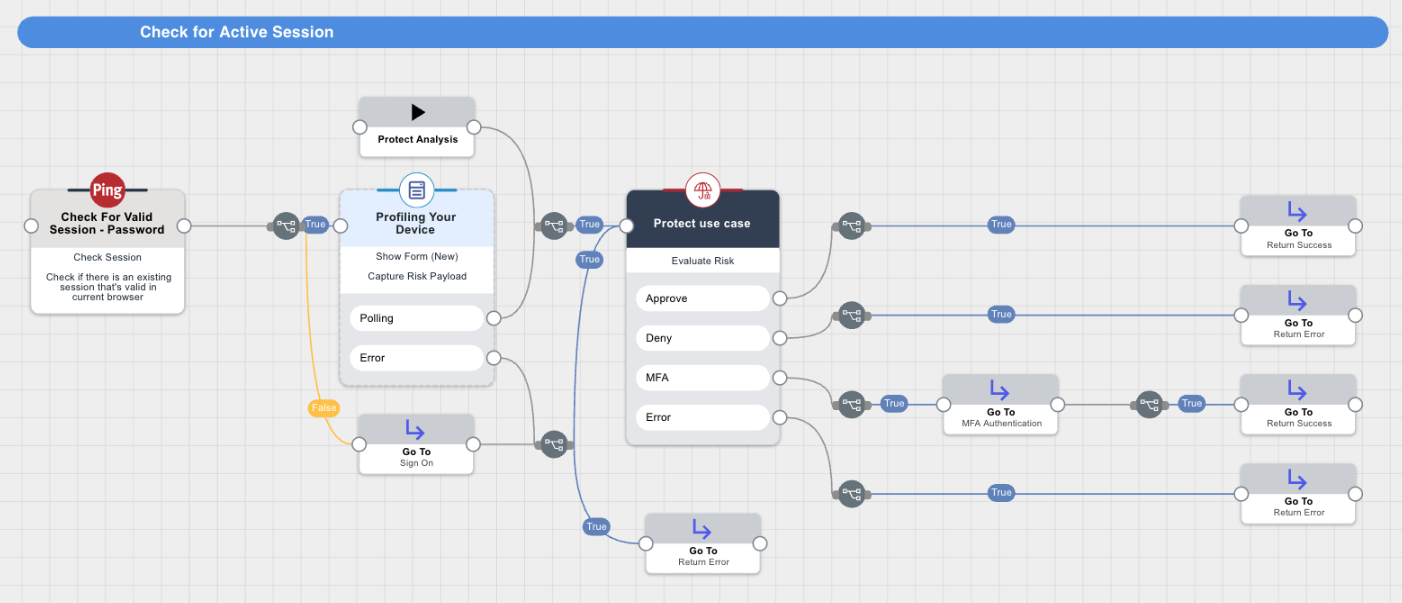
The following diagram illustrates the use of the PingOne Protect Use Case connector in a flow. Note that the connector shows the outcomes for the mitigations defined in the risk policy and these outcomes can be connected to separate paths.
Steps
-
In your flow, add a PingOne Protect Use Case connector and select the Create Risk Evaluation capability.
-
On the General tab, enter the following information:
-
User ID
-
User Name
-
User Type
-
User Groups
-
Application ID: ID of the application the user wants to access.
-
Application Name: Name of the application the user wants to access.
-
Flow Type: The type of the flow, for example, Authentication.
-
Flow Subtype: For some flow types, you can also specify a subtype. For example, for an Authentication flow, you can specify that it’s an Account Recovery flow.
-
Session ID: The session ID associated with the event.
-
Global Policy ID (optional): The ID of the Global risk policy to use for the risk evaluation. Note that the connector doesn’t support Targeted risk policies. If you don’t provide a risk policy ID, the connector uses the default risk policy.
-
Outcomes: Select the outcomes that represent the mitigations that you defined in the risk policy that you are using. The outcomes you select are displayed as part of the connector.
-
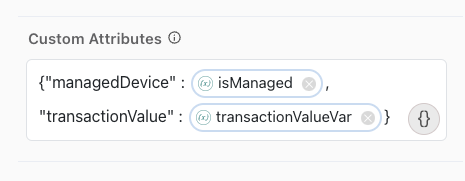
Custom Attributes (optional): If you’re using a policy that includes one or more custom predictors that require external data, use the Custom Attributes field to enter the names of the custom attributes and their values.
For example:
{"managedDevice" : isManaged, "transactionValue" : transactionValueVar}The attribute names must match the attribute names you used in the custom predictors that you created and included in the risk policy. Learn more in Adding custom predictors and Using third-party risk scores with PingOne Protect.
-
-
Click Apply.
-
To improve risk analysis, include the data for additional risk-related variables provided by the Signals (Protect) SDK, using one of the following options:
-
Manual deployment
-
skrisk component
-
Forms connector
Risk evaluation can be performed without the Signals (Protect) SDK payload if there’s no way to provide the payload. However, some predictors require the SDK payload and won’t return a risk level if the payload is missing. Learn more in Predictors.
-
Manual deployment
-
skriskcomponent -
PingOne Forms connector
You can manually deploy the Signals (Protect) SDK when integrating using the PingOne DaVinci APIs. For mobile applications or integrating your webpage with PingOne DaVinci using APIs instead of redirecting, you’ll:
-
Deploy the Signals (Protect) SDK.
-
Send the SDK payload and the rest of the required data, such as username, user ID, IP address, and any custom attributes to PingOne DaVinci using the API.
-
Include a variable in your flow that represents the data obtained.
To manually deploy the SDK:
-
Follow the PingOne Protect Native SDKs documentation to implement the SDK in your mobile app or webpage.
-
Set global variables using the SDK to pass risk-related information from the SDK and map the information into the risk evaluation in PingOne DaVinci.
-
In PingOne DaVinci, click the applicable PingOne Protect connector with the Create Risk Evaluation capability in your flow to open its settings.
-
On the Device Configurations tab, for Risk input from device, enter the name of the variable that represents the data obtained from the SDK in your manual implementation.
-
In the User Agent field, enter the user agent string for the browser, if available.
User Agent is included in the SDK payload by default.
-
To improve risk analysis, use the Cookie field to provide the value of a persistent cookie, if available.
-
To maintain your own device IDs, you can assign external device IDs that are not managed by the SDK, such as device serial number or mobile application installation ID. External IDs can be sent to PingOne DaVinci using the API.
For example, in a workforce user flow, you can use the Google Chrome Device Trust connector to map the user device serial number when using the Chrome browser.
-
To pass the risk information from the SDK to PingOne DaVinci, map the global variables that you set with the SDK into PingOne DaVinci:
-
On the Log Fields Mapping tab, click + Field.
-
Select and enter the global variables you set with the SDK.
-
-
You can include the
skriskcomponent in your flow to collect device and user behavioral data from user interactions with custom HTML templates in HTTP connectors, such as an HTTP sign-on or password reset flow. Learn more aboutskriskin SK-Components.With this approach, the information from the Signals Web SDK is obtained automatically. However, for the Signals Mobile SDK, you must implement the steps in the SDK documentation manually.
The
skriskcomponent must be added to the following:-
The first HTTP connector with a Custom HTML Template in your flow that requires user interaction.
-
Any subsequent HTTP connectors with a Custom HTML Template in the flow, including subflows called by a parent flow.
For example, you can create a subflow that performs the risk evaluation within a parent flow. In this case, add the
skriskcomponent to relevant HTTP connectors in the parent flow that call this subflow.You can find subflow templates in the Integration Directory, such as Login with Self-Service Journey, PingOne Sign On and Password Reset, and User Registration Journey. Learn more in Using PingOne DaVinci flow templates.
Adding the
skriskcomponent to multiple connectors in a flow allows the SDK to collect additional data throughout the flow and improves bot detection.-
Add an HTTP connector with the Custom HTML Template capability to your flow.
-
On the General tab, in the HTML Template field, click {}, click SK-Component, and then select skrisk in the list.
The skrisk component should always be at the beginning of the HTML template. Make sure that all HTML tags you add appear below the skrisk component in the HTML Template field.
-
Double-click the skrisk component that you added to open its properties.
-
Enter the Environment ID for your PingOne environment.
-
The Collect behavior data setting collects device and user behavioral data. By default, Collect behavioral data is set to
True.Set Collect behavior data to
Falseif this connector doesn’t require interaction from the user. -
(Optional) Change the default Risk Property Name as needed.
-
If you want the device data in the SDK payload to be provided as a signed JSON Web Token (JWT), set Enable Universal Device Identification to
True. -
Click Save.
-
On the General tab of the HTTP connector, go to the Output Fields List and add a field to represent the output provided by the
skriskcomponent.-
For Property Name, enter the same name that you used for Risk Property Name. In the PingOne Protect Use Case connector, you’ll select this property name as one of the inputs.
-
Add a Display Name.
-
Click Apply.
-
-
Click the PingOne Protect Use Case connector with the Create Risk Evaluation capability in your flow.
-
On the Device Configurations tab, configure Risk input from device as follows:
-
Click {}.
-
Click to enable the Show all nodes toggle.
-
Select the HTTP connector in the list.
-
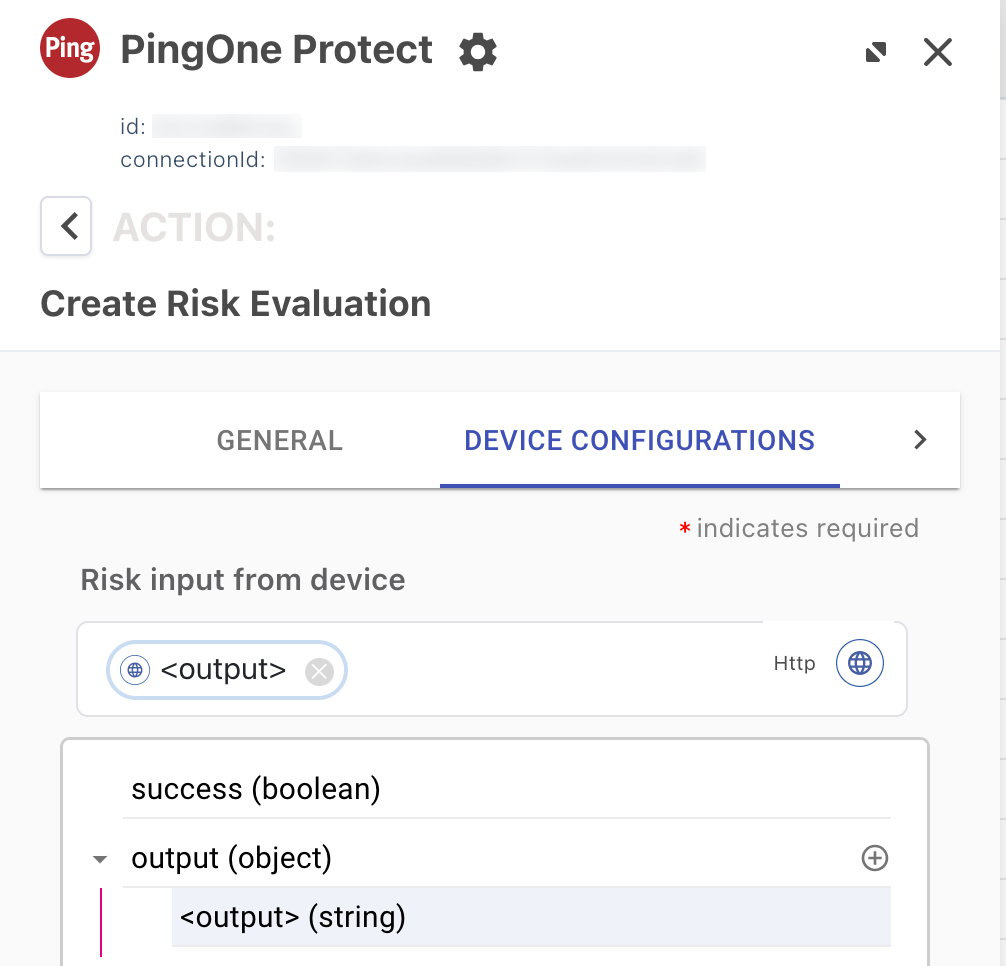
Under output, select the name that you provided previously for the output of the
skriskcomponent.In the following image, <output> represents the output from step 9.
-
You can enable device profiling to collect device information and user data from user interactions with PingOne Forms connectors in your flow. Learn more in Forms.
Enable device profiling in any user-facing forms as follows:
-
The first PingOne Forms connector in your flow
-
Any subsequent PingOne Forms connectors in the flow, including any in a subflow or parent flow
To enable device profiling in a PingOne Forms connector:
-
Add a PingOne Forms connector to your flow.
-
On the General tab, click the Enable Device Profiling toggle to enable the SDK to collect device information from user interactions with the form.
-
(Optional) Click the Include Behavioral Data toggle to identify non-human activity through behavioral data collection.
To enable Include Behavioral Data, you must first turn on Enable Device Profiling.
-
If you want the device data in the SDK payload to be provided as a signed JWT, set Enable Universal Device Identification to
True. -
Click Apply.
-
Capabilities
Evaluate Risk
Calls PingOne Protect to assess transaction risk and outputs the resulting risk level and mitigation decision to the flow.
Show details
-
Properties
-
Input Schema
-
Output Schema
- User ID textField
-
The ID of the user whose risk is being evaluated.
- User Name textField
-
The username of the user whose risk is being evaluated.
- User Type dropDown
-
Indicates whether the user exists in the PingOne directory or in an external directory.
-
EXTERNAL (Default)
-
PING_ONE
-
- User Groups textField
-
User groups names.
- Application ID textField
-
The ID for the application or resource the user wants to access.
- Application Name textField
-
The name of the application or resource the user wants to access.
- Flow Type dropDown
-
The type of flow in which risk is evaluated.
-
AUTHENTICATION
-
REGISTRATION
-
ACCESS
-
AUTHORIZATION
-
TRANSACTION
-
- Flow Subtype dropDown
-
The subtype of the flow.
- Outcomes dropDownMultiSelect
-
Select the outcomes that are available for this risk evaluation. Defaults to Approve, Deny, and MFA if not specified.
-
Approve
-
Deny
-
Deny and Suspend
-
MFA
-
Verify
-
Custom
-
- Session ID textField
-
The unique session ID associated with the event.
- Risk input from device textField
- Cookie textField
-
The cookie of the browser/device that triggered the flow.
- External ID textField
-
A unique device identifier generated and managed independently of the Signals SDK (SKrisk).
- Global Policy ID textField
-
The global risk policy ID used during risk evaluation.
- Custom Attributes codeEditor
-
Your Custom Attributes defined at Ping.
-
default object
-
authentication object
-
userId string
-
-
ip string
-
userAgent string
-
sessionToken string
-
userInfo object
-
properties object
-
userId string minLength: 0 maxLength: 100
User ID
-
userName string minLength: 0 maxLength: 100
User Name
-
userType string minLength: 0 maxLength: 100
User Type
-
userGroups string minLength: 0 maxLength: 100
User Groups
-
targetResourceId string minLength: 0 maxLength: 100
Target Resource ID
-
targetResourceName string minLength: 0 maxLength: 100
Target Resource Name
-
flowType string minLength: 0 maxLength: 50
Flow Type
-
subtype string minLength: 0 maxLength: 50
Flow Subtype
-
outcomes array
Outcomes
-
sessionId string
-
sharingType string minLength: 0 maxLength: 100
Sharing Type
-
userAgent string minLength: 0 maxLength: 8190
User Agent
-
targetedPolicy boolean
Targeted Policies Evaluation
-
riskPolicySetId string
-
customAttributes object
-
skRiskFP string
-
cookie string
-
externalId string
-
-
-
output object
-
rawResponse object
-
id string
-
environment object
-
id string
-
-
createdAt string
-
updatedAt string
-
event object
-
completionStatus string
-
targetResource object
-
id string
-
name string
-
-
ip string
-
flow object
-
type string
-
subtype string
-
-
session object
-
id string
-
-
user object
-
id string
-
name string
-
type string
-
groups array
-
-
sharingType string
-
browser object
-
userAgent string
-
cookie string
-
-
origin string
-
device object
-
externalId string
-
-
-
riskPolicySet object
-
id string
-
name string
-
-
result object
-
level string
-
type string
-
score number
-
source string
-
recommendedAction string
-
mitigations array
-
-
details object
-
anonymousNetworkDetected boolean
-
country string
-
impossibleTravel boolean
-
ipAddressReputation object
-
level string
-
score integer
-
type string
-
domain object
-
asn integer
-
sld string
-
tld string
-
organization string
-
isp string
-
-
-
ipRisk object
-
level string
-
reason string
-
type string
-
-
ipVelocityByUser object
-
level string
-
reason string
-
type string
-
threshold object
-
high integer
-
medium integer
-
source string
-
calculatedAt string
-
expiresAt string
-
-
velocity object
-
distinctCount integer
-
during integer
-
-
-
userVelocityByIp object
-
level string
-
reason string
-
type string
-
threshold object
-
high integer
-
medium integer
-
source string
-
calculatedAt string
-
expiresAt string
-
-
velocity object
-
distinctCount integer
-
during integer
-
-
-
estimatedSpeed number
-
estimatedDistance number
-
state string
-
city string
-
longitude number
-
latitude number
-
device object
-
browser object
-
name string
-
-
os object
-
name string
-
-
id string
-
externalId string
-
estimatedDistance number
-
lastSeen string
-
externalLastSeen string
-
agent object
-
name string
-
locale string
-
version string
-
macAddress array
-
loggedInUser object
-
domainName string
-
objectSid string
-
name string
-
-
customScript object
-
exitCode integer
-
output string
-
-
os object
-
name string
-
version string
-
-
-
-
previousSuccessfulTransaction object
-
anonymousNetworkDetected boolean
-
country string
-
state string
-
city string
-
ip string
-
timestamp string
-
-
userBasedRiskBehavior object
-
level string
-
reason string
-
type string
-
-
userRiskBehavior object
-
level string
-
reason string
-
type string
-
-
geoVelocity object
-
level string
-
reason string
-
type string
-
-
anonymousNetwork object
-
level string
-
reason string
-
type string
-
-
userLocationAnomaly object
-
level string
-
reason string
-
type string
-
status string
-
-
botDetection object
-
level string
-
reason string
-
type string
-
detected object
-
rule object
-
id integer
-
-
-
-
suspiciousDevice object
-
level string
-
reason string
-
type string
-
detected object
-
rule object
-
id integer
-
-
-
-
newDevice object
-
level string
-
reason string
-
status string
-
type string
-
-
trustedDevice object
-
level string
-
reason string
-
type string
-
status string
-
-
trafficAnomaly object
-
reason string
-
level string
-
type string
-
detected object
-
rule object
-
id integer
-
-
threshold object
-
high integer
-
medium integer
-
-
velocity object
-
distinctCount integer
-
during integer
-
-
-
-
-
-
Output Example
{
  "rawResponse": {
    "id": "57f879e5-752e-47f2-a230-0afb07ad95ef",
    "environment": {
      "id": "9ad15e9e-3ac6-43f7-a053-d46b87d6c4a7"
    },
    "createdAt": "2020-10-21T17:48:35.474Z",
    "updatedAt": "2020-10-21T17:48:35.474Z",
    "event": {
      "completionStatus": "SUCCESS",
      "targetResource": {
        "id": "969e4a59-5cf9-44c3-a1ba-9f392bf7f622",
        "name": "Jira"
      },
      "ip": "47.153.27.192",
      "flow": {
        "type": "AUTHENTICATION",
        "subtype": null
      },
      "session": {
        "id": "31618b01-08cd-4bee-b0d3-90b895671bb4"
      },
      "user": {
        "id": "john",
        "name": "John DeMock",
        "type": "EXTERNAL",
        "groups": [
          {
            "name": "dev"
          },
          {
            "name": "sre"
          }
        ]
      },
      "sharingType": "SHARED",
      "browser": {
        "userAgent": "Mozilla/5.0 (Macintosh; Intel Mac OS X 10_14_6) AppleWebKit/537.36 (KHTML, like Gecko) Chrome/80.0.3987.122 Safari/537.36",
        "cookie": "f5c107c5-7c42-4937-807d-589b6a77a630"
      },
      "device": {
        "externalId": "Id-5dfb66d3-f6cb-4156-b330-bdebe1337h9d"
      },
      "origin": "P1_ORCHESTRATION"
    },
    "riskPolicySet": {
      "id": "9d369d4a-f1d5-0f31-12ac-62d9e01ac852",
      "name": "Default Risk Policy Set"
    },
    "result": {
      "level": "LOW",
      "type": "VALUE",
      "score": 50,
      "source": "OVERRIDE",
      "recommendedAction": "BOT_MITIGATION",
      "mitigations": [
        {
          "action": "APPROVE"
        },
        {
          "action": "DENY"
        },
        {
          "action": "DENY_AND_SUSPEND"
        },
        {
          "action": "MFA",
          "mfaAuthenticationPolicyId": "4d13ad92-60c0-4654-bed2-4c5a8a200181",
          "mfaRegistrationPolicyId": "3cdd5ac2-3ec1-0e7b-0be9-4d266e0f63d7"
        },
        {
          "action": "VERIFY",
          "verifyPolicyId": "97ecbc7f-9803-4a8e-8a35-38eaced41fa0"
        },
        {
          "action": "CUSTOM",
          "customAction": "STEP-UP REQUIRED"
        }
      ]
    },
    "details": {
      "ipAddressReputation": {
        "score": 0,
        "domain": {
          "asn": 5650,
          "sld": "",
          "tld": "",
          "organization": "frontier communications",
          "isp": "frontier communications of america  inc."
        },
        "level": "LOW"
      },
      "estimatedSpeed": 0,
      "anonymousNetworkDetected": false,
      "country": "united states",
      "previousSuccessfulTransaction": {
        "ip": "47.153.27.192",
        "timestamp": "2023-02-26T15:42:16.711Z",
        "anonymousNetworkDetected": false,
        "country": "united states",
        "state": "california",
        "city": "torrance"
      },
      "device": {
        "id": "Id-5dfb66d3-f6cb-4156-b330-bdebe1448f8c",
        "externalId": "Id-5dfb66d3-f6cb-4156-b330-bdebe1337h9d",
        "estimatedDistance": 0,
        "os": {
          "name": "Windows"
        },
        "browser": {
          "name": "Chrome"
        },
        "lastSeen": "2024-01-30T-13:58:24.650Z",
        "externalLastSeen": "2024-01-30T-13:58:24.650Z",
        "agent": {
          "customScript": {
            "exitCode": 5,
            "output": "this is the output of the script"
          },
          "loggedInUser": {
            "name": "username",
            "objectSid": "objectSid",
            "domainName": "domainName"
          },
          "macAddress": [
            "0a-23-3b-fa-34-bb",
            "3d-21-fb-12-8b-h5",
            "ak-le-12-07-88-25"
          ],
          "os": {
            "name": "macOS",
            "version": "14.6.1"
          },
          "name": "mac-ABCD",
          "id": "94970C21-D879-6ACD-E208-99C6ECF9D7EA",
          "locale": "en_US",
          "version": "1.0.0"
        }
      },
      "state": "california",
      "city": "torrance",
      "estimatedDistance": 0,
      "impossibleTravel": false,
      "ipVelocityByUser": {
        "level": "LOW",
        "threshold": {
          "source": "MIN_NOT_REACHED"
        },
        "velocity": {
          "distinctCount": 1,
          "during": 3600
        },
        "type": "VELOCITY"
      },
      "userLocationAnomaly": {
        "level": "LOW",
        "status": "KNOWN_LOCATION",
        "type": "USER_LOCATION_ANOMALY"
      },
      "userVelocityByIp": {
        "level": "LOW",
        "threshold": {
          "source": "MIN_NOT_REACHED"
        },
        "velocity": {
          "distinctCount": 1,
          "during": 3600
        },
        "type": "VELOCITY"
      },
      "geoVelocity": {
        "level": "LOW",
        "type": "GEO_VELOCITY"
      },
      "newDevice": {
        "level": "LOW",
        "reason": "This device has been used recently",
        "status": "KNOWN_DEVICE",
        "type": "DEVICE"
      },
      "trustedDevice": {
        "reason": "PingID Device trust verified successfully",
        "level": "LOW",
        "type": "DEVICE",
        "status": "TRUST_VERIFIED"
      },
      "botDetection": {
        "level": "MEDIUM",
        "type": "BOT",
        "reason": "Automation framework detected",
        "detected": {
          "rule": {
            "id": 620
          }
        }
      },
      "suspiciousDevice": {
        "level": "MEDIUM",
        "type": "DEVICE",
        "reason": "Timezone offset mismatch",
        "detected": {
          "rule": {
            "id": 557
          }
        }
      },
      "ipRisk": {
        "level": "LOW",
        "type": "IP_REPUTATION"
      },
      "userBasedRiskBehavior": {
        "level": "LOW",
        "reason": "NA",
        "type": "USER_RISK_BEHAVIOR"
      },
      "anonymousNetwork": {
        "level": "LOW",
        "type": "ANONYMOUS_NETWORK"
      },
      "trafficAnomaly": {
        "reason": "Number of unique users per device is above High threshold",
        "level": "HIGH",
        "type": "TRAFFIC_ANOMALY",
        "detected": {
          "rule": {
            "id": 803
          },
          "threshold": {
            "high": 4,
            "medium": 3
          },
          "velocity": {
            "distinctCount": 5,
            "during": 3600
          }
        }
      }
    }
  }
}
Troubleshooting
To start troubleshooting issues with the PingOne Protect Use Case connector, try the following:
-
Test your implementation. Learn more in the PingOne Protect Integration Testing knowledgebase article.
-
For each connector in the flow, make sure you provided all required inputs.
-
For mobile applications, if you’re using the
skriskcomponent to include the data provided by the Signals (Protect) SDK, make sure that you followed the steps in the SDK documentation. -
To use the PingOne DaVinci Analytics feature to find where the flow stopped, open your flow and click Analytics in the lower-left corner of the flow editor. Learn more in Debugging and analytics.
-
Open your flow, click the More Options (⋮) icon, and click the Show Node ID toggle. This makes it easier to identify the source of inputs and outputs.