Hosted pages
The hosted pages feature in Advanced Identity Cloud provides a pre-built, cloud-hosted user interface that you can use out-of-the-box for common identity operations, significantly accelerating your deployment and development time. Instead of building every sign-on, registration, and self-service profile page from scratch, Advanced Identity Cloud hosts these pages for you.
Advanced Identity Cloud offers two types of hosted pages:
-
Hosted journey pages: These pages guide an end user through an authentication journey. You can use them for sign-on, registration, multi-factor authentication (MFA) enrollment and verification, password reset processes, or any other authentication flow defined in a journey.
-
Hosted account pages: These pages are accessed by end users after they’ve successfully authenticated, allowing them to manage their own profile and security settings. You can also use them to allow delegated administration, enabling end users to manage other end users' profiles based on the permissions you assign.
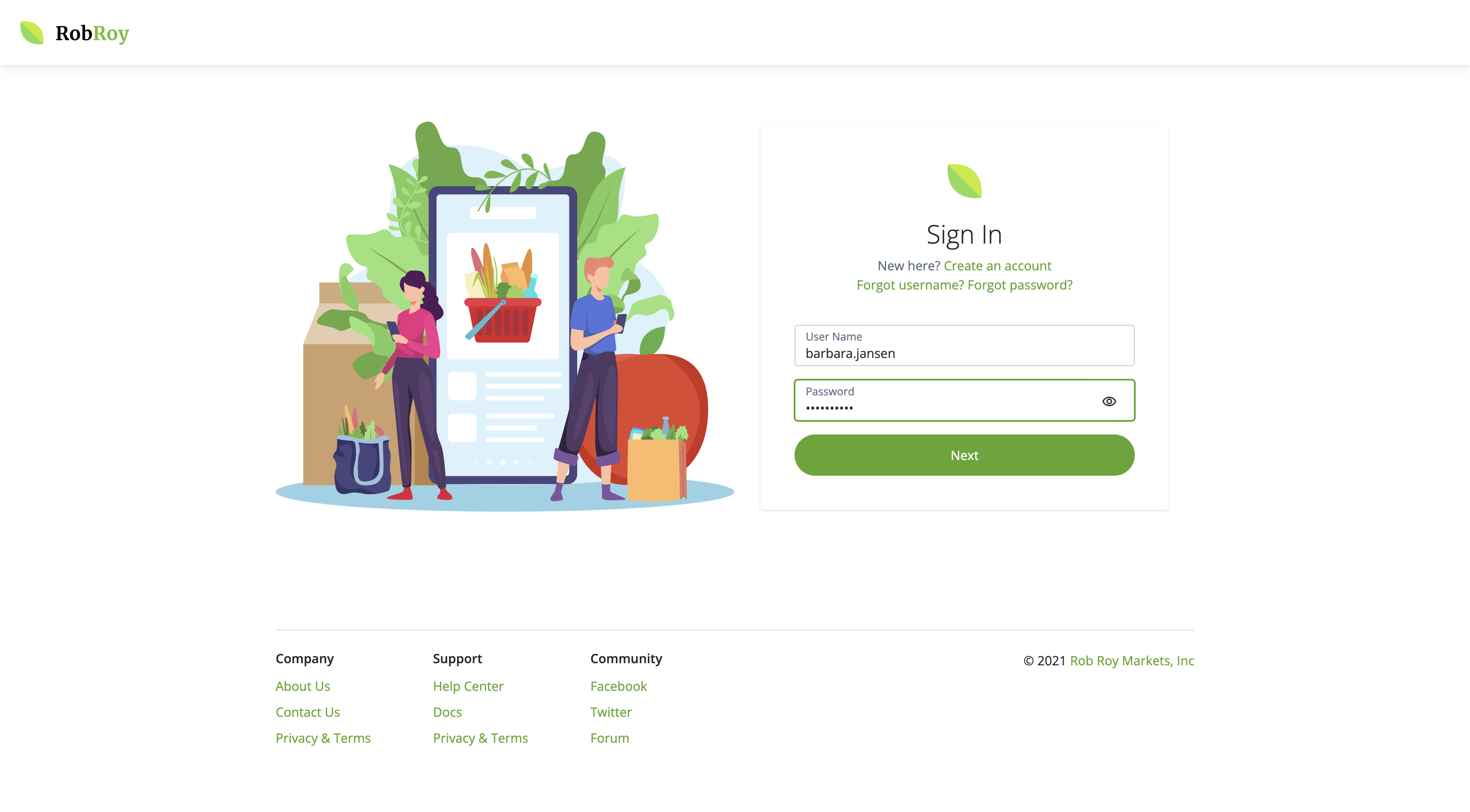
Hosted journey pages example page
|
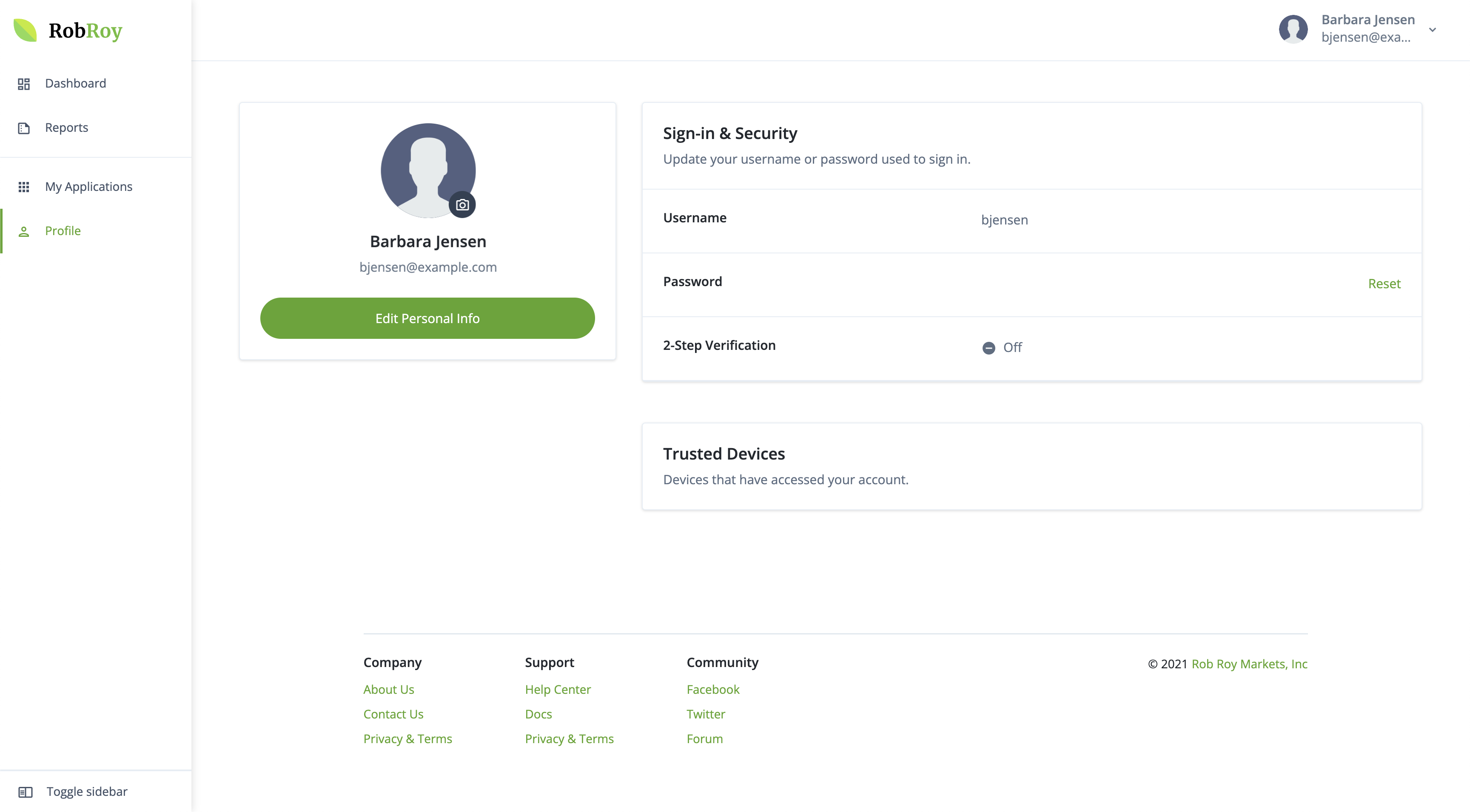
Hosted account pages example page
|
The look and feel of the hosted pages can be customized in each realm to match your company’s branding guidelines using an easy-to-use editor in the Advanced Identity Cloud admin console:
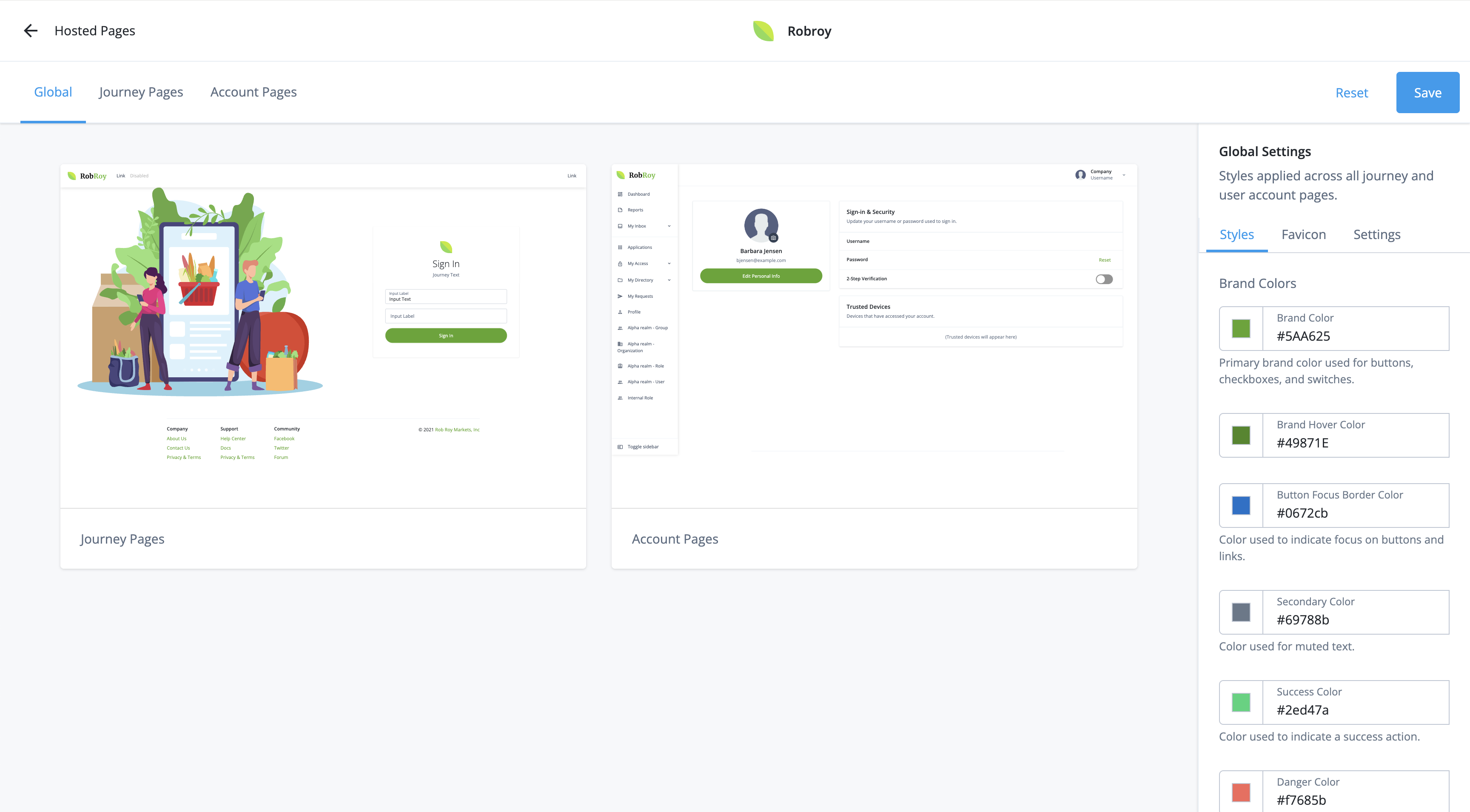
Key features and customization
While they are pre-built, hosted pages are highly customizable to ensure they match your brand.
-
Theming and branding: You can create and apply themes to customize the look and feel (colors, fonts, layout, logos) to meet your company’s branding guidelines. This allows the pages to look like a seamless part of your application.
-
Localization: Hosted pages support multiple languages (localization), allowing you to serve users in different regions with their preferred language.
-
Configurability: Within the Advanced Identity Cloud admin console, you can configure what information is displayed and which actions users are allowed to take.
-
Easy integration: They are the simplest UX option to implement, as they are part of the cloud service.
-
Security: Hosted pages are maintained and updated by Ping Identity, ensuring they adhere to the latest security standards and best practices.
Learn how to customize and use hosted pages
-
Customize hosted pages: Customize the look and feel of the sign-on (journey) pages. This includes logos, headers, footers, the layout of the overall page, and the actions and information your end users have access to in the hosted account pages.
-
Localize hosted pages: Support different languages in the hosted pages with localization.
-
Configure hosted account pages: Configure hosted account pages for end-user profile management.
Sign on as an end user using hosted pages
To sign on to the hosted account pages for a realm:
-
Access the
Loginjourney using one of the following URL formats:-
If you are using the tenant domain, use one of these URL formats, replacing <realm> with the value
alphaorbravo:-
Full URL format:
https://<tenant-env-fqdn>/am/XUI/?realm=<realm>&authIndexType=service&authIndexValue=Login -
Shortcut URL format:
https://<tenant-env-fqdn>/enduser/?realm=<realm>
-
-
If you are using a custom domain, use one of these URL formats:
-
Full URL format:
https://<custom-domain-fqdn>/am/XUI/?authIndexType=service&authIndexValue=Login -
Shortcut URL format:
https://<custom-domain-fqdn>/enduser/
-
-
-
Enter sign-on credentials.
-
Click Next. The end user is signed on to the hosted account pages.
Deactivate hosted journey pages
You can use the Ping SDKs or APIs to create and host your own custom journeys. If you do this, Ping Identity recommends that you deactivate the hosted journey pages to ensure there is no risk of unauthorized access to the sign-on, registration, or password reset pages by a malicious user.
Deactivating hosted journey pages disables them in both the Alpha and Bravo realms. You cannot deactivate hosted journey pages for just one realm.
| Hosted journey pages can be deactivated independently of hosted account pages. |
When you deactivate the hosted journey pages, Advanced Identity Cloud displays the following web page to unauthorized end users:
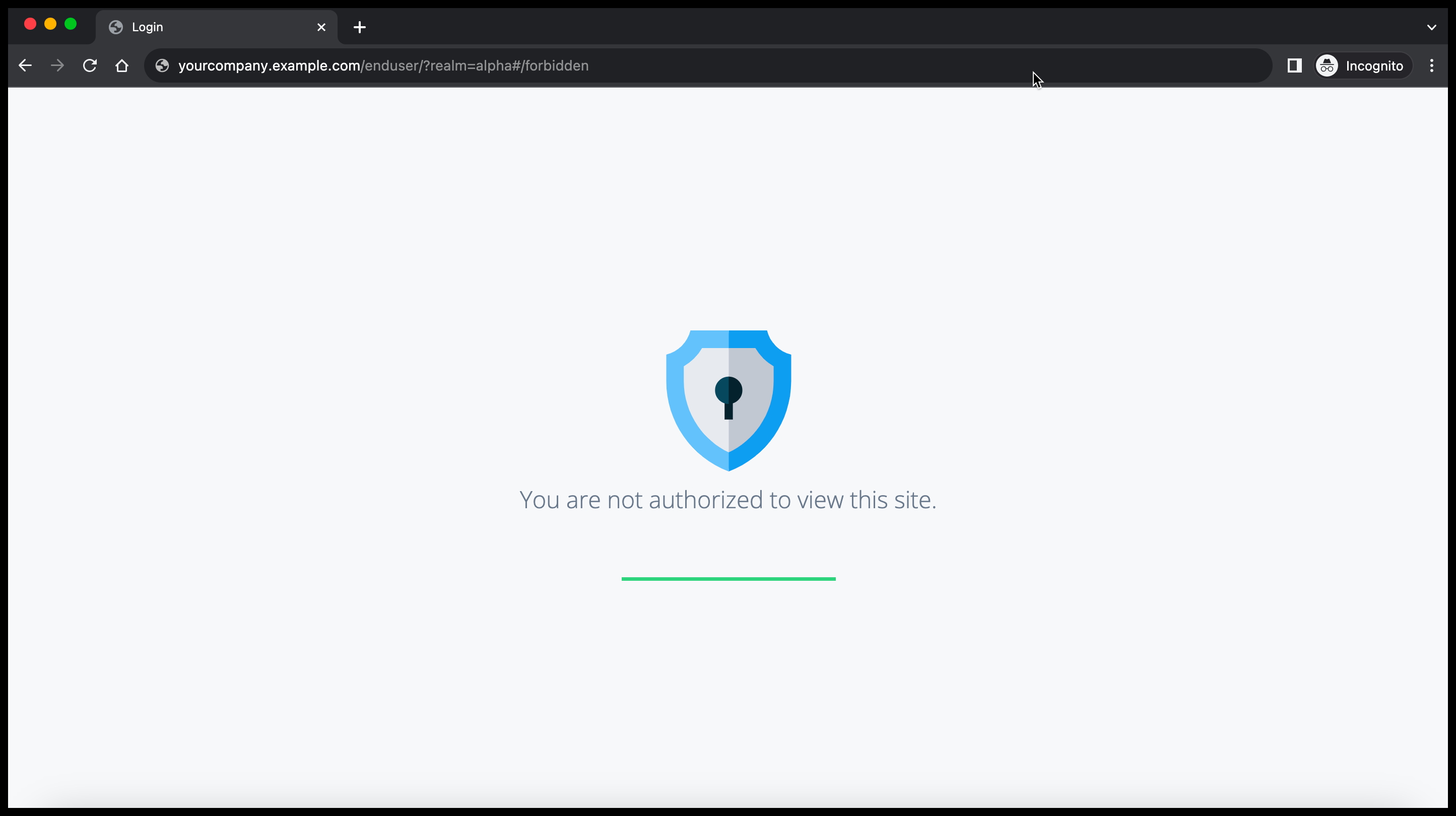
After you deactivate the default hosted journey pages, you can still administer the tenant environment while preventing unauthorized access to default journey information.
For an explanation about how hosted pages integrate with the default journey, learn more in Journeys.
Deactivate hosted account pages
Hosted account pages are activated by default. If you deactivate them, you can reactivate them at any time.
You can use the Ping SDKs or APIs to create and host your own custom account pages. If you do this, Ping Identity recommends that you deactivate the hosted account pages to ensure there is no risk of unauthorized access to end-user profile information by a malicious user.
Deactivating hosted account pages disables them in both the Alpha and Bravo realms. You cannot deactivate hosted account pages for just one realm.
| Hosted account pages can be deactivated independently of hosted journey pages. |
When you deactivate the hosted account pages, Advanced Identity Cloud displays the following web page to unauthorized end users:
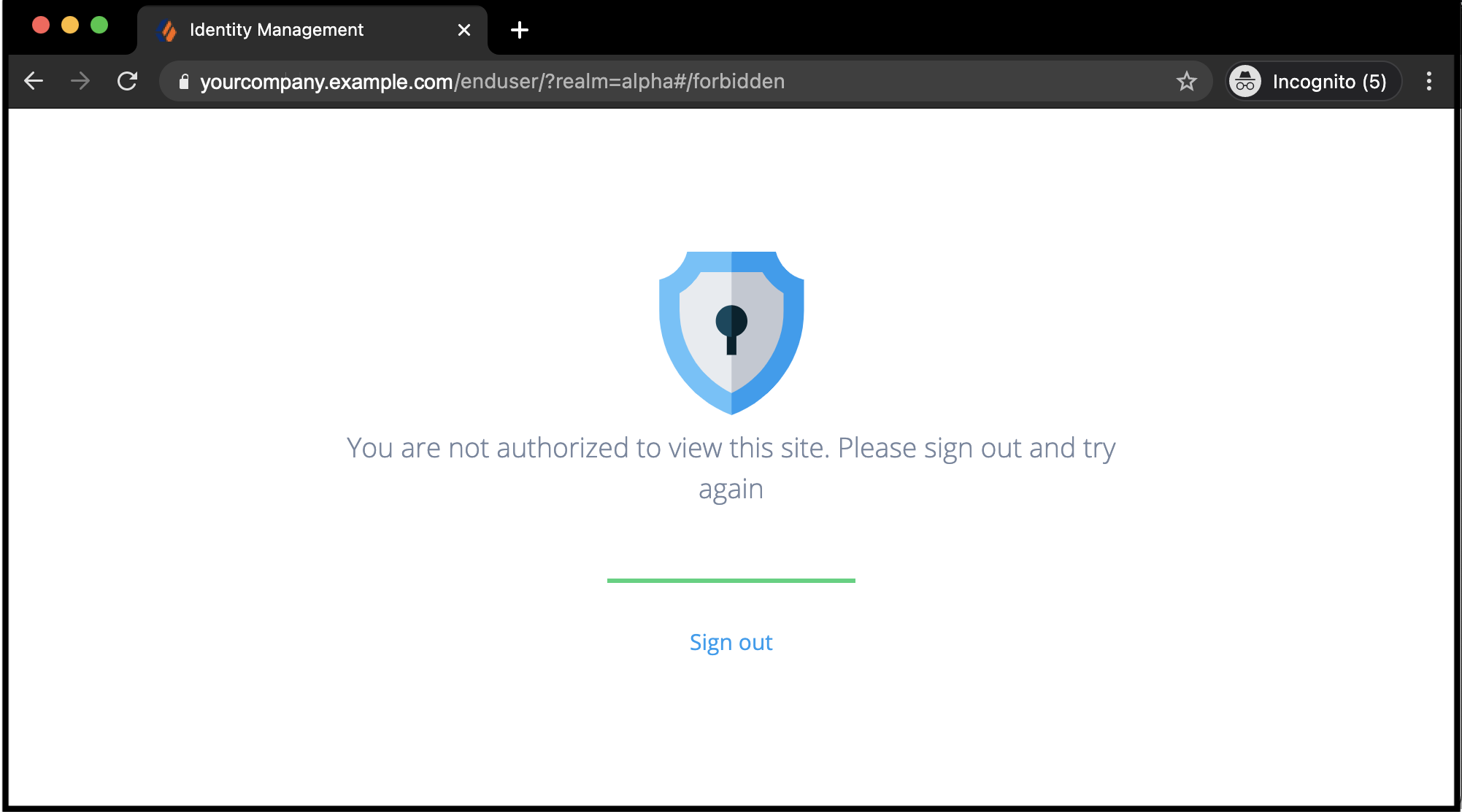
After deactivating the default end-user profile, you can still use the hosted end-user journey UI while denying unauthorized access to end-user profiles. Your customers manage only their own profiles or delegate administration using your application.
-
In the Advanced Identity Cloud admin console, open the TENANT menu (upper right), and go to Tenant Settings > Global Settings.
-
Click End User UI.
-
On the End User UI page, do one of the following:
-
To activate hosted pages, beside Hosted Account Pages, click Activate. The Global Settings toggle displays the status as Active.
-
To deactivate hosted pages, beside Hosted Account Pages, click Deactivate. The Global Settings toggle displays the status as Inactive.
-
The change takes effect immediately.
|
When you deactivate hosted pages, all hosted pages associated with your tenant are deactivated. |