Device Binding node
The Device Binding node allows users to register one or more devices to their account. A user can bind multiple devices, and each device can be bound to multiple users.
What are the differences between device binding/signing and WebAuthn?
There are many similarities between WebAuthn and device binding and JWS verification. We provide authentication nodes to implement both technologies in your journeys.
Both can be used for usernameless and passwordless authentication, they both use public key cryptography, and both can be used as part of a multi-factor authentication journey.
One major difference is that with device binding, the private key never leaves the device.
With WebAuthn, there is a possibility that the private key is synchronized across client devices because of Passkey support, which may be undesirable for your organization.
For details of the differences, refer to the following table:
| Feature | WebAuthn / FIDO | Device Binding / JWS Verifier | Details |
|---|---|---|---|
Industry-standards based |
✅ |
❌ |
You can refer to the WebAuthn W3C specification. Device binding and JWS verification are proprietary implementations. |
Public key cryptography |
✅ |
✅ |
Both methods use Public key cryptography. |
Usernameless support |
✅ |
✅ |
After registration, the username can be stored in the device and obtained during authentication without the user having to enter their credentials. |
Keys are bound to the device |
❌ |
✅ |
With WebAuthn, if Passkeys are used, they can be shared across devices. With device binding, the private keys do not leave the device. |
Sign custom data |
❌ |
✅ |
With device binding, you can:
|
Format of signed data |
|||
Integration |
❌ |
✅ |
With device binding, after verification, the signed JWT is available in:
This enables the data within to be used for integration into your processes and business logic. |
Platform support |
✅ Android ✅ iOS ✅ Web browsers |
✅ Android ✅ iOS ❌ Web browsers |
As it is challenging to store secure data in a browser as a client app, device binding is not supported in web browsers. |
Authenticator support |
Determined by the platform. Configuration limited to:
|
Determined by the authentication node. Full configuration options:
|
With device binding, you can specify what authentication action the user must perform to get access to the private keys. This provides greater flexibility in your security implementation and can reduce authentication friction for your users. |
Key storage |
Web browsers and iOS synchronize to the cloud. Android has the option to synchronize to the cloud. |
|
Both technologies store the private keys securely on the client. WebAuthn supports synchronizing the private keys to the cloud for use on other devices. This can reduce authentication friction for your users but may also increase the risk of a breach. |
Managing device keys |
Managed by the device OS. Apps cannot delete local client keys programmatically and do not have a reference to the remote server key for deletion. |
Managed by the Ping SDKs. Provides an interface to delete local client and remote server keys. |
The ability to programmatically delete both client and server keys can greatly simplify the process of registering a new device if an old device is lost or stolen. |
Passkey support |
✅ |
❌ |
WebAuthn supports synchronizing the private keys to the cloud for use on other devices. Device binding keeps the private key locked in the device. |
App integrity verification |
|
Not provided by the device binding or verification nodes. It can be added as part of the journey by using app integrity nodes. |
App integrity verification helps ensure your users are only using a supported app rather than a third-party or potentially malicious version. |
Key attestation |
|
|
Key attestation verifies that the private key is valid and correct, is not forged, and was not created in an insecure manner. |
Complexity |
Medium |
Low |
WebAuthn requires a bit more configuration, for example, creating and uploading the Device binding only requires the journey and the SDK built into your app. |
Registered devices share device data in the form of a public key and a key ID which Advanced Identity Cloud stores in the user’s profile, or you can save it in transient state for processing.
The private key of the keypair is kept safely on the device and secured with biometric security or a PIN.
You can verify possession of bound devices using the Device Signing Verifier node.
Learn more about using this node with the Ping SDKs for Android and iOS in Implement device binding.
Example
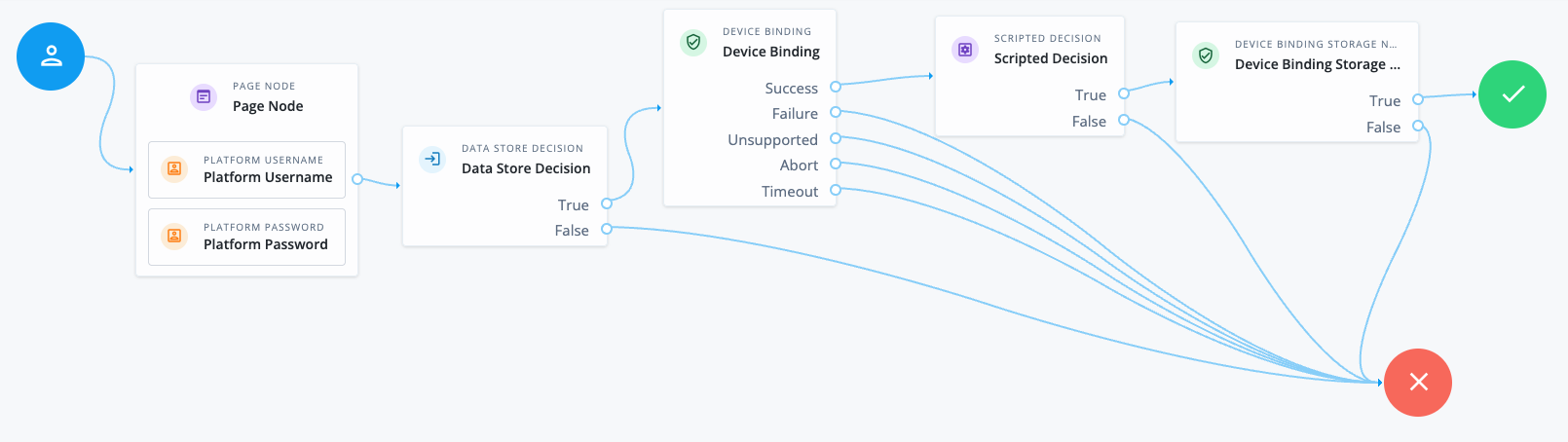
The following example shows a device binding journey that registers a device to the user, checks the collected device data meets certain criteria, and stores the device data in the user’s profile:
-
The Page node containing the Platform Username node and Platform Password node prompts for credentials.
-
The Data Store Decision node validates the username-password credentials.
-
The Device Binding node is configured with the Store Device Data in Transient State option enabled. The node initiates the binding process on the user’s device. When the user completes the process, the node stores the collected device data in the transient state.
-
The Scripted Decision node inspects the device data before it’s saved.
For example, you could use this node to enforce a policy that only allows devices with certain characteristics to be registered. If the device doesn’t meet the policy, the script can route the journey to the
Failureoutcome path, preventing the device data from being saved. -
The Device Binding Storage node retrieves the device data from the transient state and saves it to the user’s profile in the identity store.
| If you don’t need to do anything with the device data before it’s saved, you can configure the Device Binding node to store the device data in the user’s profile. This would simplify the journey because the Device Binding Storage node wouldn’t be needed. |
Availability
| Product | Available? |
|---|---|
PingOne Advanced Identity Cloud |
Yes |
PingAM (self-managed) |
Yes |
Ping Advanced Identity Software (self-managed) |
Yes |
Inputs
This node requires the username property in the incoming node state.
Implement a Platform Username node earlier in the journey.
Dependencies
To use Android Key Attestation, you must also configure Android Key Attestation.
Configuration
| Property | Usage | ||
|---|---|---|---|
Authentication Type |
How the device should secure access to the private key. The available options are:
|
||
Application IDs |
The Android package names and iOS bundle IDs of applications that are allowed to perform device binding. For example, |
||
Title |
(Optional) Add a title to display to the user when asking them to bind the device. Add instructions
Leave blank to use the default message. |
||
Subtitle |
(Optional) Add a subtitle to display to the user when asking them to bind the device. Add instructions
Leave blank to use the default message. |
||
Description |
(Optional) Add descriptive text to display to the user when asking them to bind the device. Add instructions
Leave blank to use the default message. |
||
Maximum Saved Devices |
The maximum number of devices stored in the user’s profile. Set this property to When this property is greater than zero, the |
||
Timeout |
The number of seconds to wait for a response from the client during binding. If the specified time is reached, evaluation continues along the |
||
Android Key Attestation |
Select this option to use Android key attestation to increase confidence that the keys used by the bound device are valid, haven’t been revoked, and use hardware-backed security storage. The attestation data is also stored in transient state, in a variable named You can find information on the contents of the attestation data JSON response in Attestation certificate in the Android documentation. |
||
Select this option to store device data in transient state instead of the user’s profile. When enabled, device information is added to a variable named If you don’t set this option, the node saves device data in the user’s profile. Example device data |
|||
Client Error Outcomes |
The client error outcomes available to this node. Find more information in Error handling. |
||
Skew Allowance |
The maximum allowed time difference in seconds (clock skew) between the client device and Advanced Identity Cloud. This helps prevent binding failures caused by clocks being out of sync. Default: |
(1) Specify a
locale that Java supports, such as en-gb. Otherwise, the node throws a configuration exception with an Invalid locale provided message.
Android key attestation
When binding a device running Android N (24) or newer, you can use Android key attestation to increase confidence that the keys used by the bound device are valid, haven’t been revoked, and use hardware-backed security storage.
The Ping SDK for Android generates attestation data for the cryptographic keys it uses for device binding. Using information provided by Google, including a certificate revocation status list (CRL) and hardware attestation root certificate, the node can verify that the certificates are trustworthy.
If you enable the Android key attestation property and the device is running an earlier Android version, evaluation continues down the Unsupported outcome path.
Android key attestation isn’t supported if you select Application PIN in the Authentication Type property. Evaluation continues down the Unsupported outcome path in this case.
The node doesn’t attempt attestation when binding non-Android devices.
Outputs
-
If you enable the Android Key Attestation property, the node outputs attestation data to the
DeviceBindingCallback.ATTESTATIONvariable in transient state. -
If you enable the Store Device Data in Transient State property, the node outputs device data to the
DeviceBinding.DEVICEvariable in transient state.
Callbacks
The node sends a DeviceBindingCallback to the user’s device to initiate the device binding process.
Outcomes
Success-
The user successfully binds their device.
Failure-
An issue occurred during the binding process.
Exceed Device Limit-
The Maximum Saved Devices property is set to an integer greater than zero, and binding a new device would take the number of devices above the specified threshold. In this case, you need to instruct your users to log in with an existing bound device to remove one or more of their registered devices.
Unsupported-
This outcome is available only if listed in the Client Error Outcomes property.
The user’s client doesn’t support the requested operation. For example, the node is configured to require biometric authentication, but the device doesn’t provide support.
Abort-
This outcome is available only if listed in the Client Error Outcomes property.
The user cancels the attempt to bind a device.
Timeout-
This outcome is available only if listed in the Client Error Outcomes property.
The node doesn’t receive a response from the user’s device within the Timeout specified in the node configuration.
Errors
The node can log the following:
- Warnings
-
-
Device Binding failedThe node failed to bind the device. This can occur for a variety of reasons, such as the client device not being able to access the cryptography keys for binding.
-
Username attribute not foundThe node can’t retrieve the
usernameattribute from the user’s identity.
-
- Errors
-
-
An error occurred while retrieving user’s deviceThe node can’t retrieve all the user’s bound devices so is unable to check whether they’ve exceeded the maximum saved devices limit. This error can only occur if the Maximum Saved Devices property is set to an integer greater than zero.
-