PingID Legacy Connector
You can use the PingID connector to add MFA (multi-factor authentication) to flows, including passwordless login flows.
PingID is a cloud-based authentication service that allows your users to carry out MFA (multi-factor authentication) using a variety of methods, including the PingID mobile app, security keys, and biometrics.
Setup
Setting up the connector
In PingOne DaVinci, add a PingID connection. Learn more in Adding a connector.
After creating the connector, configure it by going to its General tab and pasting in the content of the PingID properties file that you downloaded.
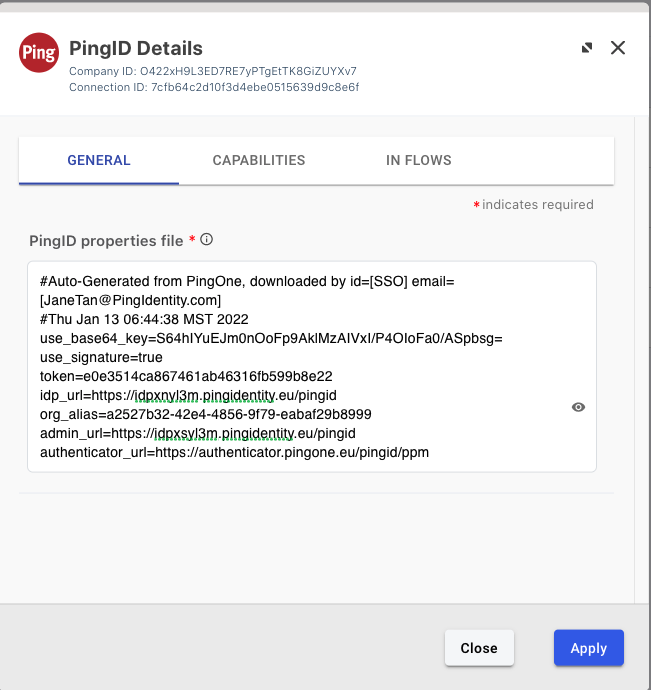
Using the connector in a flow
MFA flows
You can find examples of using the PingID connector in basic MFA flows, in the following templates in the Flow Library:
-
PingID - Basic MFA flow (username/password + MFA)
-
PingID - MFA flow + Risk (username/password + risk evaluation, MFA according to risk score generated for user)
In flows of this type, a connector using the Initialize MFA capability should be placed in the flow at the point where you want an MFA challenge to be issued, for example, after the user has entered their password.
MFA in passwordless flows
You can find examples of using the PingID connector to combine MFA with passwordless login in the following templates in the Flow Library:
-
PingID - FIDO2 Passwordless (FIDO2 username, no password required)
-
PingID - FIDO2 Passwordless + Risk (FIDO2 username, no password + risk evaluation, action based on risk score generated for user)
In passwordless login flows, two PingID connectors should be added to the flow:
-
A connector using the Initialize Passwordless Authentication capability
-
Later in the flow, a second connector using the Finalize Passwordless Authentication capability and using as input the passwordlessContext that was returned by the initialize step. The username must also be provided as input.
Capabilities
Initialize MFA
Multi-Factor Authentication and on-the-fly registration.
Show details
-
Properties
-
Input Schema
-
Output Schema
- Username textField
-
The username for the user in PingOne.
- First Name textField
-
User’s first name.
- Last Name textField
-
User’s last name.
- User Groups textField
-
The groups to which the user belongs. Used for applying PingID policies that have been defined.
- Mobile Number textField
-
User’s mobile phone number.
- Landline Number textField
-
User’s landline number.
- Application Name textField
-
The name of the application the user is trying to access.
- Application ID textField
-
The ID of the application the user is trying to access. Used for applying PingID policies that have been defined.
- Application Icon (URL) textField
-
The URL of the icon that is used for the application the user is trying to access.
- IP of accessing device textField
-
The IP of the device trying to access the application. Used for applying PingID policies that have been defined.
- Attributes selectNameValueListColumn
-
Use this section to add attribute to the request
-
default object
-
properties object
-
customAuth object required
Custom Auth Properties
-
pingIdProperties string minLength: 0 maxLength: 1000
PingID properties file
-
skRedirectUri string minLength: 0 maxLength: 100 pattern: [-a-zA-Z0-9@:%._+~#={1,256}.[a-zA-Z0-9()]{1,6} ([-a-zA-Z0-9()@:%_+.~#?&//=]*)]
Return URL
-
-
sub string required minLength: 0 maxLength: 100
Subject
-
fname string minLength: 0 maxLength: 100
First Name
-
lname string minLength: 0 maxLength: 100
Last Name
-
group string minLength: 0
User Groups
-
phone string minLength: 0 maxLength: 100
Mobile Number
-
voiceNumber string minLength: 0 maxLength: 100
Phone Number
-
appName string minLength: 0 maxLength: 100
Application Name
-
saasid string minLength: 0 maxLength: 100
Application ID
-
appIconUrl string minLength: 0 maxLength: 1000
Application Icon (URL)
-
pingidIp string minLength: 0 maxLength: 100
Policy Evaluation IP
-
-
Input Example
{
  "properties": {
    "customAuth": {
      "pingIdProperties": "{pingid} props file"
    },
    "sub": "User"
  }
}-
output object
-
ppmResponse string
-
status string
-
sub string
-
accessingDevice object
-
ip string
-
-
authenticationDevice object
-
id string
-
-
authenticationType string
-
Initialize Passwordless Authentication
Passwordless authentication using FIDO2 supported devices.
Show details
-
Properties
-
Input Schema
-
Output Schema
- Attributes selectNameValueListColumn
-
Use this section to add attribute to the request
-
default object
-
properties object
-
customAuth object required
Custom Auth Properties
-
pingIdProperties string minLength: 0 maxLength: 1000
PingID properties file
-
skRedirectUri string minLength: 0 maxLength: 100 pattern: [-a-zA-Z0-9@:%._\\+~#={1,256}\\.[a-zA-Z0-9()]{1,6}\ ([-a-zA-Z0-9()@:%_\\+.~#?&//=]*)]
Return URL
-
-
-
Input Example
{
  "properties": {
    "customAuth": {
      "pingIdProperties": "{pingid} props file"
    }
  }
}-
output object
-
ppmResponse string
-
status string
-
sub string
-
passwordlessContext string
-
Finalize Passwordless Authentication
Policy evaluation to complete the Passwordless Authentication.
Show details
-
Properties
-
Input Schema
-
Output Schema
- Username textField
-
The username for the user in PingOne.
- Passwordless Context textField
-
Information returned by the initializePasswordlessAuthentication capability of the connector. Required to continue the passwordless session.
- First Name textField
-
User’s first name.
- Last Name textField
-
User’s last name.
- User Groups textField
-
The groups to which the user belongs. Used for applying PingID policies that have been defined.
- Mobile Number textField
-
User’s mobile phone number.
- Landline Number textField
-
User’s landline number.
- Application Name textField
-
The name of the application the user is trying to access.
- Application ID textField
-
The ID of the application the user is trying to access. Used for applying PingID policies that have been defined.
- Application Icon (URL) textField
-
The URL of the icon that is used for the application the user is trying to access.
- IP of accessing device textField
-
The IP of the device trying to access the application. Used for applying PingID policies that have been defined.
- Attributes selectNameValueListColumn
-
Use this section to add attribute to the request
-
default object
-
properties object
-
customAuth object required
Custom Auth Properties
-
pingIdProperties string minLength: 0 maxLength: 1000
PingID properties file
-
skRedirectUri string minLength: 0 maxLength: 100 pattern: [-a-zA-Z0-9@:%._\\+~#={1,256}\\.[a-zA-Z0-9()]{1,6}\ ([-a-zA-Z0-9()@:%_\\+.~#?&//=]*)]
Return URL
-
-
sub string required minLength: 0 maxLength: 100
Subject
-
passwordlessContext string required
Passwordless Context
-
fname string minLength: 0 maxLength: 100
First Name
-
lname string minLength: 0 maxLength: 100
Last Name
-
group string minLength: 0
User Groups
-
phone string minLength: 0 maxLength: 100
Mobile Number
-
voiceNumber string minLength: 0 maxLength: 100
Phone Number
-
appName string minLength: 0 maxLength: 100
Application Name
-
saasid string minLength: 0 maxLength: 100
Application ID
-
appIconUrl string minLength: 0 maxLength: 1000
Application Icon (URL)
-
pingidIp string minLength: 0 maxLength: 100
Policy Evaluation IP
-
-
Input Example
{
  "properties": {
    "customAuth": {
      "pingIdProperties": "{pingid} props file"
    },
    "sub": "User",
    "passwordlessContext": "context"
  }
}-
output object
-
ppmResponse string
-
status string
-
sub string
-
accessingDevice object
-
ip string
-
-
authenticationType string
-
Troubleshooting
If you are having trouble with the PingID connector, you can try the following:
-
Verify that when you created and configured the connector on the Connections page, you pasted correctly the contents of your PingID properties file.
-
For each connector in the flow, make sure that all the mandatory inputs have been provided.
-
Use the Analytics feature to find where the flow stopped.
-
Select the Options icon, and turn on Show Node ID. This makes it easier to identify the source of inputs and outputs.