Overview of PingID authentication types
After defining user groups and end-user accounts in your organization, determine which authentication method they’ll use.
PingID supports several types of authentication for users:
-
PingID Mobile App. This includes the fingerprint biometrics, facial recognition, swipe, mobile soft token, and Apple Watch authentication methods.
As an administrator, you determine which authentication methods the users in your organization use. For example, you can use a lenient method such as SMS and move to stricter methods at a later stage, such as biometrics authentication.
|
Using a username and multi-factor authentication (MFA) method as your primary authentication method can expose users to security risks like username enumeration, MFA fatigue attacks, targeted phishing, and denial-of-service incidents. To reduce exposure, use a passwordless method such as FIDO2 biometrics for primary authentication. |
PingID Mobile App
Biometrics: Fingerprint
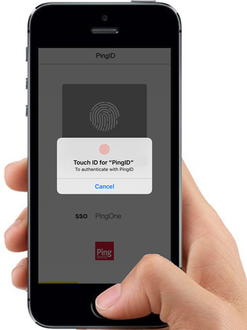
The fingerprint authentication uses a device’s native capability to scan and authenticate the user’s fingerprint.
The PingID mobile app supports fingerprint authentication on devices with biometric support. Learn more in Supported operating systems.
You can set the fingerprint authentication rollout mode with the following settings:
-
Disable fingerprint authentication.
-
Enable for iOS, Android, or both, in one of the following modes:
-
Enable: If the user has a supporting device and enables the fingerprint scan option, they can authenticate by fingerprint.
-
Require: Users with supporting devices must set up and authenticate with their fingerprint scan option.
-
Enforce: Every authentication requires fingerprint scanning by the PingID app, even if the user unlocked the device using their fingerprint.
-
Biometrics: Facial Recognition
PingID supports facial recognition. Authentication by facial recognition is model dependent for Apple and Android devices.
Both facial recognition and fingerprint authentication results pass through to the PingID app transparently. Find configuration information in Configuring biometrics authentication for the PingID mobile app.
-
Apple: Apple uses Face ID for some iPhone and iPad devices. These devices are configured for Face ID or Touch ID, but not both. Devices that support Face ID include:
-
iPhone: iPhone XS Max, iPhone XS, iPhone XR, iPhone X
-
iPad: iPad Pro 12.9" (third generation), iPad Pro 11"
You can find the most recent information from Apple in iPhone and iPad models that support Face ID.
-
-
Android Platforms: The device camera acquires facial data. If the user tries to authenticate with an unlocked screen, only fingerprint authentication is available. On a locked screen, fingerprint authentication and facial recognition are both available on supported devices.
Approve a notification or Approve from Lock Screen
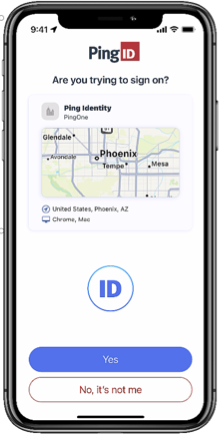
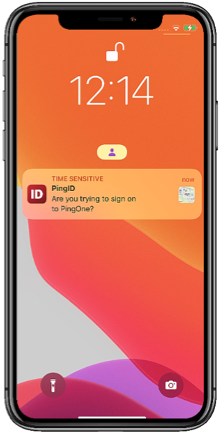
A push notification is sent to the user’s device to let them know they need to authenticate. If PingID mobile app is open, they can tap Yes to authenticate. If their phone is locked, or if PingID mobile app is locked, the user might be able to authenticate from the lock screen. Long-tap the notification or swipe down and tap Yes.
Mobile Soft Token
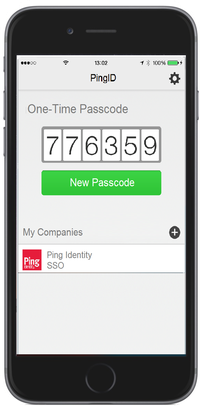
A user can generate a one-time passcode (OTP) with the PingID app for iOS or Android. This OTP can be used for authentication in cases when the user’s mobile is offline, such as when there is no network connection, or in any other use case set by the administrator as an organization’s policy.
Apple Watch
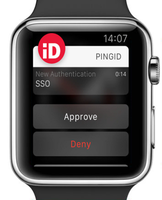
If a user has an Apple Watch connected to their iPhone, the PingID app automatically presents the Approve or Deny authentication actions on the Apple Watch, so the user can authenticate without needing to access their device.
FIDO2 biometrics
The user can use FIDO2 strong cryptographic authentication, using built-in FIDO2 platform biometrics on their device.
Biometrics are supported for the following devices:
-
Windows Hello
-
Apple Mac (Touch ID)
-
iOS biometrics
-
Android biometrics
Learn more in (Legacy) Configuring FIDO2 biometrics for PingID.
Security key
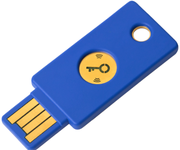
The user can authenticate with any FIDO2 compliant security key or wearable device. The security key offers a strong cryptographic authentication option for end-user security. Learn more in (Legacy) Configuring the FIDO2 security key for PingID.
Desktop Soft Token
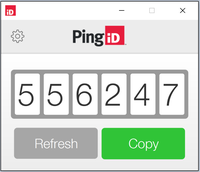
If the organization has approved the use of the PingID desktop app, users can generate an OTP from the local installation of the desktop app on their Windows or Mac computer. Learn more in Configuring PingID desktop app authentication.
Authentication app
If the organization has approved the use of external Time-based One-time Password (TOTP) authenticator apps, such as Google authenticator, a user can generate an OTP from the authenticator app on their device. Learn more in Configuring authenticator app authentication for PingID.
OATH token
An Open Authentication (OATH) token is a secure OTP used for two-factor authentication and is OATH compliant. Learn more in the OATH (Initiative for Open Authentication) documentation.
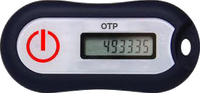
Use hardware OATH tokens where there are no provisions for connection to the Internet, USB connections, or mobile phones. Such connections might be disallowed for security reasons. Learn more in Configuring OATH token authentication for PingID.
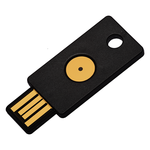
YubiKey - Yubico OTP
The user must click a YubiKey that supports Yubico OTP capabilities to authenticate. Select this method of authentication if you’ve distributed YubiKey hardware tokens to users who aren’t authenticating using a mobile device.
YubiKeys that are FIDO2 compliant can be used as either a YubiKey or a Security key. Learn more in Configuring YubiKey authentication (Yubico OTP) for PingID.
Email OTP
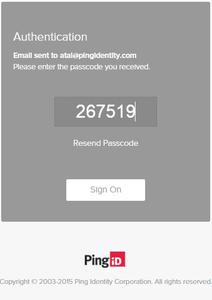
If you have users who aren’t using devices that support the PingID mobile application, you can choose to enable this method of authentication. The user is authenticated by providing a 6-digit OTP sent by email to their email address. Learn more in Configuring email authentication for PingID.
SMS and Voice
If you have users who aren’t using devices that support the PingID mobile application, you can enable this method of authentication. The user is authenticated by providing a 6-digit OTP sent to the user’s mobile device or landline phone, using SMS or voice channels.

Learn more about SMS and voice, including about usage limits, in SMS and voice authentication.