Cache script values
Use the cache manager service from a journey decision node script to store values for later use in the same journey or across different journeys. Caching values can help to improve performance by reducing calls to external services or storing values that are expensive to compute.
For example, cache an access token at the start of one journey and retrieve it in another, rather than getting a new one.
The scripting cache is set to evict entries automatically, but you can also invalidate values manually or configure your own eviction policy.
How the script cache works
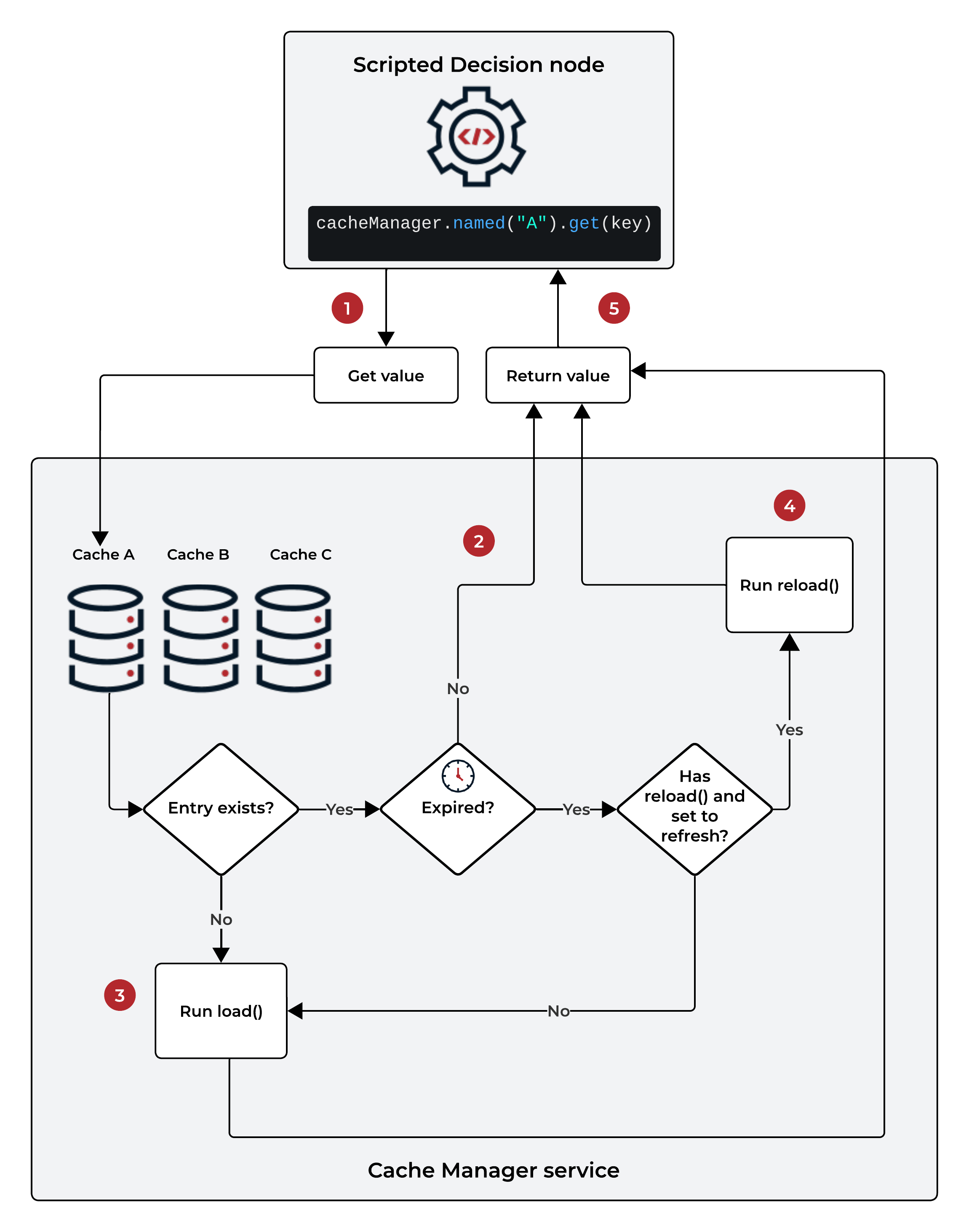
1 A Scripted Decision node accesses a named cache using the cacheManager binding.
The cache manager service returns the cache and the node requests a cached entry.
2 The cache returns the cached value if the entry exists and has expired.
3 The cache runs the load() function if:
-
The entry doesn’t exist or
-
The entry exists but has expired and the cache isn’t set to refresh (must have a
reload()function and be configured toRefresh after write)
4 The cache runs the reload() function if the entry exists, hasn’t expired,
and the cache is set to refresh.
5 The cache returns the value, saving it in the cache if load() or reload() were run.
Example script cache implementation
To cache a value and retrieve it later in a journey, complete the following tasks:
You also have the option to:
The following example caches an access token for use later in the journey and provides the option to invalidate the token once displayed to the user.
Create cache loader scripts
The cache manager service calls the cache loader script’s load() function when it’s
queried for a key that doesn’t yet exist in the cache. The cache manager also calls a reload() function if configured for refresh.
This example script gets a secret from the secret store and calls the client credentials grant to get an access token. The token is added to the cache and returned. Next time the cache is queried with the same key, it returns the value from the cache, providing it’s not expired.
The cache manager service follows the pattern of other cache loading implementations, such as Guava Cache.
To create your load script, you can use any next-generation common binding.
-
Under Native Consoles > Access Management, go to Realms > Realm Name > Scripts, and click +New Script.
-
Provide a suitable name for your script and select the following values:
- Script Type
-
Cache Loader - Evaluator Version
-
Next Generation
-
Click Create.
-
Replace the default JavaScript with the following script:
function load(key) {
    var url = key.url;
    var clientId = key.clientId;
    var clientSecret = systemEnv.getProperty(key.clientSecretLabel);
    var scope = key.scope;

    var options = {
        method: "POST",
        headers: {
            "Content-Type": "application/x-www-form-urlencoded"
        },
        form: {
            grant_type: "client_credentials",
            client_id: clientId,
            client_secret: clientSecret,
            scope: scope
        }
    }

    var response = httpClient.send(url, options).get();
    if (!response || response.status != 200) {
        logger.error("Bad response from " + url);
        throw Error("Bad response from " + url);
    }
    return response.json();
}

function reload(key, oldValue) {
    return load(key);
}
The script uses the
load()function to get an access token and adds areload()function. In this case,reload()ignores the old value and creates a new access token to add to the cache. -
Save your changes.
Configure the cache
To cache values, configure the cache manager service and add a cache for each type of data you want to store.
You can create and manage multiple caches within each realm. The cache manager service is responsible for managing the different caches within a realm and their overall size.
| The total size for all caches in a realm is limited to 20MB, and each cache entry can’t exceed 5KB. When this limit is reached, the cache manager evicts entries to make space. |
Complete these steps to configure an instance of the cache manager service:
-
In the AM native admin console, go to Realms > Realm Name > Services.
-
Click Add a Service and select Cache Manager Service from the service type list.
-
Enable the service and save your changes.
-
On the Secondary Configurations tab, click Add a Secondary Configuration.
-
Enter a name for the cache manager instance that describes its purpose, for example,
tokenCache, and click Create.A cache is identified by its name, so you must enter a unique name.
-
Configure the cache:
- Loading Script
-
Select your cache loading script from the list.
- Eviction Policy
-
For this example, set the policy to
Refresh after writeto make sure the cache runs the reload function when an entry is accessed after the expiry time. - Duration Unit
-
Leave as the default,
Hours. - Eviction Period
-
Leave as the default,
1.
Learn about these settings in the Cache Manager service.
-
Save your changes.
Access the cached values in a journey
Use the cacheManager binding to access a cache and get the values that you’ve stored.
-
Create a next-generation decision node script to access your cached access token:
var tokenEndpoint = "https://<tenant-env-fqdn>/am/oauth2/realms/root/realms/alpha/access_token"; if (cacheManager.exists("tokenCache")) { var cache = cacheManager.named("tokenCache").get({ url: tokenEndpoint, clientId: "myClient", clientSecretLabel: "esv.myClient.secret", scope: "profile" }).access_token; // add to nodeState to display later in the journey nodeState.putShared("accessToken", accessToken); action.goTo("true"); -
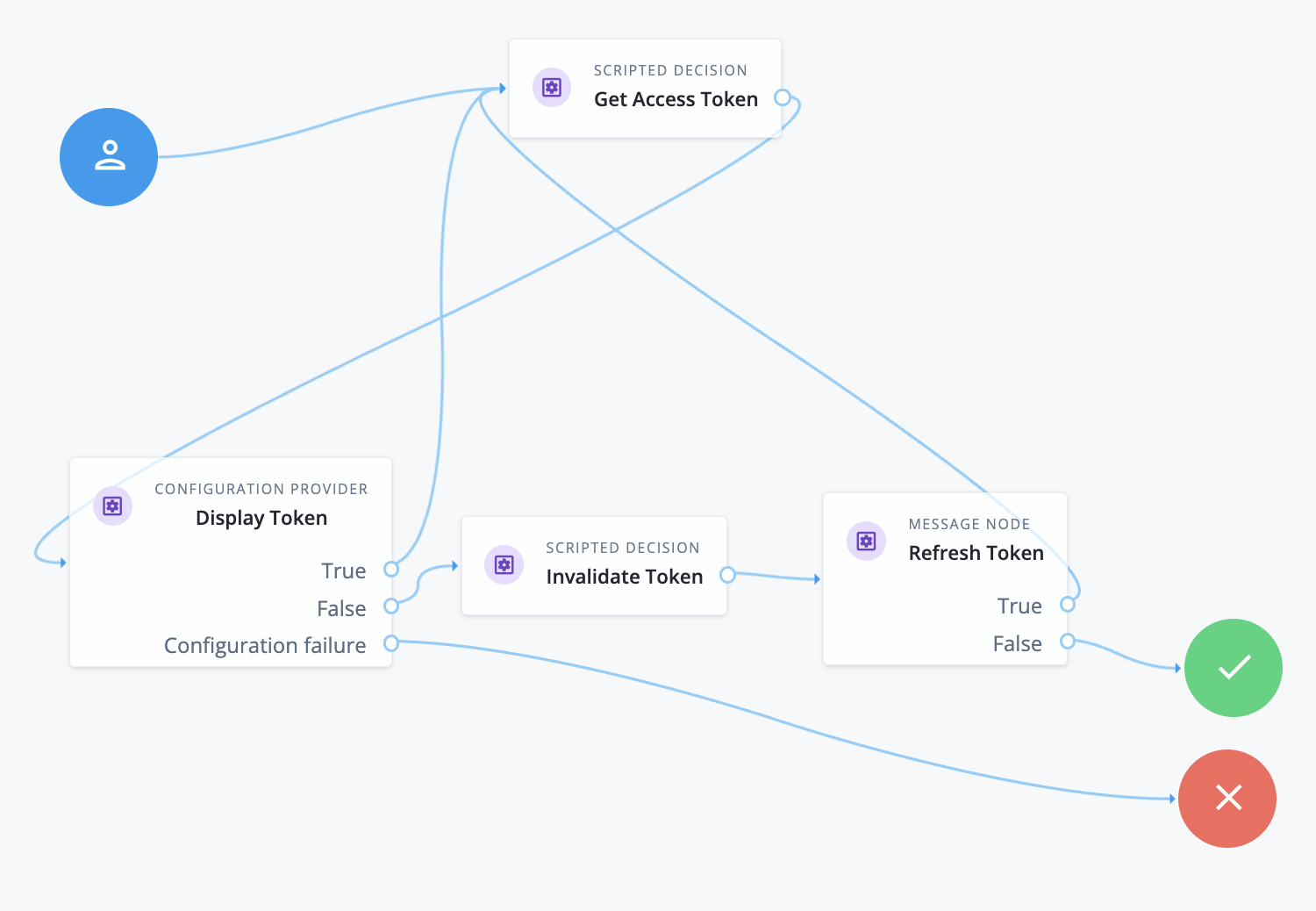
Create a journey and include a Scripted Decision node configured to use your script. For example:
-
The Get Access Token node runs the script that uses the
cacheManagerbinding to get a value fromtokenCache. The cache invokes theload()function and returns the value for the specified key. -
The Display Token node imitates a Message node with the following configuration:
config = {
    "message": {"en-GB": `Current token: ${nodeState.get("accessToken")}`},
    "messageYes": {"en-GB": "Display token again"},
    "messageNo": {"en-GB": "Invalidate token"},
    "stateField" : null
}
The node retrieves the access token from node state to display to the end user.
-
If the end user selects to display the token again, the journey returns to the Get Access Token node.
-
The cache returns the stored value when it’s accessed within the eviction period.
-
The cache runs the
reload()function outside of this period when it’s configured toRefresh after Write.
-
-
If the end user selects to invalidate the token, the journey continues to the Invalidate Token node.
-
The Invalidate Token node is a Scripted Decision node configured with the following script:
cacheManager.named("tokenCache").invalidateAll();
action.goTo("true");
The script evicts all the entries and the journey continues.
-
The Refresh Token node offers the end user the chance to get a new token:
- Yes
-
The Get Access Token node queries the cache, which no longer has any entries. The cache manager runs the reload and in turn the load function to create a new access token. This is cached. The journey continues to display the new token.
- No
-
The journey completes.
-
Manage script caches
This section covers how to refresh or remove entries, monitor cache performance, and clear caches using the REST API.
Refresh the cache
You can refresh an entry in the cache in the following way:
-
Set the cache eviction policy to
Refresh after write. -
Define a reload function in your cache loading script with the following signature:
Object reload(Map<String, String> key, Object oldValue)For example, this implementation returns the first value in the
keymap.function reload(key, oldValue) { return load(key); } -
Call the
refresh()method on thecacheManagerbinding to invoke the cache reload function.
Remove cached values
To immediately evict entries from the cache before the expiry period is reached, use the cache methods, invalidate or invalidateAll, through the cacheManager binding.
For example:
// remove a single entry
if (cacheManager.exists("A")) {
    var cacheA = cacheManager.named("A");
    cacheA.invalidate({"some":"key"});
}

// remove all entries from the cache
if (cacheManager.exists("B")) {
    cacheManager.named("B").invalidateAll();
}

action.goTo("true");
Advanced Identity Cloud securely removes cached values by zeroizing the memory related to the entries.
Monitor the cache usage
You can monitor the use and performance of a scripting cache by calling the Prometheus endpoints and checking for the am_script_cache_* metrics.
When you create a new cache, the monitoring service registers metrics with the following tags for filtering and querying:
-
cache_name: The name of the cache. -
event: The possible events are:eviction,hit,miss,invalidate,invalidateAll,load_failure,load_time_seconds,load_count,memory_bytes,size. -
realm: The realm the cache belongs to.
Clear a cache using REST
Advanced Identity Cloud provides the following endpoints for clearing caches:
- Clear a specific cache
-
/realm-config/services/cache-manager/caches/cache-name?_action=clearFor example:
$ curl \ --request POST \ --header "Accept-API-Version: resource=1.0" \ --header "Authorization: Bearer <access-token>" \ "https://<tenant-env-fqdn>/am/json/realms/root/realms/alpha/realm-config/services/cache-manager/caches/cache-name?_action=clear" {} - Clear all caches in a realm
-
/realm-config/services/cache-manager?_action=clear$ curl \ --request POST \ --header "Accept-API-Version: resource=1.0" \ --header "Authorization: Bearer <access-token>" \ "https://<tenant-env-fqdn>/am/json/realms/root/realms/alpha/realm-config/services/cache-manager?_action=clear" {}
The cacheManager binding
Use the cacheManager binding to store values that can persist beyond the duration of a journey.
The binding has the following methods:
boolean exists(String cacheName)-
Returns true if the cache with the specified name exists, false if not.
Cache named(String cacheName)-
Returns the cache with the specified name, null if it doesn’t exist.
You can call the following methods on the
Cacheobject:Object get(Map<String, String> key)-
Returns the value mapped to the specified key. The key must be a JSON object in the format of a Map of Strings, for example:
var key: {
      url: "{idc_example_fqdn}/access_token}",
      clientId: clientId,
      client_secret: "esv.client.secret",
      scope: "profile"
}
The return object is the same format as that returned by the
load()function in your cache loading script. void refresh(Map<String, String> key)-
Call this function to refresh the cache. The cache invokes the
reload()function to replace the value for the specified key. void invalidate(Map<String, String> key)-
Evict the specified entry from the cache.
void invalidateAll()-
Call this method to evict all entries and clear the cache.
To use the binding, you must configure an instance of the Cache Manager service and reference a cache loading script.
Cache Manager service
Configuration
- Enabled
-
Enable the Cache Manager Service. If not enabled, entries are computed but never stored, so that each entry is reloaded each time it’s requested.
Default value: Not enabled
Secondary configurations
Configure instances of the Cache Manager service. You can create multiple caches within each realm. The total size for all caches in a realm is limited to 20MB, and each cache entry can’t exceed 5KB.
- Loading Script
-
The script that’s used to load cache entries. The script type must be
Cache Loader, and it should have aload()function, and optionally, areload()function.Default value:
--- Select a script ---
- Eviction Policy
-
The eviction policy used to determine when to remove or reload entries from the cache.
The possible values are as follows:
-
Expire after access: Entries expire and are removed from the cache after a period of inactivity determined by the Eviction Period. After this time, the cacheload()function runs.Entries remain in the cache indefinitely if they’re continuously accessed within this time.
-
Expire after write: After the eviction period, entries expire and are removed from the cache. If the cache entry is accessed again, theload()function runs. -
Refresh after write: After the eviction period, thereload()function runs. -
Never: The cache entry isn’t set to expire.
Default value:
Expire after write -
- Duration Unit
-
The unit of time for the eviction period. Possible values are
Seconds,Minutes, orHours.This setting is ignored if the eviction policy is set to
Never.Default value:
Hours - Eviction Period
-
The period of time after which entries are evicted or reloaded from the cache.
This setting is ignored if the eviction policy is set to
Never.Default value:
1