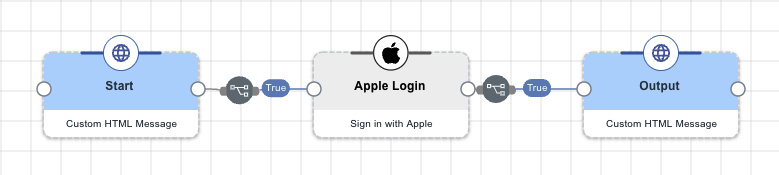
Apple Login Connector
The Apple Login connector authenticates users with Sign in with Apple and retrieves Apple ID attributes for use in PingOne DaVinci flows.
Setup
Resources
You can find more information and setup help in the following:
-
PingOne DaVinci documentation:
-
Apple documentation:
Configuring Apple as an IdP
Before configuring the Apple Login connector in PingOne DaVinci, register the application in the Apple Developer portal and collect the values that Apple generates to configure Apple as an identity provider (IdP).
You’ll complete three tasks in the Apple Developer portal:
Creating an App ID
When you register your application, Apple generates an App ID to identify the application. You’ll need this value to connect the application to PingOne DaVinci.
Steps
-
Go to the Apple Developer site and sign on to your Apple Developer account.
If you don’t have an Apple Developer account, you’ll need to create one.
-
Click Certificates, Identifiers & Profiles.
-
On the left, click Identifiers and then click the icon.
-
In the Register a New Identifier section, select App IDs.
-
In the Register an App ID section, enter a value for the Bundle ID.
-
Copy the following values to a secure location:
-
App ID prefix (Team ID): Identifies your team or organization.
-
Bundle ID: Identifies a group of applications.
-
-
In the list of available capabilities, select Sign in with Apple.
-
Click Continue and Register.
Creating a Services ID
The Services ID identifies the particular instance of your application. The Services ID is equivalent to a client ID in PingOne DaVinci.
Steps
-
On the Apple Developer site, sign on to your Apple Developer account and then click Certificates, Identifiers & Profiles.
-
In the Register a New Identifier section, select Services ID.
-
Enter the following information:
-
Description: A brief description of the application.
-
Identifier: The path to the application. This value will be used as the client ID in PingOne.
-
-
Click Continue and Register.
-
In the list, select the service you just created.
-
Select Sign in with Apple and click Configure.
-
Select the primary App ID and click the icon.
-
Enter a value for Domains and subdomains.
This is the top-level domain for your application.
-
Leave the Return URLs blank for now.
This is the path in your application that users are redirected to after they have authenticated with Apple. This value is equivalent to a callback URI. You’ll enter this value after you set up your application in PingOne DaVinci.
-
Click Next, and then click Done.
-
Click Continue, and then click Save.
Creating a private key
When you register your application, Apple generates a private key for client authentication. You’ll need this value when you add the application to PingOne DaVinci.
Steps
-
On the Apple Developer site, click Certificates, Identifiers & Profiles.
-
On the left, click Keys.
-
To register a new key, click the icon.
-
Enter a value for Key Name.
-
Select Sign in with Apple and click Configure.
-
Select the primary App ID you created earlier.
-
Click Save and then click Continue.
-
Click Register.
-
Copy the Key ID to a secure location.
You’ll use this value when you add the IdP in PingOne DaVinci.
-
To save the key to the local file system, click Download.
The key is saved as a text file with a
.p8file extension. The key will be used as the client secret signing key and its identifier will be used as the private key in PingOne DaVinci.You can only download the key once. Save the file to a secure location because the key is not saved in your developer account, and you won’t be able to download it again. If the Download button is disabled, you already downloaded the key.
Configuring the Apple Login connector
Add the connector in PingOne DaVinci as shown in Adding a connector, then configure it as follows.
Connector configuration
Use the values from the Apple Developer portal to populate the connector’s general properties.
| Property | Description | ||
|---|---|---|---|
Issuer |
The Apple Team ID. Apple provides this value when the App ID is created. |
||
Key ID |
The Key ID for the Sign in with Apple private key. Apple provides this value when the key is created in Keys > Certificates, Identifiers & Profiles. |
||
Issuer URL |
|
||
Authorization Endpoint |
|
||
Token Endpoint |
|
||
Client ID |
The Services ID from Apple Developer. |
||
Private Key |
Paste the contents of the downloaded Apple private key file with the
|
||
Scope |
The scopes that determine which user information Apple can return. Configure this property according to the claims required by the application, such as email address or name-related data. Learn more in the Scope property Apple documentation. |
||
Application Return to URL |
The URL of the app that embeds the PingOne DaVinci flow. If you’re using redirect, leave this blank. |
Attributes
On the Attributes tab, review the default attributes available from Apple and define additional attributes when Apple includes them in the ID token returned for the application.
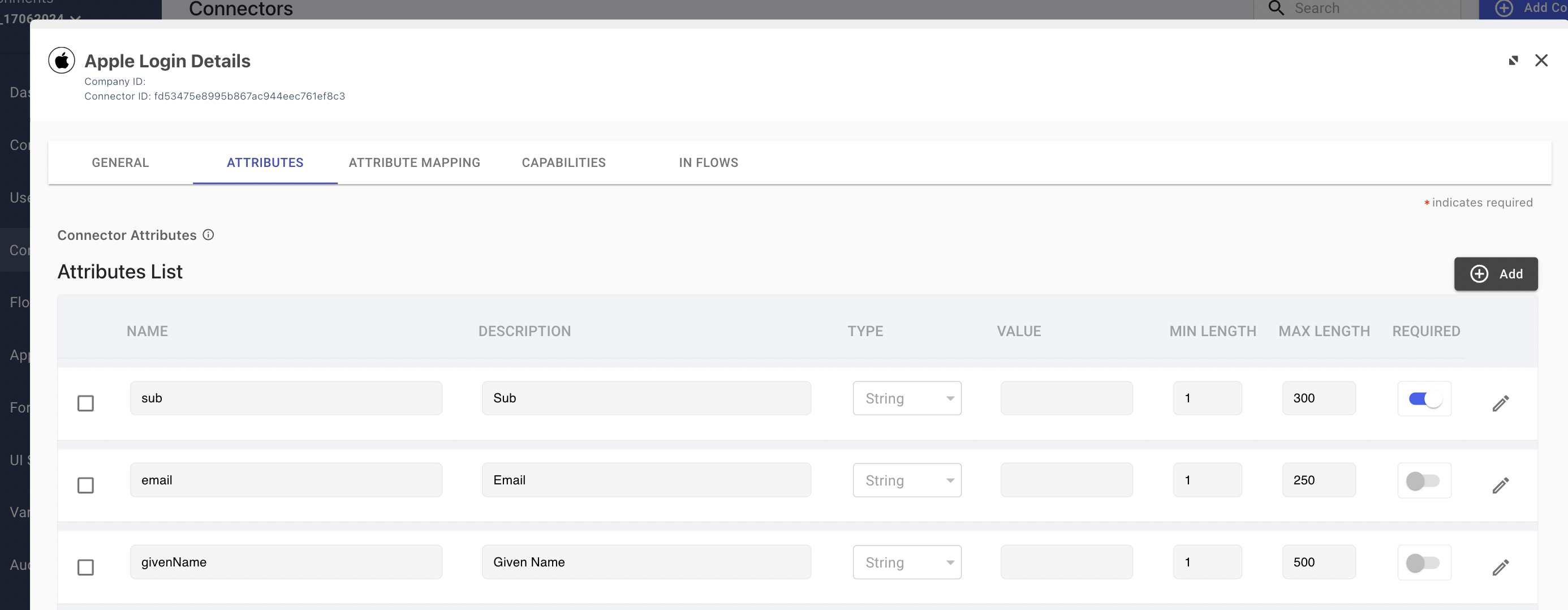
| Apple provides name values only during the first successful Sign in with Apple authentication. Subsequent authentications might not include the same name data. |