Google Login Connector
The Google Login connector authenticates users with Google and retrieves user attributes for use in PingOne DaVinci flows.
Setup
Resources
You can find more information and setup help in the following:
-
PingOne DaVinci documentation:
Configuring Google as an IdP
Before configuring the Google Login connector in PingOne DaVinci, register the application in the Google API Console and collect the values that Google generates to configure Google as an identity provider (IdP).
You’ll complete two tasks in the Google API Console:
Registering the application with Google
When you register your application, Google generates an App ID and App Secret for the application. You’ll need these values to connect the application to PingOne DaVinci.
Steps
-
Go to the Google API Console.
If you haven’t created a Google account, you can do so now.
-
In the Projects list, select a project or create a new one.
-
On the left, click Credentials.
-
Click Create credentials, then select OAuth client ID.
If you’re prompted to configure an OAuth consent screen with information about your application, you can do that now.
-
Select the appropriate application type for your project and enter the following information:
-
Name: The name of the OAuth client ID, not the display name of the application.
-
Authorized JavaScript origins: The origin URI of the client application, for use with requests from a browser.
-
Authorized redirect URIs: The path in your application that users are redirected to after they authenticate with Google. This is your PingOne DaVinci Redirect URL:
https://auth.pingone.com/[companyID]/davinci/oauth2/callback.
-
-
Click Create.
-
On the OAuth client page, copy the client ID and client secret to a secure location.
You can always access the client ID and client secret from the Credentials page in the API Console.
Next steps
Learn more in Manage OAuth Clients in the Google Cloud Platform Console Help documentation.
Enabling the Google People API
You must enable the Google People API if it’s not enabled already.
Steps
-
Go to the Google API Console.
-
In the Projects list, select a project or create a new one.
-
On the left, click Library.
-
Locate the Google People API.
If you need help finding the API, use the search bar.
-
Click Enable.
Next steps
Learn more in Enable and disable APIs in the Google API Console Help documentation.
Configuring the Google Login connector
Add the connector in PingOne DaVinci as shown in Adding a connector, then configure it as follows.
Connector configuration
Use the values from Google to populate the connector’s general properties.
| Property | Description |
|---|---|
PingOne DaVinci Redirect URL |
|
Issuer URL |
|
Authorization Endpoint |
|
Token Endpoint |
|
UserInfo Endpoint |
|
App ID |
The Client ID that you copied earlier from the IdP. You can find this information on the Credentials page in the Google API Console. |
Client Secret |
The client secret that you copied earlier from the IdP. You can find this information on the Credentials page in the Google API Console. |
Scope |
The default scopes are |
Application Return to URL |
The URL of the app that embeds the PingOne DaVinci flow. If you’re using redirect, leave this blank. |
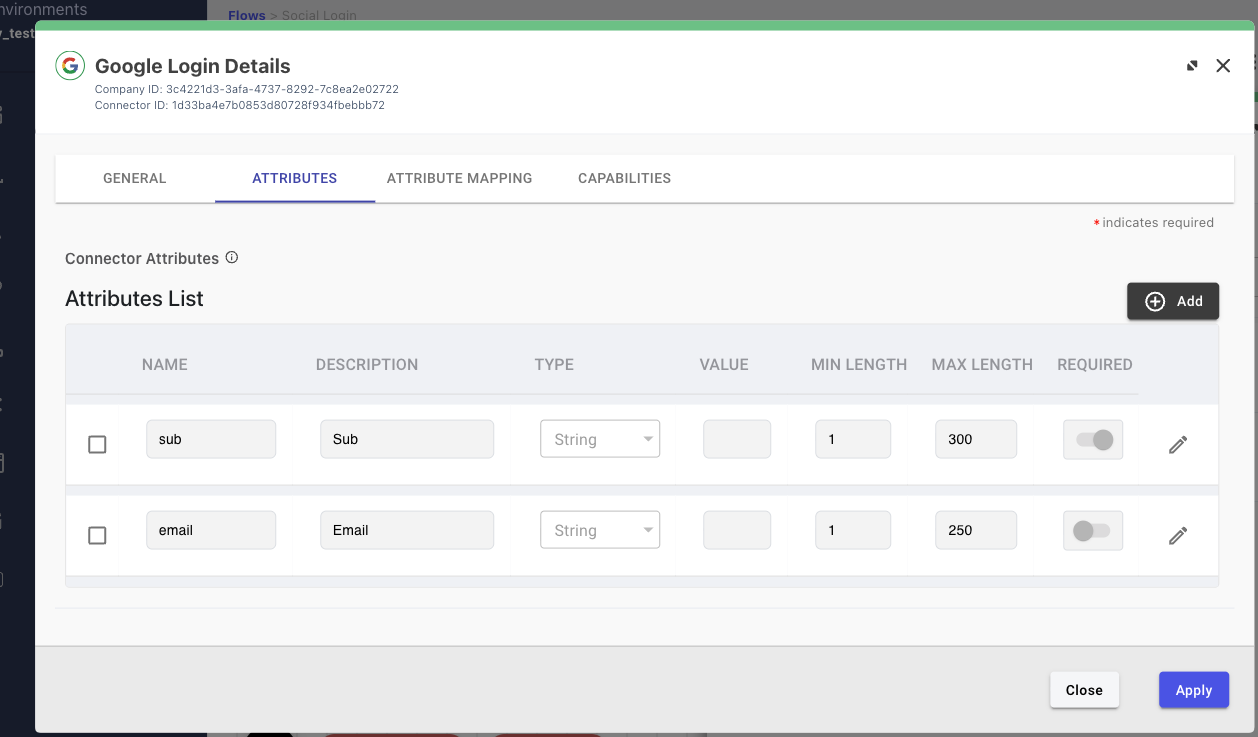
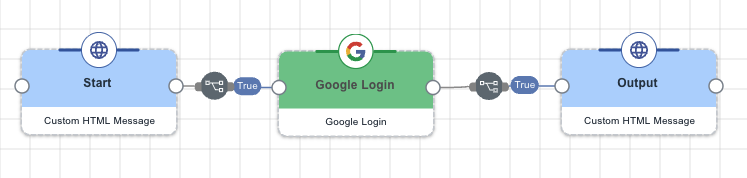
Capabilities
Google Login
Show details
-
Properties
-
Output Schema
- Display Name button
- showPoweredBy toggleSwitch
- skipButtonPress toggleSwitch
-
output object
-
at_hash string
-
aud boolean
-
azp boolean
-
email string
-
email_verified boolean
-
exp number
-
family_name string
-
given_name string
-
hd string
-
iat number
-
iss string
-
locale string
-
name string
-
picture string
-
sub string
-
Output Example
{
  "at_hash": "ISKFDARoPOftzcYcXWjDuw",
  "aud": "470515226752-ffprd36ul6trmb0gmcjv24jlv5v54efn.apps.googleusercontent.com",
  "azp": "470515226752-ffprd36ul6trmb0gmcjv24jlv5v54efn.apps.googleusercontent.com",
  "email": "johndoe@example.com",
  "email_verified": true,
  "exp": 1603874413,
  "family_name": "Doe",
  "given_name": "John",
  "hd": "example.com",
  "iat": 1603870813,
  "iss": "https://accounts.google.com",
  "locale": "en",
  "name": "John Doe",
  "picture": "https://lh3.googleusercontent.com/a-/imagehash",
  "sub": "123456789012345678901"
}
Get User Info from Google
Show details
-
Properties
-
Output Schema
- Display Name button
- showPoweredBy toggleSwitch
- skipButtonPress toggleSwitch
-
output object
-
at_hash string
-
aud boolean
-
azp boolean
-
email string
-
email_verified boolean
-
exp number
-
family_name string
-
given_name string
-
hd string
-
iat number
-
iss string
-
locale string
-
name string
-
picture string
-
sub string
-
Output Example
{
  "at_hash": "ISKFDARoPOftzcYcXWjDuw",
  "aud": "470515226752-ffprd36ul6trmb0gmcjv24jlv5v54efn.apps.googleusercontent.com",
  "azp": "470515226752-ffprd36ul6trmb0gmcjv24jlv5v54efn.apps.googleusercontent.com",
  "email": "johndoe@example.com",
  "email_verified": true,
  "exp": 1603874413,
  "family_name": "Doe",
  "given_name": "John",
  "hd": "example.com",
  "iat": 1603870813,
  "iss": "https://accounts.google.com",
  "locale": "en",
  "name": "John Doe",
  "picture": "https://lh3.googleusercontent.com/a-/imagehash",
  "sub": "123456789012345678901"
}