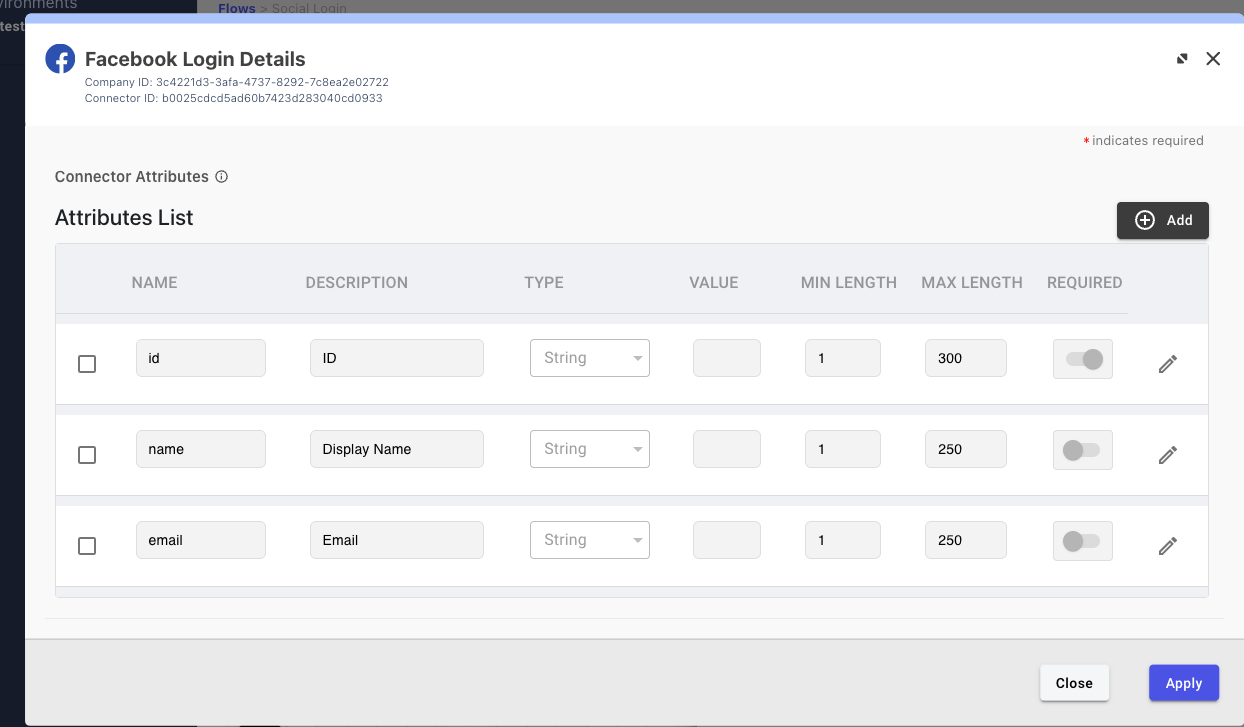
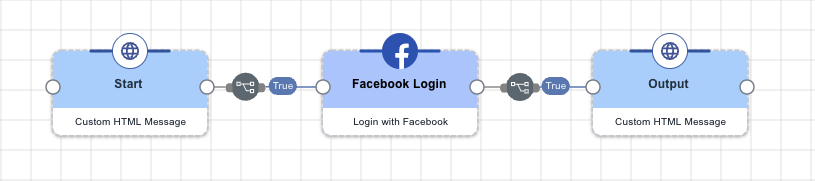
Facebook Login Connector
The Facebook Login connector authenticates users with Facebook and retrieves user attributes for use in PingOne DaVinci flows.
Setup
Resources
You can find more information and setup help in the following:
-
PingOne DaVinci documentation:
Configuring Facebook as an IdP
Before configuring the Facebook Login connector in PingOne DaVinci, register the application in Facebook for Developers and collect the values that Facebook generates to configure Facebook as an identity provider (IdP).
You’ll complete two tasks in your Facebook Developer Account:
Registering your application with Facebook for Developers
Facebook generates an app ID and app secret for your application. You’ll need these values to connect the application to PingOne DaVinci.
Steps
-
Sign on to your Facebook Developer Account.
If you haven’t created a Facebook Developer Account, you can do so now.
-
At the top of the page, click My Apps and then click Create app.
-
Select the appropriate application type and then click Continue.
-
Enter the following information:
-
App Display name: The name you want to associate with this application ID.
-
App Contact email: The primary contact information for the application.
-
-
Click Create app, and then complete the security check, if required.
Result:
The application dashboard displays.
-
On the left side of the page, go to Settings > Basic and enter the following information:
-
App domains: The path in your application that users are redirected to after they have authenticated with Facebook. This is your DaVinci Redirect URL:
https://auth.pingone.com/[companyID]/davinci/oauth2/callback.Leave App domains blank for now.
-
Privacy policy URL (optional): The URL that contains your privacy policy.
-
Terms of service URL (optional): The URL that contains your terms of service.
-
-
At the top of the page, locate the App ID and App secret and copy their values to a secure location.
-
Click Save changes.
Next steps
Learn more in Meta App Development.
Enabling Facebook Login
You must enable Facebook Login for your application if it’s not enabled already.
Steps
-
Go to Facebook for Developers.
-
At the top of the page, click My Apps, and then select the appropriate app.
-
On the left side of the page, click Products
-
Locate the Facebook Login card and click Set up.
-
Follow the instructions to set up Facebook Login.
Configuring the Facebook Login connector
Add the connector in PingOne DaVinci as shown in Adding a connector, then configure it as follows.
Connector configuration
Use the values from Facebook to populate the connector’s general properties.
| Property | Description |
|---|---|
PingOne DaVinci Redirect URL |
|
Application ID |
The application ID that you copied earlier from the IdP. You can find this information on the Basic settings page in the Facebook for Developers portal. |
Client Secret |
The application secret that you copied earlier from the IdP. You can find this information on the Basic settings page on the Facebook for Developers portal. |
Scope |
The default scopes are |
Application Return to URL |
The URL of the app that embeds the PingOne DaVinci flow. If you’re using redirect, leave this blank. |