Google Chrome Device Trust node
The Google Chrome Device Trust node establishes device trust with Chrome Enterprise.
Example
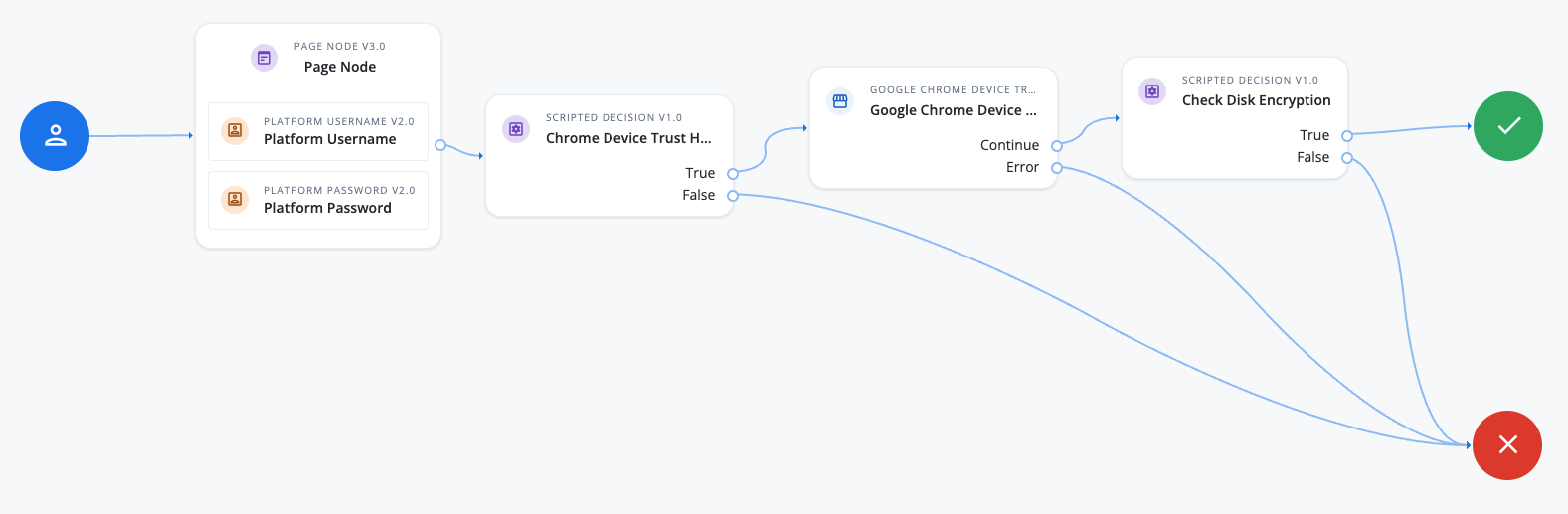
The following example journey uses the Google Chrome Device Trust node to collect device trust signals from the user’s managed Chrome browser and make an access decision based on them:
-
The user signs on.
-
The Chrome Device Trust Headers node, a Scripted Decision node, redirects to PingGateway to handle the Google Chrome challenge-response process.
Find an example redirect script in Set up the Scripted Decision node.
-
PingGateway generates the challenge, retrieves the challenge response, and sets it as a request parameter before redirecting back to the journey.
-
The Google Chrome Device Trust node uses the challenge response to retrieve the Chrome device trust signals, storing them in the node state.
-
The Check Disk Encryption node, another Scripted Decision node, determines whether the
diskEncryptionsignal is enabled and makes an access decision.Sample script for the Check Disk Encryption node
var diskEncrypted = nodeState.get("deviceSignals").get("diskEncryption");

if(diskEncrypted === "DISK_ENCRYPTION_DISABLED") {
    outcome = "true"
} else {
    outcome = "false"
}
Availability
| Product | Available? |
|---|---|
PingOne Advanced Identity Cloud |
Yes |
PingAM (self-managed) |
Yes (1) |
Ping Advanced Identity Software (self-managed) |
Yes (1) |
(1) For self-managed products, download the node from the Ping Identity Marketplace.
Inputs
This node reads the challengeresponse request parameter, which a Scripted Decision node earlier in the journey populates with the value it retrieves from PingGateway.
Dependencies
This node requires:
Set up PingGateway
-
Install PingGateway as described in the Quick Install Guide.
-
Configure the
admin.jsonfile to run PingGateway on ports 9090 and 9443. Learn more in Start PingGateway with custom settings.If you use port 9443 for HTTPS, configure PingGateway for server-side TLS. Learn more in Configure PingGateway for TLS.
-
Download the generate_challenge.json and challengeresponse.json route files from the project GitHub repository.
-
Store the two route files in your
routesdirectory, for example:-
$HOME/.openig/config/routes(on Mac or Linux) -
%appdata%\OpenIG\config\routes(on Windows)
-
-
Download the getChallenge.groovy script file from the project GitHub repository and store it in your
groovydirectory, for example:-
$HOME/.openig/scripts/groovy(on Mac or Linux) -
%appdata%\OpenIG\scripts\groovy(on Windows)If the
groovydirectory doesn’t exist, create it.
-
About PingGateway routes
The generate_challenge.json route executes the getChallenge.groovy script to perform the following tasks:
-
Make an
HTTP POSTrequest to the Google Chrome Verified Access API to generate the challenge. -
Get the challenge from the API response.
-
Set the challenge as the value of the
x-verified-access-challengecustom HTTP response header.Google Chrome recognizes the custom HTTP response header and uses the challenge value to calculate a challenge response.
-
Google Chrome creates a new custom HTTP request header,
x-verified-access-challenge, and sets the challenge response as the header value.
The generate_challenge.json route redirects the user to the challengeresponse.json route to perform these tasks:
-
Get the challenge response from the request headers.
-
Set the challenge response value in the query parameter of the redirect URL as the
challengeresponsekey. -
Redirect back to Advanced Identity Cloud.
Set up the Scripted Decision node
This node requires a Scripted Decision node earlier in the journey to redirect the end user to PingGateway to generate and retrieve the challengeresponse.
Configure a Scripted Decision node with the following example script.
Example redirect script for the Scripted Decision node
try {
  var redirectMethod = "GET";
  var redirectUrl = "https://ig.example.com:9443/pinggateway-route-name";
  if (!requestParameters.get("challengeresponse")) {
    callbacksBuilder.redirectCallback(redirectUrl, {}, redirectMethod, true);
  } else {
    var challenge = requestParameters.get("challengeresponse");
    nodeState.putShared("x-verified-access-challenge", challenge);
    action.goTo("true");
  }

} catch (error) {
  nodeState.putShared("errorMessage", error.toString());
  action.goTo('false').withErrorMessage(error);
}
The script uses the next-generation script engine. The challengeresponse parameter must be in the redirect to Advanced Identity Cloud as a query parameter from PingGateway. The Google Chrome Device Trust node retrieves the challengeresponse value from the request parameters.
The path in redirectUrl must match the condition field in the generate_challenge.json route file.
Configuration
| Property | Usage |
|---|---|
API Key |
The Google Cloud API key. |
Private Key |
The Google Cloud administrator credential’s private key. |
Key ID |
The unique identifier used to verify the authenticity and integrity of the JWT. |
Credentials Client Email |
The email address of the client with the Google Cloud administrator credentials. |
Outputs
The node writes each key-value pair from the Chrome Verified Access API response, such as deviceSignals, to the node state.
On error, the node writes the exception message and stack trace to the node state.