Setting up Redis external attribute caching in the UI
Before you begin
To successfully assign an external Redis attribute cache to the Policy Decision Service, you must set PDP Mode to embedded.
Steps
-
On the Configuration page of the PingAuthorize administrative console, go to Authorization and Policies > External Attribute Caches.
-
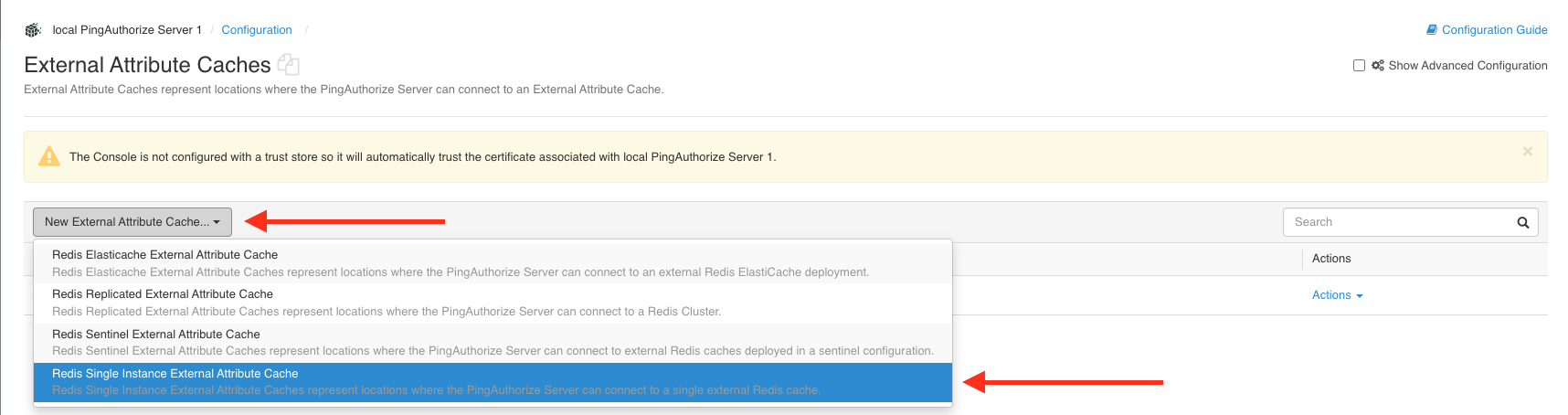
Select your desired Redis mode in the New External Attribute Cache list.
Example:
-
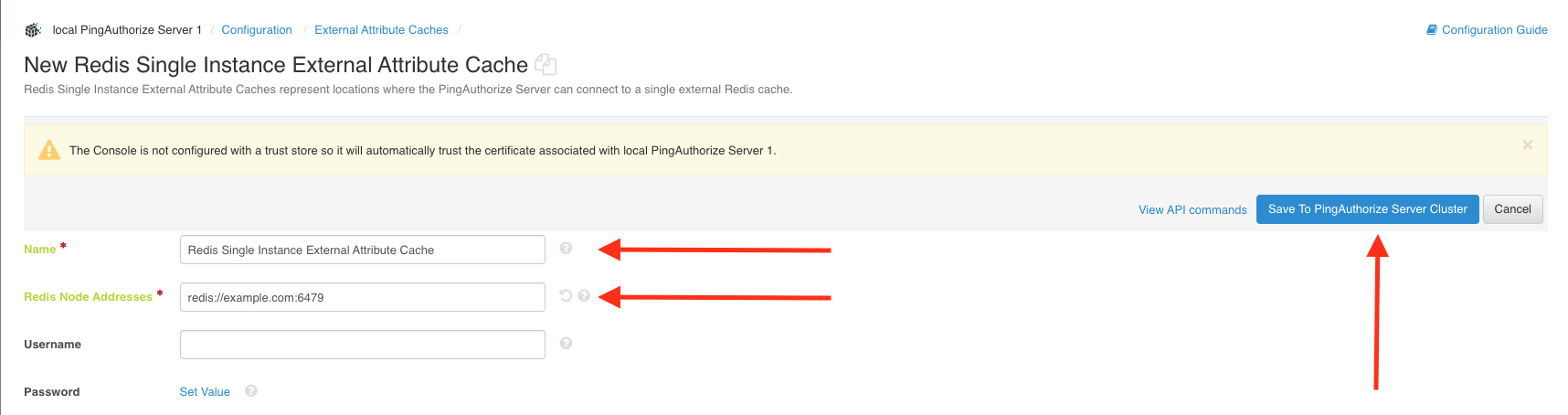
At minimum, enter the required values, as indicated by a red asterisk, and click Save To PingAuthorize Server Cluster.
For more information on a field, click the question mark icon.
Example:
-
Go to Authorization and Policies > Policy Decision Service.
-
In the Trust Framework Attribute Cache Configuration section, in the External Attribute Cache list, select your Redis cache name and click Save To PingAuthorize Server Cluster.
Example:
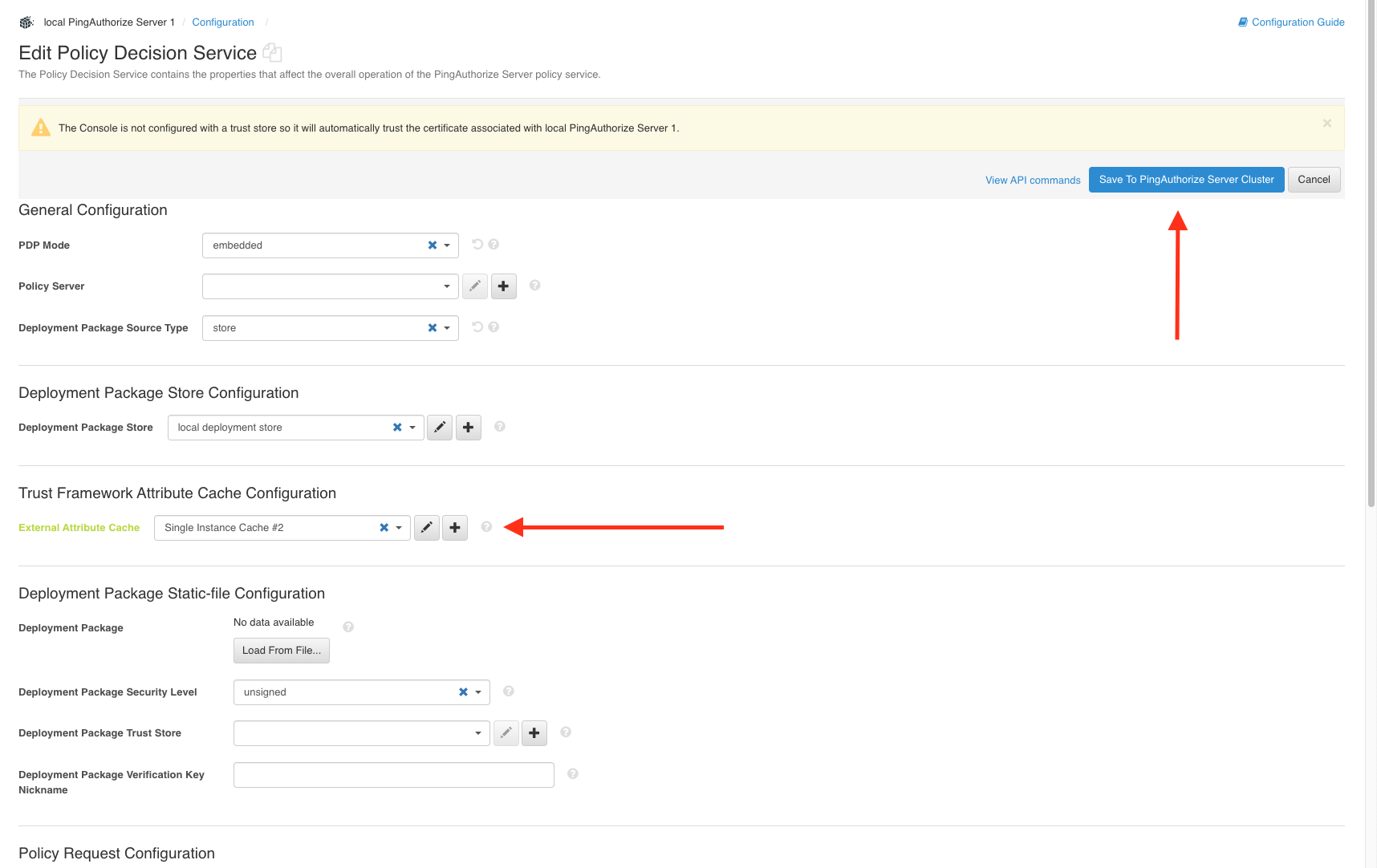
Alternatively, you can use the controls next to the External Attribute Cache list to create, edit, or remove external Redis caches:
-
Click the Plus icon to create a new external attribute cache.
-
Click the Pencil icon to edit the configuration of the selected attribute cache.
-
Click X to remove the attribute cache from the Policy Decision Service and revert the PDP to an in-memory attribute cache.
-