View relationships in graph form
| Widgets are deprecated and will be removed in a future release of IDM. For more information, refer to Deprecation. |
The Identity Relationships widget gives a visual display of the relationships between objects.
Add the Identity Relationships widget to a dashboard
This widget is not displayed on any dashboard by default. You can add it as follows:
-
Sign on to the legacy admin UI.
-
From the navigation bar, click Dashboards, and select a dashboard. Alternatively, create a dashboard.
-
On the applicable dashboard page, click Add Widget.
-
In the Add Widget window, click the list, scroll down to the Utilities item, and select Identity Relationships.
-
Click Settings, and make selections from the following lists:
-
Widget Size: Select from Small, Medium, or Large.
-
Chart Type:
-
Collapsible Tree Layout:

-
Radial Layout:
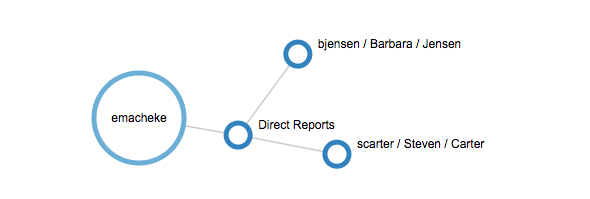
-
-
Default Object—Select the object for which to display relationships; for example, User.
-
Display/Search Property—Select one or more properties to search on the default object that will be displayed in the widget; for example, userName and city.
-
-
Optionally, click Preview to view a widget preview.
-
Click Add to add the widget to the dashboard.
Use the Identity Relationships widget
To use the Identity Relationships widget:
-
Select a user within the widget.
The following example shows relationships for imartinez, including Manager and Direct Reports:
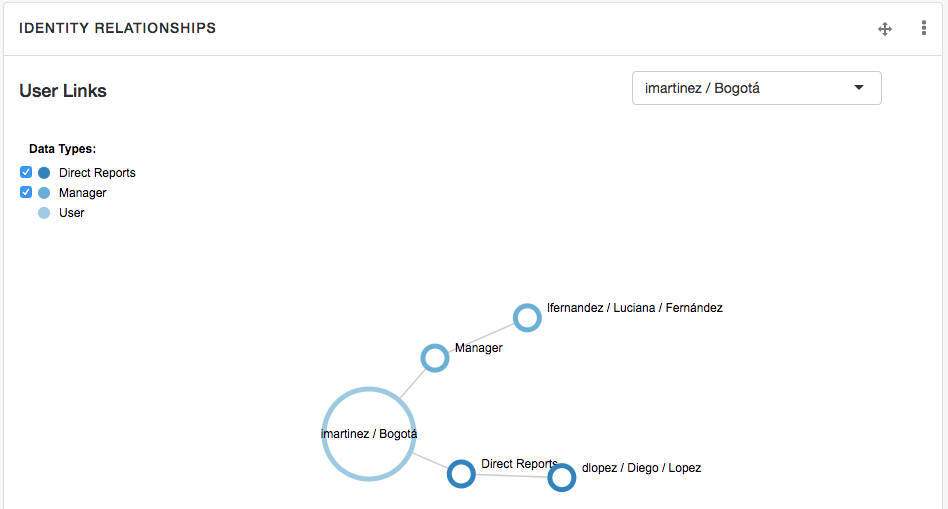
-
You can interact with the graph in multiple ways:
-
Select or clear Data Types to filter information.
-
Click and drag the graph for a different view.
-
Double-click a user to view their profile.
-