Configure the Active Directory password synchronization plugin
If you need to change any settings after installation, access the settings using the Registry Editor. For the full list of available registry key values, refer to Registry Key Values. For information about creating registry keys, refer to the corresponding Windows documentation.
|
After you change a registry key value associated with the password synchronization plugin, perform validation. |
Create or edit registry key values
-
Click the Start Menu, type registry, and click Registry Editor Desktop app.
-
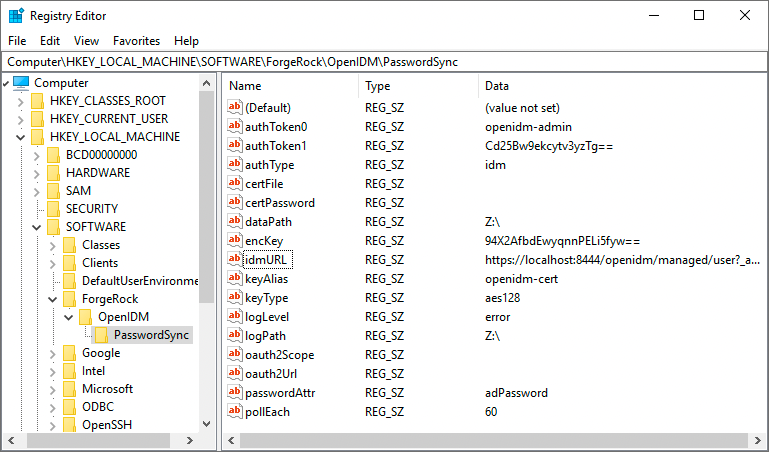
In the left pane of Registry Editor, expand the node:
HKEY_LOCAL_MACHINE > SOFTWARE > ForgeRock > OpenIDM > PasswordSyncFor Example:
-
From here you can edit the registry key values, or create new ones.
-
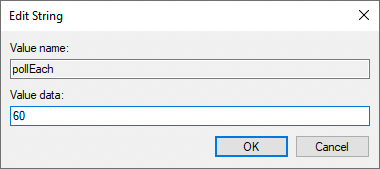
To edit a value, double-click any item in the Name column. An Edit String window displays.
-
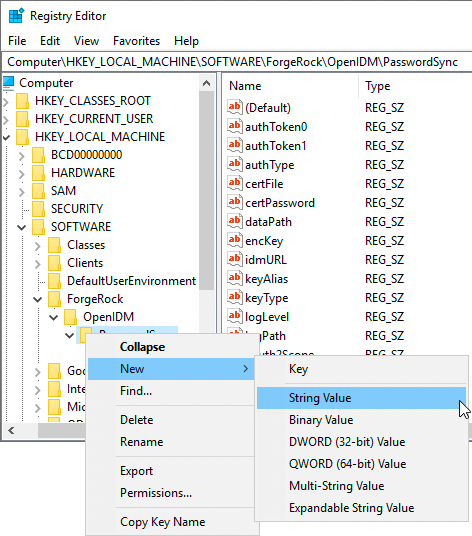
To create a new string value, right-click the last folder of the expanded node (PasswordSync), select New > String Value, and enter the applicable information.
-
Registry key values
Authentication method
The following registry key values let you customize the authorization method between the plugin and IDM.
| Key Value | Description | ||
|---|---|---|---|
(Required) |
The authentication type:
|
||
(Optional) |
When using |
||
(Required) |
The username or certificate path for authentication. For example, for plain HTTP or SSL authentication, For certificate authentication, set |
||
(Required) |
The authentication password. For example, for plain HTTP or SSL authentication, For certificate authentication, set |
||
(Optional) |
The key the plugin uses to decrypt the values of
|
Password encryption
The following registry key values let you customize the encryption method for captured passwords.
| Key Value | Description |
|---|---|
(Required) |
The path to the keystore used for encrypting captured passwords. For example, |
(Required) |
The |
(Required) |
The |
(Optional) |
The |
Connection & synchronization
The password synchronization plugin assumes that the Active Directory user attribute is sAMAccountName. Although the default attribute works in most deployments, you can specify an alternative attribute. For an example, refer to Example userAttribute Modification.
| Key Value | Description | ||
|---|---|---|---|
(Optional) |
The attribute that identifies the Active Directory user. The password synchronization plugin assumes that the Active Directory user attribute is |
||
(Optional) |
The search filter for locating Active Directory users. Can only be used if
|
||
(Required) |
The URL where IDM is deployed, including the query that targets each user account. |
||
(Required) |
The password attribute for the |
||
(Optional) |
For the authentication type https://am.example.com/am/oauth2/realms/root/access_token |
||
(Optional) |
For the authentication type |
||
(Optional) |
The bind BaseDN used in the Active Directory user search. Use to set a different base dn for attribute search. Default value is derived from Can only be used if |
||
(Optional) |
The bind password used in the Active Directory user search. When the Can only be used if |
||
(Optional) |
The bind user used in the Active Directory user search. Can only be used if |
||
Additional control for the behavior of
|
IDM availability
When IDM is unavailable, or when an update fails, the password synchronization plugin stores the user password change in a JSON file on the Active Directory system and attempts to resend the password change at regular intervals.
You can modify this behaviour with the following registry key values:
| Key Value | Description |
|---|---|
(Required) |
The location where the password synchronization plugin stores the unsent changes. When any unsent changes have been delivered successfully, files in this path are deleted. The plugin creates one file for each user. This means that if a user changes their password three times in a row, you will refer to only one file containing the last change. |
(Optional) |
The maximum number of password change retry attempts after which the plugin stops attempting to send changes. |
(Optional) |
The length of time (in milliseconds) before the plugin stops attempting a connection. |
(Optional) |
The interval (in seconds) between each attempt to send changes. |
Logging configuration
| Key Value | Description | ||
|---|---|---|---|
(Optional) |
The path to the log file.
|
||
(Optional) |
The maximum log size (in Bytes) before the log is rotated. When the log file reaches this size, it is renamed |
||
(Optional) |
The severity of messages to log:
|
Other
| Key Value | Description | ||
|---|---|---|---|
(Optional) |
Infinite password sync loop prevention. When Active Directory syncs passwords with IDM bidirectionally, it is possible to enter an infinite loop, where Active Directory and IDM are constantly updating the password and telling the other system to do the same. To help prevent this situation, you can set the
|
Registry key value encryption
The plugin reads the values of the authToken1, certPassword, and userSearchBindPass keys with the encKey registry key value, which the installer sets during plugin installation. When encKey is present and non-empty, the plugin treats those values as encrypted and decrypts them each time it reads them. If you need to change any of these values, encrypt the new value manually with the idmsync.exe --encrypt command and replace the registry value with the encrypted result. You don’t need to restart the service after changing these values.
If you do not want to encrypt the values of the authToken1, certPassword, and userSearchBindPass keys, you must delete encKey from the registry. In this case, these values can be set in cleartext (unencrypted).
|
To encrypt the values of the authToken1, certPassword, and userSearchBindPass keys:
-
Optionally, generate a new encryption key; otherwise, you can use the existing encryption key and skip this step.
PS C:\Program Files\OpenIDM Password Sync> .\idmsync.exe --key keyValue -
Encrypt the sensitive registry key values:
PS C:\Program Files\OpenIDM Password Sync> .\idmsync.exe --encrypt "keyValue" "authToken1Value"

authToken1-keyValue
PS C:\Program Files\OpenIDM Password Sync> .\idmsync.exe --encrypt "keyValue" "certPasswordValue"

certPasswordValue-keyValue
If you use Active Directory user search with a bind password (
userSearchBindPass), encrypt that value also:PS C:\Program Files\OpenIDM Password Sync> .\idmsync.exe --encrypt "keyValue" "userSearchBindPassValue" userSearchBindPassValue-keyValue
-
Replace the existing values of the
encKey,authToken1, andcertPasswordkeys with the generated values. If you encrypteduserSearchBindPass, replace its value also.For instructions on editing registry key values, refer to Create or Edit Registry Key Values.
Registry key value validation
After you change a registry key value associated with the password synchronization plugin, run path\to\idmsync.exe --validate to perform validation. For example:
PS C:\Program Files\OpenIDM Password Sync> .\idmsync.exe --validate

OpenIDM Password Sync Service

Validating configuration parameters as user "Administrator"

Logging parameters:
logPath:
   "Z:\" has read/write access permissions.

logLevel:
   "error" is a valid logLevel entry.

logSize:
   "" is not a valid logSize entry. Will use default 5120000 byte file size limit.

Service and data storage parameters:
dataPath:
   "Z:\" has read/write access permissions.

pollEach:
   "75" is a valid pollEach entry.

OpenIDM service parameters:
idmURL:
   "https://localhost:8444/openidm/managed/user?_action=patch&_queryId=for-userName&uid=${samaccountname}" is a valid idmURL entry.

keyAlias:
   "openidm-cert" is a valid keyAlias entry.

passwordAttr:
   "adPassword" is a valid passwordAttr entry.

idm2Only:
   Service is configured to run with OpenIDM version 3.x or newer.

netTimeout:
   "" is not a valid netTimeout entry. Will use default 16 second network timeout.

authType, authToken0 and authToken1:
   Service is configured to use "OAuth2 Access Token" authentication
   "oauth2" is a valid authType entry.

Password encryption parameters:
certFile and certPassword:
   "Z:\openidm-localhost.crt" file is a valid entry.
Example userAttribute modification
The password synchronization plugin assumes that the Active Directory user attribute is sAMAccountName. The default attribute will work in most deployments. If you cannot use the sAMAccountName attribute to identify the Active Directory user, set the following registry keys on your Active Directory server, specifying an alternative attribute. The examples in the following table use the employeeId attribute instead of sAMAccountName.
For instructions on editing registry key values, refer to Create or Edit Registry Key Values.
| Key Value | Data |
|---|---|
|
|
|
|
|
|