Localizing the widget
The Ping (ForgeRock) Login Widget uses variables with default values for all strings it displays when rendering the user interface.
Show variable names and default values
| Variable | Default text |
|---|---|
|
Already have an account? <a href='?journey'>Sign in here!</a> |
|
Back to Sign In |
|
Back to Sign In |
|
Close |
|
Character cannot repeat more than {max} times |
|
Character cannot repeat more than {max} times (case insensitive) |
|
Check your email |
|
Please choose a different username. |
|
Choose your device for identity verification. |
|
Confirm password |
|
Password does not meet the requirements. |
|
Value does not meet the requirements. |
|
Continue with |
|
Or, copy and paste the URL below into your authentictor app. |
|
Copy URL |
|
Custom security question |
|
Device name |
|
At least {min} character(s) |
|
Don’t get locked out of your account! |
|
No account? <a href='?journey=Registration'>Register here!</a> |
|
Password must contain at least {minPasswordLength} character(s). |
|
Password must contain at least 1 capital letter, 1 number, and 1 special character. |
|
Enter verification code |
|
Exceeds maximum of {max} characters |
|
Cannot contain these character(s): {chars} |
|
Cannot contain these value(s): {fields} |
|
Forgot password? |
|
Forgot username? |
|
First name |
|
Value is required |
|
Loading … |
|
Sign in |
|
Sign in failed |
|
Sign in |
|
Sign in successful! |
|
Email address |
|
At least {num} number(s) |
|
At least {num} lowercase letter(s) |
|
At least {num} uppercase letter(s) |
|
At least {num} symbol(s) |
|
Username |
|
Name your device |
|
Next |
|
Next |
|
No more than {max} characters |
|
At least {min} character(s) |
|
On mobile? Open link in Authenticator. |
|
Optionally name your device |
|
Password |
|
Password cannot contain common passwords |
|
Password cannot contain common passwords or reversible text |
|
Password cannot contain common passwords or reversible text less than {min} characters |
|
Password requirements: |
|
Please check this value |
|
Please confirm |
|
Send me special offers and services |
|
Send me news and updates |
|
Provide custom security question |
|
Not working or need an alternative method? |
|
QR Code failed to render. Please notify your support administrator. You are welcome to use the alternative methods below. |
|
We are unable to render your QR Code. Please use one of the alternative methods below. |
|
Redirecting you to |
|
Register |
|
Register |
|
Registration successful! |
|
Value is required |
|
Register {name} |
|
Scan the QR code image below with the ForgeRock Authenticator app to register your device with your login. |
|
Security answer |
|
Security question(s) |
|
Provide security question(s) and answer(s): |
|
Should contain a number |
|
Should contain an uppercase letter |
|
Should contain a lowercase letter |
|
Should contain a symbol |
|
Show password |
|
Evaluating device information. |
|
Skip |
|
Last name |
|
Submit |
|
Submit |
|
Success! |
|
Please accept our Terms & Conditions |
|
View full Terms & Conditions |
|
Please try again |
|
Two factor authentication |
|
Use this new device or Multi-Factor Authentication method to help verify your identity. |
|
Please use a valid email address. |
|
There was an error in the form submission. |
|
Unknown login failure has occurred. |
|
Unknown network request failure has occurred. |
|
URL: |
|
Use your device for identity verification. |
|
Use one of these codes to authenticate if you lose your device, which has been named: <em>{name}</em> |
|
Username |
|
Username requirements: |
|
Find the verification code using the authenticator app on your phone. |
|
Password |
|
Username |
|
Value requirements: |
|
Verify your identity |
|
Your device |
|
Your new device or MFA is enabled |
|
If you lose your device, or don’t have it with you, a recovery code is the only way to sign in to your account with 2-step verification enabled. It’s strongly recommended that you print and store these codes in a safe place. <b>Each code can only be used once</b>." |
You can use the content configuration element to specify custom values for these variables, or to localize text content.
To localize the text the Ping (ForgeRock) Login Widget displays, you must provide the localized strings in the content configuration element when you initialize the widget. If you don’t override the content strings, the widget uses the default en-us strings.
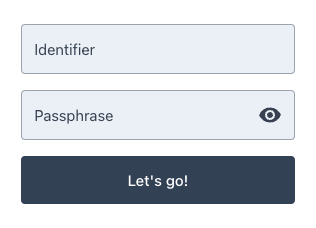
For example, the following code specifies localized content for the fr-ca locale and also overrides the default en-us values:
content configurationvar userLang = navigator.language || navigator.userLanguage;
switch(userLang) {
case 'fr-CA':
config.set({
content: {
"userName": "Identifiant",
"passwordCallback": "Phrase secrète",
"nextButton": "Nous allez en route!",
},
});
break;
default:
config.set({
content: {
"userName": "Identifier",
"passwordCallback": "Passphrase",
"nextButton": "Let's go!",
},
});
}
fr-CA