MFA: Open Authentication (OATH)
The OATH nodes support HMAC one-time password (HOTP) and time-based one-time password (TOTP) authentication as defined in the OATH standard protocols for HOTP (RFC 4226) and TOTP (RFC 6238). Both HOTP and TOTP authentication require an OATH-compliant device that can provide the password.
About one-time password support
HOTP authentication generates the one-time password (OTP) every time the user requests a new password on their device. The device tracks the number of times the user requests a new one-time password with a counter. The one-time password displays for a period of time you designate in the setup, so the user may be further in the counter on their device than on their account.
AM resynchronizes the counter when the user signs on. Set the HOTP Window Size to the maximum number of passwords a user can generate before their device can no longer be resynchronized. For example, if the window size is 50 and a user generates 30 passwords before signing on, AM checks the passwords until it finds the OTP that the user entered. If the user generates more passwords than the window allows before signing on, reset their OATH device profile before they can sign on.
| HOTP authentication doesn’t check earlier passwords. If a user resets the counter on their device, reset their OATH device profile before they can sign on. Find more information in Reset registered devices over REST. |
TOTP authentication constantly generates a new OTP based on a time interval you specify. The device tracks the last several passwords generated and the current password. The TOTP Time Steps setting configures the number of passwords tracked. The Last Login Time setting monitors the time that a user logs in to make sure the user isn’t logged in several times within the present time period. Don’t make the TOTP Time-Step Interval so long that it locks users out. The recommended time is 30 seconds.
Create a tree for one-time password authentication
To create an example authentication tree that uses OATH authentication, perform the following steps:
-
In the AM admin UI, select the realm that will contain the authentication tree.
-
Select Authentication > Trees, and click +Create Tree.
-
Type a name for your tree in the New Tree page; for example,
myAuthTree, and click Create.The authentication tree designer page is displayed with default Start, Failure, and Success nodes.
For information about using the authentication tree designer, see Create an authentication tree.
-
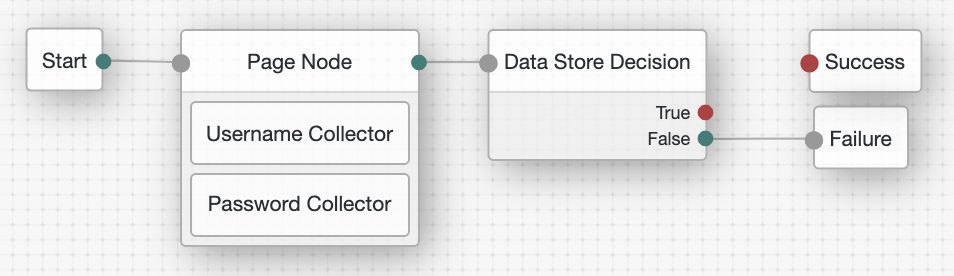
Add the following nodes to the designer area:
-
Connect the nodes as shown:
-
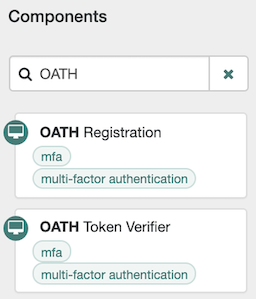
Type 'OATH' to filter the list of nodes in the Components panel box:
-
Drag an OATH Token Verifier node and an OATH Registration node onto the designer area.
-
For both OATH nodes, set the OATH Algorithm property to TOTP, and connect to the existing nodes as follows:
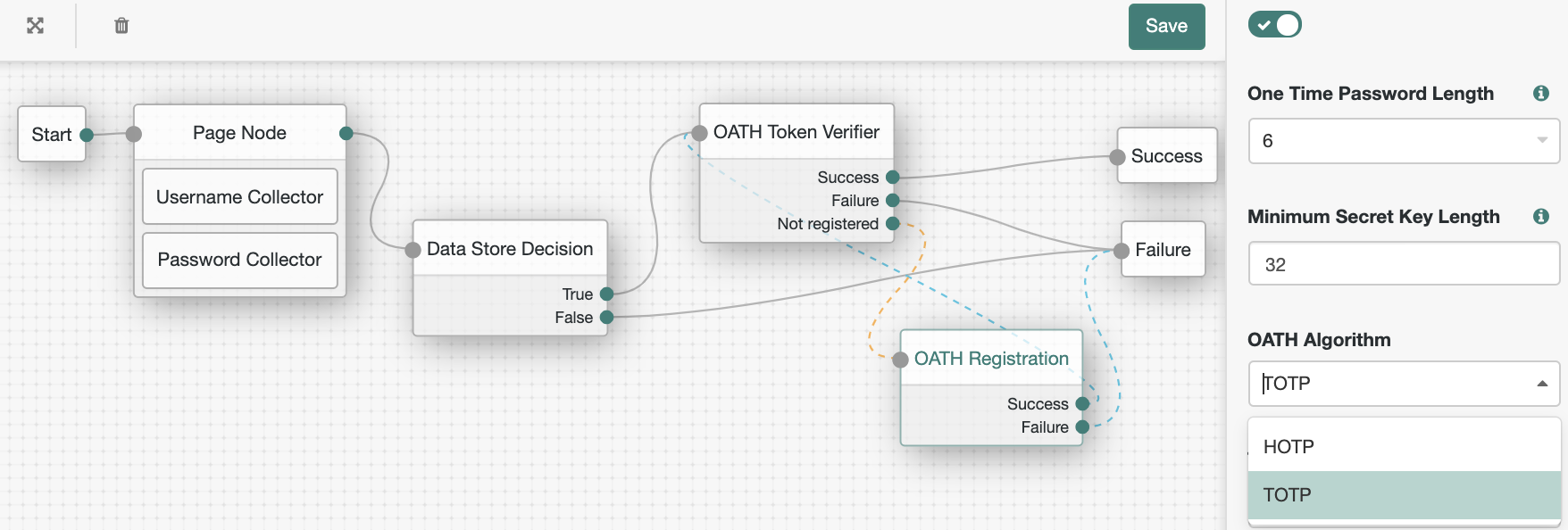
The value for OATH Algorithm must be the same for both nodes. For this example, select TOTP to generate a new OTP at a specified time step interval.
-
Save your changes.
Note that the tree you have created is a simple example for the purposes of demonstrating a basic OATH authentication journey. In a production environment, you could include additional nodes, such as:
- MFA Registration Options node
-
Provides options for users to register a multi-factor authentication device, get an authenticator app, or skip the registration process.
- Opt-out Multi-Factor Authentication node
-
Sets an attribute in the user’s profile which lets them skip multi-factor authentication.
- Recovery Code Display node
-
Lets a user view recovery codes to use in case they have lost or damaged their registered authenticator device.
- Retry Limit Decision node
-
Lets a journey loop a specified number of times, for example, to allow a user to retry entering their OATH token.
For information about how to configure these nodes, see Authentication nodes configuration reference.
-
Test your authentication tree as follows:
-
Log out of AM, and then go to a URL similar to the following:
https://openam.example.com:8443/openam/XUI/?realm=alpha&service=myAuthTree#login -
Log in using the username and password. For example, enter
demo, and the passwordCh4ng31t. -
On successful login, if the screen displays a QR code, you’ll need to register your device.
Follow the instructions in Authenticator apps.
-
Follow the procedure described in Authenticate with a one-time password to verify that you can authenticate using an authenticator app.
-
Authenticate with a one-time password
This example task assumes the following prerequisites:
-
The authentication tree is set up as described in Create a tree for one-time password authentication.
-
You have successfully logged in with valid credentials.
-
You have registered your device for ForgeRock Authenticator (OATH) authentication.
Follow these steps to complete one-time password (OTP) authentication:
-
On your registered device, open your authenticator app and tap the OTP section for the account matching the user ID:

-
Note the OTP that is displayed on the screen. This is automatically refreshed at an interval defined in the OATH Token Verifier node. If the animated timer indicates the OTP is close to expiry, wait until a new OTP is generated.
-
On the ForgeRock Authenticator (OATH) page in AM, enter the OTP that the authenticator app generated on your phone, and click Submit:
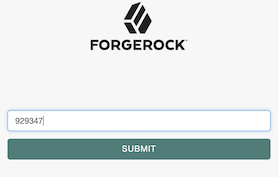
AM displays the user’s profile page.