Windows desktop single sign-on for PingOne Advanced Identity Cloud
PingGateway helps you achieve Windows desktop single sign-on (WDSSO) for Advanced Identity Cloud PingGateway runs in the Windows domain and validates Kerberos tickets.
With WDSSO, after the end user signs on to their Windows desktop environment they authenticate to Advanced Identity Cloud without signing on again.
This page describes the flow and the high-level steps to set up WDSSO for Advanced Identity Cloud. It links to other pages in the Advanced Identity Cloud, PingGateway, and authentication node documentation for detailed implementation instructions.
WDSSO authentication flow
The following sequence diagram illustrates Advanced Identity Cloud authentication with WDSSO. It assumes the end user signed on to their Windows desktop environment and the application they’re using redirected them to the Advanced Identity Cloud identity assertion journey to authenticate.
This diagram omits optional steps like adding or updating claims in the JWTs or in the Kerberos request and response.
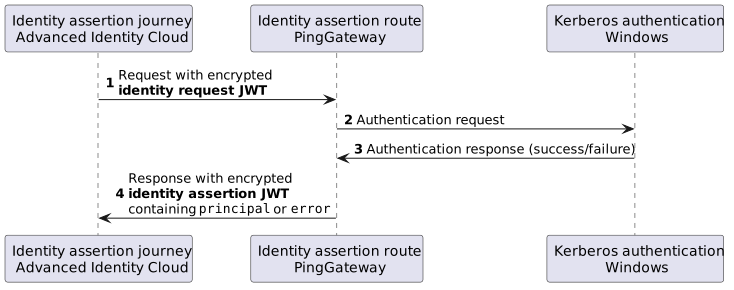
The explanation of each step follows:
-
The Identity Assertion node in the journey redirects to the PingGateway identity assertion route.
This route uses an
IdentityAssertionHandlerwith aKerberosIdentityAssertionPluginfor WDSSO to validate and consume the identity request JWT. -
The PingGateway identity assertion handler consumes the JWT and the
KerberosIdentityAssertionPluginin the route validates the Windows Kerberos ticket. -
The Windows service responds to the request from PingGateway.
If the response is HTTP 401 unauthorized, the plugin’s unauthorized response handler can redirect the end user to sign on again.
-
The
KerberosIdentityAssertionPluginan encrypted identity assertion JWT with claims for the authentication response and returns this to the identity assertion journey.On successful authentication, the JWT includes the
principalclaim, which the Identity Assertion node maps to the shared node stateusernameattribute by default.The journey continues processing the authentication response and finally redirects the end user back to the application.
Configuration steps
Complete the following high-level configuration steps to set up WDSSO with Advanced Identity Cloud as the IdP:
-
In Advanced Identity Cloud, create an encryption key ESV for the JWTs exchanged with PingGateway.
Record the key value for use in the PingGateway configuration.
-
In Advanced Identity Cloud, use the AM admin UI to configure an Identity Assertion service with PingGateway as the identity assertion server.
-
Map the shared encryption key to a secret label aligned with the Shared Encryption Secret of the Identity Assertion service you configured.
-
In Advanced Identity Cloud, create an identity assertion journey with an Identity Assertion node configured to route requests to the PingGateway identity assertion route.
-
In PingGateway, set up the encryption key you created as an ESV in Advanced Identity Cloud as a secret for use when encrypting and decrypting JWTs.
-
In PingGateway, configure an identity assertion route to validate identity request JWTs, interact with the Windows service, and return identity assertion JWTs.
Use a KerberosIdentityAssertionPlugin as the identity assertion plugin for the route.
After completing these steps, you have configured WDSSO with Advanced Identity Cloud as the IdP.
Learn more
Find more information and detailed implementation instructions in the following documentation.
| Resource | Describes how to configure |
|---|---|
Identity Assertion node reference |
Advanced Identity Cloud with an encryption key, an identity assertion service, and an identity assertion journey. |
An identity assertion route to process identity request and assertion JWTs. |
|
An identity assertion plugin to interact with a Kerberos ticket service on Windows. |