MCP security gateway
Model Context Protocol (MCP) offers an open standard to connect artificial intelligence (AI) agents with AI servers. By exposing services over MCP, you make them usable by AI agents.
The challenge, however, consists in implementing an appropriate, consistent, documented, and adaptable security model across the service assets you expose over MCP. PingGateway helps you meet this challenge as an MCP gateway, protecting MCP servers to:
-
Allow only valid MCP requests.
-
Audit MCP requests and actors.
-
Throttle request rates.
-
Enforce coarse-grained OAuth 2.1 security controls.
-
Enforce fine-grained access control policies with PingOne Authorize, PingAuthorize, PingOne Protect, and Advanced Identity Cloud.
-
Perform token transformation mapped to your security models.
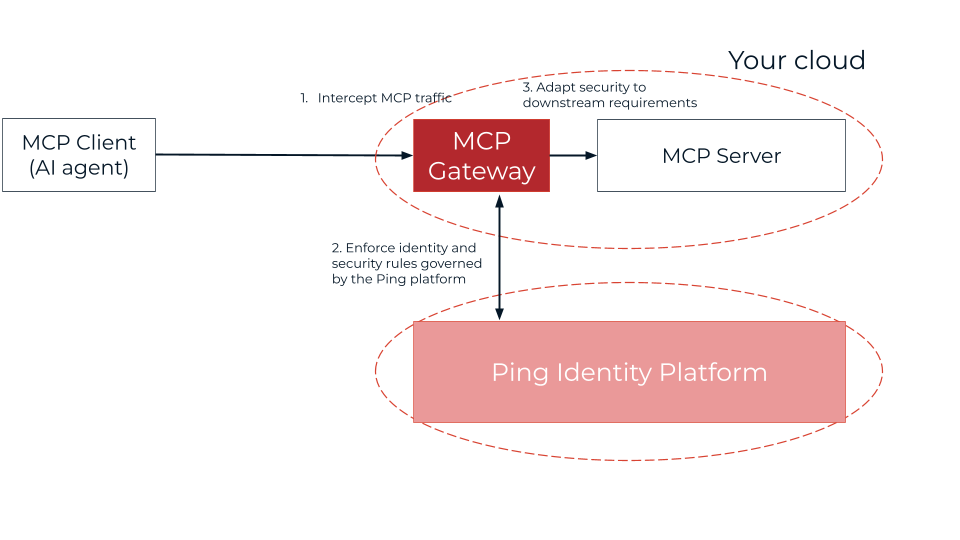
The following diagram illustrates the flow of an MCP request through PingGateway as the MCP gateway to an MCP server:
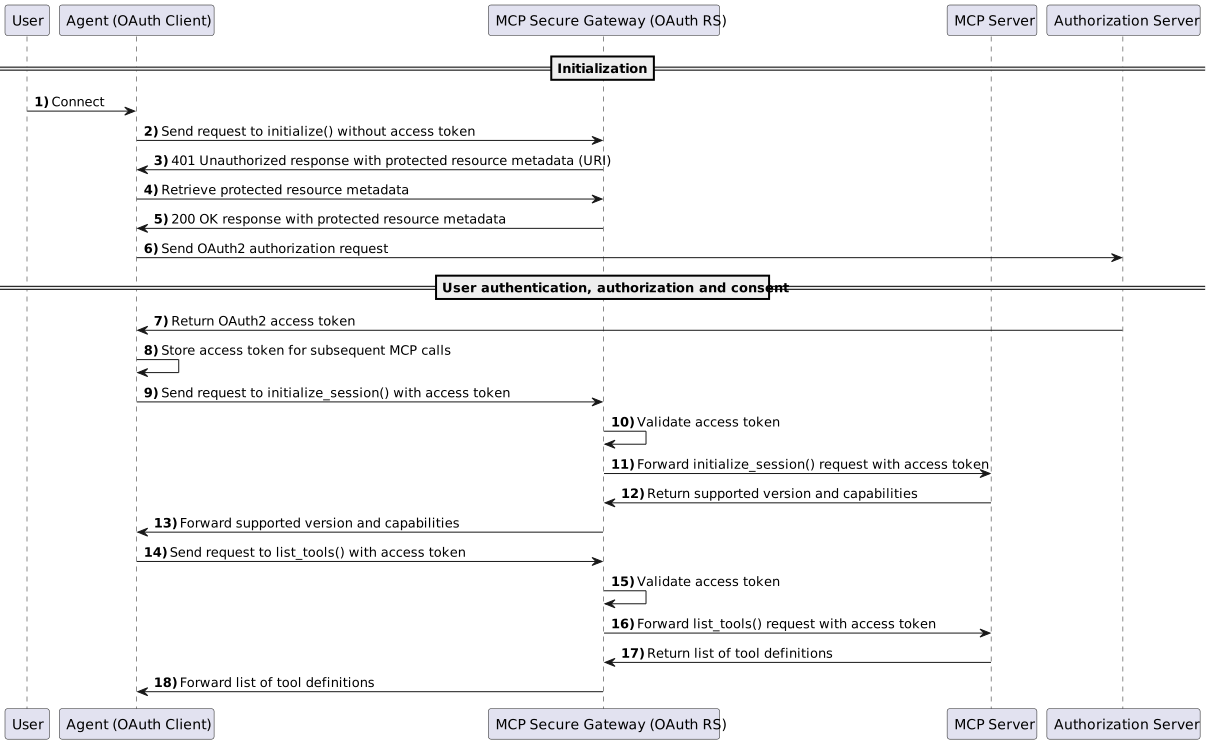
Business teams can focus on accelerating AI adoption in the business while identity and access management and security teams address security.
| This feature has Evolving interface stability. It’s subject to change without notice, even in a minor or maintenance release. |
This page describes how to use PingGateway to protect a sample MCP server. Complete the preparation, then follow the tutorial for your OAuth 2.1 authorization server (AS): PingOne or PingOne Advanced Identity Cloud. The same approach works with other OAuth 2.1 authorization servers, including PingAM. When you understand how a tutorial works, you can adapt the pattern to protect your own MCP servers.
Goals
When you complete a tutorial, you learn:
-
How to use PingGateway to protect an MCP server.
-
How to create a route to audit, protect, and validate MCP requests.
-
How PingGateway acts as an MCP gateway and resource server in an MCP security architecture.
What you’ll do
Start by preparing the sample MCP software. After it works on your computer, follow the tutorial for your AS to protect the MCP server with PingGateway.
The tutorials assume you already have PingGateway and the AS set up, and only need to configure them for MCP.
The full example has two parts:
-
Prepare the sample MCP software:
By completing these tasks, you show the sample MCP software works on your computer without PingGateway.
-
Protect the sample MCP server with PingGateway:
By following a tutorial, you show how to use PingGateway in an MCP security architecture.
Preparation
Before trying a tutorial, prepare the sample MCP software to make sure it works on your computer.
Preparation task 1: Install software for the tutorials
-
Install the prerequisite software on your computer:
-
Download the sample MCP agent and server software from Ping Identity Download Center and unpack it on your computer.
Preparation task 2: Run the sample MCP server
The sample MCP server runs as a Python script.
-
In the directory where you unpacked the sample MCP server, add the Python requirements.
Install the requirements based on the
requirements-lock.txtfile provided with the sample MCP server:$ pip install -r requirements-lock.txt -
In the directory where you unpacked the sample MCP server, run the sample MCP server script:
$ uvicorn sample-mcp-server:app --host 0.0.0.0 --port 8000 --log-level infoIf necessary, learn about additional options in the
README.mdfile.
You have successfully started the sample MCP server.
Preparation task 3: Run the MCP agent
The sample MCP agent uses Meta’s Llama 3.2 model. Run it in a different terminal window from the sample MCP server.
-
Download, install, and run Ollama if you haven’t already done so.
-
Install the Ollama model for the sample MCP server locally:
$ ollama pull llama3.2:1b -
Run Ollama.
-
In the directory where you unpacked the sample MCP agent, add the Python requirements.
Install the requirements based on the
requirements-lock.txtfile provided with the sample MCP agent:$ pip install -r requirements-lock.txt -
In the directory where you unpacked the sample MCP agent, run the sample MCP agent script:
$ python3 sample-mcp-agent.py --mcp-server-url http://localhost:8000If necessary, learn about additional options in the script help:
python3 sample-mcp-agent.py --help -
In the console where the sample MCP agent runs, notice the available commands:
[INFO] Discovered tools [http://localhost:8000]:
[INFO] - geocode: Returns a list of objects containing city name, latitude, longitude, country, admin1 (region), and timezone for each matching city
[INFO] - forecast_daily: Returns a multi-day weather forecast for a given location
[INFO] - forecast_periods: Returns weather forecasts for each representative period of the current day
[INFO] - forecast_hourly: Returns an hourly weather forecast for the current day
[INFO] - weather_at_time: Returns the forecasted weather for a specific time at a given location

Enter your message (or 'exit|quit|q'):
This shows the sample MCP agent can connect to the sample MCP server.
-
Enter a prompt and get a response from the MCP server, then exit the agent.
The following example uses the
forecast_dailytool to get the daily forecast for Tokyo:Enter your message (or 'exit|quit|q'): What is the daily forecast for Tokyo? Agent: The daily forecast for Tokyo is: <MCP server response with forecast details> Enter your message (or 'exit|quit|q'): exit User requested exit. Goodbye!
You have successfully run the sample MCP agent with the sample MCP server.