Password replay and PingOne Advanced Identity Cloud
Password replay brings single sign-on (SSO) to legacy web applications without the need to edit, upgrade, or recode them.
Use PingGateway with an appropriate PingOne Advanced Identity Cloud journey to capture and replay username password credentials. PingGateway and PingOne Advanced Identity Cloud share a secret key to encrypt and decrypt the password and keep it safe.
When running AM in a self-hosted deployment, read Password replay with AM.
Request flow
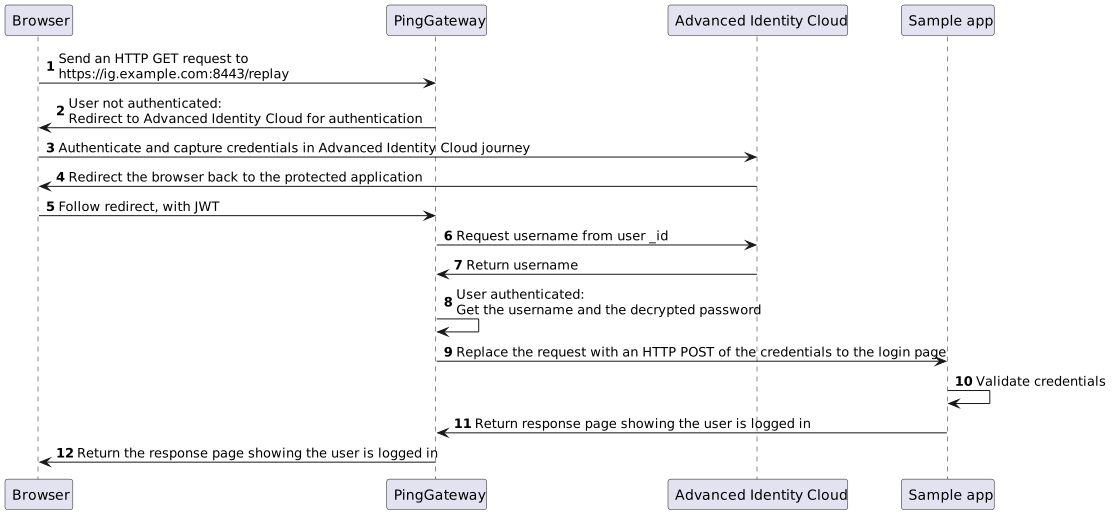
-
PingGateway intercepts the browser’s HTTP GET request.
-
PingGateway redirects the user to the appropriate PingOne Advanced Identity Cloud journey for authentication.
-
PingOne Advanced Identity Cloud authenticates the user and stores the encrypted password in a JWT.
-
PingOne Advanced Identity Cloud redirects the browser back to the protected application with the JWT.
-
PingGateway intercepts the browser’s HTTP GET request again:
-
The user is authenticated.
-
PingGateway gets the password from the JWT and decrypts it.
-
PingGateway gets the username from PingOne Advanced Identity Cloud based on the user
_id.
-
-
PingGateway replaces the request with an HTTP POST to the application, taking the credentials from the context.
-
The sample application validates the credentials from the HTTP POST request.
-
The sample application responds with the user’s profile page.
-
PingGateway passes the response from the sample application to the browser.
Tasks
Before you begin
-
Make sure you can access the PingOne Advanced Identity Cloud tenant as an administrator.
-
Choose the realm to use in the PingOne Advanced Identity Cloud tenant.
The following tasks use the
alpharealm. -
Prepare hostnames for PingGateway and the sample application.
The following tasks use
ig.example.comfor PingGateway andapp.example.comfor the sample application.
Task 1: Run the sample application
-
Open a command-line window and start the sample application:
$ java -jar PingGateway-sample-application-2026.9.0.jarThe sample application runs in the foreground until you stop it.
Task 2: Install PingGateway
This task installs PingGateway, but doesn’t configure it for password replay yet.
-
Configure PingGateway to trust the sample application for HTTPS and access sample application static resources.
-
Set a top-level
sessionproperty inconfig.jsonalongside theheapandconnections:"session": { "type": "InMemorySessionManager", "config": { "cookie": { "sameSite": "none", "secure": true } } }PingOne Advanced Identity Cloud prompts the browser to send a session cookie on successful authentication.
-
When
sameSiteisstrictorlax, the browser doesn’t send the session cookie with the nonce used in validation. If PingGateway doesn’t find the nonce, it assumes that the authentication failed. -
When
secureisfalse, the browser is likely to reject the session cookie.
Restart PingGateway to read the updated configuration.
-
-
Add the following route to PingGateway:
- Linux
-
$HOME/.openig/config/routes/01-static.json - Windows
-
%appdata%\OpenIG\config\routes\01-static.json
{
  "handler": {
    "type": "Chain",
    "config": {
      "filters": [
        {
          "type": "StaticRequestFilter",
          "config": {
            "method": "POST",
            "uri": "https://app.example.com:8444/login",
            "form": {
              "username": [
                "demo"
              ],
              "password": [
                "Ch4ng31t"
              ]
            }
          }
        }
      ],
      "handler": "ReverseProxyHandler"
    }
  },
  "condition": "${find(request.uri.path, '^/static')}"
}
Source: 01-static.json
Notice the following features of the route:
-
The route matches requests to
/static. -
The StaticRequestFilter replaces the request with an HTTP POST, specifying the resource to post the request to, and a form to include in the request. The form includes credentials for the username
demo. -
The ReverseProxyHandler replays the request to the sample application.
-
Verify sample application access through PingGateway by browsing https://ig.example.com:8443/static.
You might have used a self-signed certificate for the PingGateway HTTPS configuration. If your browser doesn’t recognize the PingGateway certificate and flags it as a security risk, choose to continue.
PingGateway displays a basic profile page for the
demouser.
PingGateway now has the configuration required as a basis on which to build password replay.
Task 3: Register PingGateway with PingOne Advanced Identity Cloud
If you haven’t yet registered PingGateway with PingOne Advanced Identity Cloud, follow these steps:
-
Configure an
Agentjourney PingGateway uses to authenticate with PingOne Advanced Identity Cloud. -
Register a profile for PingGateway.
Field Value Description ID
ig_agentThe PingGateway username when connecting to the
AmServicein PingOne Advanced Identity Cloud.Password
passwordThe PingGateway password when connecting to the
AmServicein PingOne Advanced Identity Cloud.In production tenants, use a strong password.
Redirect URLs
https://ig.example.com:8443/replay/redirectThe PingGateway endpoint to process the encrypted JWT from PingOne Advanced Identity Cloud.
PingOne Advanced Identity Cloud is now ready for PingGateway to connect. You’ll share the credentials with PingGateway in Task 6: Configure PingGateway.
Task 4: Prepare a shared secret
PingGateway and Advanced Identity Cloud share a secret symmetric key to encrypt and decrypt the password.
The Advanced Identity Cloud authentication journey you will configure includes the JWT Password Replay node
to capture the password in an encrypted JWT it sends to PingGateway.
The JWT Password Replay node relies on a secret label of the form
am.authentication.nodes.jwt.replay.identifier.encryption to get the shared secret key.
This example uses pinggateway as the identifier and stores is as an ESV secret.
PingGateway stores the secret in a PEM file, so the following steps do that first:
-
Create a
secretsfolder next to the PingGateway instance folder to store the shared secret key:$ mkdir secrets -
Generate a base64-encoded shared secret using the filename the JWT Password Replay node requires:
$ echo "-----BEGIN AES SECRET KEY-----" > secrets/am.authentication.nodes.jwt.replay.pinggateway.encryption
$ head -c32 /dev/urandom | base64 >> secrets/am.authentication.nodes.jwt.replay.pinggateway.encryption
$ echo "-----END AES SECRET KEY-----" >> secrets/am.authentication.nodes.jwt.replay.pinggateway.encryption
The file contains the base64-encoded shared secret in PEM format.
-
Store the shared secret key as an ESV in PingOne Advanced Identity Cloud.
-
Sign on to the Advanced Identity Cloud admin UI as an administrator and go to Tenant Settings > Global Settings > Environment Secrets & Variables.
-
Click Secrets > + Add Secret.
-
In the Add a Secret modal, enter the following settings:
Field Value Description Name
esv-password-replay-shared-secretThe ESV name for the secret.
Value
Base64-encoded shared secret from the PEM file
The base64-encoded random AES 256-bit key.
-
Click Save to create the variable.
PingOne Advanced Identity Cloud can now access the secret through the ESV secret. PingGateway will use the secret in the local PEM file in Task 6: Configure PingGateway.
-
You have successfully prepared the shared secret for Advanced Identity Cloud and PingGateway.
Task 5: Prepare PingOne Advanced Identity Cloud
Update the PingOne Advanced Identity Cloud validation service for PingGateway and add a journey to use the script and a mapping for the secret.
-
Sign on to the Advanced Identity Cloud admin UI as an administrator and go to Native Consoles > Access Management, select Services, and the following Valid goto URL Resources to the Validation Service:
-
https://ig.example.com:8443/* -
https://ig.example.com:8443/*?*
-
-
Go to Journeys, click + New Journey, and create a journey named
Password replaywhose Identity Object ismanaged/alpha_user. -
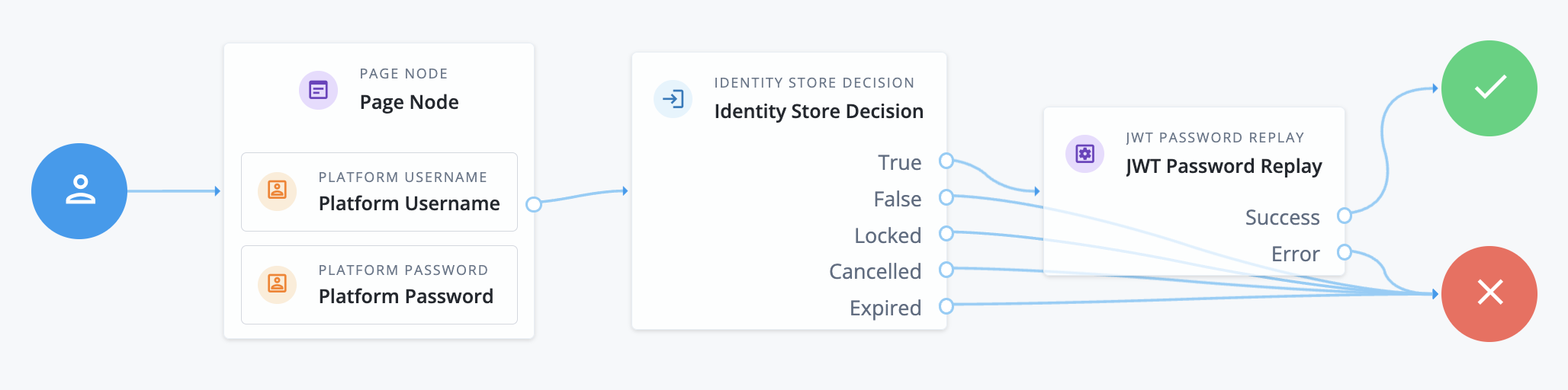
Configure and save the journey with the nodes shown in this screenshot:
-
The Page node presents a page with input fields to prompt for the username and password.
-
The Platform Username node collects and injects the
userNameinto the shared node state. -
The Platform Password node collects and injects the
passwordinto the shared node state.
-
-
The Identity Store Decision node uses the username and password to determine whether authentication is successful.
-
The JWT Password Replay node stores the password in a JWT encrypted with the shared secret key. Its Encryption Key Secret Label Identifier is
pinggateway.
-
-
In the AM admin UI, go to Secret Stores > ESV > Mappings and add the following mapping to let the JWT Password Replay node access the shared secret:
- Secret Label
-
am.authentication.nodes.jwt.replay.pinggateway.encryption - Active Alias
-
esv-password-replay-shared-secret
Make sure you save the mapping.
-
In your browser’s privacy or incognito mode, go to the new journey and make sure you can sign on with the credentials of a known user.
PingOne Advanced Identity Cloud authenticates you and displays the user profile page.
You have successfully prepared the journey and can now configure PingGateway to replay the password.
Task 6: Configure PingGateway
The password replay configuration ensures PingGateway can connect to PingOne Advanced Identity Cloud, get the shared secret to decode the JWT with the password, and replay the credentials to the sample application.
-
Set an environment variable locally on the computer running PingGateway to access the base64-encoded agent password:
$ export AGENT_SECRET_ID='cGFzc3dvcmQ='PingGateway retrieves the password with a SystemAndEnvSecretStore, which requires it to be base64-encoded.
The password must match the agent profile password you set in PingOne Advanced Identity Cloud. PingGateway uses the password to connect to PingOne Advanced Identity Cloud.
-
Add a route to PingGateway to serve the sample application .css and other static resources if you haven’t already:
- Linux
-
$HOME/.openig/config/routes/00-static-resources.json - Windows
-
%appdata%\OpenIG\config\routes\00-static-resources.json
Show route
{
  "name" : "00-static-resources",
  "baseURI" : "https://app.example.com:8444",
  "condition": "${find(request.uri.path,'^/css') or matchesWithRegex(request.uri.path, '^/.*\\\\.ico$') or matchesWithRegex(request.uri.path, '^/.*\\\\.gif$')}",
  "handler": "ReverseProxyHandler"
}
Source: 00-static-resources.json
This route correctly sets the content types for the static resources used by the sample application.
-
Add a route for password replay.
- Linux
-
$HOME/.openig/config/routes/04-replay-aic.json - Windows
-
%appdata%\OpenIG\config\routes\04-replay-aic.json
Show route
{
    "name": "04-replay-aic",
    "condition": "${find(request.uri.path, '^/replay')}",
    "properties": {
        "amRealm": "/alpha",
        "tenantHostname": "myTenant.forgeblocks.com"
    },
    "heap": [
        {
            "name": "SystemAndEnvSecretStore-1",
            "type": "SystemAndEnvSecretStore"
        },
        {
            "name": "AmService-1",
            "type": "AmService",
            "config": {
                "realm": "&{amRealm}",
                "agent": {
                    "username": "ig_agent",
                    "passwordSecretId": "agent.secret.id"
                },
                "secretsProvider": "SystemAndEnvSecretStore-1",
                "url": "https://&{tenantHostname}/am/"
            }
        },
        {
            "name": "PemPropertyFormat-1",
            "type": "PemPropertyFormat"
        },
        {
            "name": "FileSystemSecretStore-1",
            "type": "FileSystemSecretStore",
            "config": {
                "format": "PLAIN",
                "directory": "&{ig.instance.dir}/../secrets/",
                "mappings": [
                    {
                        "secretId": "am.authentication.nodes.jwt.replay.pinggateway.encryption",
                        "format": "PemPropertyFormat-1"
                    }
                ]
            }
        },
        {
            "name": "CapturedUserPasswordFilter-1",
            "type": "CapturedUserPasswordFilter",
            "config": {
                "ssoToken": "${contexts.ssoToken.value}",
                "keySecretId": "am.authentication.nodes.jwt.replay.pinggateway.encryption",
                "secretsProvider": "FileSystemSecretStore-1",
                "amService": "AmService-1"
            }
        }
    ],
    "handler": {
        "type": "Chain",
        "config": {
            "filters": [
                {
                    "name": "CrossDomainSingleSignOnFilter-1",
                    "type": "CrossDomainSingleSignOnFilter",
                    "config": {
                        "redirectEndpoint": "/replay/redirect",
                        "authCookie": {
                            "path": "/replay",
                            "name": "ig-token-cookie"
                        },
                        "amService": "AmService-1",
                        "authenticationService": "Password replay"
                    }
                },
                {
                    "name": "UserProfileFilter-1",
                    "type": "UserProfileFilter",
                    "config": {
                        "username": "${contexts.ssoToken.info.uid}",
                        "userProfileService": {
                            "type": "UserProfileService",
                            "config": {
                                "amService": "AmService-1",
                                "profileAttributes": [
                                    "username"
                                ]
                            }
                        }
                    }
                },
                {
                    "name": "PasswordReplayFilter-1",
                    "type": "PasswordReplayFilter",
                    "config": {
                        "loginPage": "${true}",
                        "credentials": "CapturedUserPasswordFilter-1",
                        "request": {
                            "method": "POST",
                            "uri": "https://app.example.com:8444/login",
                            "form": {
                                "username": [
                                    "${contexts.userProfile.username}"
                                ],
                                "password": [
                                    "${contexts.capturedPassword.value}"
                                ]
                            }
                        }
                    },
                    "capture": [
                        "all"
                    ]
                }
            ],
            "handler": "ReverseProxyHandler"
        }
    }
}
Source: 04-replay-aic.json.
The route:
-
Matches requests whose path starts with
/replay. -
Sets a
tenantHostnameproperty for the PingOne Advanced Identity Cloud tenant.Update the URL to target your tenant.
-
Connects to PingOne Advanced Identity Cloud as
ig_agentwith theagent.secret.idpassword from the localAGENT_SECRET_IDenvironment variable. -
Loads the
am.authentication.nodes.jwt.replay.pinggateway.encryptionshared secret key from the PEM file.Make sure you’re using the shared secret key you stored in the PingOne Advanced Identity Cloud ESV. PingOne Advanced Identity Cloud uses the secret key to encrypt the password to replay. PingGateway uses the secret key to decrypt the password to replay.
-
Extracts the captured password from the SSO token context and decrypts it with the shared secret key.
-
Uses a CrossDomainSingleSignOnFilter to redirect to the PingOne Advanced Identity Cloud
Password replayjourney for authentication, getting the authentication information from theig-token-cookie. -
Queries the access management service in PingOne Advanced Identity Cloud to retrieve the username for signing on.
You can retrieve other profile attributes with the UserProfileFilter, such as the email address or first and last names. The sample application expects the username in this example, so the route gets the username.
-
Signs on to the sample application with the username and password.
-
Returns the result to the browser.
In production, remove
"capture": ["all"]from the PasswordReplayFilter to avoid recording credentials in the logs. -
Restart PingGateway to read the secrets and load the new route.
In the PingGateway output, make sure the route loaded successfully with no errors or warnings:
@system - Loaded the route with id '04-replay-aic' registered with the name '04-replay-aic'.
You have successfully configured PingGateway to replay the password.
Task 7: Create a test user in PingOne Advanced Identity Cloud
The sample application validates the credentials for password replay. It must recognize the username and password you use.
The sample application has built-in username-password combinations. The username and password credentials shown in the following steps are one of the built-in pairs.
-
In your browser’s privacy or incognito mode, go to the default login journey for the realm you’re using.
For example,
https://myTenant.forgeblocks.com/am/XUI/?realm=/alpha#/. -
Click the Create an account link and enter the following settings in the Sign Up page:
Field Value Username
wolkigFirst name
WilhelmLast name
WolkigEmail Address
Your email. PingOne Advanced Identity Cloud sends a confirmation mail to this address.
Password
Geh3imnis!Select a security question
What’s your favorite color?Answer
Red -
Click Next to complete account creation and view the user profile.
-
Sign off.
You have successfully created a test user in PingOne Advanced Identity Cloud with credentials the sample application recognizes.
Validation
-
In your browser’s privacy or incognito mode, go to https://ig.example.com:8443/replay/.
PingGateway redirects to the PingOne Advanced Identity Cloud journey.
-
Sign on as user
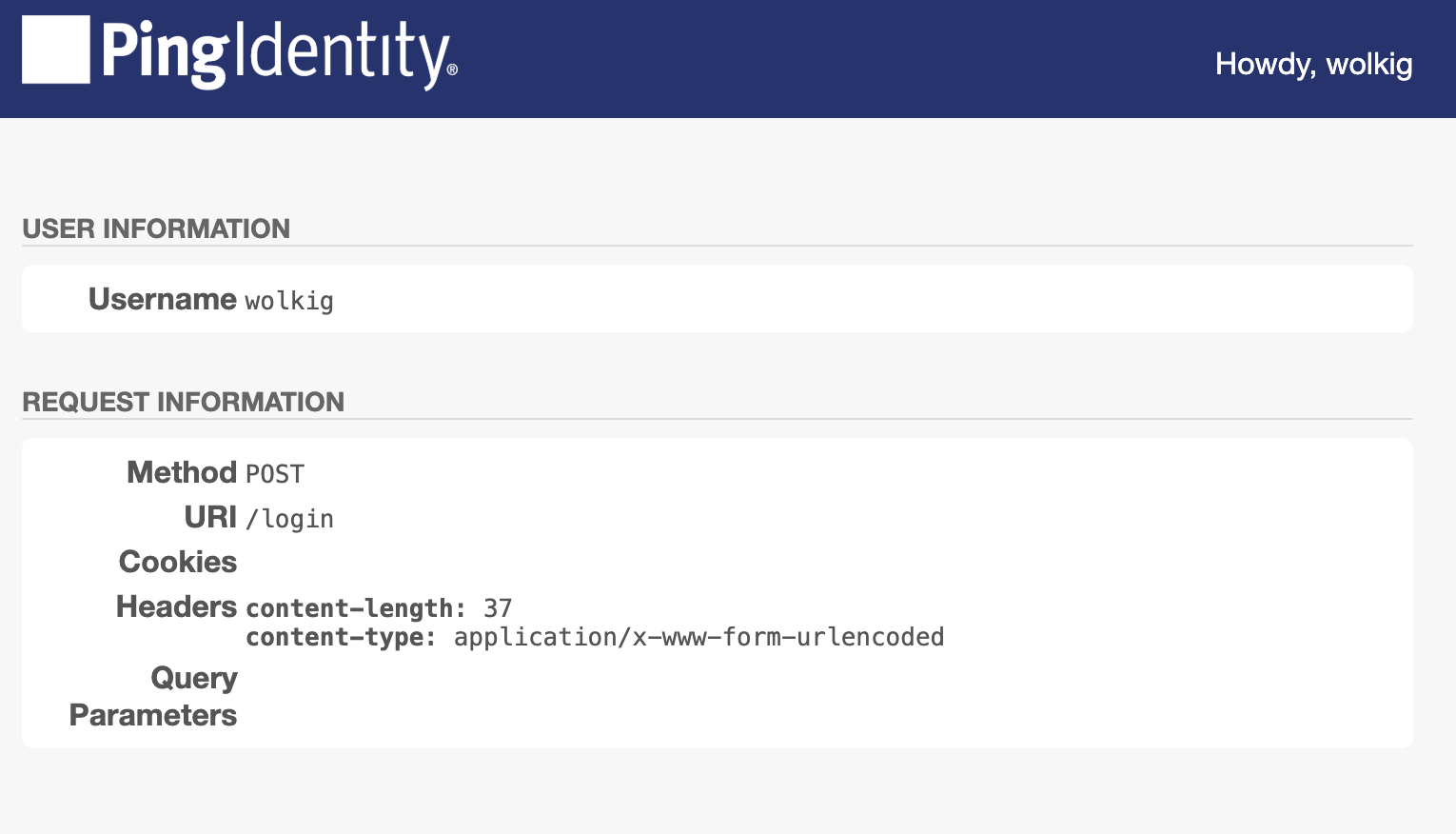
wolkigwith passwordGeh3imnis!.PingGateway successfully replays the credentials against the sample application. The sample application displays its user profile page:
-
Review the PingGateway output.
On success, the output displays the credentials and the profile page:
...INFO  o.f.o.d.c.C.c.PasswordReplayFilter-1 @04-replay-aic -

[CONTINUED]--- (filtered-request) exchangeId:<id> - transactionId:<id> --->

[CONTINUED]POST https://app.example.com:8444/login HTTP/1.1
...

[CONTINUED]password=Geh3imnis%21&username=wolkig

...INFO  o.f.o.d.c.C.c.PasswordReplayFilter-1 @04-replay-aic -

[CONTINUED]<--- (response) exchangeId:<id> - transactionId:<id> ---

[CONTINUED]HTTP/1.1 200 OK
...

[CONTINUED]<!DOCTYPE html>
...
You have successfully demonstrated password replay with PingGateway and PingOne Advanced Identity Cloud.
If password replay fails, consider the outcome of the HTTP POST from PingGateway to the sample application:
- HTTP 401 Unauthorized
-
PingGateway isn’t replaying the credentials.
Review the PingGateway output to determine whether the username or password is missing when PingGateway replays the credentials.
If the password is missing, make sure PingGateway and PingOne Advanced Identity Cloud share the same AES secret key.
- HTTP 403 Forbidden
-
PingGateway isn’t replaying the right credentials.
Make sure you’re using a username-password combination known to the sample application.