Enabling HTTP metrics in the Periodic Stats Logger
When you enable HTTP metrics in the Periodic Stats Logger, the PingAuthorize Server captures detailed information about how incoming HTTP requests flow through the HTTP(S) connection handler. The server collects these metrics at rolling 1-minute, 5-minute, and 15-minute intervals to help observe short-term traffic spikes and longer performance trends.
The metrics fall into the following categories:
-
Socket metrics: Show how often new client sockets are opened and how long they remain active. These values can help identify slow clients or situations where the server is holding sockets open longer than expected.
-
Connection metrics: Measure the number of full HTTP connections established and the average duration of those connections. High or increasing connection duration might indicate slow upstream services, network latency, or insufficient server capacity.
-
Queue metrics: Show how many requests spend time waiting in the server’s internal request queue and how long they spend there.
High queue durations often indicate that the server doesn’t have enough HTTP connection handler threads to process requests. If you consistently see elevated queue times, consider increasing the number of handler threads.
Queue duration values can be unreliable when HTTP connections reuse sockets.
-
Request and response metrics: Capture the rate of inbound requests and outbound responses, along with average processing time. These metrics help you understand overall system load and identify trends such as slow-running operations or increasing response latency.
By monitoring these metrics, you can detect performance bottlenecks and troubleshoot issues such as slow responses, queue buildup, or unexpectedly high connection durations.
You can use the PingAuthorize admin console or dsconfig to enable HTTP metrics for the Periodic Stats Logger.
-
Admin console
-
dsconfig
Steps
-
In the PingAuthorize admin console, go to Configuration > LDAP (Administration and Monitoring) > Plugin Root.
-
Click the Periodic Stats Logger for which you want to enable HTTP metrics.
-
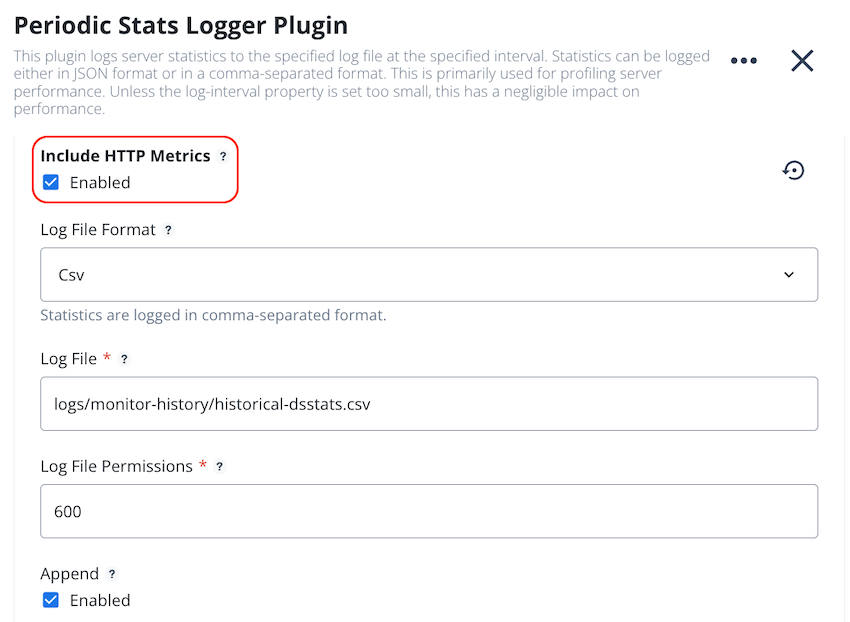
Under Include HTTP Metrics, select the Enabled checkbox.
-
Click Save.
Steps
-
Use the
dsconfig set-plugin-propcommand with the--set include-http-metrics:trueargument.For example:
dsconfig set-plugin-prop \
  --plugin-name "Historical Stats Logger" \
  --set include-http-metrics:true