Collecting support data from the admin console
You can collect support data to aggregate data and send it to a support provider.
About this task
PingDirectory servers provide information about their current state and any problems encountered. If a problem occurs, run the Collect Support Data tool. The tool aggregates all relevant support files into a .zip file that can be sent to a support provider for analysis. The tool also runs data-collector utilities, such as jps, jstack, and jstat, plus other diagnostic tools for the operating system.
The tool can only archive portions of certain log files to conserve space so that the resulting support archive does not exceed the typical size limits associated with e-mail attachments.
The data collected by the Collect Support Data tool can vary between systems. The data collected includes the configuration directory, summaries and snippets from the logs directory, an LDIF of the monitor and RootDSE entries, and a list of all files in the server root.
|
The Collect Support Data task is not recommended on directory servers running in a Docker container because this container has limited memory. If running the Collect Support Data task exhausts the container’s memory, then the server will crash. |
To run this tool from the admin console:
Steps
-
Sign on to the admin console.
-
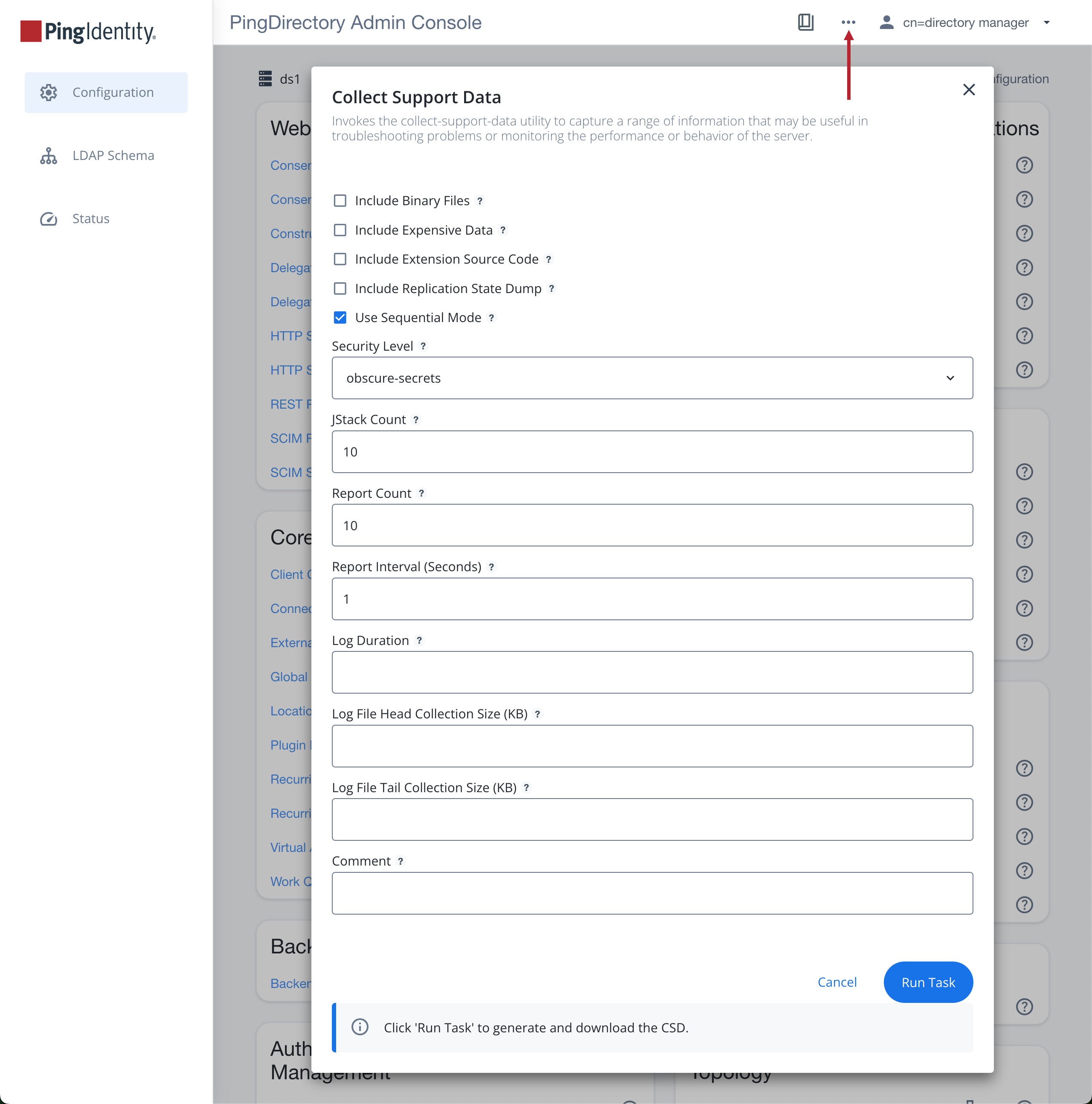
Click the More Options (…) icon on the right side of the top navigation bar and select Download CSD in the list.
-
In the Collect Support Data modal, populate the properties according to the tooltips.
-
Click Run Task.
-
If the modal indicates that the server is running the task, wait for the task to complete. This can take several minutes.
You can optionally cancel the task or let it continue running in the background while you work in the admin console. To access these options, close the modal or click Cancel.
-
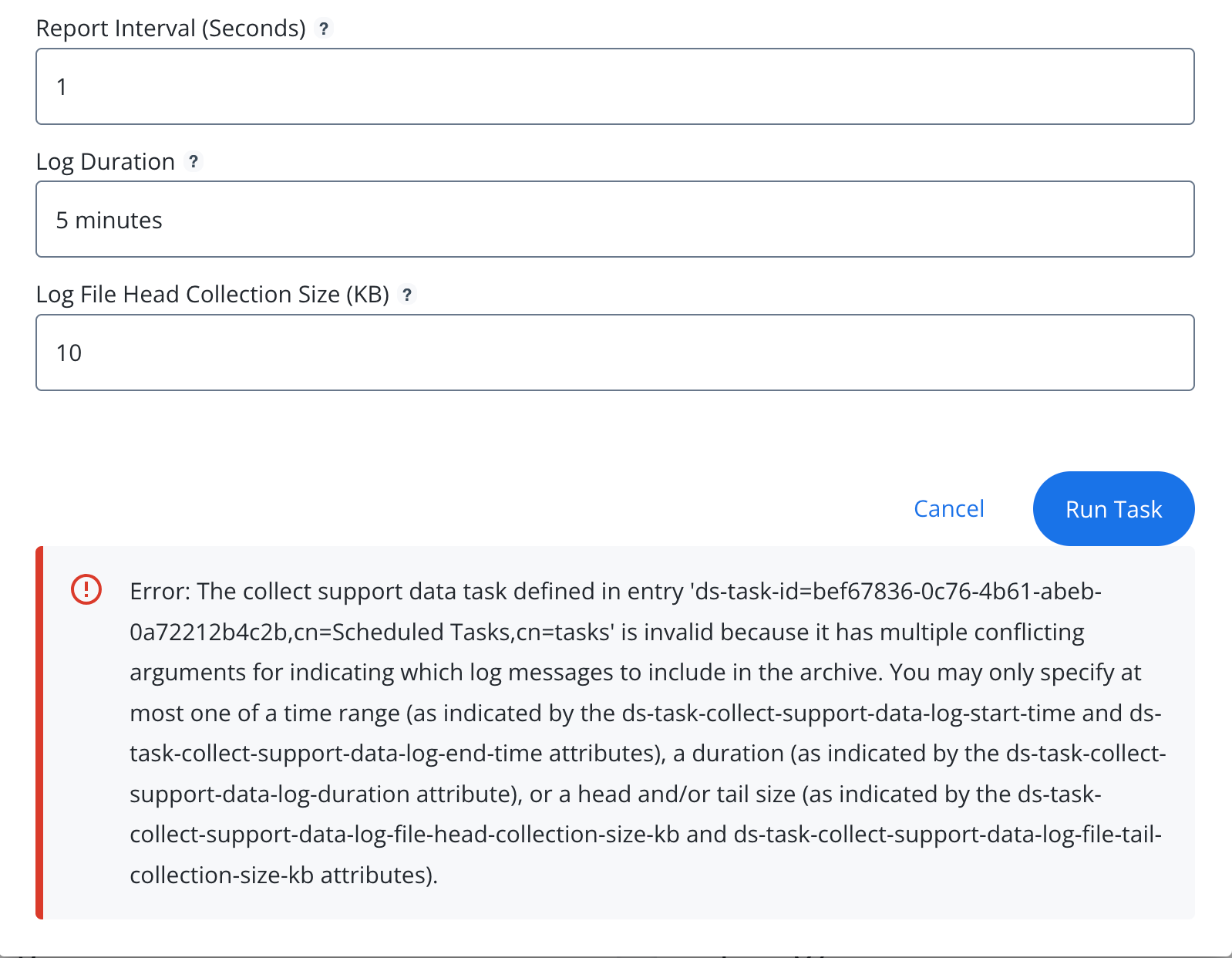
If the task has any configuration errors, an error message displays at the bottom of the modal. Resolve the issues as described to proceed.
-
-
After the task completes, your browser downloads the CSD archive automatically or prompts you to specify a save location (depending on your browser configuration).
You can also find the CSD archive in the
<server-root>/csd-filesdirectory on the server.