Mirroring configuration changes
By default, each server is assigned a unique cluster name during installation. In this mode, configuration changes made using dsconfig or the admin console apply only to the server where the change is made, and must be repeated on every server in the topology. This is the recommended approach in a DevOps model, where server profiles and automation manage configuration.
For on-premise deployments, you can assign all servers in the topology the same cluster name so that configuration changes propagate automatically. Configuration objects that are mirrored across the topology are marked with a cluster ( ) icon on the Configuration page in the admin console. You can also find these configuration objects by running
 bin/dsconfig in Expert mode and viewing the Cluster-Wide Configuration section.
Before you begin
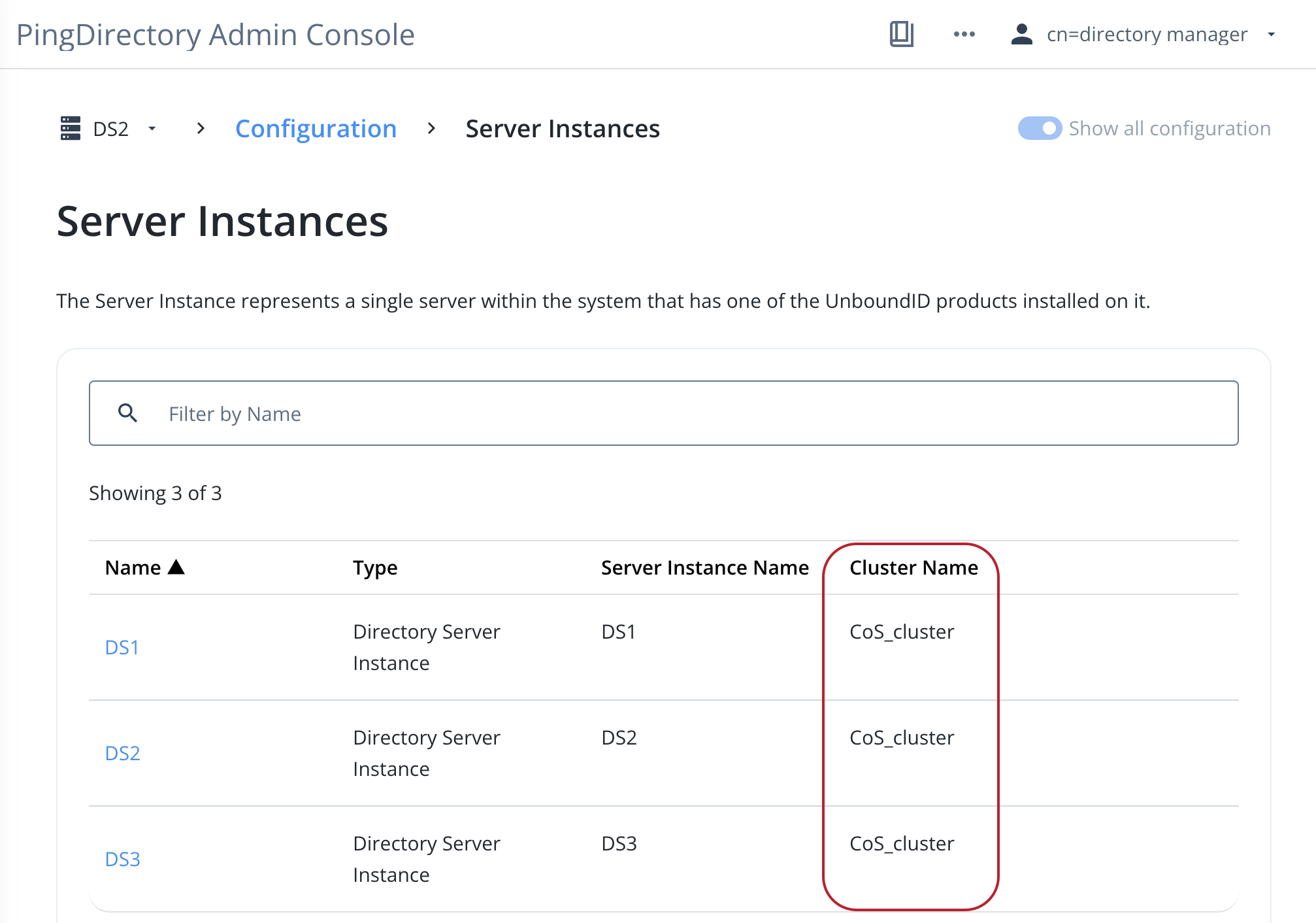
The servers must already be members of the same topology, but data replication isn’t required. To confirm topology membership, go to Configuration > Server Instances. This page lists every server currently in the topology and its cluster name.
Servers join a topology using dsreplication enable, manage-topology, or at setup time. Learn more in steps 1 - 14 of Deploying a basic replication topology.
Steps
-
To enable configuration change mirroring, set the
cluster-nameproperty to the same value on every server in the topology:Choose from:
-
Using the CLI:
-
Run the following command against each server in the topology:
$ bin/dsconfig set-server-instance-prop \
  --instance-name <server-instance-name> \
  --set cluster-name:<shared-cluster-name> \
  --no-prompt
The CLI displays the following message after each successful command execution:
The mirrored operation was applied on the topology

The Directory Server Instance was modified successfully
-
Verify that the value of
cluster-namematches across all topology instances by running the following command on any server in the topology:$ bin/dsconfig list-server-instancesHere’s a sample view of a successfully clustered topology:
Server Instance : Type      : server-instance-name : cluster-name
----------------:-----------:----------------------:-------------
DS1             : directory : DS1                  : CoS_cluster
DS2             : directory : DS2                  : CoS_cluster
-
-
Using the admin console (from any server in the topology):
-
In the sidebar, click Configuration.
-
Enable the Show all configuration toggle.
-
In the Topology list, select Server Instances.
-
On the Server Instances page, select the server name.
-
Update the Cluster Name field and click Save.
-
Repeat steps 4 - 5 for each server in the topology. The value of Cluster Name should match across all servers in the topology, as shown in the following image:
-
-