Managing authentication challenge policies
Configure an authentication challenge policy (ACP) in PingAccess to set the response PingAccess sends when it receives unauthenticated requests to access protected resources.
-
To find where you can manage ACPs in the PingAccess admin console, click Access, then go to Authentication > Authentication Challenge Policies.
-
To create an ACP, complete the following steps.
-
To edit an ACP, expand it and click the Pencil icon. Make your desired edits based on the information in the following section, then click Save to confirm your changes.
-
To delete an ACP, expand it and click the Delete icon.
Steps
-
Click Add Authentication Challenge Policy.
-
In the Name field, enter a unique name for the ACP.
-
(Optional) In the Description field, enter a description for the ACP.
-
(Optional) In the Challenge Response Mapping list, select the type of authentication challenge response you want to create:
Choose from:
- Content Negotiation
-
Allows the user agent to negotiate the form of the authentication challenge response (ACR) with an
Acceptheader field in the request.Additional configuration steps
-
In the Media Types list, select one or more media types to match against the
Acceptheader field in the unauthenticated request.Choose from:
-
application/json -
text/html -
text/plain -
text/xml
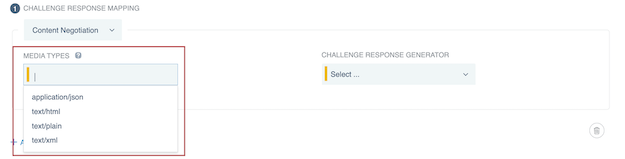
Result:
If the
Acceptheader field in the request matches any of the specified media types, PingAccess applies this mapping, presenting the authentication challenge in the specified format.For an example, check the Content Negotiated Authentication Request system-provided ACP.
-
-
- Header Fields
-
Examines header fields in unauthenticated requests to determine if they match all the name and value patterns you specify.
Additional configuration steps
-
Click Add Row to add one or more rows, then enter a Name and Value Pattern for each row.
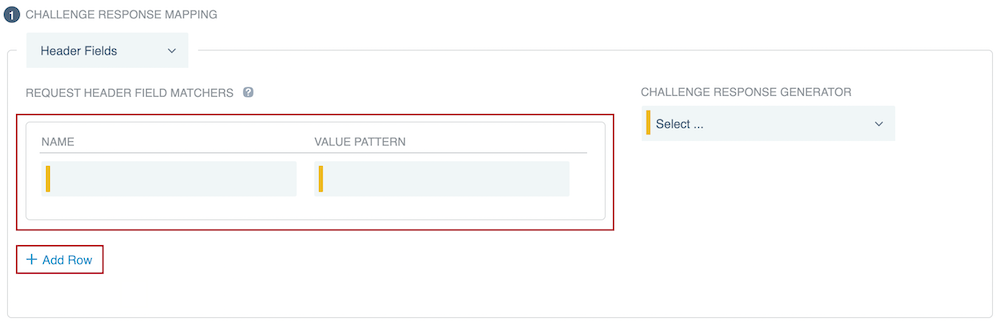
Result:
If all the specified header fields in the request match the specified value patterns, PingAccess applies this mapping.
-
- MS-OFBA
-
Examines
OPTIONS HTTPmethod requests to determine if either:-
The user agent is a client that supports Microsoft’s MS-OFBA protocol.
-
The request has a boolean flag indicating that it supports MS-OFBA.
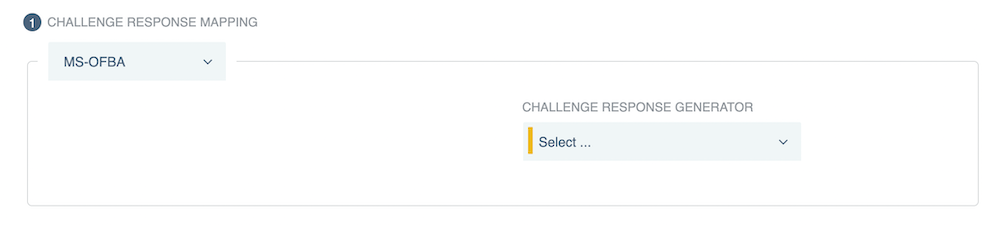
PingAccess provides an MS-OFBA ACP that’s configured automatically on initial setup. The MS-OFBA challenge response mapping is meant to address edge cases as they come up.
Learn more about the system-provided ACP in MS-OFBA.
-
-
Configure a challenge response generator for the challenge response mapping you created in step 4, using one of the following tabs as a reference.
You can find more information about the generator options in Authentication challenge response generator descriptions and Authentication challenge responses.
-
Browser
-
Device
-
HTML
-
MS-OFBA
-
OIDC
-
PingFederate
-
Redirect
-
Templated
Configuring a browser-handled OIDC authentication request ACR generator
-
In the Challenge Response Generator list, select Browser-handled OIDC Authentication Request.
-
(Optional) you can select one of the following options from the Prompt Request Parameter list to let the authorization server know whether to prompt an end user to reauthenticate or provide consent.
You can set the Prompt Request Parameter in two places: on the web session or on one of the OpenID Connect (OIDC) authentication challenge response (ACR) generators. A value set on a specific ACR generator takes precedence over one set on a web session.
- none
-
Returns an error if the end user isn’t authenticated or if the OAuth client doesn’t have user consent for the requested claims. The authorization server doesn’t prompt the end user with a consent or authentication page if this option is selected.
- login
-
The authorization server prompts the end user to reauthenticate. If the end user doesn’t reauthenticate successfully, it returns an error.
For extra security, PingAccess validates the <auth_time> the login request was sent at against the <auth_time> the OpenID Provider (OP) sets in the response.
- consent
-
The authorization server prompts the end user for consent before giving information to the OAuth client. If the end user doesn’t consent, it returns an error.
- select_account
-
The authorization server prompts the end user to specify which account they’re using, in case they have multiple. If the end user doesn’t select an account, it returns an error.
If you’re using PingFederate as the OP, you should also enable push authorization requests on the web session you want to use with this authentication challenge policy. This advanced setting provides an additional layer of security against frontchannel tampering. You can find more information in Enable Push Authorization in Creating web sessions.
Configuring a device authorization challenge ACR generator
-
In the Challenge Response Generator list, select Device Authorization Challenge.
-
In the Response Code list, select an HTTP response code for the ACR to return:
-
200 OK(default value) -
201 Created -
401 Unauthorized -
403 Forbidden -
404 Not Found
-
-
In the Media Type list, select the content type for the response body.
The media type must follow the syntax defined in IETF RFC 7231: Hypertext Transfer Protocol (HTTP/1.1): Semantics and Content.
Choose from:
-
application/json;charset=utf-8 -
text/html;charset=utf-8(default value) -
text/plain;charset=utf-8 -
text/xml;charset=utf-8
-
-
(Optional) In the Template field, you can create your own HTML template if you don’t want to use the default. Possible template variables include:
Variables
- <application.name> (string)
-
The name of the requested application.
- <application.realm> (string)
-
The OAuth realm associated with the application. If the realm isn’t defined by the application, it’s assumed to be the requested authority and the application’s context root.
- <authzGrantUrl> (string)
-
The PingAccess endpoint the client should poll to check if device authorization is complete. Learn more in /pa/oidc/deviceAuthzGrantPoll.
Use this variable alongside the following three variables to customize the default device authorization grant flow.
- <interval> (integer)
-
The polling interval that determines how frequently the client should check if device authorization is complete.
- <userCode> (string)
-
The code a user should input on the Connect a device page with their second device.
- <verificationUriComplete> (string)
-
The URL to the Connect a device page that the user must visit on another device to complete sign on.
- <cspNonce> (string)
-
Specify any inline JavaScript you want to embed in the template.
- <exchangeId> (string)
-
The ID of the current transaction.
- <oidc.authzUrl> (object)
-
The PingFederate OIDC authentication request. Contains parameters necessary to access the requested resource, such as specific OIDC scopes.
Use this variable alongside the following three variables to initiate PingFederate’s redirectless OIDC flow from your own sign-on page when an unauthenticated user tries to access a protected resource, as described in the Redirect Challenge response.
- <oidc.authnResponseEndpoint> (string)
-
The PingAccess callback endpoint, such as
https://localhost:3000/pa/oidc/cb. - <oidc.authnResponseMethod> (string)
-
The HTTP method used to interact with the PingAccess callback endpoint, such as
GET. - <resource.url> (string)
-
The URL of the resource requested by the user, such as
https://localhost: 3000.
- <resource.name> (string)
-
The name of the requested resource.
Leave this field blank to use the default template,
<PA_HOME>/conf/template/device.authorization.response.html.
Configuring an HTML OIDC authentication request ACR generator
-
In the Challenge Response Generator list, select HTML OIDC Authentication Request.
-
(Optional) you can select one of the following options from the Prompt Request Parameter list to let the authorization server know whether to prompt an end user to reauthenticate or provide consent.
You can set the Prompt Request Parameter in two places: on the web session or on one of the OIDC authentication challenge response (ACR) generators. A value set on a specific ACR generator takes precedence over one set on a web session.
- none
-
Returns an error if the end user isn’t authenticated or if the OAuth client doesn’t have user consent for the requested claims. The authorization server doesn’t prompt the end user with a consent or authentication page if this option is selected.
- login
-
The authorization server prompts the end user to reauthenticate. If the end user doesn’t reauthenticate successfully, it returns an error.
For extra security, PingAccess validates the <auth_time> the login request was sent at against the <auth_time> the OP sets in the response.
- consent
-
The authorization server prompts the end user for consent before giving information to the OAuth client. If the end user doesn’t consent, it returns an error.
- select_account
-
The authorization server prompts the end user to specify which account they’re using, in case they have multiple. If the end user doesn’t select an account, it returns an error.
If you’re using PingFederate as the OP, you should also enable push authorization requests on the web session you want to use with this authentication challenge policy. This advanced setting provides an additional layer of security against frontchannel tampering. You can find more information in Enable Push Authorization in Creating web sessions.
Configuring an MS-OFBA authentication request redirect ACR generator
-
In the Challenge Response Generator list, select MS-OFBA Authentication Request Redirect.
-
(Optional) you can select one of the following options from the Prompt Request Parameter list to let the authorization server know whether to prompt an end user to reauthenticate or provide consent.
You can set the Prompt Request Parameter in two places: on the web session or on one of the OIDC authentication challenge response (ACR) generators. A value set on a specific ACR generator takes precedence over one set on a web session.
- none
-
Returns an error if the end user isn’t authenticated or if the OAuth client doesn’t have user consent for the requested claims. The authorization server doesn’t prompt the end user with a consent or authentication page if this option is selected.
- login
-
The authorization server prompts the end user to reauthenticate. If the end user doesn’t reauthenticate successfully, it returns an error.
For extra security, PingAccess validates the <auth_time> the login request was sent at against the <auth_time> the OP sets in the response.
- consent
-
The authorization server prompts the end user for consent before giving information to the OAuth client. If the end user doesn’t consent, it returns an error.
- select_account
-
The authorization server prompts the end user to specify which account they’re using, in case they have multiple. If the end user doesn’t select an account, it returns an error.
If you’re using PingFederate as the OP, you should also enable push authorization requests on the web session you want to use with this authentication challenge policy. This advanced setting provides an additional layer of security against frontchannel tampering. You can find more information in Enable Push Authorization in Creating web sessions.
Configuring an OIDC authentication request redirect ACR generator
-
In the Challenge Response Generator list, select OIDC Authentication Request Redirect.
-
(Optional) you can select one of the following options from the Prompt Request Parameter list to let the authorization server know whether to prompt an end user to reauthenticate or provide consent.
You can set the Prompt Request Parameter in two places: on the web session or on one of the OIDC authentication challenge response (ACR) generators. A value set on a specific ACR generator takes precedence over one set on a web session.
- none
-
Returns an error if the end user isn’t authenticated or if the OAuth client doesn’t have user consent for the requested claims. The authorization server doesn’t prompt the end user with a consent or authentication page if this option is selected.
- login
-
The authorization server prompts the end user to reauthenticate. If the end user doesn’t reauthenticate successfully, it returns an error.
For extra security, PingAccess validates the <auth_time> the login request was sent at against the <auth_time> the OP sets in the response.
- consent
-
The authorization server prompts the end user for consent before giving information to the OAuth client. If the end user doesn’t consent, it returns an error.
- select_account
-
The authorization server prompts the end user to specify which account they’re using, in case they have multiple. If the end user doesn’t select an account, it returns an error.
If you’re using PingFederate as the OP, you should also enable push authorization requests on the web session you want to use with this authentication challenge policy. This advanced setting provides an additional layer of security against frontchannel tampering. You can find more information in Enable Push Authorization in Creating web sessions.
Configuring a PingFederate Authentication API challenge ACR generator
-
In the Challenge Response Generator list, select PingFederate Authentication API Challenge.
-
(Optional) you can select one of the following options from the Prompt Request Parameter list to let the authorization server know whether to prompt an end user to reauthenticate or provide consent.
You can set the Prompt Request Parameter in two places: on the web session or on one of the OIDC authentication challenge response (ACR) generators. A value set on a specific ACR generator takes precedence over one set on a web session.
- none
-
Returns an error if the end user isn’t authenticated or if the OAuth client doesn’t have user consent for the requested claims. The authorization server doesn’t prompt the end user with a consent or authentication page if this option is selected.
- login
-
The authorization server prompts the end user to reauthenticate. If the end user doesn’t reauthenticate successfully, it returns an error.
For extra security, PingAccess validates the <auth_time> the login request was sent at against the <auth_time> the OP sets in the response.
- consent
-
The authorization server prompts the end user for consent before giving information to the OAuth client. If the end user doesn’t consent, it returns an error.
- select_account
-
The authorization server prompts the end user to specify which account they’re using, in case they have multiple. If the end user doesn’t select an account, it returns an error.
If you’re using PingFederate as the OP, you should also enable push authorization requests on the web session you want to use with this authentication challenge policy. This advanced setting provides an additional layer of security against frontchannel tampering. You can find more information in Enable Push Authorization in Creating web sessions.
Configuring a redirect challenge ACR generator
-
In the Challenge Response Generator list, select Redirect Challenge.
-
In the Redirect URL field, enter a valid absolute or relative URL you want to redirect to.
-
In the Response Code list, select one of the following HTTP response codes to use for the redirect:
-
302 Found(default value) -
307 Temporary Redirect
Because this is meant to be a temporary redirect to enable an authentication flow, you can only select from response codes that imply a temporary redirect.
-
-
(Optional) Select the Append Redirect Parameters checkbox to append PingFederate OIDC parameters and the URL of a requested resource within the query string of a redirect URL that you specify.
This checkbox isn’t selected by default.
If you want to configure PingAccess to let the authentication authority know why a user was redirected to it, make sure that you select the Append Redirect Parameters checkbox. You can find more information in Redirect challenge.
-
To opt out of automatic URL encoding, deselect the Encode URL checkbox.
Learn more in the Opt out of automatic URL encoding release note in PingAccess 8.1 (June 2024).
This checkbox is selected by default.
Configuring a templated challenge ACR generator
-
In the Challenge Response Generator list, select Templated Challenge.
-
In the Response Code list, select an HTTP response code for the ACR to return:
-
200 OK -
201 Created -
401 Unauthorized(default value) -
403 Forbidden -
404 Not Found
-
-
In the Media Type list, select the content type for the response body.
The media type must follow the syntax defined in IETF RFC 7231: Hypertext Transfer Protocol (HTTP/1.1): Semantics and Content.
Choose from:
-
application/json;charset=utf-8(default value) -
text/html;charset=utf-8 -
text/plain;charset=utf-8 -
text/xml;charset=utf-8
-
-
In the Template field, enter the content for the template you want to create.
You can find more information on how to complete steps 4 - 5 in Templated challenge.
-
If you’re using PingFederate as an authentication source and want to let the authentication authority know why a user was redirected to it, make sure that you connect to PingFederate’s redirectless OIDC flow.
-
-
In the Challenge Response Filter list, select one of the following authentication challenge response filters:
The Challenge Response Filter list becomes available after you select an ACR generator.
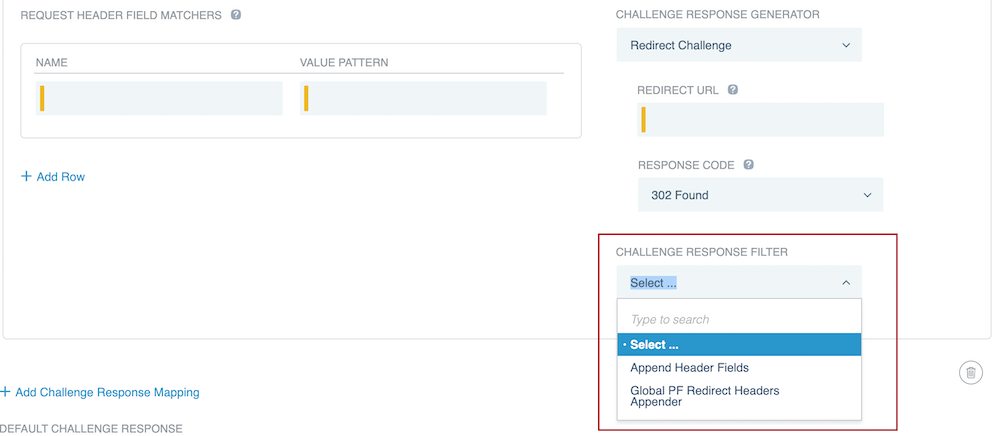
- Append Header Fields
-
Define HTTP response header fields PingAccess should add only when using this ACR.
-
Click Add Row, then enter a Name and Value in each row.
-
Repeat as necessary.
-
- Global PF Redirect Headers Appender
-
PingAccess adds the headers defined in the
pf.redirect.headersproperty in the<PA_HOME>/conf/run.propertiesfile. You can find more information in Security headers properties.
Result:
PingAccess appends the specified HTTP response header fields to the ACR.
-
(Optional) To add additional challenge response mappings, click Add Challenge Response Mapping, then repeat steps 4 - 6.
-
In the Default Challenge Response section, use steps 5 - 6 as a reference to create a default challenge response.
PingAccess uses this ACR if no others apply.
-
Click Save.
Next steps
If using one of the following ACR generators, you can configure PingAccess to let the authentication authority know why a user was redirected to it:
-
OIDC Authentication Request Redirect (issues the
vnd_pi_authn_feedbackfeedback key) -
Redirect Challenge (issues the
authnFeedbackfeedback key) -
Templated Challenge ACR generator (issues the
oidc.authnFeedbackfeedback key)
To do so:
-
In the PingAccess admin console, go to the Web Sessions page and expand the session you want to edit.
-
Click the Pencil icon, and then select the Provide Authentication Feedback checkbox under Advanced Settings.
You can find more information about the feedback PingAccess can provide in Configuring advanced web session settings.