Restoring customized messages to defaults
Remove current localization files to restore customized messages to defaults.
About this task
To restore customized messages to defaults:
Steps
-
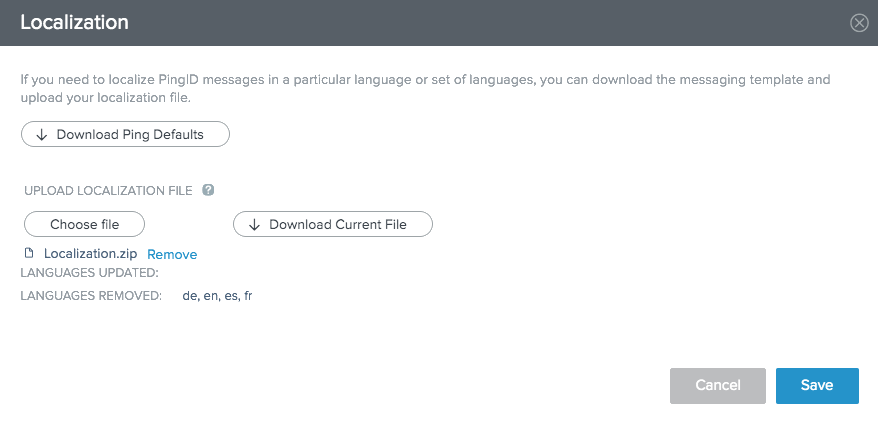
Click Remove to restore the message texts to the original default text for all locales.
Result:
A list of the Languages Removedis displayed.
- Languages Removed
-
A list of the language locales whose messages restore to the default messages with this update.
-
Click Save.
Result:
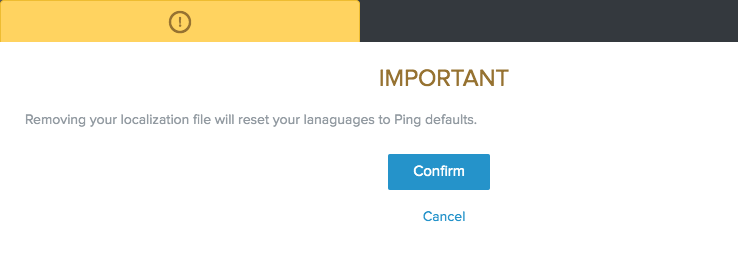
A confirmation dialog box warns that the removal of the customized localization file will restore the enrollment message text to the PingID default messages.
-
Click Confirm.
You can click Cancel to abandon the Remove operation.